• Skip to primary navigation
  • Skip to main content
  • Skip to primary sidebar

Yellow Bricks

by Duncan Epping

  • Home
  • Unexplored Territory Podcast
  • HA Deepdive
  • ESXTOP
  • Stickers/Shirts
  • Privacy Policy
  • About
  • Show Search
Hide Search

Various

Back to Basics: Using the vSphere 5.1 Web Client to create a Cluster object

Duncan Epping · Sep 12, 2012 ·

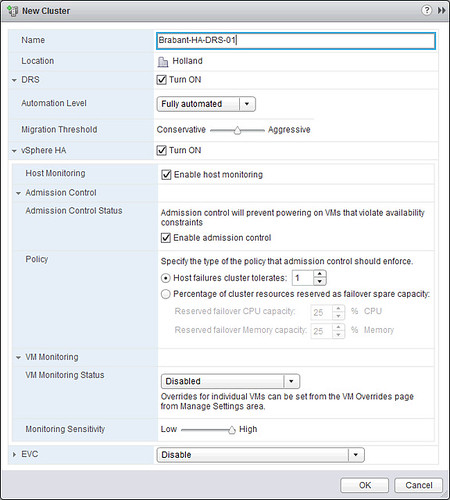
We’ve shown you how to create a vSphere Datacenter object, next we are going to create a cluster object. Again, this is fairly straight forward:

  • Click on “Create a Cluster” in your “Getting Started” tab.
  • Provide a name for your cluster and tick “Turn On” for both “DRS” and “vSphere HA”.
  • Click “OK”.

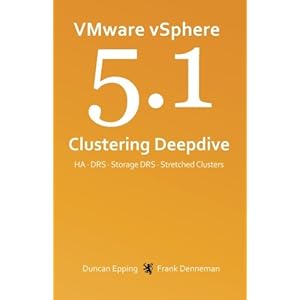
We will not tweak any settings around HA and DRS, the defaults should work for most, although I would prefer to use the “Percentage Based” admission control policy. For more details I would like to recommend reading the vSphere 5.1 Clustering Deepdive. [Read more…] about Back to Basics: Using the vSphere 5.1 Web Client to create a Cluster object

Back to Basics: Using the vSphere 5.1 Web Client to create a Datacenter object

Duncan Epping · Sep 11, 2012 ·

I am going to assume you already have vCenter 5.1 up and running, if you don’t read this article. Once again, this is a “Back to Basics” series, so don’t expect deepdive info here.

First point your browser to the vSphere Web Client. The vSphere Web Client can be found at: https://<IP address or DNS name of your vCenter instance>:9443/vsphere-client/. Now you will see is a question if it is okay to install the “VMware Remote Console Plugin” as shown in the following screenshot.

[Read more…] about Back to Basics: Using the vSphere 5.1 Web Client to create a Datacenter object

Back to Basics: Deploying the vCenter Server appliance

Duncan Epping · Sep 11, 2012 ·

I am going to do a couple of blogposts with “basic” workflows using the Web Client. Let me know if you find this useful or not… I will start with deploying the vCenter Server appliance and will assume you all know how to install ESXi. I prefer using the vCenter Server appliance in my lab as I can deploy it in minutes without the need to pre-install an OS etc.

The following steps outline the import process of the vCenter Server appliance.

  • Open the vSphere Client
  • Click “File – Deploy OVF Template”
  • Browse for the OVA file
  • Provide a name for the to be imported virtual machine, in our case “vCenter-01”
  • Select a datastore where this virtual machine should be stored
  • Use the default Disk Format
  • Provide the networking details like IP address, DNS, netmask etc.
  • Finish the wizard

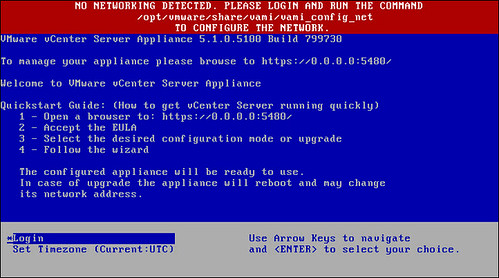
During the reinstallation of my lab environment I ran in to this issue a couple of times. In my environment when I deploy the vCenter Server Virtual Appliance (VCVA) I always got the following error on the remote console:

No Networking Detected

This seems to happen when I point my vSphere Client directly to a host and import the OVA. When you point your vSphere Client directly at a host you do not have the option to fill out the networking details in the OVF wizard. (At least I don’t…) When I point my vSphere Client to a vCenter Server and import the OVA I get the option to fill out the networking details.

no networking detected vcenter server

You can configure networking fairly simple. Just login to the console and type the following:

/opt/vmware/share/vami/vami_config_net

Make sure to fill out the following sections:

2) Default Gateway
3) Hostname
4) DNS
6) IP Address Allocation for eth0

After this has been done type 1 to exit the configuration tool. Now the VCVA should be configured. In some cases I noticed that the “default gateway” setting did not stick. I would suggest validating this on the network tab of your management console, which can be found here: https://<IP address or DNS name of your vCenter instance>:5480.

Now that you have successfully deployed the vCenter Server appliance you can start exploring the new vCenter Web Client: https://<IP address or DNS name of your vCenter instance>:9443/vsphere-client/

90% of all vSphere 5.1 Clustering Deepdive books sold are virtual

Duncan Epping · Sep 7, 2012 ·

I was just checking the sales numbers of the vSphere 5.1 Clustering Deepdive and 90% of all vSphere 5.1 Clustering Deepdive books sold on Amazon are e-book copies. Both Frank and I are heavy supporters of e-books and hence the reason we priced all of our books aggressively. Just some facts for the 5.1 book:

  • 100 pages extra content
  • Stretched Cluster section added and Storage DRS section fully rewritten
  • Over 3000 copies sold in under two weeks (wooohooooooooooo)
  • Over 200 paper copies sold at VMworld
  • Available on paper for just $ 24.95
  • Available as an ebook for just $ 7.49
    (location based pricing so may vary)
  • Yes this book contains all 5.0 info with call-outs to what has changed in 5.1!

While we are at it, I just enabled the vSphere 5.0 Clustering Deepdive book for the Kindle Lending Library. But for $ 4.99 you can’t really go wrong. The 4.1 HA/DRS Deepdive is still available for only $ 0.99, and there might just be another opportunity to pick it up for $ 0.- next week between the 11th and the 13th of September.

VMware vSphere 5.1 Clustering Deepdive available on Amazon now!

Duncan Epping · Aug 27, 2012 ·

Frank and I published the book this morning and Amazon was extremely fast with getting it up on the website. It is available now:

  • Paper copy – $ 24.95
  • Kindle version – $ 7.49

  • « Go to Previous Page
  • Page 1
  • Interim pages omitted …
  • Page 44
  • Page 45
  • Page 46
  • Page 47
  • Page 48
  • Interim pages omitted …
  • Page 127
  • Go to Next Page »

Primary Sidebar

About the Author

Duncan Epping is a Chief Technologist and Distinguished Engineering Architect at Broadcom. Besides writing on Yellow-Bricks, Duncan is the co-author of the vSAN Deep Dive and the vSphere Clustering Deep Dive book series. Duncan is also the host of the Unexplored Territory Podcast.

Follow Us

  • X
  • Spotify
  • RSS Feed
  • LinkedIn

Recommended Book(s)

Also visit!

For the Dutch-speaking audience, make sure to visit RunNerd.nl to follow my running adventure, read shoe/gear/race reviews, and more!

Do you like Hardcore-Punk music? Follow my Spotify Playlist!

Do you like 80s music? I got you covered!

Copyright Yellow-Bricks.com © 2026 · Log in