• Skip to primary navigation
  • Skip to main content
  • Skip to primary sidebar

Yellow Bricks

by Duncan Epping

  • Home
  • Unexplored Territory Podcast
  • HA Deepdive
  • ESXTOP
  • Stickers/Shirts
  • Privacy Policy
  • About
  • Show Search
Hide Search

BC-DR

Automating vCloud Director Resiliency whitepaper released

Duncan Epping · Mar 28, 2013 ·

About a year ago I wrote a whitepaper about vCloud Director resiliency, or better said I developed a disaster recovery solution for vCloud Director. This solution allows you to fail-over vCloud Director workloads between sites in the case of a failure. Immediately after it was published various projects started to implement this solution. As part of our internal project our PowerCLI guru’s Aidan Dalgleish and Alan Renouf started looking in to automating the solution. Those who read the initial case study probably have seen the manual steps required for a fail-over, those who haven’t read this white paper first…

The manual steps in the vCloud Director Resiliency whitepaper is exactly what Alan and Aidan addressed. So if you are interested in implementing this solution then it is useful to read this paper new white paper about Automating vCloud Director Resiliency as well. Nice work Alan and Aidan!

What is: Current Memory Failover Capacity?

Duncan Epping · Mar 14, 2013 ·

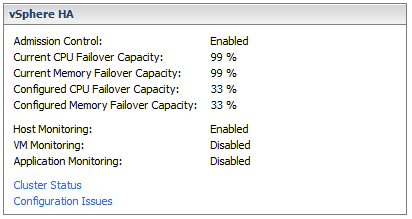
I have had this question many times by now, what is “Current Memory Failover Capacity” that is shown in the cluster summary when you have selected the “Percentage Based Admission Control Policy”? What is that percentage? 99% of what? And will it go down to 0%? Or will it go down to the percentage that you reserved? Well I figured it was time to put things to the test and no longer be guessing.

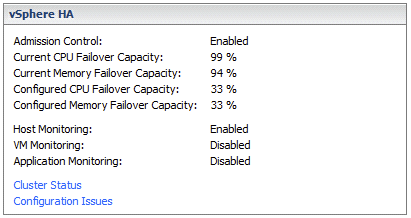
As shown in the screenshot above, I have selected 33% of memory to be reserved and currently have 99% of memory failover capacity. Lets power-on a bunch of virtual machines and see what happens. Below is the result shown in a screenshot, “current memory failover capacity” went down from 99% to 94%.

Also when I increase the reservation in a virtual machine I can see “Current Memory Failover Capacity” drop down even further. So it is not about “used” but about “unreserved / reserved” memory resources (including memory overhead), let that be absolutely clear! When will vCenter Server shout “Insufficient resources to satisfy configured failover level for vSphere HA”?

It shouldn’t be too difficult to figure that one out, just power-on new VMs until it says “stop it”. As you can see in the screenshot below. This happens when you reach the percentage you specified to reserve as “memory failover capacity”. In other words in my case I reserved 33%, when “Current Memory Failover Capacity” reaches 33% it doesn’t allow the VM to be powered on as this would violate the selected admission control policy.

I agree, this is kind of confusing…Ā  But I guess when you run out of resources it will become pretty clear very quickly šŸ˜‰


Using das.vmmemoryminmb with Percentage Based admission control

Duncan Epping · Mar 8, 2013 ·

I had question today about using the advanced settings to set a minimal amount of resources that HA would use to do the admission control math with. Many of us have used these advanced settingsĀ das.vmMemoryMinMB and das.vmCpuMinMHz to dictate the slot size when no reservations were set in an environment where the “host failures” admission control policy was used. However what many don’t appear to realize is that this will also work for the Percentage Based admission control policy.

If you want to avoid extreme overcommitment and want to specify a minimal amount of resources that HA should use to do the math with then even with the Percentage Based admission control policy you can use these settings. In the case where your VM reservation does not exceed the value specified, the value is used to do the math with. In other words if you set “das.vmMemoryMinMB” to 2048, it will use 2048 to do the math with unless the reservation set on the VM is higher.

I did a quick experiment in my test lab which I had just rebuilt. Without das.vmMemoryMinMB and two VMs running (with no reservation) I had 99% Mem Failover Capacity as shown in the screenshot below:

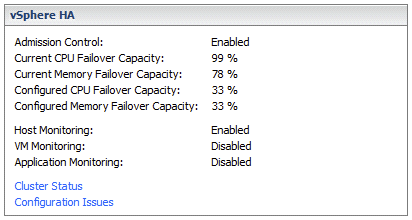
With das.vmMemoryMinMB set to 20480, and two VMs running, I had 78% Mem Failover Capacity as shown in the screenshot below:

I guess that proves that you can use das.vmMemoryMinMB and das.vmCpuMinMHz to influence Percentage Based admission control.

vCloud ecosystem announcements at VMware Partner Exchange

Duncan Epping · Feb 27, 2013 ·

It is has been a while since I wrote anything about vCloud Director itself… Primarily because I have been focused on other things within the vCloud Suite the last couple of months. This week various partners of VMware announced new products at VMware Partner Exchange 2013 (By the way, 2014 is scheduled to be held at the Moscone Center in San Francisco). I wanted to take a couple of minutes to provide a quick overview of what was announced. Personally I think it is great that we are starting to see more and more partners developing products and solutions to enhance the vCloud Director experience, especially in the Backup/Restore space this was more than welcome. So what was announced this week so far, in no particular order:

  • Zerto announced Virtual Replication 3.0
    In a blog article they explain what is new and improved in version 3.0. What I personally think is exciting is the fact that they support vCloud Director 5.1 and provide support and integration with vCloud Automation Center. On top of that the 3.0 product offers a self-service portal, I bet this is what a lot of the service providers were waiting for. It will make creating DR as a Service solution offering a lot simpler. There is a lot more added, so for all the details make sure you hit the links above.
  • Veeam announced version 7 of Veeam Backup and Replication with vCloud Director integration
    I guess the title says it all. With version 7 Veeam will support vCloud Director environment. Veeam will not only allow you to back up the VMs in a vCloud Director vApp but it will also allow you to back all vApp metadata and attributes. Of course restore functionality of vApps and VMs directly in to vCloud Director is included. Definitely something I know a lot people were waiting for.
  • Commvault announced Simpana version 10 with vCloud Director integration
    I have always been impressed with Commvault’s backup solution. It is simple and robust. So you can imagine I was happy when I found out they were working on integration Simpana with vCloud Director. I can’t find too much details about the level of integration to be honest, but there is a long list of new features in version 10 to be found here. Hopefully we will find out more soon. For more details it probably easier to read Viktor’s post then it is to read the Commvault website.
  • EMC announced VMAX Cloud Edition
    Not so much specifically targeted at vCloud users, but more at Service Providers who are looking to build a large fully self-service cloud environment. VMAX Cloud Edition is not a bigger or more scalable version of VMAX, no it is a fully self-service, multi-tiered and multi-tenancy capable VMAX. No point in me diving too deep, as Chad wrote an excellent article about VMAX Cloud Edition, make sure to read it.

If I find other announcements I will add them to this article throughout the week of VMware Partner Exchange

How to disable Datastore Heartbeating

Duncan Epping · Feb 25, 2013 ·

I have had this question multiple times now, how do I disable datastore heartbeating? Personally, I don’t know why you would ever want to do this… but as multiple people have asked I figured I would write it down. There is no “disable” button unfortunately, but there is a work-around. Below are the steps you need to take to disable datastore heartbeating.

vSphere Client:

  • Right Cluster object
  • Click “Edit Settings”
  • Click “Datastore Heartbeating”
  • Click “Select only from my preferred datastores”
  • Do not select any datastores

Web Client:

  • Click “Cluster object”
  • Click “Manage” tab
  • Click “vSphere HA”
  • Click “Edit button” on the right side
  • Click “Datastore Heartbeating”
  • Click “Select only from my preferred datastores”
  • Do not select any datastores

It is as simple as that… However, let me stress that this is not something that I would recommend doing. Only when you are troubleshooting and need it disabled for whatever reason, please make sure to enable it when you are done.

  • « Go to Previous Page
  • Page 1
  • Interim pages omitted …
  • Page 25
  • Page 26
  • Page 27
  • Page 28
  • Page 29
  • Interim pages omitted …
  • Page 63
  • Go to Next Page »

Primary Sidebar

About the Author

Duncan Epping is a Chief Technologist and Distinguished Engineering Architect at Broadcom. Besides writing on Yellow-Bricks, Duncan is the co-author of the vSAN Deep Dive and the vSphere Clustering Deep Dive book series. Duncan is also the host of the Unexplored Territory Podcast.

Follow Us

  • X
  • Spotify
  • RSS Feed
  • LinkedIn

Recommended Book(s)

Also visit!

For the Dutch-speaking audience, make sure to visit RunNerd.nl to follow my running adventure, read shoe/gear/race reviews, and more!

Do you like Hardcore-Punk music? Follow my Spotify Playlist!

Do you like 80s music? I got you covered!

Copyright Yellow-Bricks.com © 2026 Ā· Log in