• Skip to primary navigation
  • Skip to main content
  • Skip to primary sidebar

Yellow Bricks

by Duncan Epping

  • Home
  • Unexplored Territory Podcast
  • HA Deepdive
  • ESXTOP
  • Stickers/Shirts
  • Privacy Policy
  • About
  • Show Search
Hide Search

VMware

Workstation and Fusion Tech Previews!

Duncan Epping · Mar 14, 2012 ·

Both VMware Workstation and VMware Fusion just release tech preview versions. You can find them here:

  • VMware Workstation Tech Preview
  • VMware Fusion Tech Preview

What’s new for Workstation?

  • Installation and operation of VMware Workstation on Windows 8 and Windows Server 8
  • Installation and operation of Windows 8 consumer preview and Windows Server 8 in a virtual machine
  • Rendering and graphics correctness issues on all platforms and applications
  • Linux 3D desktop experience, particularly when using the Ubuntu 12.04 LTS Beta
  • Linux 3D application graphics correctness and performance
  • Stability in real-world scenarios including suspend/resume and display and device support
  • Nested Virtualization – running ESX and even trying Hyper-V* as a guest OS
  • VNC connection performance and stability

What’s new for Fusion?

  • Installation and operation of Windows 8 previews in a virtual machine
  • Running Mac OS X (Mountain Lion) in a virtual machine
  • Rendering and graphics correctness issues on all platforms and applications
  • Linux 3D desktop experience, particularly Ubuntu 12.04 LTS and recent OpenSUSE releases, which should work out-of-the-box
  • Linux 3D application graphics correctness and performance
  • Changing boot devices in Mac OS X virtual machines
  • Performance and stability of virtual machine power operations including suspend, resume, pause and restart
  • Stability in real-world scenarios including suspend/resume and display and device plugging on the Mac

The coolest new feature though of these two releases is what is now known as “WSX” and part of Workstation. This enables you to access your virtual machine in a regular browser… What? Yes indeed, access it in a regular browser window! How cool is that?! One of the Workstation developers wrote a nice blog article about it. I suggest reading it and providing him with direct feedback on use cases etc!

If I have some time on my hands next week I will definitely install the Tech Preview on my Linux desktop and enable WSX!
Resource pool shares don’t make sense with vCloud Director?

Duncan Epping · Feb 28, 2012 ·

I’ve had multiple discussions around Resource Pool level shares in vCloud Director over the last 2 years so I figured I would write an article about it. A lot easier to point people to the article instead, and it also allows me to gather feedback on this topic. If you feel I am completely off, please comment… I am going to quote a question which was raised recently.

One aspect of “noise neighbor” that seems to never be discussed within vCloud is the allocation of shares.  An organization with a single VM has better CPU resource access per VM than an organization that has 100 VMs.  The organization resource pools have equal number of shares, so each VM gets a smaller and smaller allocation of shares as the VM count in an organization virtual data center increases.

Before I explain the rationale behind the design decision around shares behavior in a vCloud environment it is important to understand some of the basics. An Org vDC is nothing more than a resource pool. The chosen “allocation model” for your Org vDC and the specified charateristics determine what your Resource Pool will look like. I wrote a fairly lengthy article about it a while back, if you don’t understand allocation models take a look at it.

When an Org vDC is created on a vSphere layer a resource pool is created and it will typically have the following characteristics. In this example I will use the “Allocation Pool” allocation model as it is the most commonly used:

Org vDC Characteristics –> Resource Pool Characteristics

  • Total amount of resources –> Limit set to Y
  • Percentage of resources guaranteed –> Reservation set to X

On top of that each resource pool has a fixed number of shares. The difference between the limit and the reservation is often referred to as the “bust space”. Typically each VM will also have a reservation set. If 80% of your memory resources are guaranteed this will result in a 80% reservation on memory on your VM as well. This means that when you start deploying new VMs in to that resource pool you will be able to create as many until the limit is reached. In other words:

10GHz/10GB allocation pool Org vDC with 80% guaranteed resources = Resource pool with a 10GHz/GB limit and an 8GHz/GB reservation. In this pool you can create as many VMs until you hit those limits. Resources are guaranteed up to 8GHz/8GB!

Now what about those shares? The statement is, will the Org vDC with 100 VMs have less resource access than the Org vDC with only 10 VMs? Lets use that previous example again:

10GHz/10GB allocation pool with 80% resource guaranteed. This results in a resource pool with a 10GHz/10GB limit and an 8GHz/GB reservation.

Two Org VDCs are deployed, and each have the exact same characteristics. In “Org VDC – 1” 10 VMs were provisioned, while in “Org VDC – 2” 100 VMs are provisioned. It should be pointed out that the provider charges these customers for their Org VDC. As both decided to have 8GHz/GB guaranteed that is what they will pay for and when they exceed that “guarantee” they will be charged for it on top of that. They are both capped at 10GHz/GB however.

If there is contention than shares come in to play. But when is that exactly? Well after the 8GHz/GB of resources has been used. So in that case Org VDCs  will be fighting over:

limit - reservation

In this scenario that is “10GHz/GB – 8GHz/GB = 2GHz/GB”. Is Org VDC 2 entitled to more resource access than Org VDC 1? No it is not. Let me repeat that, NO Org VDC 2 is not entitled to more resources.

Both Org VDC 1 and Org VDC 2 bought the exact same amount of resource. The only difference is that Org VDC 2 chose to deploy more VMs. Does that mean Org VDC 1’s VMs should receive less access to these resources just because they have less VMs? No they should not have less access! A provider cannot, in any shape or form, decide which Org VDC  is entitled to more resources in that burst space, especially not based on the amount of VMs deployed as this gives absolutely no indication of the importance of these workloads.Org VDC 2 should buy more resources to ensure their VMs get what they are demanding.

Org VDC 1 cannot suffer because Org VDC 2 decided to overcommit. Both are paying for an equal slice of the pie… and it is up to themselves to determine how to carve that slice up. If they notice their slice of the pie is not big enough, they should buy a bigger or an extra slice!

However, there is a a scenario where shares can cause a “problem”… If you use “Pay As You Go” and remove all “guarantees” (reservations) and have contention in that scenario each resource pool will get the same access to the resources. If you have resource pools (Org VDCs) with 500 VMs and resource pools with 10 VMs this could indeed lead to a problem for the larger resource pools. Keep in mind that there’s a reason these “guarantees” were introduced in the first place, and overcommitting to the point where resources are completely depleted is most definitely not a best practice.

Using F5 to balance load between your vCloud Director cells

Duncan Epping · Feb 16, 2012 ·

** I want to thank Christian Elsen and Clair Roberts for providing me with the content for this article **

A while back Clair contacted me and asked me if I was interested in getting the info to write an article about how to setup F5’s Big IP LTM VE to front a couple of vCloud Director cells. As you know I used to be part of the VMware Cloud Practice and was responsible for architecting vCloud environments in Europe. Although I did design an environment where F5 was used I never actually was part of the team who implemented it, as it is usually the Network/Security team who takes on this part. Clair was responsible for setting this up for the VMworld Labs environment and couldn’t find many details around this on the internet, hence the reason for this article.

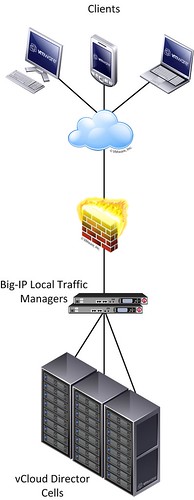
This post will therefore outline how to setup the below scenario of distributing user requests across multiple vCloud Director cells.

figure 1:

For this article we will assume that the basic setup of the F5 Big IP load balancers has already been completed. Besides the management and HA interface, one interface will reside on the external – end-user facing – part of the infrastructure and another interface on the internal – vCloud director facing – part of the infrastructure.

Configuring a F5 Big IP load balancer to front a web application usually requires a common set of configuration steps:

  • Creating a health monitor
  • Creating a member pool to distribute requests among
  • Creating the virtual server accessible by end-users

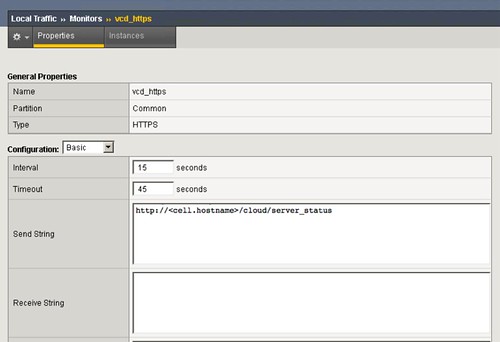
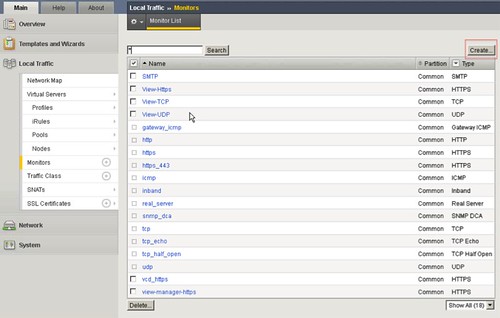
Let’s get started configuring the health monitor.  A monitor is used to “monitor” the health of the service. Go to the Local Traffic page, then go to monitors. Add a monitor for vCD_https. This is unique to vCD, we recommend to use the following string “http://<cell.hostname>/cloud/server_status“ (figure 3). Everything else can be set to default.

figure 2:

figure 3:

figure 4:

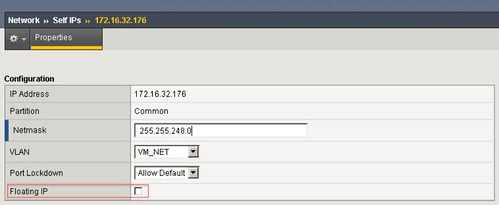
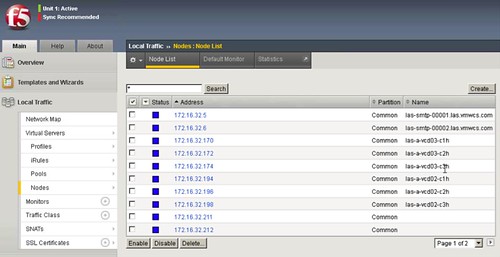
Next you will need to define the vCloud Director Cells as nodes of a member pool. The F5 Big IP will then distribute the load across these member pool nodes. You will need to type in the IP address, add the name and all the info. We suggest to use 3 vCloud Director Cells as a minimum. Go to Nodes and check your node list, depicted in figure 5. You should have three defined as shown in figure 5 and 6. You can create these by simply clicking “Create”  and defining the ip-address and the name of the vCD Cell

figure 5:

figure 6:

figure 7:

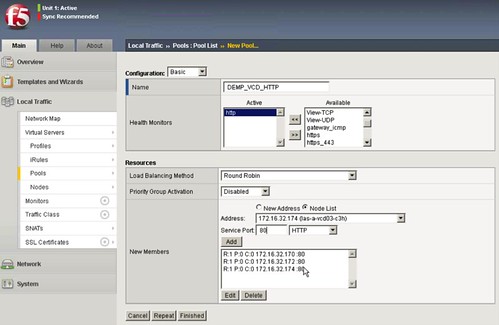
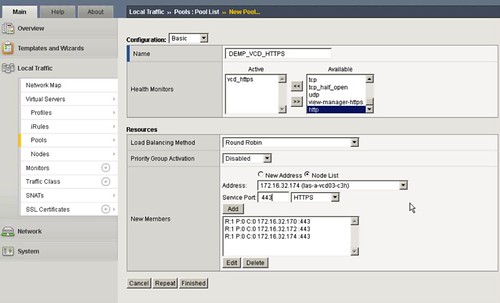
Now that you have defined the cells you will need to pool them. If vCloud Director needs to respond to both http and https (figure 8 and 9) you will need to configure two pools. Each pool will have the three cells added. We are going with most of the basics settings. (Pools menu) Don’t forget the Health Monitors.

figure 8:

figure 9:

Now validate if the health monitor has been able to successfully communicate with the vCD cells, you should see a green dot! The green dot means that the appliance can talk to the cells and that the health monitoring is fine and getting results on the query.

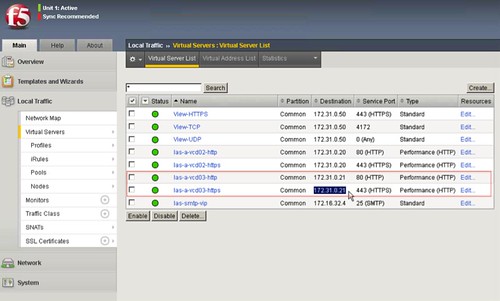
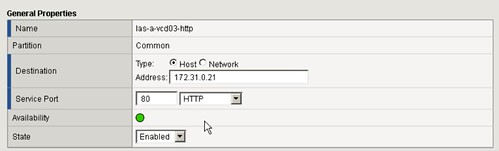
Last you will need to create a Virtual IP (VIP) per server. In this case two “virtual servers”  (as the F5 appliance names them, figure 10) will have the same IP but with different ports!, http and https. These can be simply created by clicking “Create” and then define the IP Address which will be used to access the cells (figure 11).

figure 10:

figure 11:

Repeat the above steps for the Consoleproxy IP address of your vCD setup.

Last you will need to specify these newly created VIPs in the vCD environment.

See Hany’s post on how to do the vCloud Director part of it… it is fairly straight forward. (I’ll give you a hint: Administration –> System Settings –> Public Addresses)


Setting the default affinity rule for Storage DRS

Duncan Epping · Feb 7, 2012 ·

On my blog article for yesterday “Rob M” commented that the default affinity rule for Storage DRS (SDRS), keep VM files together, did not make sense to him. One of the reasons this affinity rule is set is because customers indicated that from an operational perspective it would be easier if all files of a given VM (vmx / vmdk’s) would reside in the same folder. Especially troubleshooting was one of the main reasons, as this lowers complexity. I have to say that I fully agree with this, I’ve been in the situation where I needed to recover virtual machines and having them spread across multiple datastore really complicates things.

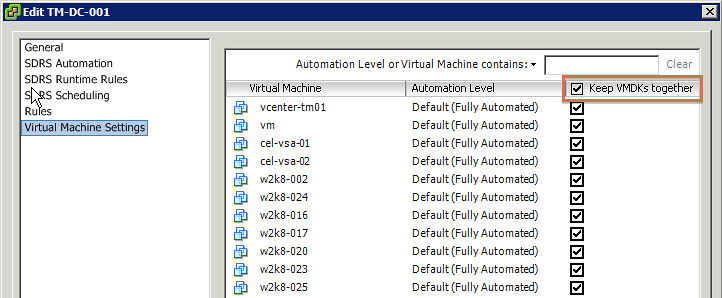
But, just like Rob, you might not agree with this and rather have SDRS handling balancing on a file per file basis. That is possible and we documented this procedure in our book. I was under the impression that I blogged this, but just noticed that somehow I never did. Here is how you change the affinity rule for the current provisioned VMs in a datastore cluster:

  1. Go to Datastores and Datastore Clusters
  2. Right click a datastore cluster and select “edit settings”
  3. Click “Virtual machine settings”
  4. Deselect “Keep VMDKs together”
    1. For virtual machines that need to stick together you can override the default by ticking the tick box next to the VM


Also check out this article by Frank about DRS/SDRS affinity rules, useful to know!

How cool and useful is Storage DRS?!

Duncan Epping · Feb 6, 2012 ·

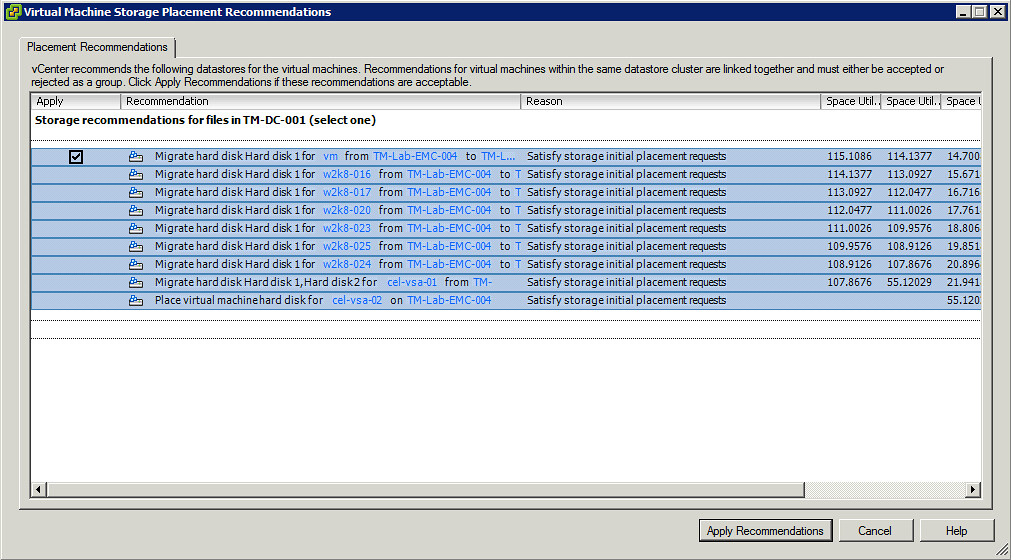
I was just playing around in my lab and created a whole bunch of VMs when I needed to deploy to large virtual machines. Both of them had 500GB disks. The first one deployed without a hassle, but the second one was impossible to deploy, well not impossible for Storage DRS. Just imagine you had to figure this out yourself! Frank wrote a great article about the logic behind this and there is no reason for me to repeat this, just head over to Frank’s blog if you want to know more..

And the actually migrations being spawned:

Yes, this is the true value of Storage DRS… initial placement recommendations!

  • « Go to Previous Page
  • Page 1
  • Interim pages omitted …
  • Page 78
  • Page 79
  • Page 80
  • Page 81
  • Page 82
  • Interim pages omitted …
  • Page 124
  • Go to Next Page »

Primary Sidebar

About the Author

Duncan Epping is a Chief Technologist and Distinguished Engineering Architect at Broadcom. Besides writing on Yellow-Bricks, Duncan is the co-author of the vSAN Deep Dive and the vSphere Clustering Deep Dive book series. Duncan is also the host of the Unexplored Territory Podcast.

Follow Us

  • X
  • Spotify
  • RSS Feed
  • LinkedIn

Recommended Book(s)

Also visit!

For the Dutch-speaking audience, make sure to visit RunNerd.nl to follow my running adventure, read shoe/gear/race reviews, and more!

Do you like Hardcore-Punk music? Follow my Spotify Playlist!

Do you like 80s music? I got you covered!

Copyright Yellow-Bricks.com © 2026 · Log in