• Skip to primary navigation
  • Skip to main content
  • Skip to primary sidebar

Yellow Bricks

by Duncan Epping

  • Home
  • Unexplored Territory Podcast
  • HA Deepdive
  • ESXTOP
  • Stickers/Shirts
  • Privacy Policy
  • About
  • Show Search
Hide Search

VMware

Update: VMware vCloud Director DR paper available in Kindle / iBooks format!

Duncan Epping · Mar 29, 2012 ·

I just received a note that the DR paper for vCloud Director is finally available in both epub / mobi format. So if you have an e-reader make sure to download this format as it will render a lot better then a generic PDF!

Description: vCloud Director disaster recovery can be achieved through various scenarios and configurations. This case study focuses on a single scenario as a simple explanation of the concept, which can then easily be adapted and applied to other scenarios. In this case study it is shown how vSphere 5.0, vCloud Director 1.5 and Site Recovery Manager 5.0 can be implemented to enable recoverability after a disaster.

Download:
http://www.vmware.com/files/pdf/techpaper/vcloud-director-infrastructure-resiliency.pdf
http://www.vmware.com/files/pdf/techpaper/vcloud-director-infrastructure-resiliency.epub
http://www.vmware.com/files/pdf/techpaper/vcloud-director-infrastructure-resiliency.mobi

Slight change in “restart” behavior for HA with vSphere 5.0 Update 1

Duncan Epping · Mar 27, 2012 ·

Although this is a corner case scenario I did wanted to discuss it to make sure people are aware of this change. Prior to vSphere 5.0 Update 1 a virtual machine would be restarted by HA when the master had detected that the state of the virtual machine had changed compared to the “protectedlist” file. In other words, a master would filter the VMs it thinks had failed before trying to restart any. Prior to Update 1, a master used the protection state it read from the protectedlist. If the master did not know the on-disk protection state for the VM, the master did not try to restart it. Keep in mind that only one master can open the protectedList file in exclusive mode.

In Update 1 this logic has slightly changed. HA can know retrieve the state information from either the protectionlist stored on the datastore or from vCenter Server. So now multiple masters could try to restart a VM. If one of those restarts would fail, for instance because a “partition” does not have sufficient resources, the master in the other partition might be able to restart it. Although these scenarios are highly unlikely, this behavior change was introduced as a safety net!


** Disclaimer: This article contains references to the words master and/or slave. I recognize these as exclusionary words. The words are used in this article for consistency because it’s currently the words that appear in the software, in the UI, and in the log files. When the software is updated to remove the words, this article will be updated to be in alignment. **

Stretched Clusters and Site Recovery Manager

Duncan Epping · Mar 23, 2012 ·

My colleague Ken Werneburg, also known as “@vmKen“, just published a new white paper. (Follow him if you aren’t yet!) This white paper talks about both SRM and Stretched Cluster solutions and explains the advantages and disadvantages of either. It provides a great overview in my opinion on when a stretched cluster should be implemented or when SRM makes more sense. Various goals and concepts are discussed and I think this is a must read for everyone exploring implementing a Stretched Clusters or SRM.

http://www.vmware.com/resources/techresources/10262

This paper is intended to clarify concepts involved with choosing solutions for vSphere site availability, and to help understand the use cases for availability solutions for the virtualized infrastructure. Specific guidance is given around the intended use of DR solutions like VMware vCenter Site Recovery Manager and contrasted with the intended use of geographically stretched clusters spanning multiple datacenters. While both solutions excel at their primary use case, their strengths lie in different areas which are explored within.

Playing around with WSX

Duncan Epping · Mar 20, 2012 ·

I wanted to test WSX, which is part of the Tech Preview of VMware Workstation for Linux. WSX allows you to see your virtual machine’s desktop in a browser window. I installed Workstation for Linux on my Ubuntu 12.04 desktop, the process is fairly straight forward. This is what I had to do to get WSX running:

  • Download Workstation bundle
  • Install Workstation
    sudo chmod 755 VMware-Workstation-Full-e.x.p-646643.x86_64.bundle
    sudo ./VMware-Workstation-Full-e.x.p-646643.x86_64.bundle
  • Open a terminal and do the following to install python 2.6
    sudo apt-get install python2.6
  • When python is installed you can run WSX Server
    /etc/init.d/vmware-wsx-server start
  • Now you can open a browser session to “localhost:8888” or “<ip-address-of-VM>:8888”
  • Login using your username/password
  • Click on “Home” and then on “Configuration”
  • Click “Add Server”
  • I added my vCenter Server 5.0 Update 1
  • Click the newly added server in the left pane
  • Enter your vCenter Server credentials and click login
  • Now you will see a list of VMs which you can access… (see screenshot below, this is what you will see in your browser window when you select a VM)

My next step was digging in to a lean install for WSX, but I should have known better… William Lam posted it around the time I started looking in to it. Thanks William :-). Again, I would recommend reading this article by the WSX developer. If you run in to any issues, you could always check /var/log/vmware/vmware-wsx-server-<pid>.log.

Blocking or allowing traffic when vShield App is down?

Duncan Epping · Mar 19, 2012 ·

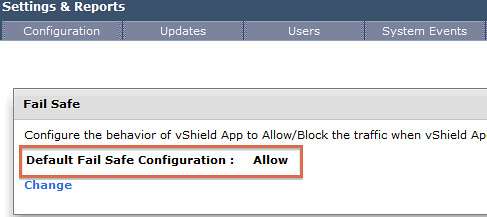
I did a couple of articles about vShield App a couple of months back. One of them explained how to get around a situation where vShield App would be down, as in this case of traffic would be blocked. Since then I spoke to multiple customers who asked me if it was possible to configure vShield App in such a way that traffic would be allowed when an issue occurred with vShield App. Although this goes against best practices and I would not recommend this, I can understand why some customers would want to do this. Luckily for them vShield App 5.0.1 now offers a setting that allows you to do this:

  1. Go to vShield within vCenter
  2. Click “Settings & Reports”
  3. Click the “vShield App” tab
  4. Click “Change” under “Failsafe”
  5. Click “Yes” when asked if you would like to change the setting

Together with the option to exclude VMs from being protected by vShield App and the automatic restart of vShield App appliances in the case of a failure it seems that my feature requests were fulfilled.


  • « Go to Previous Page
  • Page 1
  • Interim pages omitted …
  • Page 77
  • Page 78
  • Page 79
  • Page 80
  • Page 81
  • Interim pages omitted …
  • Page 124
  • Go to Next Page »

Primary Sidebar

About the Author

Duncan Epping is a Chief Technologist and Distinguished Engineering Architect at Broadcom. Besides writing on Yellow-Bricks, Duncan is the co-author of the vSAN Deep Dive and the vSphere Clustering Deep Dive book series. Duncan is also the host of the Unexplored Territory Podcast.

Follow Us

  • X
  • Spotify
  • RSS Feed
  • LinkedIn

Recommended Book(s)

Also visit!

For the Dutch-speaking audience, make sure to visit RunNerd.nl to follow my running adventure, read shoe/gear/race reviews, and more!

Do you like Hardcore-Punk music? Follow my Spotify Playlist!

Do you like 80s music? I got you covered!

Copyright Yellow-Bricks.com © 2026 · Log in