• Skip to primary navigation
  • Skip to main content
  • Skip to primary sidebar

Yellow Bricks

by Duncan Epping

  • Home
  • Unexplored Territory Podcast
  • HA Deepdive
  • ESXTOP
  • Stickers/Shirts
  • Privacy Policy
  • About
  • Show Search
Hide Search

networking

Good read: VMware vSphere 4.1 Networking Performance

Duncan Epping · May 5, 2011 ·

I just noticed that a new whitepaper was released and as the scoopmeister Eric Sloof hasn’t blogged about it yet I figured, he’s probably sleeping, I would blog about it. I just read the paper and it is a very good read and interesting to know that a single VM can actually saturate the bandwidth of a 10Gbps NIC. Also note the VM to Native comparisons!

Source: VMware vSphere 4.1 Networking Performance

Download:
http://www.vmware.com/files/pdf/techpaper/Performance-Networking-vSphere4-1-WP.pdf

Description

This paper demonstrates that vSphere 4.1 is capable of meeting the performance demands of today’s thoughput-intensive networking applications. The paper presents the results of experiments that used standard benchmarks to measure the networking performance of different operating systems in various configurations. These experiments examine the performance of VMs by looking at VMs that are communicating with external hosts and are communicating among each other, demonstrate how varying the number of vCPUs and vNICs per VM influences performance, and show how the scalability results of overcommitting the number of physical cores on a system by adding four 1-vCPU VMs for every core.
Distributed vSwitches, go Hybrid or go Distributed?

Duncan Epping · Apr 21, 2011 ·

Yesterday I was answering some question in the VMTN Forums when I noticed that someone referred to my article about Hybrid vs full Distributed vSwitch Architectures. This article is almost two years old and definitely in desperate need of a revision. Back in 2009 when Distributed vSwitches where just introduced my conclusion in this discussion was:

If vCenter fails there’s no way to manage your vDS. For me personally this is the main reason why I would most like not recommend running your Service Console/VMkernel portgroups on a dvSwitch. In other words: Hybrid is the way to go…

As with many things my conclusion / opinion was based on my experience with the Distributed vSwitch and I guess you could say it was based on how comfortable I was with the Distributed vSwitch and the hardware that we used at that point in time. Since then much has changed and as such it is time to revise my conclusion.

In many environments today Converged Networks are a reality which basically means less physical NICs but more bandwidth. Less physical NICs results in having less options with regards to the way you architect your environment. Do you really need you management network on a vSwitch? What is the impact of not having it on a vSwitch? I guess it all comes down to what kind of risks you are willing to take, but also how much risk actually is involved. I started rethinking this strategy and came to the conclusion that actually the amount of risk you are taking isn’t as big as we  once all thought it was.

What is the actual issue when running vCenter virtually connected to a Distributed Switch? I can hear many of you repeat the quote from above “there’s no way to manage your vDS”, but think about it for a second… Do you really need to manage your vDS in a scenario where vCenter is down? And if so, wouldn’t you normally want to get your Management Platform up and running first before you start making changes? I know I would. But what if you really really need to make changes to your management network and vCenter isn’t available? (That would be a major corner case scenario by it self but anyway…) Couldn’t you just remove 1 NIC port from your dvSwitch and temporarily create a vSwitch with your Management Network? Yes you can! So what is the impact of that?

I guess it all comes down to what you are comfortable with and a proper operational procedure! But why? Why not just stick to Hybrid? I guess you could, but than again why not benefit from what dvSwitches have to offer? Especially in a converged network environment being able to use dvSwitches will make your life a bit easier from an operational perspective. On top of that you will have that great dvSwitch only Load Based Teaming to your disposal, load balancing without the need to resort to IP-Hash. I guess my conclusion is: Go Distributed… There is no need to be afraid if you understand the impact and risks and mitigate these with solid operational procedures.

ESXi Management Network Resiliency

Duncan Epping · Mar 22, 2011 ·

When we wrote the HA/DRS book both Frank and I were still very much in an “ESX Classic” mindset. Over the last weeks I had questions around resilient network configurations for ESXi. I referred people back to the book but the comments that I got were that the examples were very much ESX Classic instead of ESXi. Now in my opinion the configuration looks very much the same except that “Service Console” will need to be replace with “Management Network” but I figured I might as well just document my preference for a resilient ESXi Management Network as I needed to do it anyway as part of an update of the book to a future version of vSphere.

In our book we give two examples, one of which is the simple version with a single “Service Console Network” and one with a dual “Service Console Network” configuration. Now I figured I could update both but I’d rather do just one and explain why I prefer to use this one. The one that I have picked is the single “Management Network” setup. The main reason for it being is the reduced complexity that it brings and on top of that multiple Management Networks will make sense in an environment where you have many NICs and Switches but with all these converged architectures flying around it doesn’t really make sense anymore to have 4 virtual links when you only have 2 physical. Yes I understand that something can happen to a subnet as well, but if that is the case you have far bigger problems than your HA heartbeat network failing. Another thing to keep in mind is that you can also mitigate some of the risks of running into a false positive by selected a different “Isolation Response”, typically we see these set to “Leave Powered On”.

The below is an excerpt from the book.

Although there are many configurations possible and supported we recommend a simple but highly resilient configuration. We have included the vMotion (VMkernel) network in our example as combining the Management Network and the vMotion network on a single vSwitch is the most commonly used configuration and an industry accepted best practice.

Requirements:

  • 2 physical NICs
  • VLAN trunking

Recommended:

  • 2 physical switches

The vSwitch should be configured as follows:

  • vSwitch0: 2 Physical NICs (vmnic0 and vmnic1)
    • When multiple physical PCI devices are available make sure to use a port of each to increase resiliency
  • 2 Portgroups (Management Network and vMotion VMkernel)
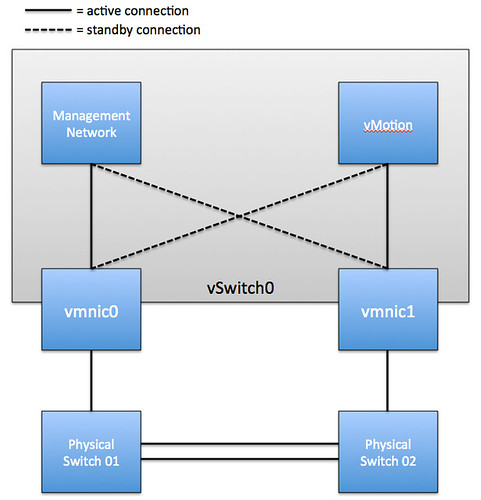
  • Management Network active on vmnic0 and standby on vmnic1
  • vMotion VMkernel active on vmnic1 and standby on vmnic0
  • Failback set to No

Each portgroup has a VLAN ID assigned and runs dedicated on its own physical NIC; only in the case of a failure it is switched over to the standby NIC. We highly recommend setting failback to “No” to avoid chances of a false positive which can occur when a physical switch routes no traffic during boot but the ports are reported as “up”. (NIC Teaming Tab)

Pros: Only 2 NICs in total are needed for the Management Network and vMotion VMkernel, especially useful in Blade environments. This setup is also less complex.

Cons: Just a single active path for heartbeats.

The following diagram depicts the active/standby scenario:

To increase resiliency we also recommend implementing the following Advanced Settings where the ip-address for “das.isolationaddress” should be a “pingable” device which is reachable by the ESXi hosts, preferably on the same subnet with as little hops as possible:

 das.isolationaddress = <ip-address>
 das.failuredetectiontime = 20000

vCD – Networking part 3 – Use case 2

Duncan Epping · Oct 6, 2010 ·

Part 1 explained the basic concepts of networking within vCD(VMware vCloud Director), Part 2 focussed on Network Pools and Part 3 focussed on a use case which was a vApp directly connected to an External routed Org Network. It took me a while to develop part 3 and I wasn’t sure if I could find the time to do another use case or not. I received a dozen requests for another use case so I decided to free up some time to help you guys out. Please read the other parts of this series before you start reading this part. Okay, let’s dive into those trenches.

vApp fenced to an Internal Org Network

Use case:

  1. Environments where vApps are copied and redeployed for  test and development purposes. There is no connection back to the customers datacenter to avoid any interference that could be cause by these test environments.

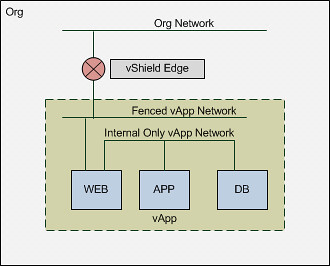
We will start with the basics. The flow of the network in this case will be:

vmware vCD cloud director networking logical diagram

Although only two different type of networks are used, this could of course result in multiple layers if and when for instance multiple vApp Networks are created. For the purpose of this exercise we will create a vApp with 3 VMs including two different networks. You could say you classical three-tier application.

  1. WEB = Web Frontend
  2. APP =Application Server
  3. DB = Databaser Server

As you can imagine we don’t need users accessing the Application or Database Server so these two will be on a separate network segment. The Web Frontend will need to be accessible though and it will need to be able to access both the Application and the Database Server. Logically speaking that will look as follows:

vmware vCD cloud director networking logical 3-tier app diagram

Please note that the Org Network doesn’t connect back to anything! This means that in order for you to connect to your WEB vm you will need to go through the vCD Portal! Of course you could still test if your web services are working by simply deploying a desktop VM with windows XP in the same Org. Now I can hear some of you think why not just a NAT-Routed Org Network, well that is something that would work as well, but than it would be really similar to what use case 1 provided and this is purely for educational purposes.

Creating the Networks

The first step of course is to ensure you have a Network Pool. If you haven’t already created, you can use Part 2 of this series as a reference.  I am assuming here you already have a network pool and will go straight to the Org Network, which is option 7 on the home screen.

vmware vCD cloud director networking screenshot

Now you will need to select the Org that this Network will belong to and then you can decide what type of network you will create. You can do this in either “Typical” or “Advanced” mode. Both will give you the same options but it is named slightly different and Advanced will only allow you to create 1 network at a time where with Typical you can create multiple. As we have used Typical in the previous use case we will use Advanced this time. We are going to create a fully isolated Org Network so we will select “Internal Organization Network”.

vmware vCD cloud director networking screenshot

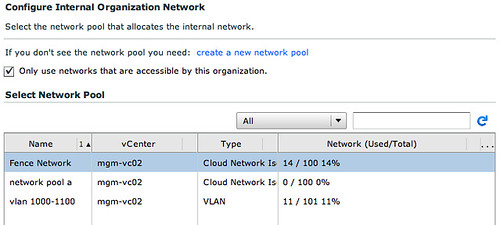
Next up we will need to select a network pool. Now you might ask yourself why we will need one when the Org Network is completely isolated? Well we will need cross-host communication when vApp/VMs need to communicate with each other and don’t reside on the same host. Although it sounds very logical, it is often overseen that this is what a network pool does. It enables cross-host communication. In this case we will select the vCloud Network Isolation Network Pool.

vmware vCD cloud director networking screenshot

Now we will need to specify the IP details for this Org Network. These IP addresses will be consumed by the VMs that are configured to use the “static pool”, in our case that will be the vShield Edge device that is deployed as part of this Isolated Network (deployed for DHCP services etc) and the WEB virtual machine.

vmware vCD cloud director networking screenshot

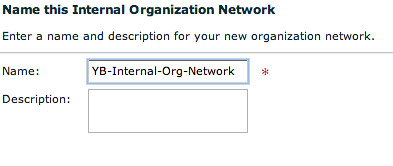
Of course we will need to give it a name. I tend to use the name of the Org and the type of Org Network I created.

vmware vCD cloud director networking screenshot

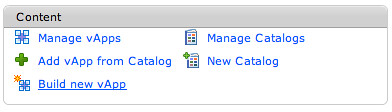
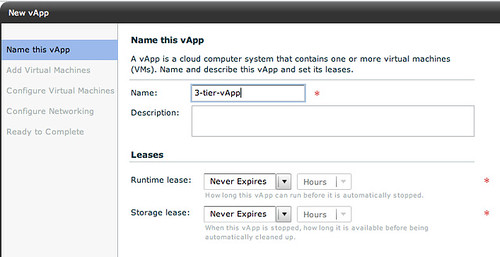
Now we will need to build a vApp. As stated this vApp will contain multiple VMs.

vmware vCD cloud director networking screenshot

We will give it a name.

vmware vCD cloud director networking screenshot

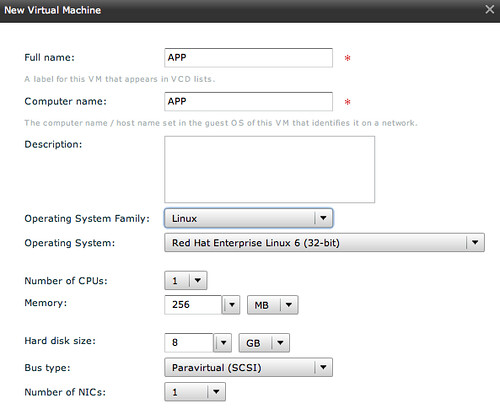
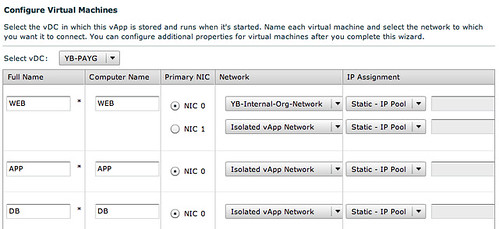
And we will start adding multiple VMs to it. The WEB virtual machine will have 2 NICs as it will need to connect to a device outside of vApp and to two VMs inside of the vApp.

vmware vCD cloud director networking screenshot

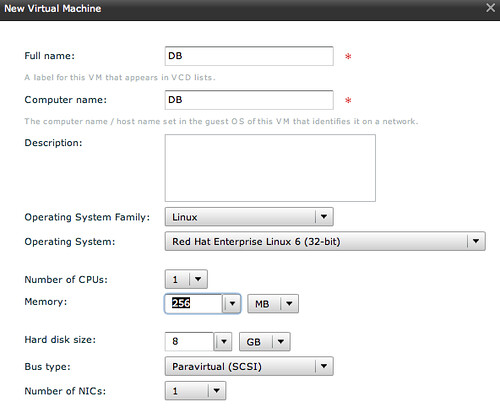
The following two VMs “APP” and “DB” will be configured with a single NIC as they will only need to connect to each other, all contained within the vApp.

vmware vCD cloud director networking screenshot

vmware vCD cloud director networking screenshot

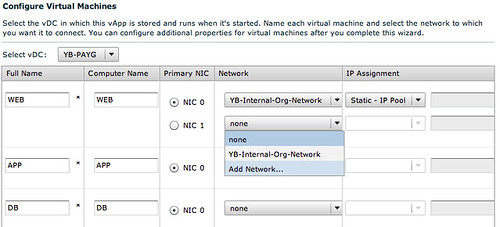
Now this is the part where we will assign specific network segments to the NICs. For WEB we will connect “NIC 0” to the Internal Org Network and NIC 1 will need to be connected to a vApp Network.

vmware vCD cloud director networking screenshot

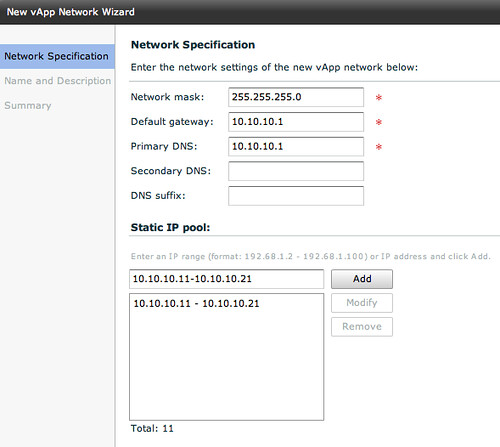
This vApp Network however will need to be created first. Please note that this is a vApp network, so only available to those VMs which are part of this vApp! Again we will need to specify IP details for the VMs to consume.

vmware vCD cloud director networking screenshot

When we have done this and have given the vApp network a name we can connect the remaining VMs to the same network.

vmware vCD cloud director networking screenshot

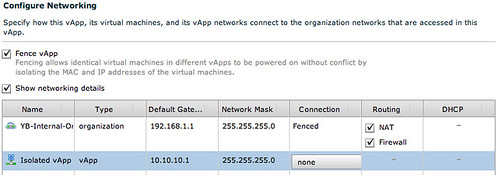
Now in order to have multiple copies of the same vApp running within the Org we will select “Fenced” mode for the vApp which basically will deploy a vShield Edge device.

vmware vCD cloud director networking screenshot

I guess this diagram that vCD creates makes it a bit more clear what your vApp connectivity will look like:

vmware vCD cloud director networking screenshot

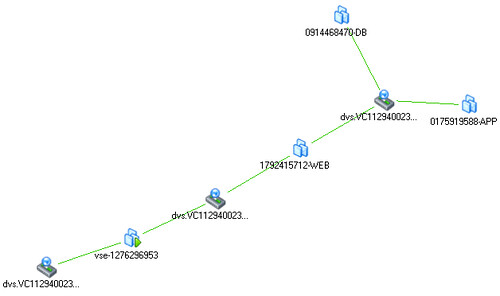
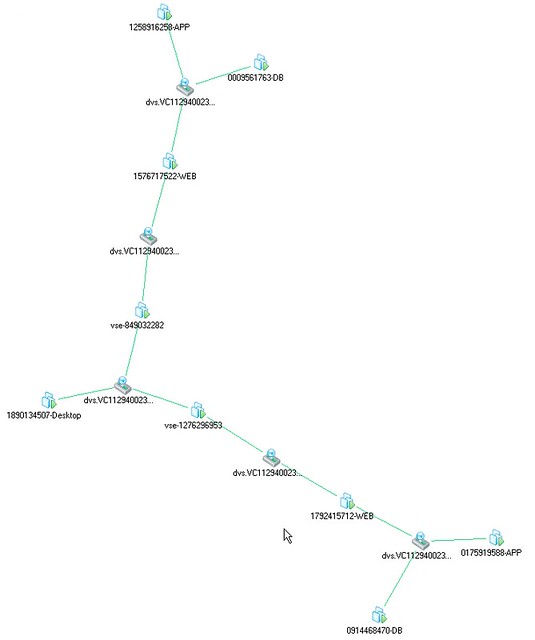
And if that isn’t enough you can also check the Maps functionality that vCenter offers. This will give you a great view of how this vApp is connected within vSphere.

vmware vCD cloud director networking screenshot

So what about that desktop? And what about if we have two copies of that vApp running? Well this is what the map would look like if when we have created these. On the middle left you will see the desktop that is used for testing the WEB VMs. Both WEB virtual machines can be accessed through the VSE device, which of course means that you will need to setup NAT, but we will leave an in-depth explanation around that for the next article.

vmware vCD cloud director networking screenshot

Summary

vCloud Director Network is really powerful, but as shown by this use case it can get very complex rather fast especially when you are using multiple layers. In this example we kept it simple by using an isolated network, an External NAT/Routed Org Network would have added another layer. Features like vCenter Maps will however make it easier to understand what has been created on the vSphere layer to enable these layers of networking, make sure you take advantage of functionality like this when exploring vCD!

vCD – Networking part 3 – Use case

Duncan Epping · Sep 15, 2010 ·

Part 1 explained the basic concepts of networking within vCD(VMware vCloud Director) and Part 2 focussed on Network Pools. In the final and 3rd part we will focus on a use case and what happens on the vSphere layer with these different types of vCD networks. I will cover just a single use case for now, but this one basically covers all areas! Please read both part 1 and part 2 of this series before you start reading this part. Lets just start diving into a scenario.

vApp directly connected to an External routed Org Network

Use cases:

  1. Internet connection for the VMs in your virtual datacenter. Firewall can be enabled to block all incoming traffic.
  2. Publicly publishing a single “service” externally by enabling NAT on the vShield Edge device. In this case all incoming traffic will be blocked and only a single IP will be translated and route back to that particular VM.

We will start with the basics. The flow of the network in this case will be:

As explained in Part 1 the External Network is backed by a Portgroup. This portgroup can be a regular portgroup on a vSwitch, or one on a dvSwitch or even the Nexus 1Kv. We will start by creating a dvPortgroup.

External Network

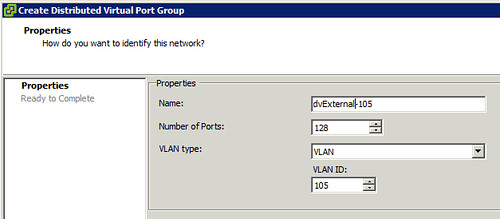
Lets first create a dvPortgroup within vCenter. This is the dvPortgroup that the External Network will use. We will give it a VLAN ID for layer 2 isolation. In this case we use VLAN ID 105 and label the dvPortgroup as “dvExternal-105”.

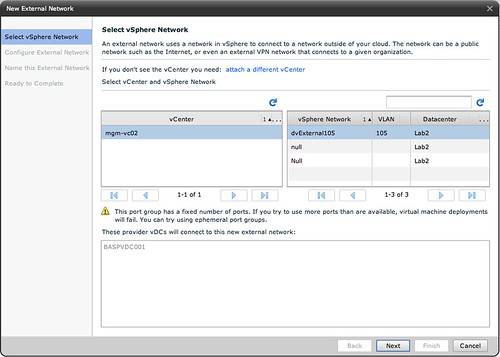
Now we will need to create a network within vCD that enables your vApp and Organization to use this dvPortgroup we just created. We do this by creating an “External Network”. (option 3 on your home screen in vCD.) First we will need to select the correct dvPortgroup we created:

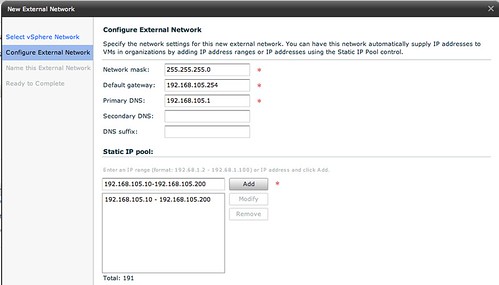
Next thing to do is specify the associated IP Range, Gateway, Netmask etc. The IP-Range is used for any VMs that are directly connected to this External Network and for the vShield Edge devices. But we will show that later in this article.

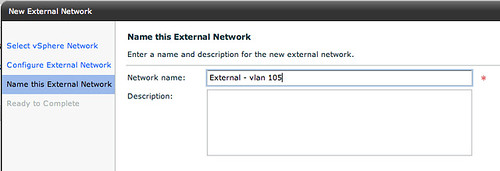
Next up is is giving the External Network a name, we will keep it simple and name it “External – vlan 105”:

That is it for the External Network part. Now lets create an Org Network.

Org Network

We will create an External Org Network which is routed to an External Network. (On your home screen go to “7 Add another network to an organization”.) Select the Organization it needs to connect to first and then the real magic starts.

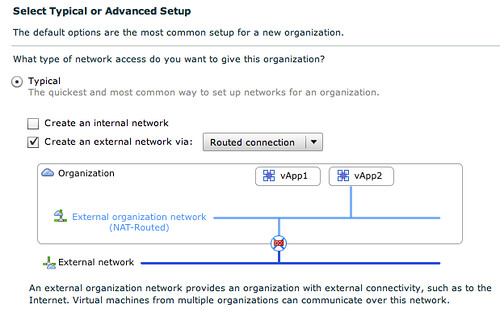
We will use the typical setup. We have unticked “Create an internal network”, and we have selected “Routed connection”:

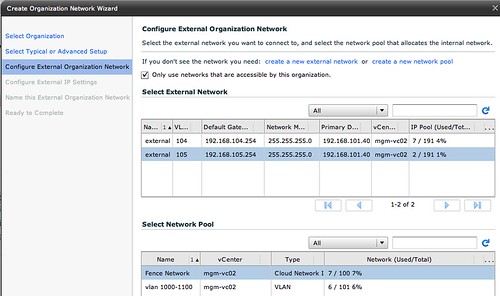
The cool thing about the network section of vCD is that is shows you what it is building. In this case you can see that the vApp is directly connected to the External Org Network (NAT-Routed) which in its turn is connected to the External Network through a vShield Edge device. The next step is to select the correct External Network that this External Org Network connects to:

Please note that we also have selected a network pool, in this case the vCloud Network Isolated Pool! Next we will need to specify the associated IP Range, Gateway, Netmask for the Org Network. Now you might think that we have already done this but that was for the External Network! The pool of addresses will be used for any device that sits within the Org Network boundaries.

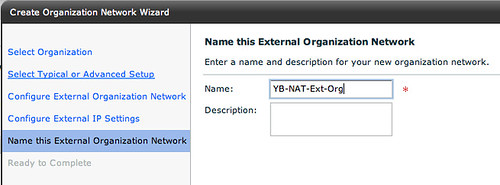
Of course the final step is giving this Org Network a name:

vApp layer

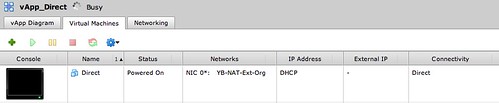
As this post is about networking I will skip the creation of the vApp itself but will show you what we have done in a single screenshot. As this screenshot below shows the VM is directly connected to the Org Network labeled “YB-NAT-Ext-Org”:

Connecting the dots

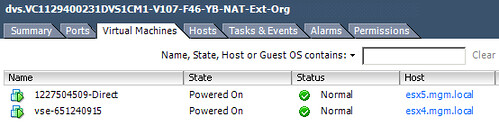
Now that we have shown you how this is created within vCD you would probably want to know what this results in on a vSphere layer. When we created the Org Network a dvPortgroup was automatically created. This automatic creating was enabled by the use of a network pool. The network pool in this case was a vCloud Network Isolation backed network pool.

The screenshot below shows the dvPortgroup that represents the Org Network. The VM that was created called “Direct”, however vCD uses IDs to uniquely identify VMs and as such it is labeled as “1227504509-Direct” within vSphere. Please note the “F46” in the name of the dvPortgroup. This means that it is using a fenced network with ID 46. (fenced –> vCloud Network Isolation) This Network Pool happens to use VLAN 107 (V107), which was defined when the pool was created and is also shown in the screenshot below.

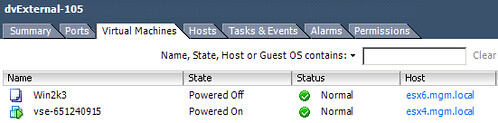
In order for VM “1227504509-Direct” to communicate to the outside world it will need a connection to the External Network. As shown and described above VMware vCloud Director uses vShield Edge to do this. In other words, the vShield Edge device will have multiple NICs. This is shown in the following screenshot. The External Network portgroup contains a vShield Edge device (vse-651240915) which is the same device as shown in the screenshot above.

This is the vShield Edge device that enables the VM “1227504509-Direct” to communicate with the outside world, as it is connected to both portgroups.

Traffic Flow

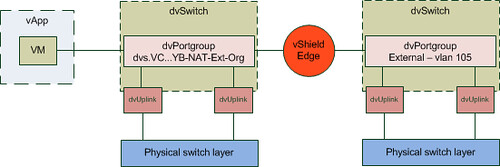
As it took me a while to understand how this worked, I have created a couple of diagrams. The first diagram shows all components we created and how they are linked:

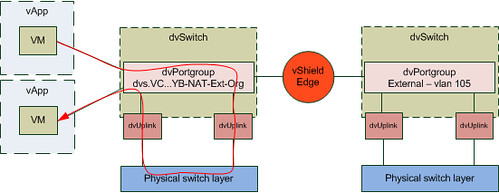
I guess this is still not saying much. Lets add the flow of the traffic to this diagram by extending it with another vApp. What if you would have two vApps connected to the same Org Network and both VMs of these vApps are on a different host in your cluster and the first VM wants to connect to the second VM? What does the flow of traffic look like? As you can see in the diagram below the VM of the first vApp is connected to the same dvPortgroup. However as both vApps reside on a different host the traffic will need to go to the physical switch layer first:

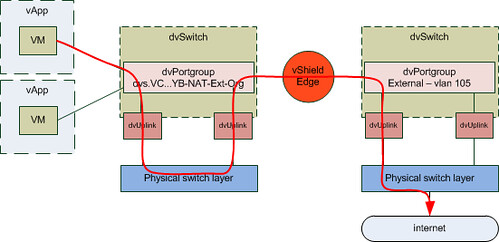
The other scenario I wanted to show is where a vApp wants to connect to a device on the outside world. In this case I labeled it as “internet” but it could be anything. Also I have assumed that the vShield Edge device resides on a different host than the VM that wants to connect to the internet.

It took me a while to write this “use case”. I hope this makes vCD networking slightly better to understand… but again the key here is to play around with it. If there are any questions please don’t hesitate to reach out to me! If I can find the time I will write another “use case” or maybe I will ask some of the other guys in my team to do something similar.

  • « Go to Previous Page
  • Page 1
  • Page 2
  • Page 3
  • Page 4
  • Page 5
  • Page 6
  • Interim pages omitted …
  • Page 9
  • Go to Next Page »

Primary Sidebar

About the Author

Duncan Epping is a Chief Technologist and Distinguished Engineering Architect at Broadcom. Besides writing on Yellow-Bricks, Duncan is the co-author of the vSAN Deep Dive and the vSphere Clustering Deep Dive book series. Duncan is also the host of the Unexplored Territory Podcast.

Follow Us

  • X
  • Spotify
  • RSS Feed
  • LinkedIn

Recommended Book(s)

Also visit!

For the Dutch-speaking audience, make sure to visit RunNerd.nl to follow my running adventure, read shoe/gear/race reviews, and more!

Do you like Hardcore-Punk music? Follow my Spotify Playlist!

Do you like 80s music? I got you covered!

Copyright Yellow-Bricks.com © 2026 · Log in