• Skip to primary navigation
  • Skip to main content
  • Skip to primary sidebar

Yellow Bricks

by Duncan Epping

  • Home
  • Unexplored Territory Podcast
  • HA Deepdive
  • ESXTOP
  • Stickers/Shirts
  • Privacy Policy
  • About
  • Show Search
Hide Search

networking

Book: Networking for VMware Administrators

Duncan Epping · Mar 25, 2014 ·

Fellow blogger Chris Wahl just announced the availability of an awesome book titled Networking for VMware Administrators he authored with Steve Pantol. The book is published via VMware Press and is a must read if you ask me. I am going to order it for sure as it is an area that I can definitely brush up on. The book is 368 pages and covers everything from the networking models to switching, but of course heavily focuses on the virtual side and dives in to the standard vSwitch, distributed switch and the Cisco Nexus 1000v!

Knowing Chris this book is going to be worth it, his blog material has always been excellent and I expect nothing less. Congrats Chris and Steve, awesome work and looking forward to reading it.
You can pick the book up here: paper | kindle

ESXi “Management traffic” tickbox, what does it do?

Duncan Epping · Aug 14, 2013 ·

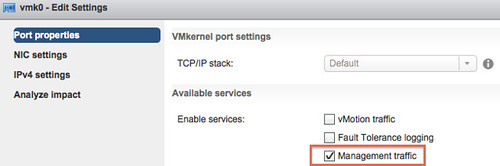
I have seen this popping up various times over the last few years. That little tickbox on your VMkernel NIC that says “Management traffic” (aka management network) what is it for? What if I untick it, will SSH to that VMkernel still work? Will the HA heartbeat still work? Can I still ping the VMkernel NIC? Those are all questions I have had in the past, and I can understand why… I would say that the term “Management traffic” is really really poorly chosen, but why?

The feature described as “Management traffic” does nothing more than enabling that VMkernel NIC for HA heartbeat traffic. Yes that is it. Even if you disable this feature, management traffic, you can still use the VMkernel’s associated IP address for adding it to vCenter Server. You can still SSH that VMkernel associated IP address if you have SSH enabled. So keep that in mind.

Yes I fully agree, very confusing but there you have it: the “management traffic” enables the HA heartbeat network, nothing more and nothing less.

Testing your infrastructure!

Duncan Epping · Jul 16, 2013 ·

Last week I was helping someone on the VMTN community forums. They were hitting what appeared to be strange HA behavior. After some standard questions this person told me that all VMs were powered down after a network outage. Sounds like a familiar problem? Yes I can hear most of you think: Isolation response set to “power off” and no proper network redundancy?

Well yes and no. They had the isolation response indeed configured to “power off” all VMs when the host is isolated. They did however have proper network redundancy, so how on earth did this happen? With 2 physical NICs and 2 physical switches and only 1 being impacted this should not have happened right?!?

Wrong! In this case the fail-over from a “vmkernel” perspective worked fine. The first “path” went down, so the second was used for this management vmkernel. All VMs were up and running until this point, and they remained running until… network connection was restored and the vmnic returned to the original physical NIC. Meaning that the mac address that showed up on port 1 popped up on port 2 and then went back to 1 again. The switch was not impressed and went through the spanning tree process and traffic was blocked instantly as a result of it. Now when traffic is blocked bad things can happen, especially when you configure HA to “power off” VMs. Basically what caused this issue to happen was the fact the spanning tree was not set to the recommended “port fast”, more details here.

I knew instantly that this was the reason for this problem, not because I know stuff about HA but because I had seen this many times in the past while testing environments I configured and designed. Not just testing after implementing a new infrastructure, but also testing after making changes to an infrastructure or introducing a new version / feature. I guess this kind of comes back to the “disaster” scenario as well, test it if you want to know if it works as expected. Just a simple example, I want to introduce QoS for my vMotion network and make changes to my physical network. Now what? How do I test these changes? How many times do I run through my test scenarios? What kind of “problems” do I introduce during my tests?

So I guess by now some might wonder why on earth I brought this up… well the problem above could have been prevented by simply testing the infrastructure when implemented and after changes have been introduced, and maybe even on a regular basis. If HA / Networking was tested properly, those VMs would not have been powered off…

VXLAN requirements

Duncan Epping · Oct 4, 2012 ·

When I was writing my “Configuring VXLAN” post I was trying to dig up some details around VXLAN requirements and recommendations to run a full “VMware” implementation. Unfortunately I couldn’t find much, or at least not a single place with all the details. I figured I would gather all I can find and throw it in to a single post to make it easier for everyone.

Virtual:

  • vSphere 5.1
  • vShield Manager 5.1
  • vSphere Distributed Switch 5.1.0
  • Portgroups will be configured by vShield Manager, recommend to use either “LACP Active Mode”, “LACP Passive Mode” or “Static Etherchannel”
    • When “LACP” or “Static Etherchannel” (Cisco only) is configured note that a port/ether channel will need to be created on the physical side
    • “Fail Over” is supported, but not recommended
    • You cannot configure the portgroup with “Virtual Port ID” or “Load Based Teaming”, these are not supported
  • Requirement for MTU size of 1600 (Kamau explains why here)

Physical:

  • Recommend to have DHCP available on VXLAN transport VLANs, fixed IP also works though!
  • VXLAN port (UDP 8472) is opened on firewalls (if applicable)
  • Port 80 is opened from vShield Manager to the Hosts (used to download the “vib / agent”)
  • For Link Aggregation Control Protocol (LACP), 5- tuple hash distribution is highly recommended but not a hard requirement
  • MTU size requirement is 1600
  • Strongly recommended to have IGMP snooping enabled on L2 switches to which VXLAN participating hosts are attached. IGMP Querier must be enabled on router or L3 switch with connectivity to the multicast enabled networks when IGMP snooping is enabled.
  • If VXLAN traffic is traversing routers –> multicast routing must be enabled
    • The recommended Multicast protocol to deploy for this scenario is Bidirectional Protocol Independent Multicast (PIM-BIDIR), since the Hosts act as both multicast speakers and receivers at the same time.

That should capture most requirements and recommendations. If anyone has any additions please leave a comment and I will add it.

** Please note, proxy arp is not a requirement for a VXLAN / VDS implementation, only when Cisco Nexus 1000v is used this is a requirement **

References:
VXLAN Primer by Kamau
vShield Administration Guide
Internal training ppt
KB 2050697 (note my article was used as the basis for this KB)

Configuring VXLAN…

Duncan Epping · Oct 3, 2012 ·

Yesterday I got an email about configuring VXLAN. I was in the middle of re-doing my lab so I figured this would be a nice exercise. First I downloaded vShield Manager and migrated from regular virtual switches to a Distributed Switch environment. I am not going to go in to any depth around how to do this, this is fairly straight forward. Just right click the Distributed Switch and select “Add and Manage Hosts” and follow the steps. If you wondering what the use-case for VXLAN would be I recommend reading Massimo’s post.

VXLAN is an overlay technique and encapsulates layer 2 in layer 3. If you want to know how this works technically you can find the specs here. I wanted to create a virtual wire in my cluster. Just assume this is a large environment, I have many clusters and many virtual machines. In order to provide some form of isolation I would need to create a lot of VLANs and make sure these are all plumbed to the respective hosts… As you can imagine, it is not as flexible as one would hope. In order to solve this problem VMware (and partners) introduced VXLAN. VXLAN enables you to create a virtual network, aka a virtual wire. This virtual wire is a layer 2 segment and while the hosts might be in different networks the VMs can still belong to the same.

I deployed the vShield virtual appliance as this is a requirement for using VXLAN. After deploying it you will need to configure the network. This is fairly simple:

  • Login to the console of the vShield Manager (admin / default)
  • type “enable” (password is “default”)
  • type “setup” and provide all the required details
  • log out

Now the vShield Manager virtual appliance is configured and you can go to “https://<ip addres of vsm>/. You can login using admin / default. Now you will need to link this vShield Manager to vCenter Server:

  • Click “Settings & Reports” in the left pane
  • Now you should be on the “Configuration” tab in the “General” section
  • Click edit on the “vCenter Server” section and fill out the details (ip or hostname / username / password)

Now you should see some new shiny bright objects in the left pane when you start unfolding:

Now lets get VXLAN’ing

  • Click your “datacenter object” (in my case that is “Cork”)
  • Click the “Network virtualization” tab
  • Click “Preparation” –> “Connectivity“
  • Click “Edit” and tick your “cluster(s)” and click “Next“
  • I changed the teaming policy to “failover” as I have no port channels configured on my physical switches, depending on your infra make the changes required and click “finish“

An agent will now be installed on the hosts in your cluster. This is a “vib” package that  handles VXLAN traffic and a new vmknic is created. This vmknic is created with DHCP enabled, if needed in your environment you can change this to a static address. Lets continue with finalizing the preparation.

  • Click “Segment ID“
  • Enter a pool of Segment IDs, note that if you have multiple vSMs this will need to be unique as a segment ID will be assigned to a virtual wire and you don’t want virtual wires with the same ID. I used “5000 – 5900”
  • Fill out the “Multicast address range“, I used 225.1.1.1-225.1.4.254

Now that we have prepped the host we can begin creating a virtual wire. First we will create a network scope, the scope is the boundary of your virtual network. If you have 5 clusters and want them to have access to the same virtual wires you will need to make them part of the same network scope

  • Click “network scopes“
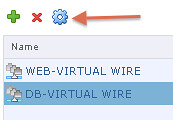
  • Click the “green plus” symbol to “add a network scope“
  • Give the scope a name and select the clusters you want to add to this network scope
  • Click “OK“

Now that we have defined our virtual network boundaries aka “network scope” we can create a virtual wire. The virtual wire is what it is all about, a “layer 2” segment.

  • Click “networks“
  • Click the “green plus” symbol to “create a VXLAN network“
  • Give it a name
  • Select the “network scope“

In the example below you see two virtual wires…

Now you have created a new virtual wire aka VXLAN network. You can add virtual machines to it by simply selecting the network in the NIC config section. The question of course remains, how do you get in / out of the network? You will need a vShield Edge device. So lets add one…

  • Click “Edges“
  • Click the “green plus” symbol to “add an Edge“
  • Give it a name
  • I would suggest, if you have this functionality, to tick the “HA” tickbox so that Edge is deployed in an “active/passive” fashion
  • Provide credentials for the Edge device
  • Select the uplink interface for this Edge
  • Specify the default gateway
  • Add the HA options, I would leave this set to the default
  • And finish the config

Now if you had a virtual wire, and it needed to be connected to an Edge (more than likely) make sure to connect the virtual wire to the Edge by going back to “Networks”. Select the wire and then the “actions dial” and click “Connect to Edge” and select the correct edge device.

Now that you have a couple of wires you can start provisioning VMs or migrating VMs to them. Simply add them to the right network during the provisioning process.

  • « Go to Previous Page
  • Page 1
  • Page 2
  • Page 3
  • Page 4
  • Interim pages omitted …
  • Page 9
  • Go to Next Page »

Primary Sidebar

About the Author

Duncan Epping is a Chief Technologist and Distinguished Engineering Architect at Broadcom. Besides writing on Yellow-Bricks, Duncan is the co-author of the vSAN Deep Dive and the vSphere Clustering Deep Dive book series. Duncan is also the host of the Unexplored Territory Podcast.

Follow Us

  • X
  • Spotify
  • RSS Feed
  • LinkedIn

Recommended Book(s)

Also visit!

For the Dutch-speaking audience, make sure to visit RunNerd.nl to follow my running adventure, read shoe/gear/race reviews, and more!

Do you like Hardcore-Punk music? Follow my Spotify Playlist!

Do you like 80s music? I got you covered!

Copyright Yellow-Bricks.com © 2026 · Log in