• Skip to primary navigation
  • Skip to main content
  • Skip to primary sidebar

Yellow Bricks

by Duncan Epping

  • Home
  • Unexplored Territory Podcast
  • HA Deepdive
  • ESXTOP
  • Stickers/Shirts
  • Privacy Policy
  • About
  • Show Search
Hide Search

Instant Clone in vSphere 6.7 rocks!

Duncan Epping · May 1, 2018 ·

I wrote a blog post a while back about VMFork, which then afterwards got rebranded to Instant Clone. In the vSphere 6.7 release there has been a major change to the architecture of VMFork aka Instant Clone, so I figured I would do an update on the post. As an update doesn’t stand out from the rest of the content I am sharing it as a new post.

Instant Clone was designed and developed to provide a mechanism that allows you to instantaneously create VMs. In the early days it was mainly used by folks who want to deploy desktops, by the desktop community this was often referred to as “just in time” desktops. These desktops would literally be created when the user tried to login, it is indeed that fast. How did this work? Well a good way to describe it is that it is essentially a “vMotion” of a VM on the same host with a linked clone disk. This essentially leads to a situation which looks as follows:
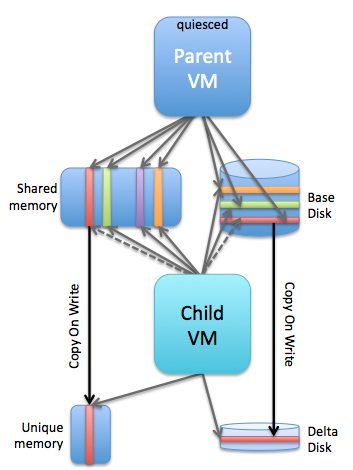
On a host you had a parent VM and a child VM associated with it. You would have a shared base disk, shared memory and then of course unique memory pages and a delta disk for (potential) changes written to disk. The reason customers primarily used this only with VDI at first was the fact that there was no public API for it. Of course folks like Alan Renouf and William Lam fought hard for public APIs internally and they managed to get things like the PowerCLI cmdlets and python vSphere SDK pushed through. Which was great, but unfortunately not 100% fully supported. On top of that there were some architectural challenges with the 1.0 release of Instant Clones. Mainly caused by the fact that VMs were pinned to a host (next to their parent VM) and as such things like HA, DRS, vMotion wouldn’t work. Now with version 2.0 this all changes. William already wrote an extensive blog post about it here. I just went over all of the changes and watched some internal training, and I am going to write some of my findings/learnings down as well, just so that it sticks… First let’s list the things that stood out to me:

  • Targeted use cases
    • VDI
    • Container hosts
    • Big data / hadoop workers
    • DevTest
    • DevOps
  • There are two workflows for instant clone
    • Instant clone a running a VM, source and generated VMs continue running
    • Instant clone a frozen VM, source is frozen using guestRPC at point in time defined by customer
  • No UI yet, but “simple API” available
  • Integration with vSphere Features
    • Now supported: HA, DRS, vMotion (Storage / XvMotion etc)
  • Even when TPS is disabled (default) VMFork still leverages the P-Share technology to collapse the memory pages for efficiency
  • There is no explicit parent-child relationship any longer

Let’s look at the use cases first, I think the DevTest / DevOps is interesting. You could for instance do an Instant Clone (live) of a VM and then test an upgrade for instance for the application running within the VM. For this you would use the first workflow that I mentioned above: instant clone a running VM. What happens here in the workflow is fairly straight forward. I am using William’s screenshots of the diagrams the developers created to explain it. Thanks William, and dev team 🙂

instant clone

Now note that above when the first clone is created the source gets a delta disk as well. This is to ensure that the shared disk doesn’t change as that would cause problems for the target. Now when a 2nd VM is created and a 3 the source VM gets additional delta’s. This as you can imagine isn’t optimal and will over time even potentially slow down the source VM. Also one thing to point out is that although the mac address changes for the generated VM, you as the admin still need to make sure the Guest OS picks this up. As mentioned above, as there’s no UI in vSphere 6.7 for this functionality you need to use the API. If you look at the MOB you can actually find the InstantClone_Task and simply call that, for a demo scroll down. But as said, be careful as you don’t want to end up with the same VM with the same IP on the same network multiple times. You can get around the Mac/IP conflict issue rather easy and William has explained how in his post here. You can even change the port group for the NIC, for instance switch over to an isolated network only used for testing these upgrade scenarios etc.

That second workflow would be used for the following use cases: VDI, Container Hosts, Hadoop workers… all more or less the same type of use case. Scale out identical VMs fast! In this case, well lets look at the diagram first:

instant clone

In the above scenario the Source VM is what they call “frozen”. You can freeze a VM by leveraging the vmware-rpctool and run it with “instantclone.freeze”. This needs to happen from within the guest, and note that you need to have VMware tools installed to have vmware-rpctool available. When this is executed, the VM goes in to a frozen state, meaning that no CPU instructions are executed. Now that you froze the VM you can go through the same instant clone workflow. Instant Clone will know that the VM is frozen. After the instant clone is create you will notice that there’s a single delta disk for the source VM and each generated VM will have its own delta disk as shown above. Big benefit is that the source VM won’t have many delta disks. Plus, you know for sure that every single VM you create from this frozen VM is 100% identical as they all resume from the exact same point in time. Of course when the instant clone is created the new VM is “unfrozen / resumed”, the source will remain frozen. Note that if for whatever reason the source is restarted / power cycled then the “frozen state” is lost. Another added benefit of the frozen VM is that you can automate the “identity / IP / mac” issue when leveraging the “frozen source VM” workflow. How do you do this? Well you disable the network, freeze it, instant clone it (unfreezes automatically), make network changes, enable network. William just did a whole blog post on how to do various required Guest changes, I would highly recommend reading this one as well!

So before you start using Instant Clone, first think about which of the two workflows you prefer and why. So what else did I learn?

As mentioned, and this is something I never realized, but even when TPS is disabled Instant Clone will still share the memory pages through the P-Share mechanism. P-Share is the same mechanism that TPS leverages to collapse memory pages. I always figured that you needed to re-enable TPS again (with or without salting), but that is not the case. You can’t even disable the use of P-Share at this point in time… Which personally I don’t think is a security concern, but you may think different about it. Either way, of course I tested this, below you see the screenshot of the memory info before and after an instant clone. And yes, TPS was disabled. (Look at the shares / saving values…)

Before:

After:

Last but not least, the explicit parent-child relationship caused several problems from a functionality stance (like HA, DRS, vMotion etc not being supported). Per vSphere 6.7 this is no longer the case. There is no strict relationship, and as such all the features you love in vSphere can be fully leveraged even for your Instant Clone VMs. This is why they call this new version of Instant Clone “parentless”.

If you are wondering how you can simply test it without diving in to the API too deep and scripting… You can use the Managed Object Browser (MOB) to invoke the method as mentioned earlier. I recorded this quick demo that shows this, which is based on a demo from one of our Instant Clone engineers. I recommend watching it in full screen as it is much easier to follow that way. (or watch it on youtube in a larger window…) Pay attention, as it is a quick demo, instant clone is extremely fast and the workflow is extremely simple.

And that’s it for now. Hope that helps those interested in Instant Clone / VMFork, and maybe some of you will come up with some interesting use cases that we haven’t thought about it. Would be good if you have use cases to share those in the comment section below. Thanks,
vSphere 6.7 announced!

Duncan Epping · Apr 17, 2018 ·

It is that time of the year again, a new vSphere release announcement! (For those interested in what’s new for vSAN make sure to read my other post.) vSphere 6.7, what’s in a name / release? Well a bunch of stuff, and I am not going to address all of the new functionality as the list would simply be too long. So this list features what I think is worth mentioning and discussing.

  • vSphere Client (HTML-5) is about 95% feature complete
  • Improved vCenter Appliance monitoring
  • Improved vCenter Backup Management
  • ESXi Single Reboot Upgrades
  • ESXi Quick Boot
  • 4K Native Drive Support
  • Max Virtual Disks increase from 60 to 256
  • Max ESXi number of Devices from 512 to 1024
  • Max ESXi paths to Devices from 2048 to 4096
  • Support for RDMA
  • vSphere Persistent Memory
  • DRS initial placement improvements

Note that there’s a whole bunch of stuff missing from this list, for instance there were many security enhancements, but I don’t see the point of me pretending to be an expert on that topic, while I know some of the top experts will have a blog out soon.

Not sure what I should tell about the vSphere Client (h5) at this point. Everyone has been waiting for this, and everyone has been waiting for it to reach ~90/95% feature complete. And we are there. I have been using it extensively for the past 12 months and I am very happy with how it turned out. I think the majority of you will be very very happy with what you will see and with the overall experience. It just feels fast(er) and seems more intuitive.

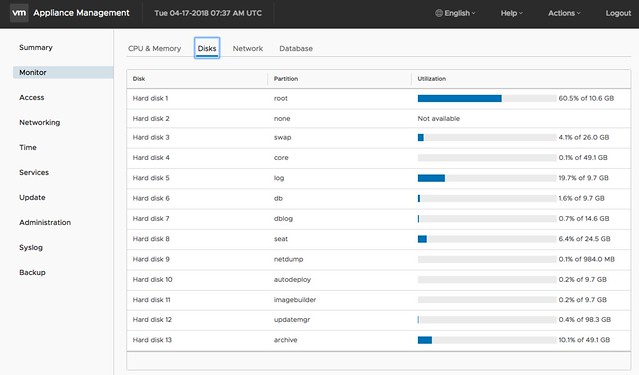
When it comes to management and monitoring of the vCenter Appliance (https://ip of vcenter:5480) there are a whole bunch of improvements. For me personally the changes in the monitoring tab are very useful and also the services tab is useful. Now you can immediately see when a particular disk is running out of space, as shown in the screenshot below. And you can for instance restart a particular service in the “Services” tab.

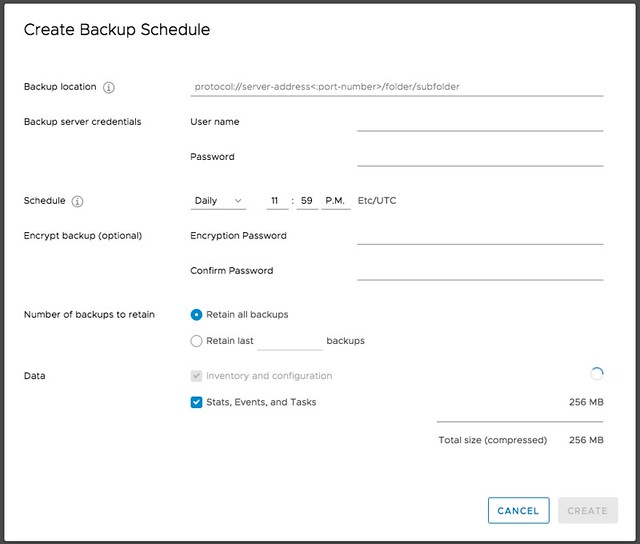
Next is vCenter Backup Management, a lot of people have been asking for this. We introduced Backup and Recovery of the appliance a while ago, very useful, but unfortunately it didn’t provide a scheduling mechanism. Sure you could create a script that would do this for you on a regular cadence, but not everyone wants to bother with that. Now in the Appliance Management UI you can simply create a schedule for backup. This is one of those small enhancements, which to me is a big deal! I’m sure that Emad or Adam will have a blog out soon on the topic of vCenter enhancements, so make sure to follow their blogs.

Another big deal is the fact that we shaved off a reboot for major upgrades. As of 6.7 you now only have 1 reboot with ESXi. Again, a tiny thing going from 2 back to 1, but when you have servers taking 10-15 minutes to go through the reboot process and you have dozens to of servers to reboot it makes Single Reboot ESXi Upgrades a big thing. For those on 6.5 right now, you will be able to enjoy the single reboot experience when upgrading to 6.7!

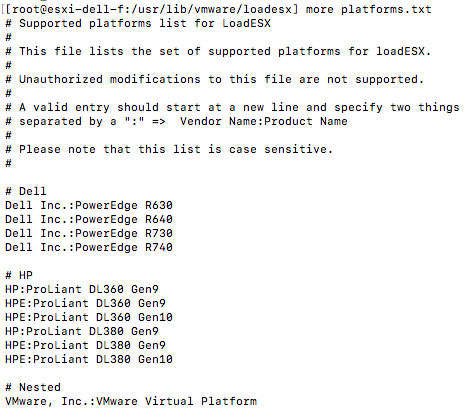
One feature I have personally been waiting for is ESXi Quick Boot. I saw a demo of this last year at our internal R&D conference at VMware and I was impressed. I don’t think many people at that stage saw the importance of the feature, but I am glad it made it in to the release. So what is it? Well basically it is a way to restart the hypervisor without going through the physical hardware reboot process. This means that you are now removing that last reboot, of course this only applies when your used server hardware supports it. Note that with the first release only a limited set of servers will support it, nevertheless this is a big thing. Not just for reboots, but also for upgrades / updates. A second ESXi memory image can be created and updated and when rebooting simply switched over to the latest and greatest instead of doing a full reboot. It will save, again, a lot time. I looked at a pre-GA build and noticed the following platforms are supported, this should be a good indication:

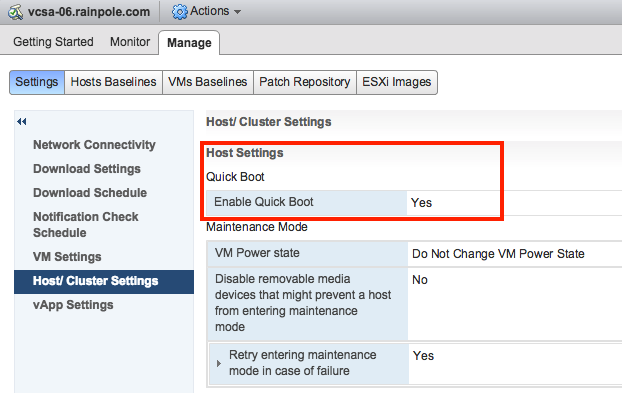
Of course you can also see if the host is supported in the vSphere Client, I found it in the Web Client but not in the H5 Client, maybe I am overlooking it, that could of course be the case.

Then up next are a bunch of core storage enhancements. First 4K Native Drive Support, very useful for those who want to use the large capacity devices. Not much else to say about it other than that it will also be supported by vSAN. I do hope that those using it for vSAN do take the potential performance impact in to account. (High capacity, Low IOPS >> low iops per GB!) Up next is the increase of a bunch of “max values“. Number of virtual disks going from 60 to 256 virtual disks for PVSCSI. And on top of that the number of Paths and Devices is also going up. Number of devices doubled from 512 to 1024 per host, and so has the number of paths as it is going from 2048 to 4096. Some of our largest customers will definitely appreciate that!

Then there’s also the support for RDMA, which is great for applications requiring extremely low latency and very high bandwidth! Note that when RDMA is used most of the ESXi Network stack is skipped, and when used in pass-through mode this also means that vMotion is not available. So that will only be useful for scale-out applications which have their own load balancing and high availability functionality. For those who can tolerate a bit more latency a paravirtualized RDMA adaptor will be available, you will need HW version 13 for this though.​

vSphere Persistent Memory is something that I was definitely excited about. Although there aren’t too many supported server configurations, or even persistent memory solutions, it is something that introduces new possibilities. Why? Well this will provide you performance much higher than SSD at a cost which is lower than DRAM. Think less than 1 microsecond of latency. Where nanoseconds is for DRAM and Flash typically is low milliseconds under load. I have mentioned this in a couple of my sessions so far, NVDIMM will be big, which is the name commonly used for Persistent Memory. For those planning on buying persistent memory, do note that your operating system also needs to understand how to use it. There is a Virtual NVDIMM device in vSphere 6.7 and if the Guest OS has support for it then it will be able to use this byte addressable device. I believe a more extensive blog about vSphere Persistent Memory and some of the constraints will appear on the Virtual Blocks blog soon, so keep an eye on that as well. Cormac already has his fav new 6.7 features up on his blog, make sure to read that as well.

And last but not least, there was a significant improvement done in the initial placement process for DRS. Some of this logic was already included in 6.5, but only worked when HA was disabled. As of 6.7 it is also available when HA is enabled, making it much more likely that you will be able to benefit from the 3x decrease in time that it takes for the initial placement process to complete. A big big enhancements in the DRS space. I am sure though that Frank Denneman will have more to say about this.

What’s new vSAN 6.7

Duncan Epping · Apr 17, 2018 ·

As most of you have seen, vSAN 6.7 just released together with vSphere 6.7. As such I figured it was time to write a “what’s new” article. There are a whole bunch of cool enhancements and new features, so let’s create a list of the new features first, and then look at them individually in more detail.

  • HTML-5 User Interface support
  • Native vRealize Operations dashboards in the HTML-5 client
  • Support for Microsoft WSFC using vSAN iSCSI
  • Fast Network Failovers
  • Optimization: Adaptive Resync
  • Optimization: Witness Traffic Separation for Stretched Clusters
  • Optimization: Preferred Site Override for Stretched Clusters
  • Optimization: Efficient Resync for Stretched Clusters
  • New Health Checks
  • Optimization: Enhanced Diagnostic Partition
  • Optimization: Efficient Decomissioning
  • Optimization: Efficient and consistent storage policies
  • 4K Native Device Support
  • FIPS 140-2 Level 1 validation

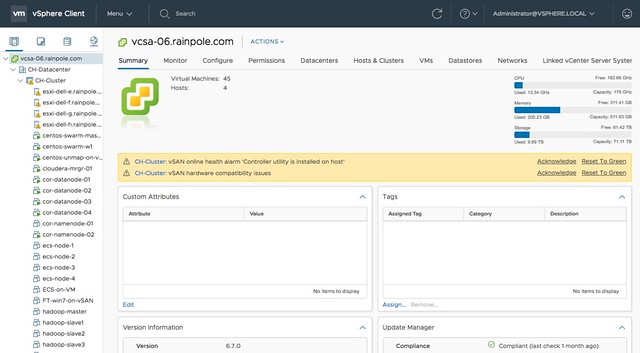
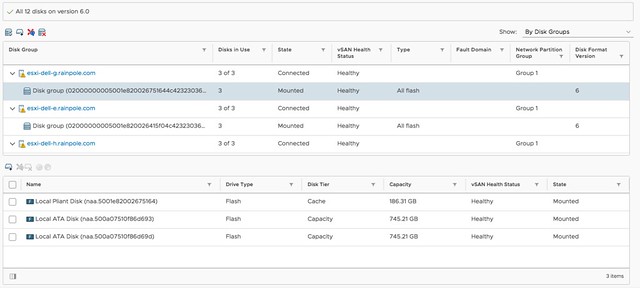
Yes, that is a relatively long list indeed. Lets take a look at each of the features. First of all, HTML-5 support. I think this is something that everyone has been waiting for. The Web Client was not the most loved user interface that VMware produced, and hopefully the HTML-5 interface will be viewed as a huge step forward. I have played with it extensively over the past 6 months and I must say that it is very snappy. I like how we not just ported over all functionality, but also looked if workflows could be improved and if presented information/data made sense in each and every screen. This also however does mean that new functionality from now on will only be available in the HTML-5 client, so use this going forward. Unless of course the functionality you are trying to access isn’t available yet, but most of it should be! For those who haven’t seen  it yet, here’s  a couple of screenshots… ain’t it pretty? 😉

For those who didn’t notice, but in the above screenshot you actually can see the swap file, and the policy associated with the swap file, which is a nice improvement!

The next feature is native vROps dashboards for vSAN in the H5 client. I found this very useful in particular. I don’t like context switching and this feature allows me to see all of the data I need to do my job in a single user interface. No need to switch to the VROps UI, but instead vSphere and vSAN dashboards are now made available in the H5 client. Note that it needs the VROps Client Plugin for the vCenter H5 UI to be installed, but that is fairly straight forward.

Next up is support for Microsoft Windows Server Failover Clustering  for the vSAN iSCSI service. This is very useful for those running a Microsoft cluster. Create and iSCSI Target and expose it to the WSFC virtual machines. (Normally people used RDMs for this.) Of course this is also supported with physical machines. Such a small enhancement, but for customers using Microsoft clustering a big thing, as it now allows you to run those clusters on vSAN without any issues.

Next are a whole bunch of enhancements that have been added based on customer feedback of the past 6-12 months. Fast Network Failovers was one of those. Majority of our customers have a single vmkernel interface with multiple NICs associated with them, some of our customers have a setup where they create two vmkernel interfaces on different subnets, each with a single NIC. What that last group of customers noticed is that in the previous release we waited 90 seconds before failing over to the other vmkernel interface (tcp time out) when a network/interface had failed. In the 6.7 release we actually introduce a mechanism that allows us to failover fast, literally within seconds. So a big improvement for customers who have this kind of network configuration (which is very similar to the traditional A/B Storage Fabric design).

Adaptive Resync is an optimization to the current resync function that is part of vSAN. If a failure has occurred (host, disk, flash failure) then data will need to be resynced to ensure that the impacted objects (VMs, disks etc) are brought in to compliance again with the configured policy. Over the past 12 months the engineering team has worked hard to optimize the resync mechanism as much as possible. In vSAN 6.6.1 a big jump was already made by taking VM latency in to account when it came to resync bandwidth allocation, and this has been further enhanced in 6.7. In 6.7 vSAN can calculate the total available bandwidth, and ensures Quality Of Service for the guest VMs prevails by allocating those VMs 80% of the available bandwidth and limiting the resync traffic to 20%. Of course, this only applies when congestion is detected. Expect more enhancements in this space in the future.

A couple of release ago we introduced Witness Traffic Separation for 2 Node configurations, and in 6.7 we introduce the support for this feature for Stretched Clusters as well. This is something many Stretched vSAN customers have asked for. It can be configured through the CLI only at this point (esxcli) but that shouldn’t be a huge problem. As mentioned previously, what you end up doing is tagging a vmknic for “witness traffic” only. Pretty straight forward, but very useful:

esxcli vsan network ip set -i vmk<X> -T=witness

Another enhancement for stretched clusters is Preferred Site Override. It is a small enhancements, but in the past when the preferred site failed and returned for duty but would only be connected to the witness, it could happen that the witness would bind itself directly to the preferred site. This by itself would result in VMs becoming unavailable. This Preferred Site Override functionality would prevent this from happening. It will ensure that VMs (and all data) remains available in the secondary site. I guess one could also argue that this is not an enhancement, but much more a bug fix. And then there is the Efficient Resync for Stretched Clusters feature. This is getting a bit too much in to the weeds, but essentially it is a smarter way of bringing components up to the same level within a site after the network between locations has failed. As you can imagine 1 location is allowed to progress, which means that the other location needs to catch up when the network returns. With this enhancement we limit the bandwidth / resync traffic.

And as with every new release, the 6.7 release of course also has a whole new set of Health Checks. I think the Health Check has quickly become the favorite feature of all vSAN Admins, and for a good reason. It makes life much easier if you ask me. In the 6.7 release for instance we will validate consistency in terms of host settings and if an inconsistency is found report this. We also, when downloading the HCL details, will only download the differences between the current and previous version. (Where in the past we would simply pull the full json file.) There are many other small improvements around performance etc. Just give it a spin and you will see.

Something that my team has been pushing hard for (thanks Paudie) is the Enhanced Diagnostic Partition. As most of you know when you install / run ESXi there’s a diagnostic partition. This diagnostic partition unfortunately was a fixed size, with the current release when upgrading (or installing green field) ESXi will automatically resize the diagnostic partition. This is especially useful for large memory host configurations, actually useful for vSAN in general. No longer do you need to run a script to resize the partition, it will happen automatically for you!

Another optimization that was released in vSAN 6.7 is called “Efficient Decomissioning“. And this is all about being smarter in terms of consolidating replicas across hosts/fault domains to free up a host/fault domain to allow for maintenance mode to occur. This means that if a component is striped, for other reasons then policy, they may be consolidated. And the last optimization is what they refer to as Efficient and consistent storage policies. I am not sure I understand the name, as this is all about the swap object. Per vSAN 6.7 it will be thin provisioned by default (instead of 100% reserved), and also the swap object will now inherit the policy assigned to the VM. So if you have FTT=2 assigned to the VM, then you will have not two but three components for the swap object, still thin provisioned so it shouldn’t really change the consumed space in most cases.

Then there are the two last items on the list: 4K Native Device Support and FIPS 140-2 Level 1 validation. I think those speak for itself. 4K Native Device Support has been asked for by many customers, but we had to wait for vSphere to support it. vSphere supports it as of 6.7, so that means vSAN will also support it Day 0. The ​VMware VMkernel Cryptographic Module v1.0 has achieved FIPS 140-2, vSAN leverages the same module for vSAN Encryption. Nice collaboration by the teams, which is now showing the big benefit.

Anyway, there’s more work to do today, back to my desk and release the next article. Oh, and if you haven’t seen it yet, Virtual Blocks also has a blog and there’s a nice podcast on the topic of 6.7 as well.

22 / 23 May 2018 – VMware Technical Support Summit

Duncan Epping · Apr 17, 2018 ·

A while back I was asked if I could present at the VMware Technical Support Summit and last week I received the agenda. I forgot to blog about it so I figured I would share it with everyone. I was supposed to go to this event last year but I had a clash in my calendar unfortunately. At this event organized by our support team you will have the ability to sit in some extreme deep dive sessions. Below you can find the agenda, and also here’s the registration link if you are interested! Note that Joe Baguley will be doing a keynote, and Cormac Hogan and I will be doing a session on vSAN futures!

vSphere HA Restart Priority

Duncan Epping · Apr 4, 2018 ·

I’ve seen more and more questions popping up about vSphere HA Restart Priority lately. I figured I would write something about it. I already did in this post about what’s new in vSphere 6.5 and I did so in the Stretched Cluster guide. It has always been possible to set a restart priority for VMs, but pre-vSphere 6.5 this priority simply referred to the scheduling of the restart of the VM after a failure. Each host in a cluster can restart 32 VMs at the same time, so you can imagine that if the restart priority is only about VM restarts that it doesn’t really add a lot of value. (Simply because we can schedule many at the same time, and the priority would as such have no effect.)

As of vSphere 6.5 we have the ability to specify the priority and also specify when HA should continue with the next batch. Especially this last part is important, as this allows you to specify that we start with the next priority level when:

  1. Resources are allocated (default)
  2. VMs are powered on
  3. Guest heartbeat is detected
  4. App heartbeat is detected

I think these are mostly self-explanatory, note though the “resources are allocated” means that a target host for restart has been found by the master. So this happens within milliseconds. Very similar for VMs are powered on, this also says nothing about when a VM is available. This literally is “power on”. In some cases it could take 10-20 seconds for a VM to be fully booted and the apps to be available, in other cases it may take minutes… It all depends on the services that will need to be started within the VM. So if it is important for the “service provided” by the VM to be available before starting the next batch then option 3 or 4 would be your best pick. Note that with option 4 you will need to have VM/Application Monitoring and defined within the VM. Now when you have made your choice around when to start the next batch you can simply start adding VMs to a specific level.

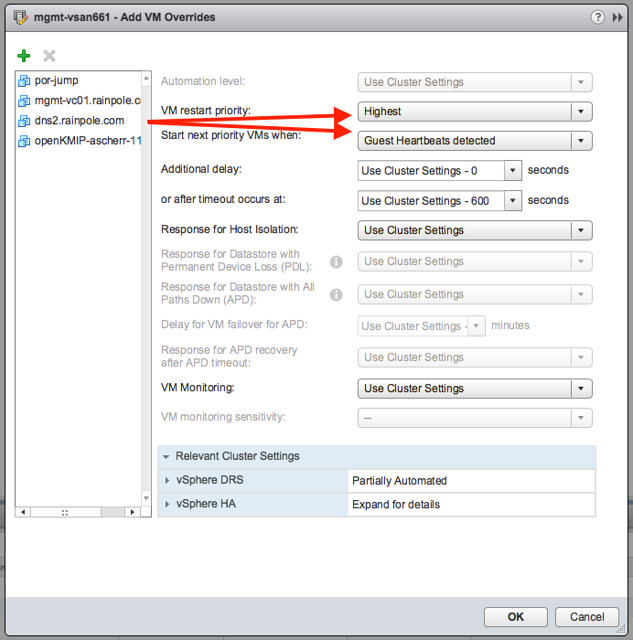
Instead of the 3 standard restart “buckets” you now have 5: Highest, High, Medium, Low, Lowest. Why these funny names? Well that was done in order to stay backwards compatible with vSphere 6 / 5 etc. By default all VMs will have the “medium” restart priority, and no it won’t make any difference if you change all of them to high. Simply because the restart priority is about the priority between VMs, it doesn’t change the host response times etc. In other words, changing the restart priority only makes sense when you have VMs at different levels, and usually will only make a big difference when you also change the option “Start next priority VMs when”.

So where do you change this? Well that is pretty straight forward:

  • Click on your HA cluster and then the “Configure” Tab
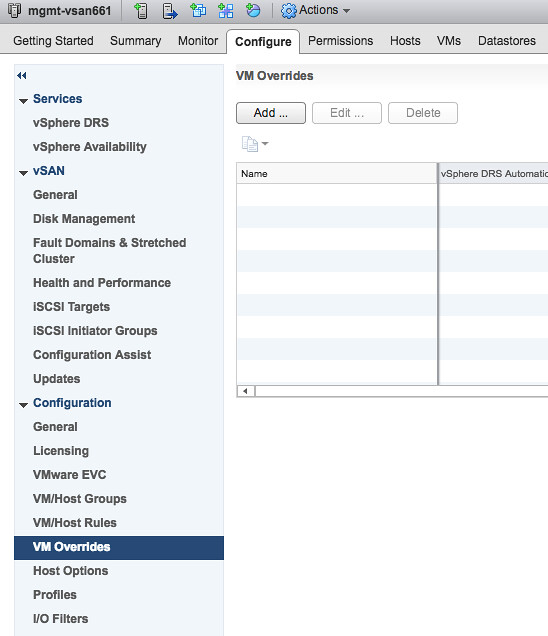
  • Click on “VM Overrides” and then click “Add”
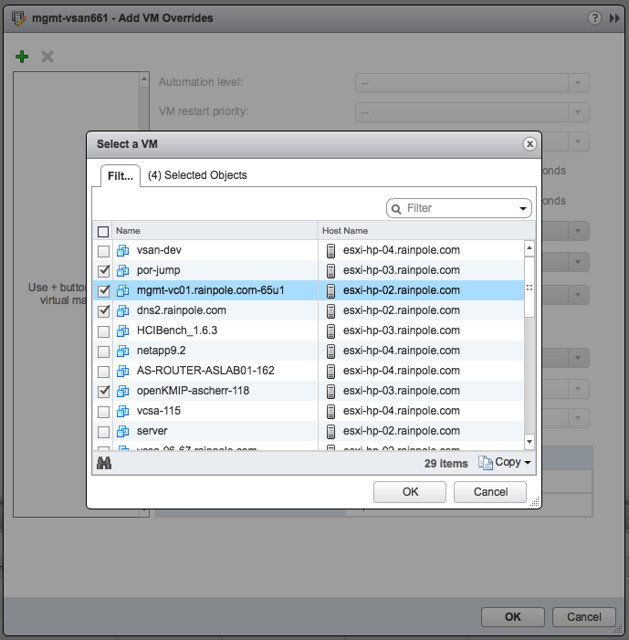
  • Click on the green plus sign and select the VMs you would like to give a higher, or lower priority
  • Then select the new priority and specify when the next batch should start

And if you are wondering, yes the restart priority also applies when vCenter is not available. So you can use it even to ensure vCenter, AD and DNS are booted up first. All of this info is stored in the cluster configuration data. You can examine this on the commandline by the way by typing the following:

/opt/vmware/fdm/fdm/prettyPrint.sh clusterconfig

Note that the outcome is usually pretty big, so you will have to scroll through it to find what you need, if you do a search on “restartPriority” then you should be able to find it the VMs for which you changed the priority. Pretty cool right?!

Oh, if you didn’t know yet… Frank, Niels and I are actively updating the vSphere Clustering Deep Dive. Hopefully we will have something out “soon”, as in around VMworld.

  • « Go to Previous Page
  • Page 1
  • Interim pages omitted …
  • Page 76
  • Page 77
  • Page 78
  • Page 79
  • Page 80
  • Interim pages omitted …
  • Page 497
  • Go to Next Page »

Primary Sidebar

About the Author

Duncan Epping is a Chief Technologist and Distinguished Engineering Architect at Broadcom. Besides writing on Yellow-Bricks, Duncan is the co-author of the vSAN Deep Dive and the vSphere Clustering Deep Dive book series. Duncan is also the host of the Unexplored Territory Podcast.

Follow Us

  • X
  • Spotify
  • RSS Feed
  • LinkedIn

Recommended Book(s)

Also visit!

For the Dutch-speaking audience, make sure to visit RunNerd.nl to follow my running adventure, read shoe/gear/race reviews, and more!

Do you like Hardcore-Punk music? Follow my Spotify Playlist!

Do you like 80s music? I got you covered!

Copyright Yellow-Bricks.com © 2026 · Log in