• Skip to primary navigation
  • Skip to main content
  • Skip to primary sidebar

Yellow Bricks

by Duncan Epping

  • Home
  • Unexplored Territory Podcast
  • HA Deepdive
  • ESXTOP
  • Stickers/Shirts
  • Privacy Policy
  • About
  • Show Search
Hide Search

Disable DRS for a VM

Duncan Epping · Mar 28, 2018 ·

I have been having discussions with a customer who needs to disable DRS on a particular VM. I have written about disabling DRS for a host in the past, but not for a VM, well I probably have at some point but that was years ago. The goal here is to ensure that DRS won’t move a VM around but HA can still restart it. Of course you can create VM to Host rules, and you can create “must rules”. When you create must rules this could lead to an issue when the host on which the VM is running fails as HA will not restart it. Why? Well it is a “must rule”, which means that HA and DRS must comply to the rule specified. But there’s a solution, look at the screenshot below.
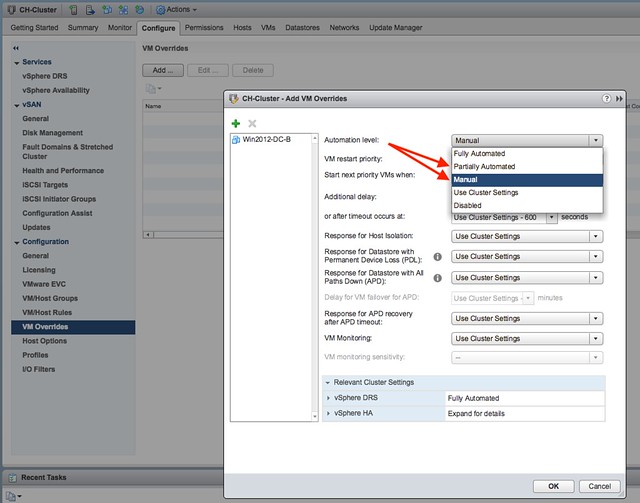
In the screenshot you see the “automation level” for the VM in the list, this is the DRS Automation level. (Yes the name will change in the H5 Client, making it more obvious what it is) You add VMs by clicking the green plus sign. Next you select the desired “automation mode” for those VMs and click okay. You can of course completely disable DRS for the VMs which should never be vMotioned by DRS, in this case during contention those “disabled VMs” are not considered at all. You can also set the automation mode to Manual or Partially Automated for those VMs as that gives you at least initial placement, but has as a downside that the VMs are considered for migration by DRS during contention. This could lead to a situation where DRS recommends that particular VM to be migrated, without you being able to migrate it. This in its turn could lead to VMs not getting the resources they require. So this is a choice you have to make, do I need initial placement or not?

If you prefer the VMs to stick to a certain host I would highly recommend to set VM/Host Rules for those VMs, use “should rules”, which define on which host the VM should run. Combined with the new Automation Level this will result in the VM being placed correctly, but not migrated by DRS when there’s contention. On top of that, it will allow HA to restart the VM anywhere in the cluster! Note that with “manual automation level” DRS will ask you if it is okay to place the VM on a certain host, with “partially automated” DRS will do the initial placement for you. In both cases balancing will not happen for those VMs automatically, but recommendations will be made, which you can ignore. (not use “safely”, as it may not be safe)
vSAN Stretched Cluster: PFTT and SFTT what happens when a full site fails and multiple hosts fail?

Duncan Epping · Mar 19, 2018 ·

This question was asked on the VMTN community forum and it is a very valid question. Our documentation explains this scenario, but only to a certain level and it seems to be causing some confusion as we speak. To be honest, it is fairly complex to understand. Internally we had a discussion with engineering about it and it took us a while to grasp it. As the documentation explains, the failure scenarios are all about maintaining quorum. If quorum is lost, the data will become inaccessible. This makes perfect sense, as vSAN will always aim to protect the consistency and reliability of data first.

So how does this work, well when creating a policy for a stretched cluster you specify Primary Failures To Tolerate (PFTT) and Secondary Failures To Tolerate (SFTT). PFTT can be seen as “site failures”, and you can always only tolerate 1 at most. SFTT can be seen as host failures, and you can define this between 0 and 3. Where we by far see FTT=1 (RAID-1 or RAID-5) and FTT=2 (RAID-6) the most. Now, if you have 1 full site failure, then on top of that you can tolerate SFTT host failures. So if you have SFTT=1 then this means that 2 host failures in the site that survived would result in data becoming inaccessible.

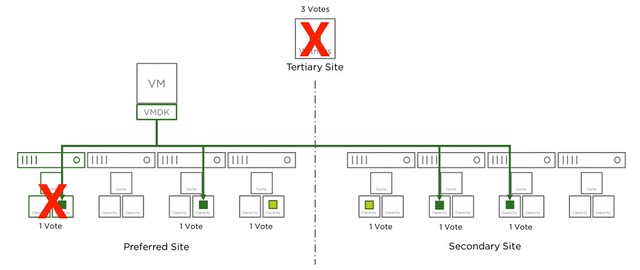
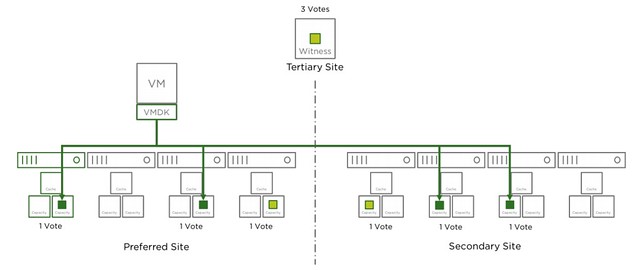
Where this gets tricky is when the Witness fails, why? Well because the witness is seen as a site failure. This means that if you have lets say 2 hosts failing in Data Site A and 1 host failing in Data Site B, while you had SFTT=2 assigned to your components, that your objects that are impacted will become inaccessible. Simply because you exceeded PFTT and SFTT. I hope that makes sense? Lets show that in a diagram (borrowed it from our documentation) for different failures, I suggest you do a “vote count” so that it is obvious why this happens. The total vote count is 9. Which means that the object will be accessible as long as the remaining vote count is 5 or higher.

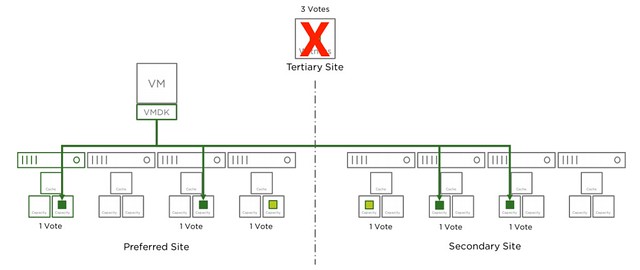
Now that the witness has failed, as shown in the next diagram, we lose 3 votes of the total 9 votes, no problem as we need 5 to remain access to the data.

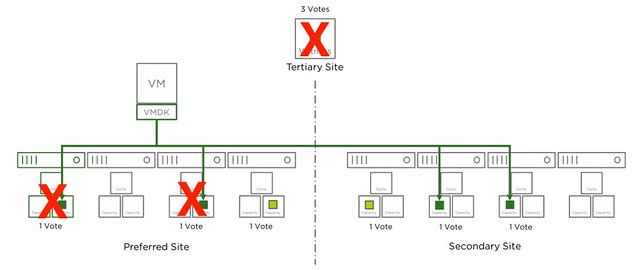
In the next diagram another host has failed in the environment, we now lost 4 votes out of the 9. Which means we still have 5 out of 9 and as such remain access.

And there we go, in the next diagram we just lost another one host, in this case it is the same location as the first host, but this could also be a host in the secondary site. Either way, this means we only have 4 votes left out of the 9. We needed 5 at a minimum, which means we now lose access to the data for those objects impacted. As stated earlier, vSAN does this to avoid any type of corruption/conflicts.

The same applies to RAID-6 of course. With RAID-6 as stated you can tolerate 1 full site failure and 2 host failures on top of that, but if the witness fails this means you can only lose 1 host in each of the sites before data may become inaccessible. I hope this helps those people running through failure scenarios.

Doing maintenance on a Two-Node (Direct Connect) vSAN configuration

Duncan Epping · Mar 13, 2018 ·

I was talking to a partner and customer last week at a VMUG. They were running a two node (direct connect) vSAN configuration and had some issues during maintenance which were, to them, not easy to explain. What they did is they placed the host which was in the “preferred fault domain” in to maintenance mode. After they placed that host in to maintenance mode the link between the two hosts for whatever reason failed. After they rebooted the host in the preferred host it connected back to the witness but at this point in time the connection between the hosts had not returned yet. This confused vSAN and that resulted in the scenario where the VMs in the secondary fault domain were powered off. As you can imagine an undesired effect.

This issue is solved in the near future in a new version of vSAN, but for those who need to do maintenance on a two-node (direct connect) configuration (or a full site maintenance in a stretched environment) I would highly recommend the following simple procedure. This will need to be done when doing maintenance on the host which is in the “preferred fault domain”:

  • Change the preferred fault domain
    • Under vSAN, click Fault Domains and Stretched Cluster.
    • Select the secondary fault domain and click the Mark Fault Domain as preferred for Stretched Cluster icon
  • Place the host in to maintenance mode
  • Do your maintenance

Fairly straight forward, but important to remember…

Confessions of a VMUG Speaker – the prequel #SpeakerFail

Duncan Epping · Mar 8, 2018 ·

On twitter a question was asked by Casey West if people had “Speaker Fail” stories and I replied to it with my story. I have told this story to some folks but never shared it on my blog, so I figured I would share it. I already wrote an article about speaking at your local VMUG and what to do and not to do, but these are things I found out the hard way…

Dear tech speaker friends,

A co-worker recently got really nervous about some talks they're giving. We all try to have the perfet talks but those of us with experience know it rarely goes that way. Can we share our #speakerfail stories?

We're all just hoping for the best! 🙂

— Casey West (@caseywest) March 8, 2018

So what is the back story? Well, many many years ago I just started working for VMware. I was already doing some blogging and had posted a bunch of articles about vSphere HA. As a result I knew some of the developers and one of them asked me to work with him on the deck. I was terrified of public speaking, actually I rejected other public speaking, but I figured that helping him out develop the deck couldn’t hurt. So I worked with him on the deck and after a while he asked if I wanted to help presenting the deck.

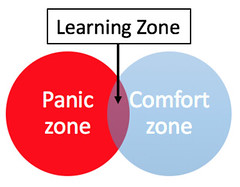
I thought about it for a while and my brain said: SAY NO. I gave it some more thought, and although I was terrified I wanted to go outside of my comfort zone, I didn’t realize though when I said yes that I would go in to the panic zone straight away instead of in to the “learning zone”. I was nervous, extremely nervous. But luckily the developer told me that it would only be a session in front of 100 people.

A couple of weeks go by and I receive an email. The developer told me that due to various escalations/bugs had to fix for an upcoming release he could not fly to the event. I was by myself. You can imagine that my level or nervousness went up with about 10x. I would be on my own in front of 100 people, what now? The VMworld team transferred the session on to my name, and then I logged in to the backend to see the details of my session. This includes the registrations. Hold on, it was supposed to say 100 people, but it says 450. WHAT? 450 people in a single room? And then a day they changed rooms for the sessions, as it was overbooked, quickly after that the registrations filled up to 700 something. I was nervous just thinking about presenting in front of 100 people with a co-presenter, now I was going up on stage by myself in front of 700+.

I rehearsed, rehearsed, rehearsed, rehearsed and rehearsed. I wanted to make sure I knew every slide inside out before I went up on stage. And I did, I was nervous as hell but I knew my slides by the letter. Unfortunately I was so nervous that I went in to this “hyper sensitive state” and I could hear everything that was going on in the room. After 3 or 4 slides I was explaining a complex diagram and someone’s phone went off, he picked it up and walked out. I lost my train of thought and had to start over again with the slide. Which in its turn made me over more nervous. It took me roughly 5 minutes just to recover from that, but it felt like days. I finished my session and decided I would never ever present again. I am writing this while presenting at a VMUG, no need to tell you that I didn’t give up.

For those who have been in this situation, or are hesitant to present because of these reasons, please read the post Confessions of a VMUG speaker, which was written before this post. I hope it helps realizing people that many people face the same fears, but by practicing your session and doing it over and over again at various events you will become better and it will make it easier. Heck, you may even start to enjoy it after a while!


PowerCLI for OSX is out!

Duncan Epping · Mar 1, 2018 ·

I am not a big PowerCLI user, primary reason being that I don’t even have a Windows box available. My main laptop is a macbook, and I don’t run Windows anywhere. Yesterday PowerCLI 10.0.0 was released, which includes support for OSX! Before you can install PowerCLI of course you would need to have Powershell running, I tried different ways as described here, but the Homebrew method threw an error (see below) so I used the direct download option and just installed the package, which worked fine.

failed command: /usr/bin/sudo -E -- /usr/sbin/installer -pkg /usr/local/Caskroom/powershell/6.0.1/powershell-6.0.1-osx.10.12-x64.pkg -target

When installed you simply open a terminal and type “pwsh”. Weird thing is that many blogs seem to state that you type “powershell”, but for me that doesn’t work either. So either recently something changed, or people have been blatantly copying procedures from the same source, didn’t bother checking why… waiting for Alan to comment. Then you type the following in the Powershell to get the PowerCLI module installed:

Install-Module -Name VMware.PowerCLI -Scope CurrentUser

What may be useful to change is the certificate handling. As mentioned by Kyle in this blog, the way PowerCLI handles certificate issues has changed, so go to his blog to figure out how to disable it. I will now go explore some of the vSAN PowerCLI cmdlets, haven’t done anything in ages with PowerCLI, so this will be a day with me yelling at the monitor why stuff doesn’t work and then realizing I made a stupid typo.

  • « Go to Previous Page
  • Page 1
  • Interim pages omitted …
  • Page 77
  • Page 78
  • Page 79
  • Page 80
  • Page 81
  • Interim pages omitted …
  • Page 497
  • Go to Next Page »

Primary Sidebar

About the Author

Duncan Epping is a Chief Technologist and Distinguished Engineering Architect at Broadcom. Besides writing on Yellow-Bricks, Duncan is the co-author of the vSAN Deep Dive and the vSphere Clustering Deep Dive book series. Duncan is also the host of the Unexplored Territory Podcast.

Follow Us

  • X
  • Spotify
  • RSS Feed
  • LinkedIn

Recommended Book(s)

Also visit!

For the Dutch-speaking audience, make sure to visit RunNerd.nl to follow my running adventure, read shoe/gear/race reviews, and more!

Do you like Hardcore-Punk music? Follow my Spotify Playlist!

Do you like 80s music? I got you covered!

Copyright Yellow-Bricks.com © 2026 · Log in