• Skip to primary navigation
  • Skip to main content
  • Skip to primary sidebar

Yellow Bricks

by Duncan Epping

  • Home
  • Unexplored Territory Podcast
  • HA Deepdive
  • ESXTOP
  • Stickers/Shirts
  • Privacy Policy
  • About
  • Show Search
Hide Search

New version of RVTools is out

Duncan Epping · Feb 26, 2018 ·

I was talking with a couple of VMware partners last week, one of them mentioned how much they used RVTools for sizing and designing. Funny if you consider that this little free tool is made by someone in his spare time. RVTools is closing in on 1 million downloads, so it is safe to say that this is probably the most successful tool out there made by an individual. So once again, thanks Rob for spending the time and effort on this!

Here’s what’s new :

Version 3.10 (February, 2018)

  • Upgraded RVTools solution to Visual Studio 2017
  • Upgraded RVTools to .Net Framework version 4.6.1
  • Upgraded Log4net to version 2.0.8, Waffle.AD to version 1.8.3 and NPOI to version 2.3.0
  • Connection error when TLSv1.0 and TLSv1.1 are disabled and only TLSv1.2 is enabled is solved by using .Net Framework 4.6.1
  • vInfo tab page new columns: The latency-sensitivity setting of the virtual machine, Change Block Tracking (CBT) and disk.EnableUUID values
  • vDisk tab page new columns: SCSI label, unit number and sharedBus
  • vHost tab page new columns: Assigned License(s), ATS heartbeat, ATS locking values. 0 = disabled 1 = enabled, Host Power Policy shortname, CPU Power Management current policy and CPU power hardware support
  • When Export to xlsx is executed a metadata worksheet with version number of RVTools and date time stamp is added to the output xlsx file
  • All columns in the RVTools export xlsx file(s) now have a filter
  • When export to csv newline characters are replaced by spaces
  • When started from cli and login fails an error message and login box was displayed. Now RVTools will exit with exit code -1, without showing the error message and login form.
  • Added an example PowerShell script with which you can merge RVTools export xlsx files
  • Added a example PowerShell script to start Export all to xlsx for multiple vCenters
  • vDatastore tab page: For NFS datastores the address column is now filled with remote host and path info
  • vDatastore tab page new columns: Datastore Cluster Name, Cluster capacity and Cluster free space
  • The upper limit on the Health check for number of VMs on a datastore is now 9999
  • vHealth tab page: new column “message type” which can be used as a filter in Excel
  • vHealth tab page: hbrdisk.RDID files are no longer reported as possible zombie files
  • vHealth tab page: low disk space messages no also show the free space in MB
  • All tab pages: Refresh or auto-refresh will respect your sort order
  • CLI export2xls parameters changed to export2xlsx (old parameter will still work)
  • Bug Fix: invalid “Horizontal Alignment” value in xlsx style sheet.
  • Bug Fix: Calculation of total snapshot size was not always correct
  • Bug Fix: Child snapshot hierarchy was not always correct
  • Default installation directory is changed to C:\Program Files (x86)\RobWare\RVTools without the version number
VMworld Call For Papers opened, some tips…

Duncan Epping · Feb 19, 2018 ·

For the past 8 years or so I have presented at VMworld, I think I have submitted sessions for the past 10 years or so. I probably submitted well over 60 sessions, and I mean “WELL OVER”. Many of course which got rejected. Some for which I understood why they were rejected, others for less obvious reasons as to me the session(s) sounded awesome. Then again, that is part of the problem: to me. I am usually not the person deciding which session is in and which session is out. Plus, it is easy to forget but there are literally thousands of submissions, and most of which sound very similar unfortunately, which also means that the majority of people submitting a session will unfortunately  receive the “rejected” email.

Then there’s the bigger problem: we also have many VMware people submitting sessions, and although it may not sound fair, they usually get picked over community sessions. Unless you are a thought leader in the space you submitted a session for, an example here for instance would be people like Chris Wahl and Jason Nash. They presented on Distributed Switches / VMware networking a couple of times. They are known in the industry and presented at various VMUGs, and killed it at VMworld a couple of times, which was to be expected based on their reputation.

Let’s be honest here for one second, some people may act surprised their session did not get picked and a similar sounding session by a VMware person did, but it makes sense right? Most VMware folks are experienced, have done these kind of events many times, and as such the person picking knows it is the safest bet. Heck, even within VMware there’s some sort of ranking, let’s assume a new version of vSAN is released around VMworld, if a Consultant, Pre-Sales Engineer, Product Marketing Manager and Tech Marketing Manager submit a similar sounding technical session then most likely the Tech Marketing Manager will get the session. Why? Well, that is his job: create and present technical collateral for the product. Safe bet right? However, if the developer submits a session then he/she will most likely get it. Sounds fair right? Now that we got that out of the way, lets focus on your submission. What works, and what does not work? Is there a

First of all: Experience. If you have no experience in public speaking, why are you submitting for the largest virtualization conference world wide? Each speaker will need to provide their experience, I can tell you that when I voted for VMworld submissions this was always something I looked at. If you have no experience whatsoever then you are aiming too high. Go to your local VMUG first, get some sessions under your belt. Start small and work up to some “larger” rooms, at VMworld it is not uncommon to have 700 – 1200 people in your room. Without experience that may end up being a very painful exercise, and it is not a risk which I (as a person who voted) was willing to take.

Secondly: Topic. Come up with a good topic, potentially try it out even at a local VMUG or even test the idea against some colleagues. It needs to be something you are passionate about and (preferably) an expert in. Look around you if you know anyone else who likes talking about the same topic. Can you join forces maybe? Even better, do you know a VMware employee who may be interested in co-presenting? And if so, what can they bring to the table that spices up your session? (Deep dive details for instance.) Try to make sure your topic is “unique”, and as a community member / customer / partner try to add something that we as VMware employees are challenged with: your experience as a “user / implementer / architect”. Make sure this is crystal clear in your abstract, and of course make sure your abstract is catch and does your session justice. Don’t make it too long, if the person voting needs to read for 15 minutes to understand what your 60 minute session will be about you did something wrong.

Thirdly: Title. I was only joking when I said on twitter that the title for my proposed session was “Deep Dive in Artificial Intelligence delivered by Green IoT solutions using Machine Learning in a Blockchain world enabled through the power of containers scheduled by Kubernetes running on HCI provided by VMware vSAN in VMC on AWS“. Although I still may want to submit it, as it is already overbooked according to the VMware twitter account ;). Either way, try to keep it short and make crisp and catchy, and adding a buzzword may help but don’t start buzzword bingo like I did. I usually revise my titles 4-5 times before I submit. It needs to represent the abstract accordingly, and it needs to draw attention if you want your session to be picked from the thousands being submitted.

Sorry folks, this #VMworld 2018 session is already completed filled.. as is the waitlist. https://t.co/9rjWii9N34

— VMware (@VMware) February 14, 2018

I hope that helps a bit, in the early years I would always submit around 6 sessions, but my strategy now is definitely: quality over quantity. Work on creating the abstracts and titles for 3 great sessions and submit those, instead of taking a shotgun approach and submitting 6+ half baked sessions… Good luck, and remember: if you don’t end up getting selected, submit the proposal to a VMUG near you instead. They are always begging for community sessions. Good luck.

Startup update: Runecast

Duncan Epping · Feb 16, 2018 ·

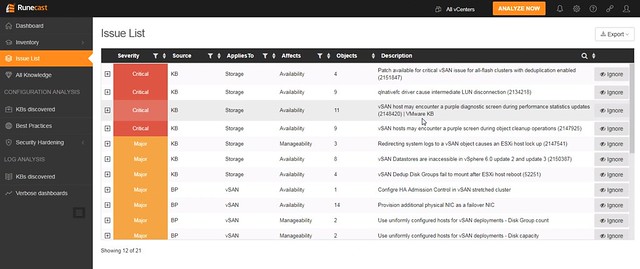
A while ago I introduced Runecast on my blog. I have known these guys for a while and this week I had to pleasure to be briefed on their new release: Runecast 1.7. The big ticket item in this release for sure it the vSAN Support. You may ask yourself why you would need Runecast when you have things like the health check and the “online” health check, well it seems that Runecast’s implementation covers more detail. Anyway, what is Runecast? As a company they refer to themselves as the knowledge automation experts, and I think that is a fair statement.

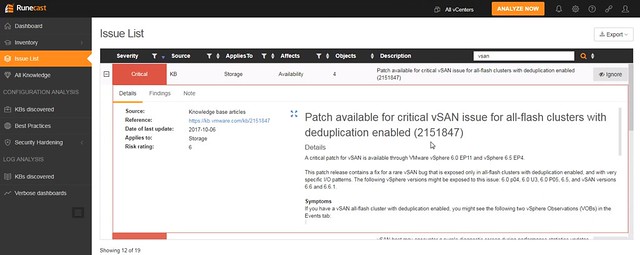
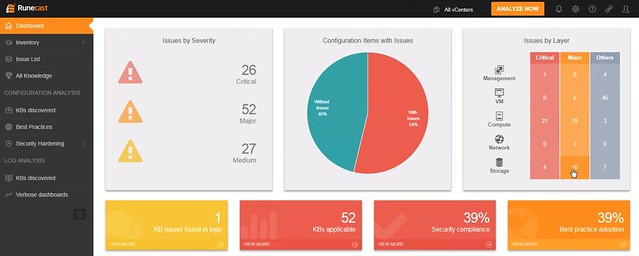
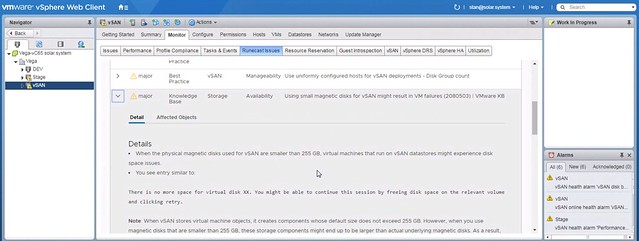
Runecast has developed an appliance which can be connected to one or multiple vCenter Server instances. After linking these you can “scan” the environment and Runecast will tell you about the risks. Not just from a security perspective, but it will also assess logs, configuration and even best practices. Your whole environment will be assessed in a report will be provided in a simple HTML-5 interface, or in the Web Client or the vSphere H5 client even. I said “simple”, but the information provided and the detail is far from simple… When I say simple I refer to their user interface. It is slick, and very easy to use.

Since I discussed Runecast last they added some additional features, like for instance a VRO plugin, full rest API, improved log search, Web Client and H5 client plugins but more importantly for many government agencies: DISA STIG compliancy checks. Yes, Runecast can check your environment against DISA STIG and report on any potential issues. Nice right?

This new release, version 1.7, now brings vSAN support. It also includes a new dashboard widget, which provides faster insights in how your environment is behaving. For vSAN in particular they didn’t only include KB article checks, but also implemented all best practices from the Design and Sizing guide, Network Design guide and the Stretched Cluster white paper. And they even hinted about adding best practices which are listed in the Essential vSAN book Cormac and I wrote, how cool is that? What is also nice is that their appliance is supported with vSAN 5.x and 6.x, and requires no direct access to the internet. You can simply download the appliance and install, and then update with the latest dataset by downloading an ISO.

Oh and before I forget, of course they also provide all the guidance and info needed around Spectre/Meltdown. Where normally their trial is limited, they actually do provide ALL info needed for Spectre/Meltdown as they realized that this is very valuable to customers and felt they could not hold this back.

For the Runecast blog on the 1.7 release go here.

Changing advanced vSphere FT related settings, is that supported?

Duncan Epping · Feb 1, 2018 ·

This week I received a question around changing the values for vSphere FT related advanced settings. This customer is working on an environment where uptime is key. Of course the application layer is one side, but they also want to have additional availability from an infrastructure perspective. Which means vSphere HA and vSphere FT are key.

They have various VMs they need to enable FT on, these are vSMP VMs (meaning in this case dual CPU). Right now each host is limited to 4 FT VMs and at most 8 vCPUs, this is being controlled by two advanced settings called “das.maxftvmsperhost” and “das.maxFtVCpusPerHost”. The values for these are, obviously, 4 and 8. The question was: can I edit these and still have a supported configuration? Also, why 4 and 8?

I spoke to the product team about this and the answer is: yes, you can safely edit these. These values were set based on typical bandwidth and resource constraints customers have. An FT VM easily consumes between 1-3Gbps of bandwidth, meaning that if you dedicate a 10Gbps link to it you will fit roughly 4 VMs. I say roughly as of course the workload matters: CPU, Memory and IO pattern.

If you have a 40Gbps NIC, and you have plenty of cores and memory you could increase those max numbers for FT VMs per host and FT vCPUs. However, it must be noted that if you run in to problems VMware GSS may request you to revert back to the default just to ensure the issues that occur aren’t due to this change as VMware tests with the default values.

UPDATE to this content can be found here: https://www.yellow-bricks.com/2022/11/18/can-you-exceed-the-number-of-ft-enabled-vcpus-per-host-or-number-of-ft-enabled-vcpus-per-vm/

Using a vSphere custom TCP/IP Stack for iSCSI

Duncan Epping · Jan 31, 2018 ·

For continued updated guidance on iSCSI and routed traffic/custom IP stacks I would like to refer you to storagehub, all iSCSI best practices can be found here.

I noticed a question today on an internal slack channel and it was about the use of custom TCP/IP stacks for iSCSI storage environments. Cormac and I updated a bunch of Core Storage whitepapers recently, and one of them was the iSCSI Best Practices white paper. It appears that this little section about routing and custom TCP/IP stacks is difficult to find, so I figured I would share it here as well. The executive summary is simple: Using custom TCP/IP stacks for iSCSI storage in vSphere is not supported.

What is nice though is that with vSphere 6.5 you can now set a gateway per vmkernel interface, anyway here’s the blurb from the paper:

As mentioned before, for vSphere hosts, the management network is on a VMkernel port and therefore uses the default VMkernel gateway. Only one VMkernel default gateway can be configured on a vSphere host per TCP/IP Stack. You can, however, add static routes from the command line or configure a gateway for each individual VMkernel port.

Setting a gateway on a per VMkernel port granular level has been introduced in vSphere 6.5 and allows for a bit more flexibility. The gateway for a VMkernel port can simply be defined using the vSphere Web Client during the creation of the VMkernel interface. It is also possible to configure it using esxcli. Note: At the time of writing the use of a custom TCP/IP Stack is not supported for iSCSI!

I hope that clarifies things, and makes this support statement easier to find.

  • « Go to Previous Page
  • Page 1
  • Interim pages omitted …
  • Page 78
  • Page 79
  • Page 80
  • Page 81
  • Page 82
  • Interim pages omitted …
  • Page 497
  • Go to Next Page »

Primary Sidebar

About the Author

Duncan Epping is a Chief Technologist and Distinguished Engineering Architect at Broadcom. Besides writing on Yellow-Bricks, Duncan is the co-author of the vSAN Deep Dive and the vSphere Clustering Deep Dive book series. Duncan is also the host of the Unexplored Territory Podcast.

Follow Us

  • X
  • Spotify
  • RSS Feed
  • LinkedIn

Recommended Book(s)

Also visit!

For the Dutch-speaking audience, make sure to visit RunNerd.nl to follow my running adventure, read shoe/gear/race reviews, and more!

Do you like Hardcore-Punk music? Follow my Spotify Playlist!

Do you like 80s music? I got you covered!

Copyright Yellow-Bricks.com © 2026 · Log in