• Skip to primary navigation
  • Skip to main content
  • Skip to primary sidebar

Yellow Bricks

by Duncan Epping

  • Home
  • Unexplored Territory Podcast
  • HA Deepdive
  • ESXTOP
  • Stickers/Shirts
  • Privacy Policy
  • About
  • Show Search
Hide Search

Server

Using a CNAME (DNS alias) to mount an NFS datastore

Duncan Epping · Feb 7, 2012 ·

I was playing around in my lab with NFS datastores today. I wanted to fail-over a replicated NFS datastore without the need to re-register the virtual machines running on them. I had mounted the NFS datastore using the IP address and as that is used to create the UUID it was obvious that it wouldn’t work. I figured there should be a way around it but after a quick search on the internet I still hadn’t found anything yet.

I figured it should be possible to achieve this using a CNAME but also recalled something around vCenter screwing this up again. I tested it anyway and with success. This is what I did:

  • Added both NFS servers to DNS
  • Create a CNAME (DNS Alias) and pointed to the “active” NFS server
    • I used the name “nasdr” to make it obvious what it is used for
  • Created an NFS share (drtest) on the NFS server
  • Mount the NFS export using vCenter or though the CLI
    • esxcfg-nas -a -o nasdr -s /drtest drtest
  • Check the UUID using vCenter or through the CLI
    • ls -lah /vmfs/volumes
    • example output:
      lrwxr-xr-x    1 root     root           17 Feb  6 10:56 drtest -> e9f77a89-7b01e9fd
  • Created a virtual machine on the nfsdatastore
  • Enabled replication to my “standby” NFS server
  • I killed my “active” NFS server environment (after validating it had completed replication)
  • Changed the CNAME to point to the secondary NFS server
  • Unmounted the volume old volume
    • esxcfg-nas -d drtest
  • I did a vmkping to “nasdr” just to validate the destination IP had changed
  • Rescanned my storage using “esxcfg-rescan -A”
  • Mounted the new volume
    • esxcfg-nas -a -o nasdr -s /drtest drtest
  • Checked the UUID using the CLI
    • ls -lah /vmfs/volumes
    • example output:
      lrwxr-xr-x    1 root     root           17 Feb  6 13:09 drtest -> e9f77a89-7b01e9fd
  • Powered on the virtual machine now running on the secondary NFS server

As you can see, both volumes had the exact same UUID. After the fail-over I could power-on the virtual machine. No need to re-register the virtual machines within vCenter first. Before I wanted to share it with the world I reached out to my friends at NetApp. Vaughn Stewart connected me with Peter Learmonth who validated my findings and actually pointed me to a blog article he wrote about this topic. I suggest to head-over to Peter’s article for more details on this.
Setting the default affinity rule for Storage DRS

Duncan Epping · Feb 7, 2012 ·

On my blog article for yesterday “Rob M” commented that the default affinity rule for Storage DRS (SDRS), keep VM files together, did not make sense to him. One of the reasons this affinity rule is set is because customers indicated that from an operational perspective it would be easier if all files of a given VM (vmx / vmdk’s) would reside in the same folder. Especially troubleshooting was one of the main reasons, as this lowers complexity. I have to say that I fully agree with this, I’ve been in the situation where I needed to recover virtual machines and having them spread across multiple datastore really complicates things.

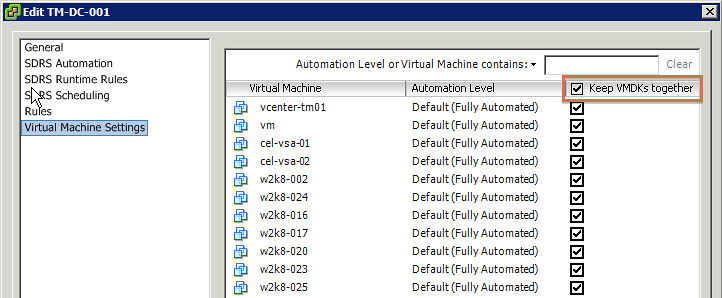
But, just like Rob, you might not agree with this and rather have SDRS handling balancing on a file per file basis. That is possible and we documented this procedure in our book. I was under the impression that I blogged this, but just noticed that somehow I never did. Here is how you change the affinity rule for the current provisioned VMs in a datastore cluster:

  1. Go to Datastores and Datastore Clusters
  2. Right click a datastore cluster and select “edit settings”
  3. Click “Virtual machine settings”
  4. Deselect “Keep VMDKs together”
    1. For virtual machines that need to stick together you can override the default by ticking the tick box next to the VM


Also check out this article by Frank about DRS/SDRS affinity rules, useful to know!

How cool and useful is Storage DRS?!

Duncan Epping · Feb 6, 2012 ·

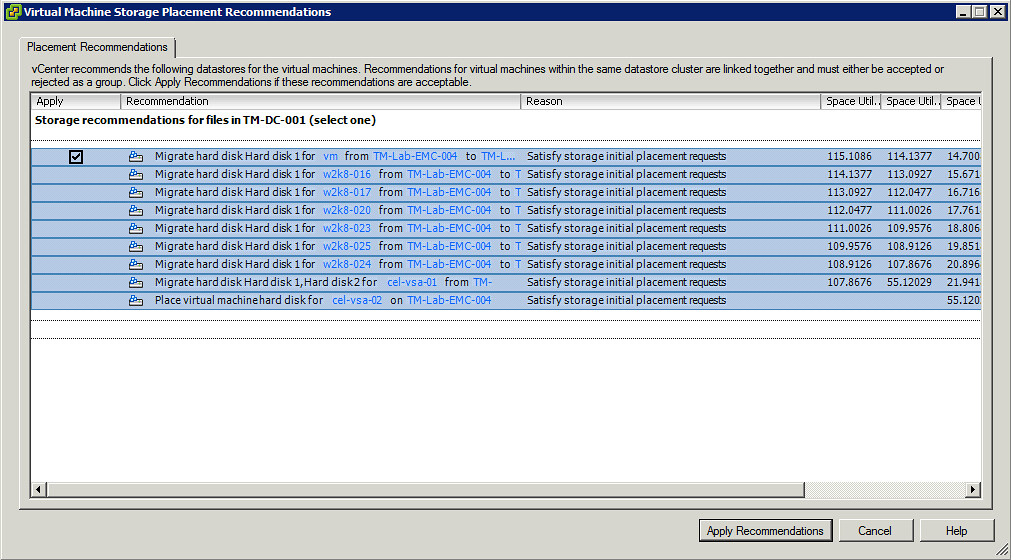
I was just playing around in my lab and created a whole bunch of VMs when I needed to deploy to large virtual machines. Both of them had 500GB disks. The first one deployed without a hassle, but the second one was impossible to deploy, well not impossible for Storage DRS. Just imagine you had to figure this out yourself! Frank wrote a great article about the logic behind this and there is no reason for me to repeat this, just head over to Frank’s blog if you want to know more..

And the actually migrations being spawned:

Yes, this is the true value of Storage DRS… initial placement recommendations!

Creating an IP-Pool for VC Ops

Duncan Epping · Feb 2, 2012 ·

I was importing the VC Ops virtual appliance and during the import I got a question around IP addresses. So I figured I would enter two IP addresses and that would be it. As soon as I powered on the VM I received the following error:

Cannot initialize property ‘vami.netmask0.VM_1’ since network ‘VM Network’ has no associated IP Pools configuration.

I figured this would be simple so I jumped back to “home” and went to the network section… Nothing around IP Pools. Even on a host or cluster layer there was nothing. Luckily my colleague Cormac jumped in and said check the “Datacenter” object, there should be an IP Pool tab there. He was right. Weird place and definitely something that needs to be improved. Anyway, configuring an IP Pool itself, now that I found it, was easy:

  1. Click your Datacenter object
  2. Go to the “IP Pools” tab
  3. Click “Add”
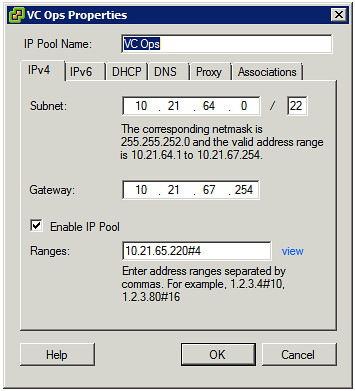
  4. Fill out the details:
    1. Subnet: which network will be used and what is the mask? (You can use a subnet calculator if you don’t know…)
    2. Enter the details of the gateway
    3. Specify a range, the format is “10.1.1.10#10”, this would result in a range from 10.1.1.10 until 10.1.1.19 (10 addresses counting from .10)
    4. Don’t forget to tick the “Enable IP Pool” check box
    5. Click on the “Associations” Tab and associate it to a network!
    6. Also, fill out the DNS and proxy details if and when required.
  5. This is what it should look like:

It is as simple as that, but indeed not easy to find hence the reason I figured a short article was in place.

PS: Creating a range and enabling the “IP Pool” is not required. “Enable IP Pool” enables the use of the Range. In this example I had to use a range as I could only use a specific range of this subnet.


VMworld Europe moved to October 9 – 11 (2012)

Duncan Epping · Jan 31, 2012 ·

I haven’t seen anyone reporting this yet, even the scoopmeister Eric Sloof has posted this. I just heard (thanks for the anonymous tip) that the date has changed for VMworld Europe!

Don’t miss VMworld 2012!
Barcelona October 9-11

Learn about the latest virtualization technologies and strategies which can help your organization realize its’ vision for a cloud computing approach to IT.

So you guys might want to update your calendar!

  • « Go to Previous Page
  • Page 1
  • Interim pages omitted …
  • Page 159
  • Page 160
  • Page 161
  • Page 162
  • Page 163
  • Interim pages omitted …
  • Page 336
  • Go to Next Page »

Primary Sidebar

About the Author

Duncan Epping is a Chief Technologist and Distinguished Engineering Architect at Broadcom. Besides writing on Yellow-Bricks, Duncan is the co-author of the vSAN Deep Dive and the vSphere Clustering Deep Dive book series. Duncan is also the host of the Unexplored Territory Podcast.

Follow Us

  • X
  • Spotify
  • RSS Feed
  • LinkedIn

Recommended Book(s)

Also visit!

For the Dutch-speaking audience, make sure to visit RunNerd.nl to follow my running adventure, read shoe/gear/race reviews, and more!

Do you like Hardcore-Punk music? Follow my Spotify Playlist!

Do you like 80s music? I got you covered!

Copyright Yellow-Bricks.com © 2026 · Log in