• Skip to primary navigation
  • Skip to main content
  • Skip to primary sidebar

Yellow Bricks

by Duncan Epping

  • Home
  • Unexplored Territory Podcast
  • HA Deepdive
  • ESXTOP
  • Stickers/Shirts
  • Privacy Policy
  • About
  • Show Search
Hide Search

Server

interview with …

Duncan Epping · Feb 14, 2012 ·

Recently I did two interviews. Some of you might be interested in reading these. I enjoyed doing them. If you run a magazine / blog and would like to talk to me, or would to have me on a podcast etc don’t hesitate to drop me an email and we will sort something out.

  • BizTech Magazine – Must-Read IT Blogger Q&A: Duncan Epping
    This IT blogger believes in going all-in with virtualization technology…
  • Facetime with Feathernet – Rocking out with Virtualization Superstar, Duncan Epping
    Duncan Epping is influencing the virtualization community one day at a time, brick by brick….

vCloud Director infrastructure resiliency solution

Duncan Epping · Feb 13, 2012 ·

By Chris Colotti (Consulting Architect, Center Of Excellence) and Duncan Epping (Principal Architect, Technical Marketing)

This article assumes the reader has knowledge of vCloud Director, Site Recovery Manager and vSphere. It will not go in to depth on some topics, we would like to refer to the Site Recovery Manager, vCloud Director and vSphere documentation for more in-depth details around some of the concepts.

Creating DR solutions for vCloud Director poses multiple challenges. These challenges all have a common theme.  That is the automatic creation of objects by VMware vCloud Director such as resource pools, virtual machines, folders, and portgroups. vCloud Director and vCenter Server both heavily rely on management object reference identifiers (MoRef ID’s) for these objects. Any unplanned changes to these identifiers could, and often will, result in loss of functionality as Chris has described in this article. vSphere Site Recovery Manager currently does not support protection of virtual machines managed by vCloud Director for these exact reasons.

The vCloud Director and vCenter objects, which are referenced by each product, that are both identified to cause problems when identifiers are changed are:

  • Folders
  • Virtual machines
  • Resource Pools
  • Portgroups

Besides automatically created objects the following pre-created static objects are also often used and referenced to by vCloud Director.

  • Clusters
  • Datastores

Over the last few months we have worked on, and validated a solution which avoids changes to any of these objects. This solution simplifies the recovery of a vCloud Infrastructure and increases management infrastructure resiliency.  The amazing thing is it can be implemented today with current products.

In this blog post we will give an overview of the developed solution and the basic concepts. For more details, implementation guidance or info about possible automation points we recommend contacting your VMware representative and you engage VMware Professional Services.

Logical Architecture Overview

vCloud Director infrastructure resiliency can be achieved through various scenarios and configurations. This blog post is focused on a single scenario to allow for a simple explanation of the concept. A white paper explaining some of the basic concepts is also currently being developed and will be released soon. The concept can easily be adapted for other scenarios, however you should inquire first to ensure supportability. This scenario uses a so-called “Active / Standby” approach where hosts in the recovery site are not in use for regular workloads.

In order to ensure all management components are restarted in the correct order, and in the least amount of time vSphere Site Recovery Manager will be used to orchestrate the fail-over. As of writing, vSphere Site Recovery Manager does not support the protection of VMware vCloud Director workloads. Due to this limitation these will be failed-over through several manual steps. All of these steps can be automated using tools like vSphere PowerCLI or vCenter Orchestrator.

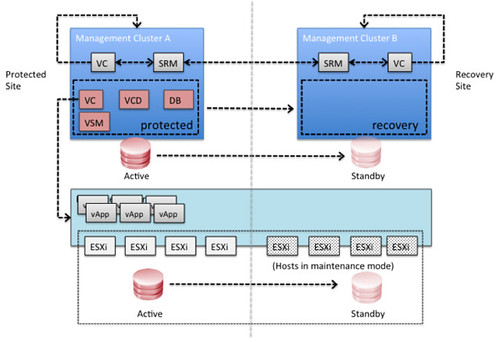
The following diagram depicts a logical overview of the management clusters for both the protected and the recovery site.

In this scenario Site Recover Manager will be leveraged to fail-over all vCloud Director management components. In each of the sites it is required to have a management vCenter Server and an SRM Server which aligns with standard SRM design concepts.

Since SRM cannot be used for vCloud Director workloads there is no requirement to have an SRM environment connecting to the vCloud resource cluster’s vCenter Server. In order to facilitate a fail-over of the VMware vCloud Director workloads a standard disaster recovery concept is used. This concept leverages common replication technology and vSphere features to allow for a fail-over. This will be described below.

The below diagram depicts the VMware vCloud Director infrastructure architecture used for this case study.

Both the Protected and the Recovery Sites have a management cluster. Each of these contain a vCenter Server and an SRM Server. These are used facilitate the disaster recovery procedures. The vCloud Director Management virtual machines are protected by SRM. Within SRM a protection group and recovery plan will be created to allow for a fail-over to the Recovery Site.

Please note that storage is not stretched in this environment and that hosts in the Recovery Site are unable to see storage in the Protected Site and as such are unable to run vCloud Director workloads in a normal situation.  It is also important to note that the hosts are also attached to the cluster’s DVSwitch to allow for quick access to the vCloud configured port groups and are pre-prepared by vCloud Director.

These hosts are depicted as hosts, which are placed in maintenance mode. These hosts can also be stand-alone hosts and added to the vCloud Director resource cluster during the fail-over. For simplification and visualization purposes this scenario describes the situation where the hosts are part of the cluster and placed in maintenance mode.

Storage replication technology is used to replicate LUNs from the Protected Site to the Recover Site. This can be done using asynchronous or synchronous replication; typically this depends on the Recovery Point Objective (RPO) determined in the service level agreement (SLA) as well as the distance between the two sites. In our scenario synchronous replication was used.

Fail-over Procedure

In this section the basic steps required for a successful fail-over of a VMware vCloud Director environment are described. These steps are pertinent to the described scenario.

It is essential that each component of the vCloud Director management stack be booted in the correct order. The order in which the components should be restarted is configured in an SRM recovery plan and can be initiated by SRM with a single button. The following order was used to power-on the vCloud Director management virtual machines:

  1. Database Server (providing vCloud Director, vCenter Server, vCenter Orchestrator, and Chargeback Databases)
  2. vCenter Server
  3. vShield Manager
  4. vCenter Chargeback (if in use)
  5. vCenter Orchestrator (if in use)
  6. vCloud Director Cell 1
  7. vCloud Director Cell 2

When the fail-over of the vCloud Director management virtual machines in the management cluster has succeeded, multiple steps are required to recover the vCloud Director workload. These are described in a manual fashion but can be automated using PowerCLI or vSphere Orchestrator.

  1. Validate all vCloud Director management virtual machines are powered on
  2. Using your storage management utility break replication for the datastores connected to the vCloud Director resource cluster and make the datastores read/write (if required by storage platform)
  3. Mask the datastores to the recovery site (if required by storage platform)
  4. Using ESXi command line tools mount the volumes of the vCloud Director resource cluster on each host of the cluster
    • esxcfg-volume –m <volume ID>
  5. Using vCenter Server rescan the storage and validated all volumes are available
  6. Take the hosts out of maintenance mode for the vCloud Director resource cluster (or add the hosts to your cluster, depending on the chosen strategy)
  7. In our tests the virtual were automatically powered on by vSphere HA. vSphere HA is aware of the situation before the fail-over and will power-on the virtual machines according to the last known state
    • Alternatively, virtual machines can be powered-on manually leveraging the vCloud API to they are booted in the correct order as defined in their vApp metadata. It should be noted that this could possibly result in vApps being powered-on which were powered-off before the fail-over as there is currently no way of determining their state.

Using this vCloud Director infrastructure resiliency concept, a fail-over of a vCloud Director environment has been successfully completed and the “cloud” moved from one site to another.

As all vCloud Director management components are virtualized, the virtual machines are moved over to the Recovery Site while maintaining all current managed object reference identifiers (MoRef IDs). Re-signaturing the datastore (giving it a new unique ID) has also been avoided to ensure the relationship between the virtual machines / vApps within vCloud Director and the datastore remained in tact.

Is that cool and simple or what? For those wondering, although we have not specifically validated it, yes this solution/concept would also apply to VMware View. Yes it would also work with NFS if you follow my guidance in this article about using a CNAME to mount the NFS datastore.


Stratus vCenter Uptime Appliance

Duncan Epping · Feb 10, 2012 ·

I noticed the term “Stratus vCenter Uptime Appliance” a couple of weeks ago but couldn’t find any details on it. It appears that Stratus has now officially announced their vCenter Uptime Appliance. The appliance is built on the company’s fault-tolerant, Intel® processor-based ftServer architecture. In short, these systems are kept in lockstep and if one fails the other one will take over.

Not totally unexpected Stratus compares its solution to vCenter Heartbeat, which they say is more expensive and more complicated to implement. The Stratus solution is roughly $ 6.5k (source), but keep in mind that this is for a 4u physical system and you will need to add the cost of power/cooling/rackspace on top of that, where of course you could run vCenter Heartbeat perfectly virtual. It is not difficult to compare the price, but I’d rather see a cost comparison. Anyway, lets look at the architecture used. The following diagram, created by Stratus, compares the two solutions. I guess it is obvious straight away what the main difference is:

The difference is that Heartbeat is two instances being kept in sync where Stratus is a single instance. Although Stratus takes the “simplicity” approach to compare both architectures, in my opinion this also shows the strength of vCenter Heartbeat. That second instance could be running in a different datacenter / location. I guess each of these have its advantages / disadvantages.

Both of the solutions are definitely worth looking in to when deploying critical environments, but before you make a decision list the benefits/ costs / complexity / resiliency and weight them against each other. Nevertheless it is great to see solutions like these being developed.


Fling: Auto Deploy GUI

Duncan Epping · Feb 9, 2012 ·

Many of you probably know the PXE Manager fling which Max Daneri created… Max has been working on something really cool, a brand new fling: Auto Deploy GUI! I had the pleasure of test driving the GUI and providing early feedback to Max when he had just started working on it and since then it has come a long way! It is a great and useful tool which I hope will at some point be part of vCenter. Once again, great work Max! I suggest that all of you check out this excellent fling and provide Max with feedback so that he can continue to develop and improve it.

The Auto-Deploy GUI fling is an 8MB download and allows you to configure auto-deploy without the need to use PowerCLI. It comes with a practical deployment guide which is easy to follow and should allow all of you to test this in your labs! Download it it now and get started!

source
The Auto Deploy GUI is a vSphere plug-in for the VMware vSphere Auto Deploy component. The GUI plug-in allows a user to easily manage the setup and deployment requirements in a stateless environment managed by Auto Deploy. Some of the features provided through the GUI include the ability to add/remove Depots, list/create/modify Image Profiles, list VIB details, create/modify rules to map hosts to Image Profiles, check compliance of hosts against these rules and re-mediate hosts.

Distributed vSwitches and vCenter outage, what’s the deal?

Duncan Epping · Feb 8, 2012 ·

Recently my colleague Venky Deshpande released  a whitepaper around VDS Best Practices. This white paper describes various architectural options when adopting a VDS only strategy. A strategy of which I can see the benefits. On Facebook multiple people made comments around why this would be a bad practice instead of a best practice, here are some of the comments:

“An ESX/ESXi host requires connectivity to vCenter Server to make vDS operations, such as powering on a VM to attach that VM’s network interface.”

“The issue is that if vCenter is a VM and changes hosts during a disaster (like a total power outage) and then is unable to grant itself a port to come back online.”

I figured the best way to debunk all these myths was to test it myself. I am confident that it is no problem, but I wanted to make sure that I could convince you. So what will I be testing?

  • Network connectivity after Powering-on a VM which is connected to a VDS while vCenter is down.
  • Network connectivity restore of vCenter attached to a VDS after a host failure.
  • Network connectivity restore of vCenter attached to a VDS after HA has moved the VM to a different host and restarted it.

Before we start I think it is useful to rehash something, which is different types of portgroups which is described in more depth in this KB:

  • Static binding – Port is immediately assigned and reserved for it when VM is connected to the dvPortgroup through vCenter. This happens during the provisioning of the virtual machine!
  • Dynamic binding – Port is assigned to a virtual machine only when the virtual machine is powered on and its NIC is in a connected state. The Port is disconnected when the virtual machine is powered off or the virtual machine’s NIC is disconnected. (Deprecated in 5.0)
  • Ephemeral binding – Port is created and assigned to a virtual machine when the virtual machine is powered on and its NIC is in a connected state. The Port is deleted when the virtual machine is powered off or the virtual machine’s NIC is disconnected. Ephemeral Port assignments can be made through ESX/ESXi as well as vCenter.

Hopefully this makes it clear straight away that their should be no problem at all, “Static Binding” is the default and even when vCenter is down a VM which has been provisioned before vCenter went down can easily be powered on and will have network access. I don’t mind spending some lab hours on this, so lets put this to a test. Lets use the defaults and see what the results are.

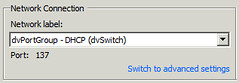
First I made sure all VMs were connected to a dvSwitch. I powered of a VM and checked the “Network settings and this is what it revealed… a port already assigned even when powered off:

This is not the only place you can see port assignments, you can verify it on the VDS’s “ports” tab:

Now lets test this, as that is ultimately what it is all about. First test, Network connectivity after Powering-on a VM which is connected to a VDS while vCenter is down:

  • Connected VM to dvPortgroup with static binding (is the default and best practice)
  • Power off VM
  • Power off vCenter VM
  • Connect vSphere Client to host
  • Power on VM
  • Ping VM –> Positive result
  • You can even see on the command line that this VM uses its assigned port:
    esxcli network vswitch dvs vmware list
    Client: w2k8-001.eth0
    DVPortgroup ID: dvportgroup-516
    In Use: true
    Port ID: 137

Second test, Network connectivity restore of vCenter attached to a VDS after a host failure:

  • Connected vCenter VM to dvPortgroup with static binding (is the default and best practice)
  • Power off vCenter VM
  • Connect vSphere Client to host
  • Power on vCenter VM
  • Ping vCenter VM –> Positive result

Third test, Network connectivity restore of vCenter attached to a VDS after HA has moved the VM to a different host and restarted it.

  • Connected vCenter VM to dvPortgroup with static binding (is the default and best practice)
  • Yanked the cable out of the ESXi host on which vCenter was running
  • Opened a ping to the vCenter VM
  • HA re-registered the vCenter VM on a different host and powered it on
    • The re-register / power-on took roughly 45 – 60 seconds
  • Ping vCenter VM –> Positive result

I hope this debunks some of those myths floating around. I am the first to admit that there are still challenges out there, these will hopefully be addressed soon, but I can assure you that your virtual machines will regain connection as soon as they are powered on through HA or manually… yes even when your vCenter Server is down.


  • « Go to Previous Page
  • Page 1
  • Interim pages omitted …
  • Page 158
  • Page 159
  • Page 160
  • Page 161
  • Page 162
  • Interim pages omitted …
  • Page 336
  • Go to Next Page »

Primary Sidebar

About the Author

Duncan Epping is a Chief Technologist and Distinguished Engineering Architect at Broadcom. Besides writing on Yellow-Bricks, Duncan is the co-author of the vSAN Deep Dive and the vSphere Clustering Deep Dive book series. Duncan is also the host of the Unexplored Territory Podcast.

Follow Us

  • X
  • Spotify
  • RSS Feed
  • LinkedIn

Recommended Book(s)

Also visit!

For the Dutch-speaking audience, make sure to visit RunNerd.nl to follow my running adventure, read shoe/gear/race reviews, and more!

Do you like Hardcore-Punk music? Follow my Spotify Playlist!

Do you like 80s music? I got you covered!

Copyright Yellow-Bricks.com © 2026 · Log in