• Skip to primary navigation
  • Skip to main content
  • Skip to primary sidebar

Yellow Bricks

by Duncan Epping

  • Home
  • Unexplored Territory Podcast
  • HA Deepdive
  • ESXTOP
  • Stickers/Shirts
  • Privacy Policy
  • About
  • Show Search
Hide Search

BC-DR

What is that poweron file in my .vSphere-HA folder?

Duncan Epping · Nov 23, 2012 ·

When answering some questions in the vSphere HA section of the VMTN forum the “poweron” file was mentioned. I have gotten some other questions as well about this file so a public blog post makes most sense.

Each hosts in a vSphere HA cluster keeps track of the power state of the virtual machines it is hosting. This set of powered on virtual machines is stored the “poweron” file. Note that this applies to both the master and the slave hosts in your cluster. This file is located on your vmfs volumes in the hidden directory “.vSphere-HA/<FDM cluster ID>“.

The naming scheme for this file is as follows:
host-<id>-poweron
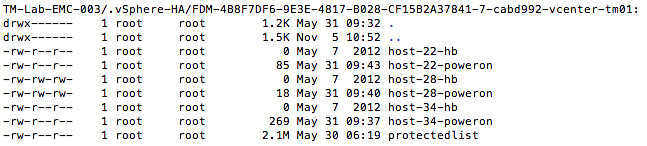
Tracking virtual machine power-on state is not the only thing the “poweron” file is used for. This file is also used by the slaves to inform the master that it is isolated from the management network: the top line of the file will either contain a “0” (zero) or a “1”. A “0” means not-isolated and a “1” means isolated. The master will inform vCenter about the isolation of the host.

This also means that if a host is not sending out any heartbeats to the master, the master will validate if that host has been isolated by reading the “poweron” file. This could be considered as an extra check on top of the “datastore heartbeating” mechanism.
vSphere Metro Storage Cluster – Uniform vs Non-Uniform

Duncan Epping · Nov 13, 2012 ·

Last week I presented in Belgium at the quarterly VMUG event in Brussels. We did a Q&A and got some excellent questions. One of them was about vSphere Metro Storage Cluster (vMSC) solutions and more explicitly about Uniform vs Non-Uniform architectures. I have written extensively about this in the vSphere Metro Storage Cluster whitepaper but realized I never blogged that part. So although this is largely a repeat of what I wrote in the white paper I hope it is still useful for some of you.

<update>As of 2013 the official required bandwidth is 250Mbps per concurrent vMotion</update>

Uniform Versus Nonuniform Configurations

VMware vMSC solutions are classified in two distinct categories, based on a fundamental difference in how hosts access storage. It is important to understand the different types of stretched storage solutions because this will impact your design and operational considerations. Most storage vendors have a preference for one of these solutions, so depending on your preferred vendor it could be you have no choice. The following two main categories are as described on the VMware Hardware Compatibility List:

  • Uniform host access configuration – When ESXi hosts from both sites are all connected to a storage node in the storage cluster across all sites. Paths presented to ESXi hosts are stretched across distance.
  • Nonuniform host access configuration – ESXi hosts in each site are connected only to storage node(s) in the same site. Paths presented to ESXi hosts from storage nodes are limited to the local site.

We will describe the two categories in depth to fully clarify what both mean from an architecture/implementation perspective.

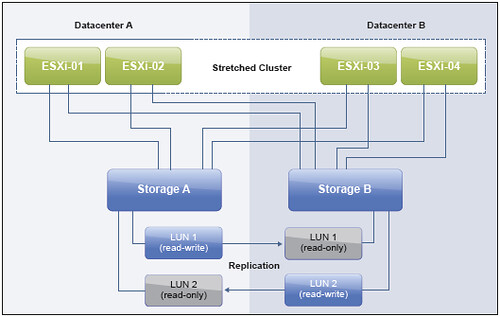
With the Uniform Configuration, hosts in Datacenter A and Datacenter B have access to the storage systems in both datacenters. In effect, the storage-area network is stretched between the sites, and all hosts can access all LUNs. NetApp MetroCluster is an example of this. In this configuration, read/write access to a LUN takes place on one of the two arrays, and a synchronous mirror is maintained in a hidden, read-only state on the second array. For example, if a LUN containing a datastore is read/write on the array at Datacenter A, all ESXi hosts access that datastore via the array in Datacenter A. For ESXi hosts in Datacenter A, this is local access. ESXi hosts in Datacenter B that are running virtual machines hosted on this datastore send read/write traffic across the network between datacenters. In case of an outage, or operator-controlled shift of control of the LUN to Datacenter B, all ESXi hosts continue to detect the identical LUN being presented, except that it is now accessed via the array in Datacenter B.

The notion of “site affinity”—sometimes referred to as “site bias” or “LUN locality”—for a virtual machine is dictated by the read/write copy of the datastore. For example, when a virtual machine has site affinity with Datacenter A, its read/write copy of the datastore is located in Datacenter A.

The ideal situation is one in which virtual machines access a datastore that is controlled (read/write) by the array in the same datacenter. This minimizes traffic between datacenters and avoids the performance impact of reads’ going across the interconnect. It also minimizes unnecessary downtime in case of a network outage between sites. If your virtual machine is hosted in Datacenter B but its storage is in Datacenter A you can imagine the virtual machine won’t be able to do I/O when there is a site partition.

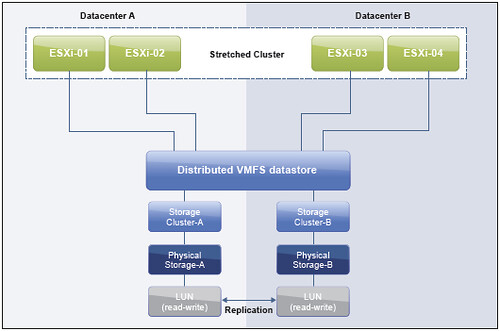
With the Non-uniform Configuration, hosts in Datacenter A have access only to the array in Datacenter A. Nonuniform configurations typically leverage the concept of a “virtual LUN.” This enables ESXi hosts in each datacenter to read and write to the same datastore/LUN. The clustering solution maintains the cache state on each array, so an ESXi host in either datacenter detects the LUN as local. Even when two virtual machines reside on the same datastore but are located in different datacenters, they write locally without any performance impact on either of them.

Note that even in this configuration each of the LUNs/datastores has “site affinity” defined. In other words, if anything happens to the link between the sites, the storage system on the preferred site for a given datastore is the only remaining one that has read/write access to it, thereby preventing any data corruption in the case of a failure scenario. This also means that it is recommended to align virtual machine – host affinity with datastore affinity to avoid any unnecessary disruption caused by a site isolation.

I hope this helps understanding the differences between Uniform vs Non-Uniform configurations. Many more details about vSphere Metro Storage Cluster solutions, including design and operational considerations, can be found in the vSphere Metro Storage Cluster whitepaper. Make sure to read it if you are considering, or have implemented, a stretched storage solution!

vSphere HA compatibility list, how do I check it?

Duncan Epping · Nov 8, 2012 ·

Someone reported issues that in their environment VMs could not be restarted as there were no compatible hosts available. The relevant part of the error message was:

N3Vim5Fault16NoCompatibleHostE

I don’t know why in this case it happened as the log files unfortunately don’t provide these details. This person had manually restarted all of his VMs and that actually worked okay. This could mean that some how the “compatibility list” that vSphere HA maintains was not complete or it wasincorrect. So the question would be how do you validate that if you ever end up in a scenario like this?

First of all before I forget, create a support dump. That way VMware Global Support Services can help pinpointing your problems and provide tips on how to prevent these from occurring.

On a host, and you will have to SSH in to one, you can actually run a script that provides you with some nice details around this. Lets go through the options of the script and explain what you can get out of it. The script is called “prettyPrint.sh” can be found in “/opt/vmware/fdm/fdm/”.

./prettyPrint.sh hostlist

The hostlist option provides all relevant details about the hosts which are part of this cluster including “hostId”, host name, ip address etc.

./prettyPrint.sh clusterconfig

The clusterconfig option provides all configuration info of your cluster like admission control and isolation response.

./prettyPrint.sh compatlist

The compatlist option provides the list of VMs and host they are compatible with, only for vSphere 5.0.

./prettyPrint.sh vmmetadata

The vmmetadata option provides the list of VMs and host they are compatible with, only for vSphere 5.1.

So in this case “vmmetadata” was important as it lists VMs compatible with which host. In this case “<index>0</index> refers to a VM and “<compatMask>0,1,2,3</compatMask> refers to the hosts it is compatible with. Nice right?!

   <compatMatrix>
      <restartCompat>
         <index>0</index>
         <compatMask>0,1,2,3</compatMask>
      </restartCompat>
      <restartCompat>
         <index>1</index>
         <compatMask>0,1,2,3</compatMask>
      </restartCompat>
      <restartCompat>
         <index>2</index>
         <compatMask>0,1,2,3</compatMask>
      </restartCompat>
   </compatMatrix>

** Update: Added Portgroup Test **

On VMTN someone asked if HA also takes networking in to account when restarting VMs. If a given portgroup is not available on specific hosts will HA smartly place VMs? In my test I removed the “VM Network” portgroup from one of my hosts (host with ID 2). When listing the compatibility list the following shows up:

<restartCompat>
       <index>0</index>
       <compatMask>0,1,3</compatMask>
</restartCompat>

As you can see host with ID 2 is missing.

How do I configure an HA vpxd.das advanced setting?

Duncan Epping · Nov 7, 2012 ·

On the community forums someone asked a question around how to set “config.vpxd.das.electionWaitTimeSec”. I was looking at the documentation and it is indeed not really clear on what / where / how to set an HA vpxd.das advanced setting. This KB article kind explains it, but let me summarize it and simplify it.

There are various sorts of advanced settings, but for HA three in particular:

  • das.* –> Cluster level advanced setting.
  • fdm.* –> FDM host level advanced setting (FDM = Fault Domain Manager = vSphere HA)
  • vpxd.* –> vCenter level advanced setting.

How do you configure these?

  • Cluster Level
    • In the vSphere Client: Right click your cluster object, click “edit settings”, click “vSphere HA” and hit the “Advanced Options” button.
    • In the Web Client: Click “Hosts and Clusters”, click your cluster object, click the “Manage” tab, click “Settings” and “vSphere HA”, hit the “Edit” button
  • FDM Host Level
    • Open up an SSH session to your host and edit “/etc/opt/vmware/fdm/fdm.cfg”
  • vCenter Level
    • In the vSphere Client: Click “Administration” and “vCenter Server Settings”, click “Advanced Settings”
    • In the Web Client: Click “vCenter”, click “vCenter Servers”, select the appropriate vCenter Server and click the “Manage” tab, click “Settings” and “Advanced Settings”

By the way, this KB also lists all HA advanced settings that are relevant… might be worth reading as well. Hope this helps configuring your HA vpxd.das advanced setting.

VMworld #NotSupported lightning talk slides – Hacking SRM

Duncan Epping · Oct 18, 2012 ·

I presented this 15 minute talk at VMworld about hacking SRM or actually hacking the Storage Replication Adapter which is part of SRM. I noticed William Lam shared his slides so I figured I would do the same. This slidedeck was based on two articles I did a while back around hacking the SRA, you might want to read them as well. ( 1 , 2 )

I hope they are useful. Once again, thanks to Randy Keener for coming up with this excellent idea and thanks to the brownbag guys for helping hosting this great initiative. Lets hope we will see more of this next year at VMworld,

  • « Go to Previous Page
  • Page 1
  • Interim pages omitted …
  • Page 28
  • Page 29
  • Page 30
  • Page 31
  • Page 32
  • Interim pages omitted …
  • Page 63
  • Go to Next Page »

Primary Sidebar

About the Author

Duncan Epping is a Chief Technologist and Distinguished Engineering Architect at Broadcom. Besides writing on Yellow-Bricks, Duncan is the co-author of the vSAN Deep Dive and the vSphere Clustering Deep Dive book series. Duncan is also the host of the Unexplored Territory Podcast.

Follow Us

  • X
  • Spotify
  • RSS Feed
  • LinkedIn

Recommended Book(s)

Also visit!

For the Dutch-speaking audience, make sure to visit RunNerd.nl to follow my running adventure, read shoe/gear/race reviews, and more!

Do you like Hardcore-Punk music? Follow my Spotify Playlist!

Do you like 80s music? I got you covered!

Copyright Yellow-Bricks.com © 2026 · Log in