• Skip to primary navigation
  • Skip to main content
  • Skip to primary sidebar

Yellow Bricks

by Duncan Epping

  • Home
  • Unexplored Territory Podcast
  • HA Deepdive
  • ESXTOP
  • Stickers/Shirts
  • Privacy Policy
  • About
  • Show Search
Hide Search

BC-DR

Protecting vCenter Server – HA or Heartbeat?

Duncan Epping · Sep 19, 2012 ·

At VMworld during one of my group discussions there was a discussion around using vSphere HA or vCenter Heartbeat to protect the vCenter Server. Coincidentally it is something that we recently discussed internally on Socialcast and I figured I would give my thoughts on this topic. My answer was short and simple: It depends.

Yes I bet some of you saw that coming… But let me elaborate. vCenter availability is crucial in my opinion when it comes to operating your environment. However your environment is not about vSphere. Your environment is not really about virtual machines. Your environment is about the services that you offer!

Your service level agreement typically is based on up-time of the service, makes sense right. No one really cares about the management platform, well I do and you do but your customers probably do not. Your customers care about the availability of their service.

Will their service have an interruption when vCenter is down is the question you will need to ask yourself. In most cases the answer will probably be no, and in those cases you will need to ask yourself what the downtime is you can afford from a management perspective. Is a minute or two okay? Than vSphere HA can help you and there is no need for Heartbeat or other complex clustering solutions. If a couple of minutes is not acceptable than Heartbeat is an option.

If there is a service interruption for the customer when vCenter is down (for instance in a test / dev cloud where provisioning processes are key, vCloud Director, View) you should consider using vCenter Heartbeat. Again, it all depends on your service level agreement. In some cases vCenter availability is crucial, in other cases a downtime of minutes is within the defined boundaries. The answer remains, it depends… it depends on your use case and service level agreement.
My vCenter Server 5.1 appliance crashed and I was using VDP… now what?

Duncan Epping · Sep 19, 2012 ·

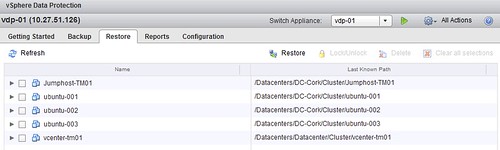
I had this question this week, what if I am using vSphere Data Protection (VDP) and my vCenter Server appliance (VCVA) crashes… well lets just test it.

I just killed my vCenter Server appliance and deleted if from disk. Next step is to get a brand new vCenter Server appliance up and running. So I deploy a brand new VCVA first. As I have pointed my vSphere Client directly to a host I will need to login to the commandline to configure my networking, you can use vami_config_net but also Yast.

/opt/vmware/share/vami/vami_config_net

Next I go through the regular setup and configuration steps. Create a Datacenter and a Cluster and add some hosts. Now I see my VDP appliance again in my inventory… but I don’t see those nice shiny VDP icons. So how do I get those back? Well that is simple, just register the appliance to the new vCenter Server:

  • Point your browser to the VDP configuration web page
    https://<ip address or name of vdp appliance>:8543/vdp-configure/
  • Click on the “configuration” tab
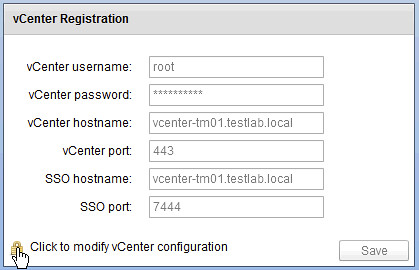
  • Click on the lock to unlock the config
  • Now enter your appliance password
  • Provide the new vCenter Server details (in my case they are the same as the old so I just provide the password of the vCenter Server appliance)
  • Reboot the VDP appliance
  • Reboot the vCenter Server appliance

Now open up the Web Client and …

  • Click the “vSphere Data Protection” option in the left pane of your Web Client
  • If you see the “Not Connected” status, click “Connect”
  • That is it… now you can restore VMs again


Back to Basics: Install, configure and use vSphere Data Protection

Duncan Epping · Sep 18, 2012 ·

Installing vSphere Data Protection is just a couple of steps. I downloaded the vSphere Replication virtual appliance. Note there are three different versions available and depending on how large your environment is you will need to select a version. I selected the 0.5TB version as I have a limited amount of virtual machines. This is how you import it and configure it, but before you begin I recommend ensuring DNS records are created before deploying the appliance!

  • Open the Web Client
  • Go to your cluster under “vCenter” —> “Hosts and Clusters”.
  • Right click the cluster object and click “All vCenter Actions” —> “Deploy OVF Template”
  • As a source I select the ova file I downloaded, now click “Next”
  • Validate the details and click “Next”
  • If you agree “Accept” the EULA and click “Next”
  • Enter the “Name” of the virtual machine and select the “Folder” this virtual machine will needs to be placed in and click “Next”
  • Select the “Datastore” it needs to be provisioned to and click “Next”
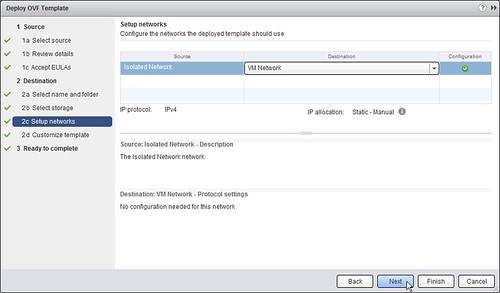
  • Select the “Network” it needs to be connected to and click “Next”
  • [Read more…] about Back to Basics: Install, configure and use vSphere Data Protection

Back to Basics: Install, configure and use vSphere Replication

Duncan Epping · Sep 17, 2012 ·

One of the coolest features that has been included with vSphere 5.1 in my opinion is vSphere Replication. (Make sure to read the what’s new paper) The reason for it being is that it now brings “advanced” technology to everyone (Essentials Plus and upwards). I have used vSphere Replication in 5.0 and it was nice, but with 5.1 the installation and configuration process has been improved. For instance the database is now included in the appliance and it isn’t as DNS sensitive as it was with 5.0. This makes installing and configuring it a matter of minutes.

I am going to assume you have “vSphere Replication” traffic enabled on a VMkernel NIC, if you do not know how to create a VMkernel NIC check this article

Lets get started. I downloaded the vSphere Replication virtual appliance and imported and configured it in just a couple of steps using the vSphere 5.1 Web Client: [Read more…] about Back to Basics: Install, configure and use vSphere Replication

What’s new in vSphere 5.1 for High Availability

Duncan Epping · Sep 12, 2012 ·

As vSphere High Availability was completely revamped in 5.0 not a lot of changes have been introduced in 5.1. There are some noteworthy changes though that I figured I would share with you. So what’s cool?

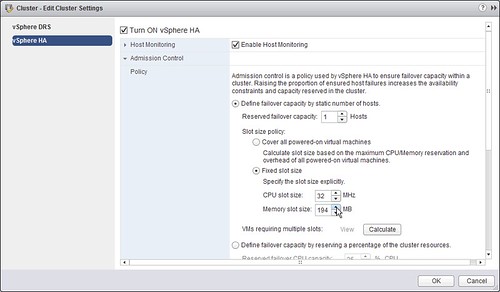
  • Ability to set slot size for “Host failures tolerated” through the vSphere Web Client
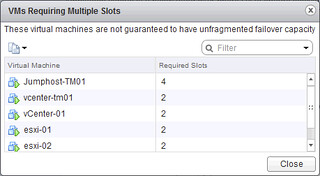
  • Ability to retrieve a list of the virtual machines that span multiple slots
  • Support for Guest OS Sleep mode
  • Including the Application Monitoring SDK  in the Guest SDK (VMware Tools SDK)
  • vSphere HA (FDM) VIB is automatically added to Auto-Deploy image profile
  • Ability to delay isolation response throught the use of “das.config.fdm.isolationPolicyDelaySec”

Although many of these speak for itself, I will elaborate on why these enhancements are useful and when to use them.

The ability  to set slot size for “Host failures tolerated” allows you to manually dictate how many virtual machines you can power-on in your cluster. Many have used advanced settings to achieve more or less the same, but through the UI things are a lot easier I guess.

Now if you do this, it could happen that a virtual machine needs multiple slots in order to successfully power-on. That is where the second bullet point comes in to play. In the vSphere Web Client you can now see a list of all the virtual machines that currently span multiple slots.

Support for Guest OS “Sleep Mode” in environments where VM Monitoring is used was added. This was reported by Sudharsan a while back and I addressed it with the HA engineering team. As a result they added in the logic that recognizes the “state” of the virtual machine to avoid unneeded restarts. Thanks Sudharsan for reporting! (I can’t find this in the release notes however)

With 5.0 the Application Monitoring SDK was opened up to the broader audience. It was still a separate installer though. As of vSphere 5.1 the App Monitoring SDK is part of the VMware Tools SDK. This will make your life easier when you use Application Monitoring.

Those running stateless will be happy about the fact that the FDM VIB is now part of the Auto-Deploy image profile. This will avoid the need to manually add it every time you create a new image.

Last but not least, in 5.1 we re-introduce “das.failuredetectiontime”… well not exactly but a similar concept with a different name. This new advanced setting named “das.config.fdm.isolationPolicyDelaySec” will allow you to extend the time it takes before the isolation response is triggered. By default the isolation response is triggered after ~30 seconds with vSphere 5.x. If you have a requirement to increase this then this new advanced setting can be used.

  • « Go to Previous Page
  • Page 1
  • Interim pages omitted …
  • Page 30
  • Page 31
  • Page 32
  • Page 33
  • Page 34
  • Interim pages omitted …
  • Page 63
  • Go to Next Page »

Primary Sidebar

About the Author

Duncan Epping is a Chief Technologist and Distinguished Engineering Architect at Broadcom. Besides writing on Yellow-Bricks, Duncan is the co-author of the vSAN Deep Dive and the vSphere Clustering Deep Dive book series. Duncan is also the host of the Unexplored Territory Podcast.

Follow Us

  • X
  • Spotify
  • RSS Feed
  • LinkedIn

Recommended Book(s)

Also visit!

For the Dutch-speaking audience, make sure to visit RunNerd.nl to follow my running adventure, read shoe/gear/race reviews, and more!

Do you like Hardcore-Punk music? Follow my Spotify Playlist!

Do you like 80s music? I got you covered!

Copyright Yellow-Bricks.com © 2026 · Log in