• Skip to primary navigation
  • Skip to main content
  • Skip to primary sidebar

Yellow Bricks

by Duncan Epping

  • Home
  • Unexplored Territory Podcast
  • HA Deepdive
  • ESXTOP
  • Stickers/Shirts
  • Privacy Policy
  • About
  • Show Search
Hide Search

5.0

Write-Same vs XCopy when using Storage vMotion

Duncan Epping · Mar 6, 2013 ·

I had a question last week about Storage vMotion and when Write-same vs XCopy was used. I was confident I knew the answer, but I figured I would do some testing. So what was the question exactly and the scenario I tested?

Imagine you have a virtual machine with a “lazy zero thick disk” and an “eager zero thick” disk. When initiating a Storage vMotion while preserving the disk format, would the pre-initialized blocks in the “eager zero thick” disk be copied through XCopy or would “write-same” (aka zero out) be used?

So that is what I tested. I created this virtual machine with two disks of which one being thick and about half filled and the other “eager zero thick”. I did a Storage vMotion to a different datastore (same format as source) and checked esxtop while the migration was on going:

CLONE_WR = 21943
ZERO = 2

In other words, when preserving the disk format the “XCopy” command (CLONE_WR) is issued by the hypervisor. The reason for this is when doing a SvMotion and keeping the disk formats the same the copy command is initiated for a chunk but the hypervisor doesn’t read the block before the command is initiated to the array. Hence the reason the hypervisor doesn’t know these are “zero” blocks in the “eager zero thick” disk and goes through the process of copy offload to the array.

Of course it would interesting to see what happens if I tell during the migration that all disks will need to become “eager zero thick”, remember one of the disks was “lazy zero thick”:

CLONE_WR = 21928
ZERO = 35247

It is clear that in this case it does zero out the blocks (ZERO). As there is a range of blocks which aren’t used by the virtual machine yet the hypervisor ensures these blocks are zeroed so that they can be used immediately when the virtual machine wants to… as that is what the admin requested “eager zero thick” aka pre-zeroed.

For those who want to play around with this, check esxtop and then the VAAI stats. I described how-to in this article.
How to disable Datastore Heartbeating

Duncan Epping · Feb 25, 2013 ·

I have had this question multiple times now, how do I disable datastore heartbeating? Personally, I don’t know why you would ever want to do this… but as multiple people have asked I figured I would write it down. There is no “disable” button unfortunately, but there is a work-around. Below are the steps you need to take to disable datastore heartbeating.

vSphere Client:

  • Right Cluster object
  • Click “Edit Settings”
  • Click “Datastore Heartbeating”
  • Click “Select only from my preferred datastores”
  • Do not select any datastores

Web Client:

  • Click “Cluster object”
  • Click “Manage” tab
  • Click “vSphere HA”
  • Click “Edit button” on the right side
  • Click “Datastore Heartbeating”
  • Click “Select only from my preferred datastores”
  • Do not select any datastores

It is as simple as that… However, let me stress that this is not something that I would recommend doing. Only when you are troubleshooting and need it disabled for whatever reason, please make sure to enable it when you are done.

vSphere HA 5.x restart attempt timing

Duncan Epping · Feb 18, 2013 ·

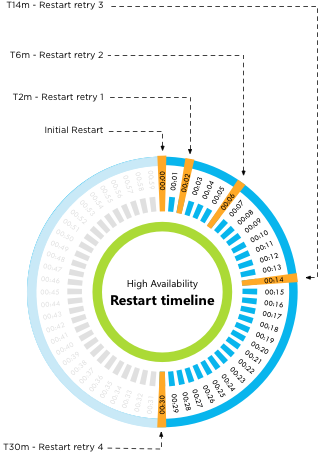
I wrote about how vSphere HA 5.x restart attempt timing works a long time ago but there appears still to be some confusion about this. I figured I would clarify this a bit more, I don’t think I can make it more simple than this:

  • Initial restart attempt
  • If the initial attempt failed, a restart will be retried after 2 minutes of the previous attempt
  • If the previous attempt failed, a restart will be retried after 4 minutes of the previous attempt
  • If the previous attempt failed, a restart will be retried after 8 minutes of the previous attempt
  • If the previous attempt failed, a restart will be retried after 16 minutes of the previous attempt

After the fifth failed attempt the cycle ends. Well that is, unless a new master host is selected (for whatever reason) between the first and the fifth attempt. In that case, we start counting again. Meaning that if a new master is selected after attempt 3, the new master will start with the “initial restart attempt.

Or as Frank Denneman would say:

vSphere HA 5.x restart attempt timing


** Disclaimer: This article contains references to the words master and/or slave. I recognize these as exclusionary words. The words are used in this article for consistency because it’s currently the words that appear in the software, in the UI, and in the log files. When the software is updated to remove the words, this article will be updated to be in alignment. **

Percentage Based Admission Control gives lower VM restart guarantee?

Duncan Epping · Jan 9, 2013 ·

Those who have configured vSphere HA have all seen that section where it asks if you want to use admission control or not. Of course if you decide you want to use it, and you should want this, then the next question that comes is which one do you want to use? I have always preferred the “Percentage Based Admission Control” policy. For some reason though there are people who think that the percentage based admission control policy rules out large VMs from being restarted or offers a lower guarantee.

The main perception that people have is that the percentages based admission control policy gives lower guarantees of virtual machines being restarted than the “host failures” admission control policy. So let break it down, and I mean BREAK IT DOWN, by using an example.

Example

  • 5 hosts
  • 200GB of Memory in cluster
  • 20GHz of CPU in cluster

If no reservations are set:

Percentage Based will do the following:

  1. The Percentage Based policy will take the total amount of resources and subtract the amount of resources reserved for fail-over. If that percentage is for instance 20% than 40GB and 4GHz are subtracted. Which means 160GB and 16GHz are left.
  2. The reserved resources for every virtual machine that is powered on is subtracted from what the outcome of 1. was. If no reservation is set memory then memory overhead is subtracted, if the memory overhead is 200MB then 200MB is subtracted from the 160GB that was left resulting in 159,8GB being available. For CPU the default of 32MHz will be used.
  3. You can power-on virtual machines until the amount of available resources, according to HA Admission Control, is depleted, yes many VMs in this case.

Host Failures will do the following:

  1. The Host Failures policy will calculate the amount of slots. A slot is formed out of two components: memory and cpu. As no reservation is used the default for CPU is used which is 32MHz, with vSphere 5.0 and higher. For memory the largest memory overhead size is used, in this scenario there could be a variety of sizes lets say the smallest is 64MB and the largest 300MB. Now 300MB will be used for the Memory Slot size.
  2. Now that the slotsize is known Admission Control will look for the host with the most slots (available resources / slot size) and subtract those slots from the total amount of available slots. (If one host failure is specified). Every time a VM is started a slot is subtracted. If a VM is started with a higher memory reservation we go back to 1 and the math will need to be done again.
  3. You can power-on virtual machines until you are out of slots, again… many VMs.

If reservations are set:

Percentage Based will do the following:

  1. The Percentage Based policy will take the total amount of resources and subtract the amount of resources reserved for fail-over. If that percentage is for instance 20% than 40GB and 4GHz are subtracted. Which means 160GB and 16GHz are left.
  2. The reserved resources for every virtual machine that is powered on is subtracted from what the outcome of 1 was. So if 10GB of memory was reserved, then 10GB is subtracted resulting in 150GB being available.
  3. You can power-on virtual machines until available resources are depleted (according to HA Admission Control), but as reservations are used you are “limited” in terms of the amount of VMs you can power-on.

Host Failures will do the following:

  1. The Host Failures policy will calculate the amount of slots. A slot is formed out of two components: memory and cpu. As a reservation is used for memory but not for CPU the default for CPU is used which is 32MHz, with vSphere 5.0 and higher. For memory there is a 10GB reservation set. 10GB will be used for the Memory Slot size.
  2. Now that the slotsize is known Admission Control will look for the host with the most slots (available resources / slot size) and subtract those slots from the total amount of available slots. (If one host failure is specified). Every time a VM is started a slot is subtracted, yes that is a 10GB memory slot, even if it has for instance a 2GB reservation. If a VM is started with a higher memory reservation we go back to 1 and the math will need to be done again.
  3. You can power-on virtual machines until you are out of slots, as a high reservation is set you will be severely limited!

Now you can imagine that “Host Failures” can be on the safe side… If you have 1 reservation set the math will be done with that reservation. This means that a single 10GB reservation will impact how many VMs you can power-on until HA screams that it is out of resources. But at least you are guaranteed you can power them on right? Well yes, but realistically speaking people disable Admission Control at this point as that single 10GB reservation allows you to power on just a couple of VMs. (16 to be precise.)

But but that beats Percentage Based right… because if I have a lot of VMs who says my VM with 10GB reservation can be restarted? First of all, if there are no “unreserved resources” available on any given host to start this virtual machine then vSphere HA will ask vSphere DRS to defragment the cluster.As HA Admission Control had already accepted this virtual machine to begin with, chances are fairly high that DRS can solve the fragmentation.

Also, as the percentage based admission control policy uses reservations AND memory overhead… how many virtual machines do you need to have powered-on before your VM with 10 GB memory reservation is denied to be powered-on? It would mean that none of the hosts has 10GB of unreserved memory available. That is not very likely as that means you would need to power-on hundreds of VMs… Probably way too many for your environment to ever perform properly. So chances of hitting this scenario are limited, extremely small.

Conclusion

Although theoretically possible, it is very unlikely you will end up in situation where one or multiple virtual machines can not be restarted when using the Percentage Based Admission Control policy. Even if you are using reservations on all virtual machines then this is unlikely as the virtual machines have been accepted at some point by HA Admission Control and HA will leverage DRS to defragment resources at that point. Also keep in mind that when using reservations on all virtual machines that Host Failures is not an option as it will skew your numbers as it does the math with “worst case scenario”, a single 10GB reservation can kill your ROI/TCO.

In short: Go Percentage Based!

ESXi host disconnected from vCenter?

Duncan Epping · Jan 7, 2013 ·

I noticed a couple of people reported this problem in the last two months so I figured a blog post would be useful. This thread on VMTN triggered this article. If your ESXi host is disconnected from vCenter (even 5.0 and 5.1 appear to be impacted by this) and you see error messages in your log files about free space like these:

WARNING: VisorFSObj: xxxx: Cannot create file /var/spool/snmp/xxxxxxxx_x_
x_xxxx.trp for process hostd-worker because the inode table of its ramdisk (root) is full.

VmkCtl Locking (/etc/vmware/esx.conf) : Unable to create or open a LOCK file. Failed with reason: No space left on device

This could be caused by the fact that ESXi is running out of inodes. You can simply check that on the command line by using the following command:

stat -f /

The outcome of this command will look as follows:

File: “/”
ID: 1        Namelen: 127     Type: visorfs
Block size: 4096
Blocks: Total: 449852     Free: 324368     Available: 324368
Inodes: Total: 8192       Free: 55

As you can see the amount of “free” inodes is low and this is causing the experienced issues. In some cases it is reported (by vdsyn in this case) that “/var/spool/snmp/” is full and needs to be cleaned out. In this KB Article “/var/run/sfcb/” is explicitly called out and also explains what you can delete and how. So make sure to look at those two directories when an ESXi host is disconnected from vCenter.

  • « Go to Previous Page
  • Page 1
  • Page 2
  • Page 3
  • Page 4
  • Page 5
  • Page 6
  • Interim pages omitted …
  • Page 33
  • Go to Next Page »

Primary Sidebar

About the Author

Duncan Epping is a Chief Technologist and Distinguished Engineering Architect at Broadcom. Besides writing on Yellow-Bricks, Duncan is the co-author of the vSAN Deep Dive and the vSphere Clustering Deep Dive book series. Duncan is also the host of the Unexplored Territory Podcast.

Follow Us

  • X
  • Spotify
  • RSS Feed
  • LinkedIn

Recommended Book(s)

Also visit!

For the Dutch-speaking audience, make sure to visit RunNerd.nl to follow my running adventure, read shoe/gear/race reviews, and more!

Do you like Hardcore-Punk music? Follow my Spotify Playlist!

Do you like 80s music? I got you covered!

Copyright Yellow-Bricks.com © 2026 · Log in