• Skip to primary navigation
  • Skip to main content
  • Skip to primary sidebar

Yellow Bricks

by Duncan Epping

  • Home
  • Unexplored Territory Podcast
  • HA Deepdive
  • ESXTOP
  • Stickers/Shirts
  • Privacy Policy
  • About
  • Show Search
Hide Search

5.0

How does Mem.MinFreePct work with vSphere 5.0 and up?

Duncan Epping · Jun 14, 2013 ·

With vSphere 5.0 VMware changed the way Mem.MinFreePct worked. I had briefly explained Mem.MinFreePct in a blog post a long time ago. Basically Mem.MinFreePct, pre vSphere 5.0, was the percentage of memory set aside by the VMkernel to ensure there are always sufficient system resources available. I received a question on twitter yesterday based on the explanation in the vSphere 5.1 Clustering Deepdive and after exchanging > 10 tweets I figured it made sense to just write an article.

https://twitter.com/vmcutlip/status/345289952684290048

Mem.MinFreePct used to be 6% with vSphere 4.1 and lower. Now you can imagine that when you had a host with 10GB you wouldn’t worry about 600MB being kept free, but that is slightly different for a host with 100GB as it would result in 6GB being kept free but still not an extreme amount right. What would happen when you have a host with 512GB of memory… Yes, that would result in 30GB of memory being kept free. I am guessing you can see the point now. So what changed with vSphere 5.0?

In vSphere 5.0 a “sliding scale” principle was introduced instead of Mem.MinFreePct. Let me call it “Mem.MinFree”, as I wouldn’t view this as a percentage but rather do the math and view it as a number instead. Lets borrow Frank’s table for this sliding scale concept:

Percentage kept free of –>
Memory Range
6% 0-4GB
4% 4-12GB
2% 12-28GB
1% Remaining memory

What does this mean if you have 100GB of memory in your host? It means that from the first 4GB of memory we will set aside 6% which equates to ~ 245MB. For the next 8GB (4-12GB range) we set aside another 4% which equates to ~327MB. For the next 16GB (12-28GB range) we set aside 2% which equates to ~ 327MB. Now from the remaining 72GB (100GB host – 28GB) we set aside 1% which equates to ~ 720MB. In total the value of Mem.MinFree is ~ 1619MB. This number, 1619MB, is being kept free for the system.

Now, what happens when the host has less than 1619MB of free memory? That is when the various memory reclamation techniques come in to play. We all know the famous “high, soft, hard, and low” memory states, these used to be explained as: 6% (High), 4% (Soft), 2% (Hard), 1% (Low). FORGET THAT! Yes, I mean that… forget these as that is what we used in the “old world” (pre 5.0). With vSphere 5.0 and up these water marks should be viewed as a Percentage of Mem.MinFree. I used the example from above to clarify it a bit what it results in.

Free memory state Threshold in Percentage
Threshold in MB
High water mark Higher than or equal to Mem.MinFree 1619MB
Soft water mark 64% of Mem.MinFree 1036MB
Hard water mark 32% of Mem.MinFree 518MB
Low water mark 16% of Mem.MinFree 259MB

I hope this clarifies a bit how vSphere 5.0 (and up) ensures there is sufficient memory available for the VMkernel to handle system tasks…

Reminder: Free Kindle copy of vSphere 5 and 4.1 Clustering Deepdive

Duncan Epping · Jun 5, 2013 ·

Just a reminder, if you want your free Kindle copy of the vSphere 5.0 Clustering Deepdive or the vSphere 4.1 HA and DRS Deepdive, make sure to check Amazon (US Kindle Store) today and tomorrow (Wednesday June the 5th and Thursday June the 6th)! You can download the Kindle copy of both these books for free, yes that is correct ZERO dollars.

So make sure you pick it up either before the promo expires…

** Note I have linked the US Kindle stores, it is also available for free in local Kindle stores, just do search! **


Manual vMotion and using DRS to select a host results in no migration?

Duncan Epping · May 30, 2013 ·

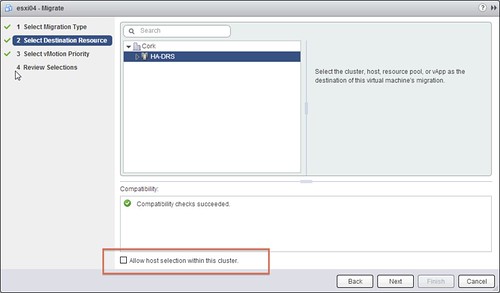
I had a question from a customer last week. He was doing a manual migration on a cluster which had DRS enabled. He was using the vSphere Web Client and was wondering if he should tick the “Allow host selection within this cluster” tickbox or not, as shown in the screen shot below. The customer decided not to tick the “host selection” tickbox and decided that DRS would pick the right destination for the virtual machine. After he clicked “Finish” he noticed that the “relocation” literally finished in seconds and he wondered if anything happened at all… When he looked at the virtual machine he noticed it was still located on the same host, how can that be?

Well the answer is fairly straight forward, in this case the DRS cluster was balanced and that is the typical situation for most clusters out there I would say. When initiating the vMotion workflow the Cluster was selected as a destination so DRS had to figure out what the best destination would be. Considering the cluster was in balance, there would be absolutely no point in moving this virtual machine so what did DRS decide? Indeed, destination = source.

If you are going through this workflow using the Web Client, make sure to tick “Allow host selection within this cluster” and select a destination other than your source… otherwise the effort was pointless.

Manual vMotion

Free Kindle copy of vSphere 5.0 Clustering Deepdive?

Duncan Epping · May 28, 2013 ·

Do you want a free Kindle copy of the vSphere 5.0 Clustering Deepdive or the vSphere 4.1 HA and DRS Deepdive? Well make sure to check Amazon next week! I just put both of the books up for a promotional offer… For 48 hours, Wednesday June the 5th and Thursday June the 6th, you can download the Kindle (US Kindle Store) copy of both these books for free, yes that is correct ZERO dollars.

So make sure you pick it up either Wednesday June the 5th or Thursday June the 6th, it might be the only time this year it is on promo.

Pinging from different VMkernel NICs using esxcli?

Duncan Epping · May 27, 2013 ·

Today I had a network issue in my lab, I still don’t have a clue what the issue was but I did discover something useful. I had 3 different VMkernel’s setup and I wanted to make sure each of the three had network connection to a specific destination address. After going through the esxcli command I bumped in to the following command which I found very helpful:

esxcli network diag ping -I vmk0 -H 10.27.51.132

In this case I use VMkernel Interface “vmk0” to ping to the address “10.27.51.132”. If I want to use a different VMkernel Interface I just specify it, so swap “vmk0” with “vmk1” for instance. Useful right?!

  • « Go to Previous Page
  • Page 1
  • Page 2
  • Page 3
  • Page 4
  • Interim pages omitted …
  • Page 33
  • Go to Next Page »

Primary Sidebar

About the Author

Duncan Epping is a Chief Technologist and Distinguished Engineering Architect at Broadcom. Besides writing on Yellow-Bricks, Duncan is the co-author of the vSAN Deep Dive and the vSphere Clustering Deep Dive book series. Duncan is also the host of the Unexplored Territory Podcast.

Follow Us

  • X
  • Spotify
  • RSS Feed
  • LinkedIn

Recommended Book(s)

Also visit!

For the Dutch-speaking audience, make sure to visit RunNerd.nl to follow my running adventure, read shoe/gear/race reviews, and more!

Do you like Hardcore-Punk music? Follow my Spotify Playlist!

Do you like 80s music? I got you covered!

Copyright Yellow-Bricks.com © 2026 · Log in