• Skip to primary navigation
  • Skip to main content
  • Skip to primary sidebar

Yellow Bricks

by Duncan Epping

  • Home
  • Unexplored Territory Podcast
  • HA Deepdive
  • ESXTOP
  • Stickers/Shirts
  • Privacy Policy
  • About
  • Show Search
Hide Search

5.0

Replaced certificates and get vSphere HA Agent unreachable?

Duncan Epping · May 24, 2013 ·

Replaced certificates and get vSphere HA Agent unreachable? I have heard this multiple times in the last couple of weeks. I started looking in to it and it seems that in many of these scenarios the common issue was the thumbprints. The log files typically give a lot of hints that look like this:

[29904B90 verbose 'Cluster' opID=SWI-d0de06e1] [ClusterManagerImpl::IsBadIP] <ip of the ha primary> is bad ip

Also, note that the UI will state “vSphere HA agent unreachable” in many of these cases. Yes I know, these error messages can be improved for sure.

You can simply solve this by disconnecting and reconnecting the hosts. Yes, it really is as simple as that, and you can do this without any downtime. No need to move the VMs off even, just right-click the host and disconnect it. Then when the disconnect task is finished reconnect it.
Number of vSphere HA heartbeat datastores less than 2 error, while having more?

Duncan Epping · May 23, 2013 ·

Last week on twitter someone mentioned he received the error that he had less than two vSphere HA heartbeat datastores configured. I wrote an article about this error a while back so I asked him if he had two or more. This was the case, so next thing to do was to “reconfigure for HA” to clear the message hopefully.

The number of vSphere HA heartbeat datastores for this host is 1 which is less than required 2

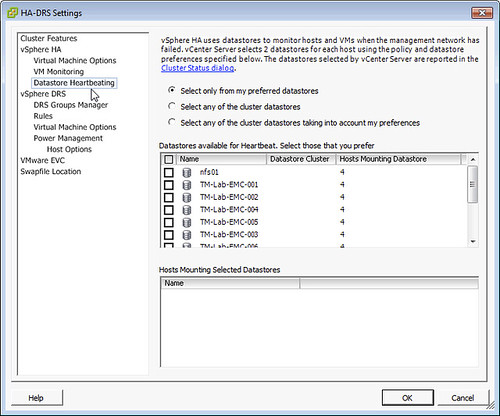
Unfortunately after reconfiguring for HA the error was still there, next suggestion was looking at the “heartbeat datastore” section in HA. For whatever reason HA was configured to “Select only from my preferred datastores” and no datastores were selected just like in the screenshot below. HA does not override this so when configured like this NO heartbeat datastores are used, resulting in this error within vCenter. Luckily the fix is easy, just set it to “Select any of the cluster datastores”.

the number of heartbeat datastores for host is 1

DRS not taking CPU Ready Time in to account? Need your help!

Duncan Epping · May 9, 2013 ·

For years these rumors have been floating around that DRS does not take CPU Ready Time (%RDY) in to account when it comes load balancing the virtual infrastructure. Fact is that %RDY has always been a part of the DRS algorithm but not as a first class citizen but as part of CPU Demand, which is a combination of various metrics but includes %RDY. Still, one might ask why %RDY is not a first class citizen.

There is a good reason though that %RDY isn’t, just think about what DRS is and does and how it actually goes about balancing out the environment, trying to please all virtual machines. Yes a lot of possibilities indeed to move virtual machines around in a cluster. So you can imagine that it is is really complex (and expensive) to calculate what the possible impact is after a virtual machine has been migrated “from a host” or “to a host” for all of the first class citizen metrics.

Now, for a long time the DRS engineering team has been looking for situations in the field where a cluster is balanced according to DRS but there are still virtual machines experiencing performance problems due to high %RDY. The DRS team really wants to fix this problem or bust the myth – what they need is hard data. In other words, vc-support bundles from vCenter and vm-support bundles from all hosts with high ready times. So far, no one has been able to provide these logs / cold hard facts.

If you see this scenario in your environment regularly please let me know. I will personally get you in touch with our DRS engineering team and they will look at your environment and try to solve this problem once and for all. We need YOU!

What is static overhead memory?

Duncan Epping · May 6, 2013 ·

We had a discussion internally on static overhead memory. Coincidentally I spoke with Aashish Parikh from the DRS team on this topic a couple of weeks ago when I was in Palo Alto. Aashish is working on improving the overhead memory estimation calculation so that both HA and DRS can be even more efficient when it comes to placing virtual machines. The question was around what determines the static memory and this is the answer that Aashish provided. I found it very useful hence the reason I asked Aashish if it was okay to share it with the world. I added some bits and pieces where I felt additional details were needed though.

First of all, what is static overhead and what is dynamic overhead:

  • When a VM is powered-off, the amount of overhead memory required to power it on is called static overhead memory.
  • Once a VM is powered-on, the amount of overhead memory required to keep it running is called dynamic or runtime overhead memory.

Static overhead memory of a VM depends upon various factors:

  1. Several virtual machine configuration parameters like the number vCPUs, amount of vRAM, number of devices, etc
  2. The enabling/disabling of various VMware features (FT, CBRC; etc)
  3. ESXi Build Number

Note that static overhead memory estimation is calculated fairly conservative and we take a worst-case-scenario in to account. This is the reason why engineering is exploring ways of improving it. One of the areas that can be improved is for instance including host configuration parameters. These parameters are things like CPU model, family & stepping, various CPUID bits, etc. This means that as a result, two similar VMs residing on different hosts would have different overhead values.

But what about Dynamic? Dynamic overhead seems to be more accurate today right? Well there is a good reason for it, with dynamic overhead it is “known” where the host is running and the cost of running the VM on that host can easily be calculated. It is not a matter of estimating it any longer, but a matter of doing the math. That is the big difference: Dynamic = VM is running and we know where versus Static = VM is powered off and we don’t know where it might be powered!

Same applies for instance to vMotion scenarios. Although the platform knows what the target destination will be; it still doesn’t know how the target will treat that virtual machine. As such the vMotion process aims to be conservative and uses static overhead memory instead of dynamic. One of the things or instance that changes the amount of overhead memory needed is the “monitor mode” used (BT, HV or HWMMU).

So what is being explored to improve it? First of all including the additional host side parameters as mentioned above. But secondly, but equally important, based on the vm -> “target host” combination the overhead memory should be calculated. Or as engineering calls it calculating “Static overhead of VM v on Host h”.

Now why is this important? When is static overhead memory used? Static overhead memory is used by both HA and DRS. HA for instance uses it with Admission Control when doing the calculations around how many VMs can be powered on before unreserved resources are depleted. When you power-on a virtual machine the host side “admission control” will validate if it has sufficient unreserved resource available for the “static memory overhead” to be guaranteed… But also DRS and vMotion use the static memory overhead metric, for instance to ensure a virtual machine can be placed on a target host during a vMotion process as the static memory overhead needs to be guaranteed.

As you can see, a fairly lengthy chunk of info on just a single simple metric in vCenter / ESXTOP… but very nice to know!

Increase Storage IO Control logging level

Duncan Epping · May 2, 2013 ·

I received this question today around how to increase the Storage IO Control logging level. I knew either Frank or I wrote about this in the past but I couldn’t find it… which made sense as it was actually documented in our book. I figured I would dump the blurp in to an article so that everyone who needs it for whatever reason can use it.

Sometimes it is necessary to troubleshoot your environment and having logs to review is helpful in determining what is actually happening. By default, SIOC logging is disabled, but it should be enabled before collecting logs. To enable logging:

  1. Click Host Advanced Settings.
  2. In the Misc section, select the Misc.SIOControlLogLevel parameter. Set the value to 7 for complete logging.  (Min value: 0 (no logging), Max value: 7)
  3. SIOC needs to be restarted to change the log level, to stop and start SIOC manually, use: /etc/init.d/storageRM {start|stop|status|restart}
  4. After changing the log level, you see the log level changes logged in /var/log/vmkernel

Please note that SIOC log files are saved in /var/log/vmkernel.

  • « Go to Previous Page
  • Page 1
  • Page 2
  • Page 3
  • Page 4
  • Page 5
  • Interim pages omitted …
  • Page 33
  • Go to Next Page »

Primary Sidebar

About the Author

Duncan Epping is a Chief Technologist and Distinguished Engineering Architect at Broadcom. Besides writing on Yellow-Bricks, Duncan is the co-author of the vSAN Deep Dive and the vSphere Clustering Deep Dive book series. Duncan is also the host of the Unexplored Territory Podcast.

Follow Us

  • X
  • Spotify
  • RSS Feed
  • LinkedIn

Recommended Book(s)

Also visit!

For the Dutch-speaking audience, make sure to visit RunNerd.nl to follow my running adventure, read shoe/gear/race reviews, and more!

Do you like Hardcore-Punk music? Follow my Spotify Playlist!

Do you like 80s music? I got you covered!

Copyright Yellow-Bricks.com © 2026 · Log in