• Skip to primary navigation
  • Skip to main content
  • Skip to primary sidebar

Yellow Bricks

by Duncan Epping

  • Home
  • Unexplored Territory Podcast
  • HA Deepdive
  • ESXTOP
  • Stickers/Shirts
  • Privacy Policy
  • About
  • Show Search
Hide Search

5.0

Multiple-NIC vMotion in vSphere 5…

Duncan Epping · Sep 17, 2011 ·

How do you setup multiple-NIC vMotion? I had this question 3 times in the past couple of days during workshops so I figured it was worth explaining how to do this. It is fairly straight forward to be honest and it is more or less similar to how you would setup iSCSI with multiple vmknic’s. More or less as there is one distinct difference.

KB article has been published, including the video I recorded

You will need to bind each VMkernel Interface (vmknic) to a physical NIC. In other words:

  • Create a VMkernel Interface and give it the name “vMotion-01”
  • Go to the settings of this Portgroup and configure 1 physical NIC-port as active and all others as “standby” (see the screenshot below for an example)
  • Create a second VMkernel Interface and give it the name “vMotion-02”
  • Go to the settings of this Portgroup and configure a different NIC-port as active and all others as “standby”
  • and so on…

Now when you will initiate a vMotion multiple NIC ports can be used. Keep in mind that even when you vMotion just 1 virtual machine both links will be used. Also, if you don’t have dedicated links for vMotion you might want to consider using Network I/O Control. vMotion can saturate a link and at least when you’ve set up Network I/O Control and assigned the right amount of shares each type of traffic will get what it has been assigned.
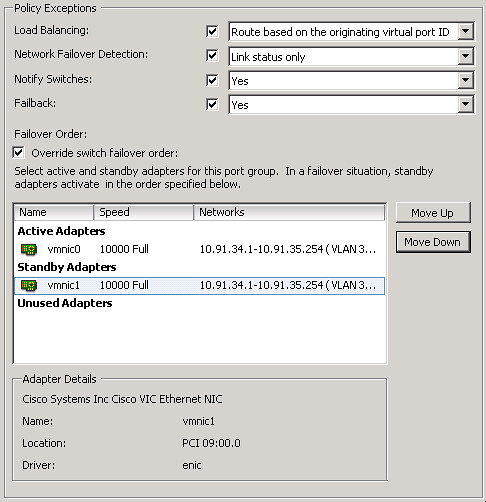
Setting up multiple-nic vMotion

For a video on how to do this:

<update: dvSwitch details below>

For people using dvSwitches it is fairly straight forward: You will need to create two dvPortgroups. These portgroup will need to have the “active/standby” setup (Teaming and Failover section). After that you will need to create two Virtual Adapters and bind each of these to a specific dvPortgroup.

And again the video on how to set this up:
Host Profile noncompliant when using local SAS drives with vSphere 5?

Duncan Epping · Sep 16, 2011 ·

While playing around with vSphere 5.0 in my home lab I discovered something with regards to Host Profiles. I installed a host and created a Host Profile from that host. When I installed a new host and linked the host profile the following error would be returned (also see screenshot below) that the host was noncompliant:

Specification state absent from host: device '<datastore>' state needs to be set to 'on'
Host state doesn't match specification: device '<datastore>' needs to be reset
Specification state absent from host: device '<datastore>' Path Selection Policy needs to be set to 'VMW_PSP_FIXED'
Host state doesn't match specification: device '<datastore>' Path Selection Policy needs to be set to default for claiming SATP

After digging around I thought the issue where the ESXi installer didn’t recognize the SAS disk as a local disk and as such wouldn’t create a scratch partition and I figured this might be the same thing. I start digging and it seems to be a “similar” problem. The SAS disk is seen as a shared disk and as such the NAA identifier is stored. Now in my case each host will have a local disk and each of those disks will have a unique NAA ID which means that even if you apply your host profile it will not be compliant. After digging a bit further I bumped into a KB article (2002488) that actually describes this exact problem.

There’s a “work around” to get rid of the “compliance” alert as mentioned in the KB article:

The compliance error can be ignored if the issue is only a device ID mismatch. To avoid generating a compliance error, you can also disable the PSA and NMP profiles under Storage Configuration in the host profile as long as you do not change other PSA or NMP profile settings.

I read the article 14 times and still didn’t have a clue what they were referring to but this is how you “disable” the PSA and NMP profile for these devices:

  • Right click the Host Profile and click “Enable/Disable Profile Configuration
  • Unfold “Storage Configuration”
  • Unfold “Pluggable Storage Architecture (PSA) …
  • De-select “PSA Device Configuration”
  • Unfold “Native Multi-Pathing (NMP)”
  • Unfold “PSP and SATP configuration for NMP devi…”
  • De-select “PSP configuration for”
  • Click “OK”

This resolved the issue I had. I’ve also requested the KB article (2002488) to be updated to include these steps by the way. Hopefully it will be changed soon.

Creating an Image Profile without manually downloading a bundle! (stateless ESXi)

Duncan Epping · Sep 15, 2011 ·

Just like the past couple of days I’ve been playing around with stateless ESXi. I’ve downloaded multiple ESXi bundles / depots and remembered that there was an easier way of creating an Image Profile.  The image profiles are also available as part of an online depot at vmware.com. So I figured I would start using that one instead of downloading the bundle manually every single time. It is fairly simple to add the online source as a depot:

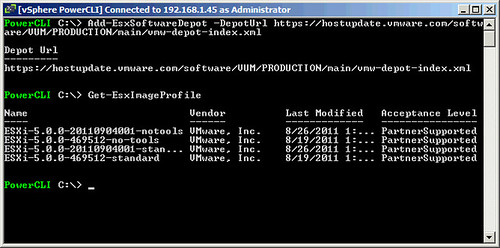
Add-EsxSoftwareDepot -DepotUrl https://hostupdate.vmware.com/software/VUM/PRODUCTION/main/vmw-depot-index.xml

If you would do a “Get-EsxImageProfile” next you would see all image profiles (see screenshot below) which are part of the depot.

Now you could even compare the two image profiles which would tell you if the image profiles are equal and which VIB has changed. In this case it is one of the primary VIBs “esx-base”:

Compare-EsxImageProfile ESXi-5.0.0-469512-no-tools ESXi-5.0.0-20110904001-notools

Equal               : False
PackagesEqual       : False
RefAcceptanceLevel  : PartnerSupported
CompAcceptanceLevel : PartnerSupported
OnlyInRef           : {}
OnlyInComp          : {}
UpgradeFromRef      : {VMware_bootbank_esx-base_5.0.0-0.3.474610}
DowngradeFromRef    : {}

If you figure by now that all this PowerCLI stuff is not your cup of tea I would like to suggest to check out Alan Renouf’s brand new PowerPack. Alan has GUI’fied the most common tasks which will enable you to click and point instead.

Want to win a free vSphere 5.0 Clustering Tech Deepdive book?

Duncan Epping · Sep 14, 2011 ·

Want to win a free vSphere 5.0 Clustering Tech Deepdive book? Check out Frank’s article today…

If you follow me on twitter you might have seen my tweets I’m in Copenhagen for the last two weeks. Many followers asked me what I was doing there and were speculating it had something to do with VMworld. Even when replying I was visiting a customer, most dismissed these answers. Unfortunately yesterday Rasmus Jensen (@rasmusjensenvp) spotted me and I’m guessing the secret is out. So I might as well come clean. Yes I’m camping outside the Bella Center.

Patching your Image Profile (stateless ESXi)

Duncan Epping · Sep 14, 2011 ·

The first patch for ESXi has been released so I figured this was a great time to create and article around how to patch your Image Profile with a new update. The process is fairly straight forward as in this case you will need to create a new image-profile (described here) and link it to a new rule (New-DeployRule and make that rule active (Add-DeployRule). That is what I like about Stateless. You can just prepare a new Image Profile, create a new rule and you are good to go. A reboot of your ESXi host will load up the latest Image Profile. I did this within a couple of minutes and I’m now running build 474610 of ESXi.

While I was playing around I decided to do things in an incorrect order to see if I could break it, and of course I did manage to break it… I managed to fix all of it though. The first thing I did was testing the rule set and repairing it as documented below.

Now if you run into any issues you can repair the ruleset by using the following command:

Get-VMHost <esxi host> | Test-DeployRuleSetCompliance | Repair-DeployRuleSetCompliance

Now if your host boots and mentions that there’s no rule associated you might want to try the following:

Get-DeployRule

If your newly created rule is returned you will want to make sure it is active:

Get-DeployRuleSet

If there’s nothing listed it means no rules are currently active (active ruleset is what the documentation will refer to). You you can set the rule as active as follows:

Set-DeployRuleSet -DeployRule <name of rule>

Everyone who is considering using Auto-Deploy I would most definitely recommend to explore these commands and to try to break things and fix it. Document your steps along the way, I am certain it will be valuable at some point!

  • « Go to Previous Page
  • Page 1
  • Interim pages omitted …
  • Page 22
  • Page 23
  • Page 24
  • Page 25
  • Page 26
  • Interim pages omitted …
  • Page 33
  • Go to Next Page »

Primary Sidebar

About the Author

Duncan Epping is a Chief Technologist and Distinguished Engineering Architect at Broadcom. Besides writing on Yellow-Bricks, Duncan is the co-author of the vSAN Deep Dive and the vSphere Clustering Deep Dive book series. Duncan is also the host of the Unexplored Territory Podcast.

Follow Us

  • X
  • Spotify
  • RSS Feed
  • LinkedIn

Recommended Book(s)

Also visit!

For the Dutch-speaking audience, make sure to visit RunNerd.nl to follow my running adventure, read shoe/gear/race reviews, and more!

Do you like Hardcore-Punk music? Follow my Spotify Playlist!

Do you like 80s music? I got you covered!

Copyright Yellow-Bricks.com © 2026 · Log in