• Skip to primary navigation
  • Skip to main content
  • Skip to primary sidebar

Yellow Bricks

by Duncan Epping

  • Home
  • Unexplored Territory Podcast
  • HA Deepdive
  • ESXTOP
  • Stickers/Shirts
  • Privacy Policy
  • About
  • Show Search
Hide Search

Server

vSphere 6.5 what’s new – Storage IO Control

Duncan Epping · Oct 26, 2016 ·

There are many enhancements in vSphere 6.5, an overhaul of Storage IO Control is one of them. In vSphere 6.5 Storage IO Control has been reimplemented by leveraging the VAIO framework. For those who don’t know VAIO stands for vSphere APIs for IO Filtering. This is basically a framework that allows you to filter (storage) IO and do things with it. So far we have seen caching and replication filters from 3rd party vendors, and now a Quality of Service filter from VMware.

Storage IO Control has been around for a while and hasn’t really changed that much since its inception. It is one of those features that people take for granted and you actually don’t know you have turned on in most cases. Why? Well Storage IO Control (SIOC) only comes in to play when there is contention. When it does come in to play it ensure that every VM gets its fair share of storage resources. (I am not going to explain the basics, read this posts for more details.) Why the change in SIOC design/implementation? Well fairly simple, the VAIO framework enabled policy based management. This goes for caching, replication and indeed also QoS. Instead of configuring disks or VMs individually, you will now have the ability to specify configuration details in a VM Storage Policy and assign that policy to a VM or VMDK. But before you do, make sure you enable SIOC first on a datastore level and set the appropriate latency threshold. Lets take a look at how all of this will work:

  • Go to your VMFS or NFS Datastore and right click datastore and click “Configure SIOC” and enable SIOC
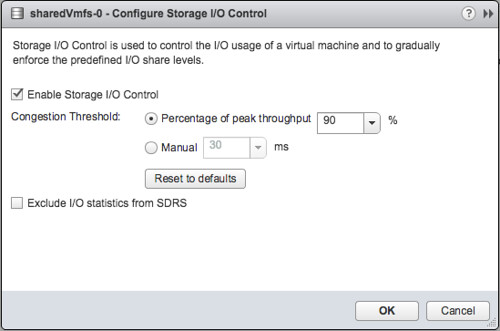
  • By default the congestion threshold is set to 90% of peak throughput you can change this percentage or specify a latency threshold manually by defining the number of miliseconds latency
  • Now go to the VM Storage Policy section
  • Go to Storage Policy Components section first and check out the pre-created policy components, below I show “Normal” as an example
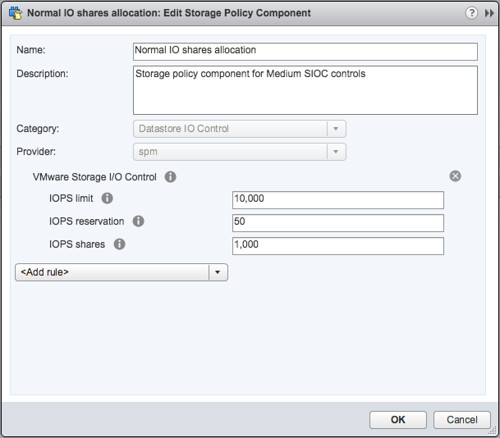
  • If you want you can also create a Storage Policy Component yourself and specify custom shares, limits and a reservation. Personally I would prefer to do this when using SIOC and probably remove the limit if there is no need for it. Why limit a VM on IOPS when there is no contention? And if there is contention, well then SIOC shares based distribution of resource will be applied.
  • Next you will need to do is create a VM Storage Policy, click that tab and click “create VM storage policy”
  • Give the policy a name and next you can select which components to use
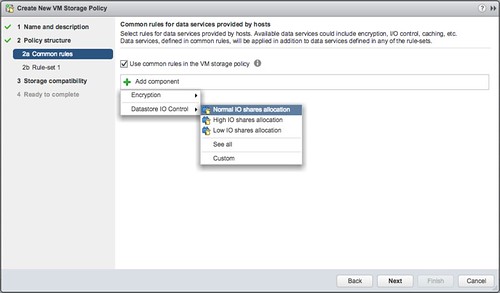
  • In my case I select the “Normal IO shares allocation” and I also add Encryption, just so we know what that looks like. If you have other data services, like replication for instance, you could even stack those on top. That is what I love about the VAIO Framework.
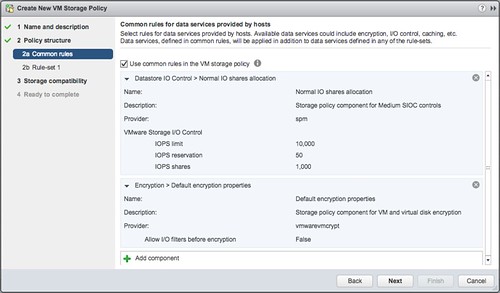
  • Now you can add rules, I am not going to do this. And next the compatible datastores will be presented and that is it.
  • You can now assign the policy to a VM. You do this by right clicking a particular VM and select “VM Policies” and then “Edit VM Storage Policies”
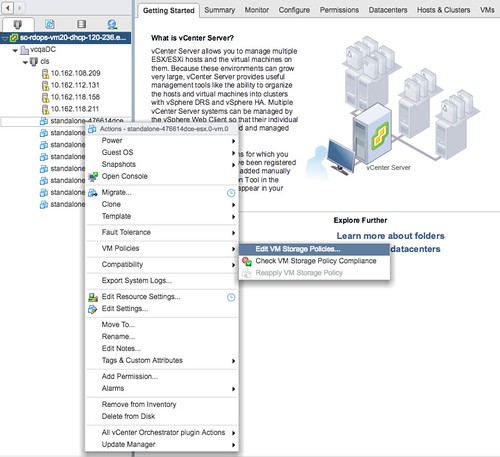
  • Now you can decide which VM Storage Policy to apply to the disk. Select your policy from the dropdown and then click “apply to all”, at least when that is what you would like to do.
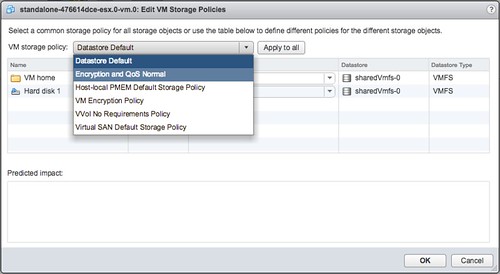
  • When you have applied the policy to the VM you simply click “OK” and now the policy will be applied to the VM and for instance the VMDK.

And that is it, you are done. Compared to previous versions of Storage Policy Based Management this may all be a bit confusing with the Storage Policy Components, but believe me it is very powerful and it will make your life easier. Mix and match whatever you require for a workload and simply apply it.

Before I forget, note that the filter driver at this point is used to enforce limits only. Shares and the Reservation still leverages the mClock scheduler.


vSphere 6.5 what’s new – VVols

Duncan Epping · Oct 20, 2016 ·

Well I guess I can keep this one short, what is new for VVols? Replication. Yes, that is right… finally if you ask me. This is something I know many of my customers have been waiting for. I’ve seen various customers deploy VVols in production, but many were holding off because of the lack of support for Replication and with vSphere 6.5 that has just been introduced. Note that alongside with new VVol capabilities we have also introduced VASA 3.0. VASA 3.0 provides Policy Components in the SPBM UI which allows you to combine for instance a VVol policy with a VAIO Filter based solution like VMCrypt / Encryption or for instance Replication or Caching from a third party vendor.

When it comes to replication I think it is good to know that there will be Day 0 support from both Nimble and HPE 3PAR. More vendors can be expected soon. Not only is replication per object supported, but also replication groups. Replication groups can be viewed as consistency groups, but also a unit of granularity for failover. By default each VM will be in its own replication group, but if you need some form of consistency or would like a group of VMs always to failover at the same time then they can be lumped together through using the replication group option.

There is a full set of APIs available by the way, and I would expect most storage vendors to provide some tooling around their specific implementation. Note that through the API you will for instance be able to “failover” or do a “test failover” and even reverse replication if and when desired. Also, this release will come with a set of new PowerCLI cmdlets which will also allow you to failover and reverse replication, I can’t remember having seen the test failover cmdlet but as it is also possible through the API that should not be rocket science for those who need this functionality. Soon I will have some more stuff to share with regards to scripting DR scenarios…

vSphere 6.5 what’s new – HA

Duncan Epping · Oct 19, 2016 ·

Here we go, one of my favourite features in vSphere… What’s new for HA in vSphere 6.5. To be honest, a lot! Many new features have been introduced, and although it took a while, I am honoured to say that many of these features are the results of discussions I had with the HA engineering team in the past. On top of that, your comments and feedback on some of my articles about HA futures have resulted in various changes to the design and implementation, my thanks for that! Before we get started, one thing I want to point out, in the Web Client under “Services” it now states “vSphere Availability” instead of HA, the reason for this is that because a new feature was stuck in to this section which is all about Availability but not implemented through HA.

  • Admission Control
  • Restart Priority enhancements
  • HA Orchestrated Restart
  • ProActive HA

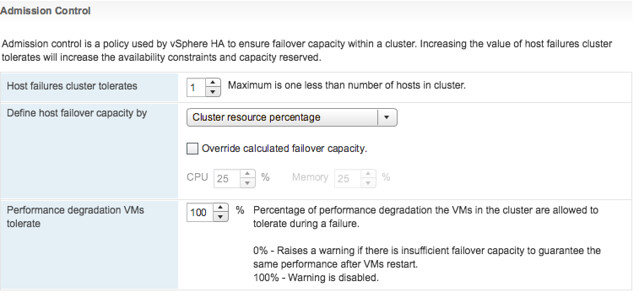
Lets start with Admission Control first. This has been completely overhauled from a UI perspective, but essential still offers the same functionality but in an easy way and some extras. Let take a look at the UI first and then break it down.

In the above screenshot we see “Cluster Resource Percentage” while above that we have specified the “Host failures cluster tolerates” as “1”. What does this mean? Well this means that in a 4 host cluster we want to be capable of losing 1 host worth of resources which equals 25%. The big benefit of this is that when you add a host to the cluster, the amount of resources set aside will then be automatically changed to 20%. So if you scale up, or down, the percentage automatically adjusts based on the selected number of failures you want to tolerate. Very very useful if you ask me as you won’t end up wasting resources any longer simply because you forgot to change the percentage when scaling the cluster. And the best, this doesn’t use “slots” but is the old “percentage based” solution still. (You can manually select the slot policy under “Define host failover capacity by” though if you prefer that.

Second part of enhancements around Admission Control is the “VM resource reduction event threshold” section. This is a new section and this is based on the fling that was out there for a while. I am very proud to see this being released as it is a feature I was closely involved with and actually had two patents awarded for recently. What does it do? It allows you to specify the performance degradation you are willing to incur if a failure happens. It is set to 100% by default, but I can imagine you want to change this to for instance 25% or 50%, depending on your SLA with the business. Setting it is very simple, you just change the percentage and you are done. So how does this work? Well first of all, you need DRS enabled as HA leverages DRS to get the cluster resource usage. But lets look at an example:

75GB of memory available in 3 node cluster
1 host failure to tolerate specifed
60GB of memory actively used by VMs
0% resource reduction tolerated

This results in the following:
75GB – 25GB (1 host worth of memory) = 50GB
We have 60GB of memory used, with 0% resource reduction to tolerate
60GB needed, 50GB available after failure >> Warning issued to Admin

Very useful if you ask me, as finally you can guarantee that the performance for you workloads after a failure event is close or equal to the performance before a failure event! Next up, Restart Priority enhancements. We have had this option in the UI for the longest time. It allowed you to specify the startup priority for VMs and that is what HA used during scheduling, however the restarts would happen so fast that in reality no one really noticed the difference between high, medium or low priority. In fact, in many cases the small “low priority” VMs would be powered up long before the larger “high priority” database machines. With 6.5 we introduce some new functionality. Lets show you how this works:

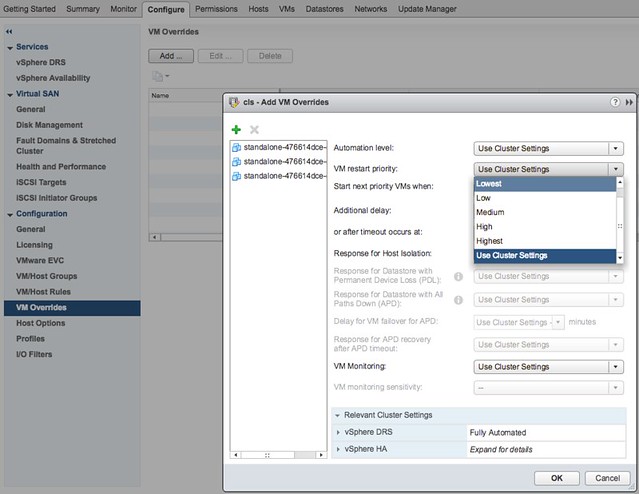
Go to your vSphere HA cluster and click on the configure tab and then select VM Overrides, next click Add. You are presented with a screen where you can select VMs by clicking the green plus and then specify their relative startup priority. I selected 3 VMs and then pick “lowest”, the other options are “low, medium, high and highest”. Yes the names are a bit funny, but this is to ensure backwards compatibility with the previous priority options.

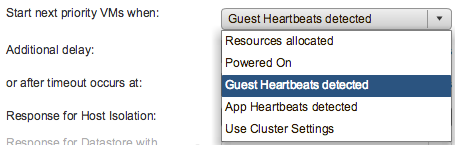
After you have specified the priority you can also specify if there needs to be an additional delay before the next batch can be started, or you can specify even what triggers the next priority “group”, this could for instance be the VMware Tools guest heartbeat as shown in the screenshot below. The other option is “resources allocated” which is purely the scheduling of the batch itself, the power-on event completion or the “app heartbeat” detection. That last one is most definitely the most complex as you would need to have App HA enabled and services defined etc. I expect that if people use this they will mostly set it to “Guest Heartbeats detected” as that is easy and pretty reliable.

If for whatever reason by the way there is no guest heartbeat ever, or it simply takes a long time then there is also a timeout value that can be specified. By default this is 600 seconds, but this can be decreased or increased, depending on what you prefer. Now this functionality is primarily intended for large groups of VMs, so if you have a 1000 VMs you can select those 10/20 VMs that have the highest priority and let them power-on first. However, if you for instance have a 3-tier app and you need the database server to be powered on before the app server then you can also use VM/VM rules as of vSphere 6.5, this functionality is referred to as HA Orchestrated Restart.

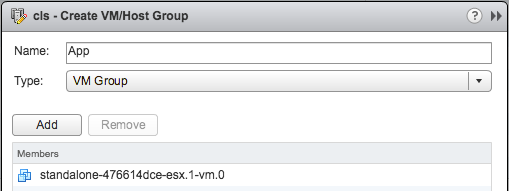
You can configure HA Orchestrated Restarts by simply creating “VM” Groups. In the example below I have created a VM group called App with the Application VM in there. I have also created a DB group with the Database VM in there.

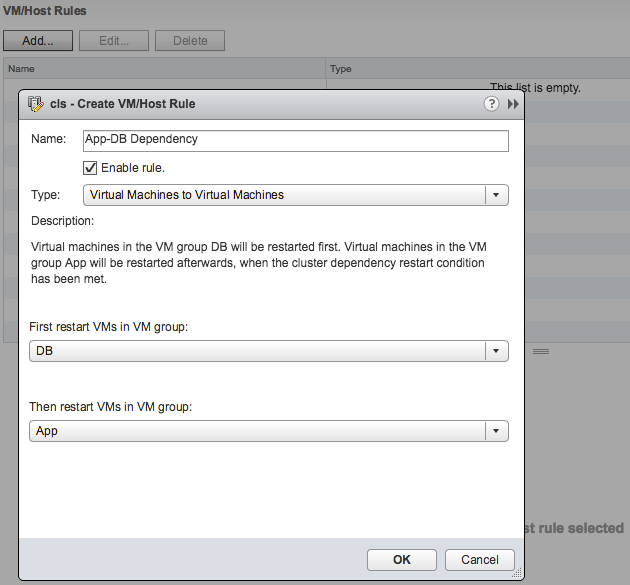
This application has a dependency on the Database VM to be fully powered-on, so I specify this in a rule as shown in the below screenshot.

Now one thing to note here is that in terms of dependency, the next group of VMs in the rule will be powered on when the cluster wide set “VM Dependency Restart Condition” is met. If this is set to “Resources Allocated”, which is the default, then the VMs will be restarted literally a split second later. So you will need to think about how to set the “VM Dependency Restart Condition” as other wise the rule may be useless. Another thing is that these rules are “hard rules”, so if the DB VM in this example does not power on, then the App VM will also not be powered on. Yes, I know what you would like to see, and yes we are planning more enhancements in this space.

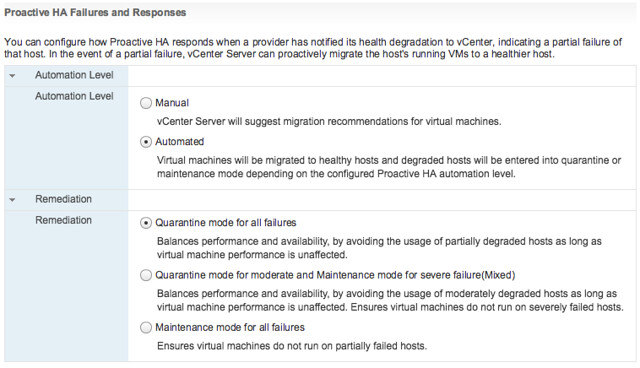
Last up “Pro-Active HA“… Now this is the odd one, it is not actually a vSphere HA feature, but rather a function of DRS. However, as it is stuck in the “Availability” section of the UI I figured I would stick it in this article as that is probably where most people will be looking. So what does it do? Well in short, it allows you to configure actions for events that may lead to VM downtime. What does that mean? Well you can imagine that when a power-supply goes down your host is in a so called “degraded state”, when this event occurs an evacuation of the host could be triggered, meaning all VMs will be migrated to any of the remaining healthy hosts in the cluster.

But how do we know the host is in a degraded state? Well that is where the Health Provider comes in to play. The health provider reads all the sensor data and analyze the results and then serve the state of the host up to vCenter Server. These states are “Healthy”, “Moderate Degration”, “Severe Degradation” and “Unknown”. (Green, Yellow, Red) When vCenter is informed DRS can now take action based on the state of the hosts in a cluster, but also when placing new VMs it can take the state of a host in to consideration. The actions DRS can take by the way is placing the host in Maintenance Mode or Quarantine Mode. So what is this quarantine mode and what is the difference between Quarantine Mode and Maintenance Mode?

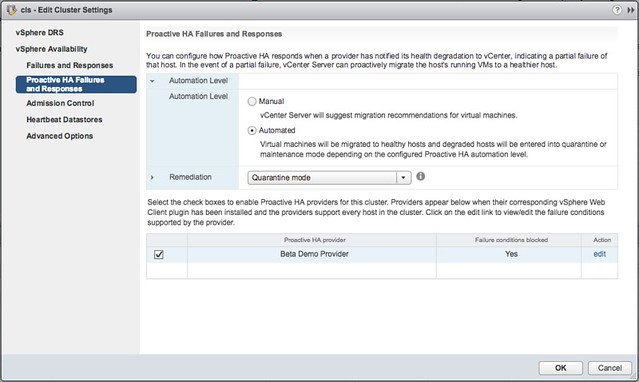
Maintenance Mode is very straight forward, all VMs will be migrated off the host. With Quarantine Mode this is not guaranteed. If for instance the cluster is overcommitted then it could be that some VMs are left on the quarantined host. Also, when you have VM-VM rules or VM/Host rules which would conflict when the VM is migrated then the VM is not migrated either. Note that quarantined hosts are not considered for placement of new VMs. It is up to you to decide how strict you want to be, and this can simply be configured in the UI. Personally I would recommend setting it to Automated with “Quarantine mode for moderate and Maintenance mode for sever failure(Mixed)”. This seems to be a good balance between up time and resource availability. Screenshot below shows where this can be configured.

Pro-Active HA can respond to different types of failures, at the start of this section I mentioned power supply, but it can also respond to memory, network, storage and even a fan failure. Which state this results in (severe or moderate) is up to the vendor, this logic is built in to the Health Provider itself. You can imagine that when you have 8 fans in a server that the failure of one or two fans results in “moderate”, whereas the failure of for instance 1 out of 2 NICs would result in “severe” as this leaves a “single point of failure”. Oh and when it comes to the Health Provider, this comes with the vendor Web Client plugins.

vSphere 6.5 what’s new – DRS

Duncan Epping · Oct 19, 2016 ·

Most of us have been using DRS for the longest time. To be honest, not much has changed over the past years, sure there were some tweaks and minor changes but nothing huge. In 6.5 however there is a big feature introduced, but lets just list them all for completeness sake:

  • Predictive DRS
  • Network-Aware DRS enhancements
  • DRS profiles

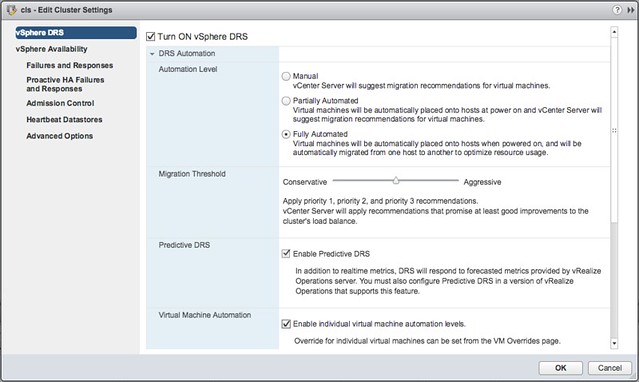
First of all Predictive DRS. This is a feature that the DRS team has been working on for a while. It is a feature that integrates DRS with VROps to provide placement and balancing decisions. Note that this feature will be in Tech Preview until vRealize Operations releases their version of vROPs which will be fully compatible with vSphere 6.5, hopefully sometime in the first half of next year. Brian Graf has some additional details around this feature here by the way.

Note that of course DRS will continue to use the data provided by vCenter Server, it will on top of that however also leverage VROps to predict what resource usage will look like, all of this based on historic data. You can imagine a VM currently using 4GB of memory (demand), however every day around the same time a SQL Job runs which makes the memory demand spike up to 8GB. This data is available through VROps now and as such when making placement/balancing recommendations this predicted resource spike can now be taken in to consideration. If for whatever reason however the prediction is that the resource consumption will be lower then DRS will ignore the prediction and simply take current resource usage in to account, just to be safe. (Which makes sense if you ask me.) Oh and before I forget, DRS will look ahead for 60 minutes (3600 seconds).

How do you configure this? Well that is fairly straight forward when you have VROps running, go to your DRS cluster and click edit settings and enable the “Predictive DRS” option. Easy right? (See screenshot below) You can also change that look ahead value by the way, I wouldn’t recommend it though but if you like you can add an advanced setting called ProactiveDrsLookaheadIntervalSecs.

One of the other features that people have asked about is the consideration of additional metrics during placement/load balancing. This is what Network-Aware DRS brings. Within Network IO Control (v3) it is possible to set a reservation for a VM in terms of network bandwidth and have DRS consider this. This was introduced in vSphere 6.0 and now with 6.5 has been improved. With 6.5 DRS also takes physical NIC utilization in to consideration, when a host has higher than 80% network utilization it will consider this host to be saturated and not consider placing new VMs.

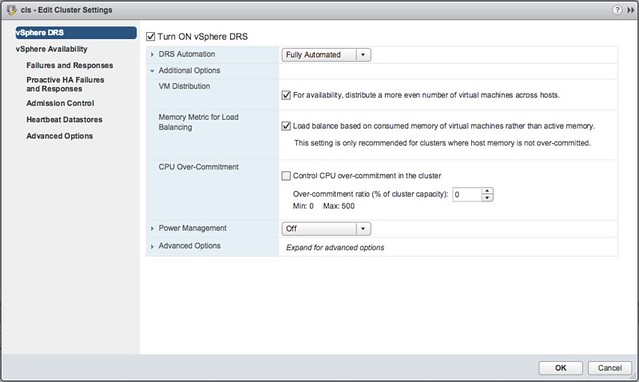
And lastly, DRS Profiles. So what are these? In the past we’ve seen many new advanced settings introduced which allowed you to tweak the way DRS balanced your cluster. In 6.5 several additional options have been added to the UI to make it easier for you to tweak DRS balancing, if and when needed that is as I would expect that for the majority of DRS users this would not be the case. Lets look at each of the new options:

So there are 3 options here:

  • VM Distribution
  • Memory Metric for Load Balancing
  • CPU Over-Commitment

If you look at the description then I think they make a lot of sense. Especially the first two options are options I get asked about every once in a while. Some people prefer to have a more equally balanced cluster in terms of number of VMs per host, which can be done by enable “VM Distribution”. And for those who much rather load balance on “consumed” vs “active” memory you can also enable this. Now the “consumed” vs “active” is almost a religious debate, personally I don’t see too much value, especially not in a world where memory pages are zeroed when a VM boots and consumed is always high for all VMs, but nevertheless if you prefer you can balance on consumed instead. Last is the CPU Over-Commitment, this is one that could be useful when you want to limit the number of vCPUs per pCPU, apparently this is something that many VDI customers have asked for.

I hope that was useful, we are aiming to update the vSphere Clustering Deepdive at some point as well to include some of these details…

What is new for Virtual SAN 6.5?

Duncan Epping · Oct 18, 2016 ·

As most of you have seen by the explosion of tweets, Virtual SAN 6.5 was just announced. Some may wonder how 6.5 can be announced so fast after the Beta Announcement, well this is not the same release. This release has a couple of key new features, lets look at those:

  • Virtual SAN iSCSI Service
  • 2-Node Direct Connect
    • Witness Traffic Separation for ROBO
  • 512e drive support

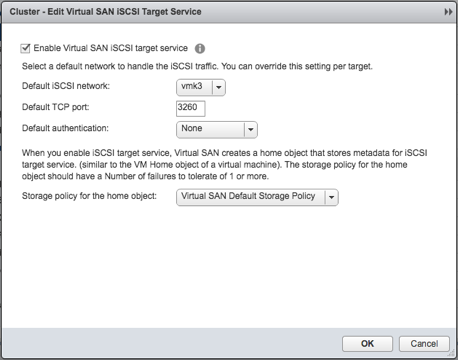
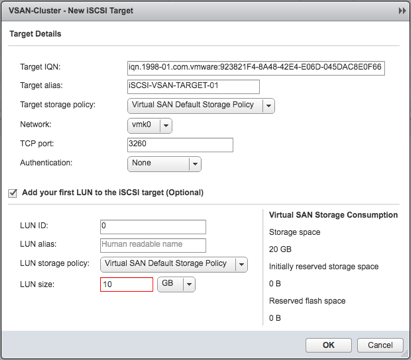
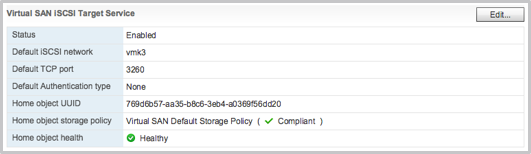
Lets start with the biggest feature of this release, at least in my opinion, Virtual SAN iSCSI Service. This provides what you would think it provides: the ability to create iSCSI targets and LUNs and expose those to the outside world. These LUNs by the way are just VSAN objects, and these objects have a storage policy assigned to them. This means that you get iSCSI LUNs with the ability to change performance and/or availability on the fly. All of it through the interface you are familiar with, the Web Client. Let me show you how to enable it:

  • Enable the iSCSI Target Service
  • Create a target, and a LUN in the same interface if desired
  • Done

How easy is that? Note that there are some restrictions in terms of use cases. It is primarily targeting physical workloads and Oracle RAC. It is not intended for connecting to other vSphere clusters for instance. Also, you can have a max of 1024 LUNs per cluster and 128 targets per cluster at most. LUN capacity limit is 62TB.

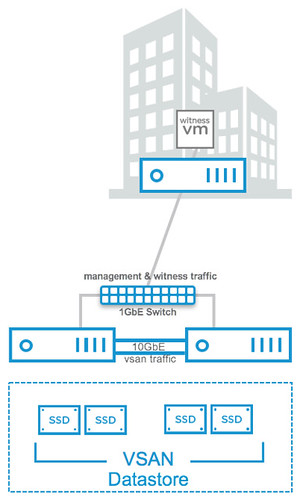
Next up on the list is 2-node direct connect. What does this mean? Well it basically means you can now cross-connect two VSAN hosts with a simple ethernet cable as shown in the diagram in the right. Big benefit of course is that you can equip your hosts with 10GbE NICs and get 10GbE performance for your VSAN traffic (and vMotion for instance) but don’t incur the cost of a 10GbE switch.

This can make a huge difference when it comes to total cost of ownership. In order to achieve this though you will also need to setup a separate VMkernel interface for Witness Traffic. And this is the next feature I wanted to mention briefly. For 2-node configurations it will be possible as of VSAN 6.5 to separate witness traffic by tagging a VMkernel interface as a designated witness interface. There’s a simple “esxcli” command for it, note that <X> needs to be replaced with the number of the VMkernel interface:

esxcli vsan network ip set -i vmk<X> -T=witness

Then there is the support for 512e drives, note that 4k native is not supported at this point. Not sure what more to say about it than that… It speaks for itself.

Oh and one more thing… All-Flash has been moved down from a licensing perspective to “Standard“. This means anyone can now deploy all-flash configuration at no additional licensing cost. Considering how fast the world is moving to all-flash I think this only makes sense. Note though that data services like dedupe/compression/raid-5/raid-6 are still part of VSAN Advanced. Nevertheless, I am very happy about this positive licensing change!

  • « Go to Previous Page
  • Page 1
  • Interim pages omitted …
  • Page 61
  • Page 62
  • Page 63
  • Page 64
  • Page 65
  • Interim pages omitted …
  • Page 336
  • Go to Next Page »

Primary Sidebar

About the Author

Duncan Epping is a Chief Technologist and Distinguished Engineering Architect at Broadcom. Besides writing on Yellow-Bricks, Duncan is the co-author of the vSAN Deep Dive and the vSphere Clustering Deep Dive book series. Duncan is also the host of the Unexplored Territory Podcast.

Follow Us

  • X
  • Spotify
  • RSS Feed
  • LinkedIn

Recommended Book(s)

Also visit!

For the Dutch-speaking audience, make sure to visit RunNerd.nl to follow my running adventure, read shoe/gear/race reviews, and more!

Do you like Hardcore-Punk music? Follow my Spotify Playlist!

Do you like 80s music? I got you covered!

Copyright Yellow-Bricks.com © 2026 · Log in