• Skip to primary navigation
  • Skip to main content
  • Skip to primary sidebar

Yellow Bricks

by Duncan Epping

  • Home
  • Unexplored Territory Podcast
  • HA Deepdive
  • ESXTOP
  • Stickers/Shirts
  • Privacy Policy
  • About
  • Show Search
Hide Search

Server

Service Console Memory, a common misunderstanding (ESX 4.0+)

Duncan Epping · Sep 21, 2010 ·

I was reading the Maximum vSphere book by Eric Siebert today and noticed something that I also spotted in Scott Lowe’s Mastering VMware Sphere book. Both Scott and Eric described the fact that the default amount of assigned Service Console memory for ESX has been increased from 272MB to X. I deliberately use “X” as both Eric and Scott mention a different value in their book.

The reason both Scott and Eric mention a different value in their book can be easily explained though, and I wrote about this a while ago, as of vSphere 4.0 there is no default value anymore. I gave this feedback to Scott a while back and of course he asked where this was documented. Back then it was nowhere to be found, well except for on my blog but that is not an official VMware publication. I asked our KB team to update the KB article that explains Service Console memory and I just noticed that they have:

src

ESX 4.x hosts – the default amount of RAM is dynamically configured to a value between 300MB and 800MB, depending on the amount of RAM that is installed in the host. For example, if the host has 32GB of memory the service console RAM will be set to 500MB, while a host which has 128GB of RAM will see the service console RAM set to 700MB. The maximum has not changed from 800MB, which would be seen on hosts with 256GB of RAM or higher, if it is being dynamically allocated.

This is exactly what I observed almost a year ago:

  • ESX Host – 8GB RAM -> Default allocated Service Console RAM = 300MB
  • ESX Host – 16GB RAM -> Default allocated Service Console RAM = 400MB
  • ESX Host – 32GB RAM -> Default allocated Service Console RAM = 500MB
  • ESX Host – 64GB RAM -> Default allocated Service Console RAM = 602MB
  • ESX Host – 96GB RAM -> Default allocated Service Console RAM = 661MB
  • ESX Host – 128GB RAM -> Default allocated Service Console RAM = 703MB
  • ESX Host – 256GB RAM -> Default allocated Service Console RAM = 800MB

Just wanted to point this out as I am certain that many people will not be aware of this.

vCD – Networking part 3 – Use case

Duncan Epping · Sep 15, 2010 ·

Part 1 explained the basic concepts of networking within vCD(VMware vCloud Director) and Part 2 focussed on Network Pools. In the final and 3rd part we will focus on a use case and what happens on the vSphere layer with these different types of vCD networks. I will cover just a single use case for now, but this one basically covers all areas! Please read both part 1 and part 2 of this series before you start reading this part. Lets just start diving into a scenario.

vApp directly connected to an External routed Org Network

Use cases:

  1. Internet connection for the VMs in your virtual datacenter. Firewall can be enabled to block all incoming traffic.
  2. Publicly publishing a single “service” externally by enabling NAT on the vShield Edge device. In this case all incoming traffic will be blocked and only a single IP will be translated and route back to that particular VM.

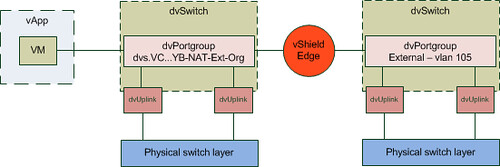
We will start with the basics. The flow of the network in this case will be:

As explained in Part 1 the External Network is backed by a Portgroup. This portgroup can be a regular portgroup on a vSwitch, or one on a dvSwitch or even the Nexus 1Kv. We will start by creating a dvPortgroup.

External Network

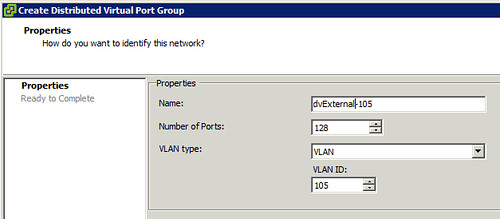
Lets first create a dvPortgroup within vCenter. This is the dvPortgroup that the External Network will use. We will give it a VLAN ID for layer 2 isolation. In this case we use VLAN ID 105 and label the dvPortgroup as “dvExternal-105”.

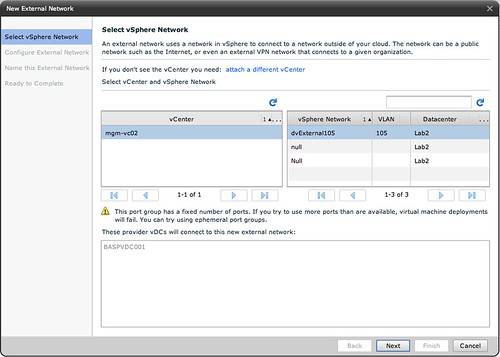
Now we will need to create a network within vCD that enables your vApp and Organization to use this dvPortgroup we just created. We do this by creating an “External Network”. (option 3 on your home screen in vCD.) First we will need to select the correct dvPortgroup we created:

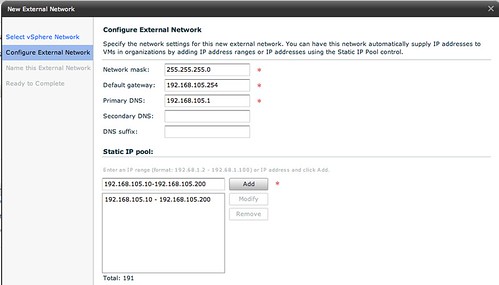
Next thing to do is specify the associated IP Range, Gateway, Netmask etc. The IP-Range is used for any VMs that are directly connected to this External Network and for the vShield Edge devices. But we will show that later in this article.

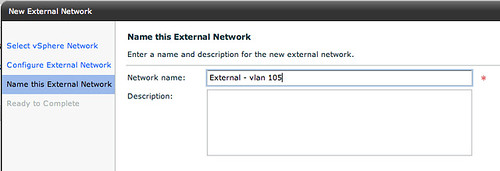
Next up is is giving the External Network a name, we will keep it simple and name it “External – vlan 105”:

That is it for the External Network part. Now lets create an Org Network.

Org Network

We will create an External Org Network which is routed to an External Network. (On your home screen go to “7 Add another network to an organization”.) Select the Organization it needs to connect to first and then the real magic starts.

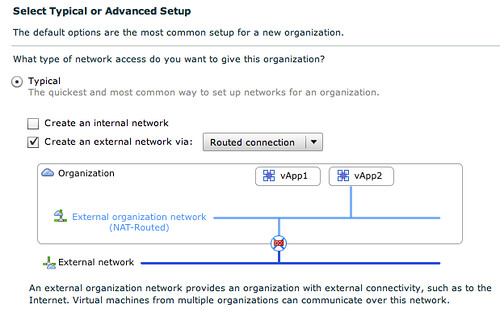
We will use the typical setup. We have unticked “Create an internal network”, and we have selected “Routed connection”:

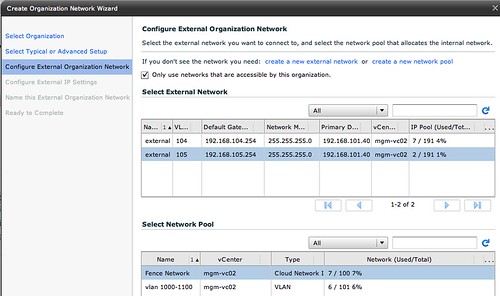
The cool thing about the network section of vCD is that is shows you what it is building. In this case you can see that the vApp is directly connected to the External Org Network (NAT-Routed) which in its turn is connected to the External Network through a vShield Edge device. The next step is to select the correct External Network that this External Org Network connects to:

Please note that we also have selected a network pool, in this case the vCloud Network Isolated Pool! Next we will need to specify the associated IP Range, Gateway, Netmask for the Org Network. Now you might think that we have already done this but that was for the External Network! The pool of addresses will be used for any device that sits within the Org Network boundaries.

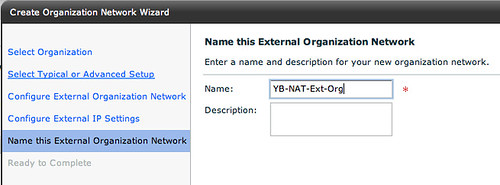
Of course the final step is giving this Org Network a name:

vApp layer

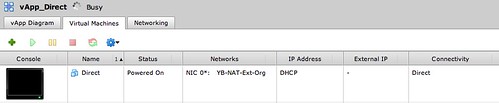
As this post is about networking I will skip the creation of the vApp itself but will show you what we have done in a single screenshot. As this screenshot below shows the VM is directly connected to the Org Network labeled “YB-NAT-Ext-Org”:

Connecting the dots

Now that we have shown you how this is created within vCD you would probably want to know what this results in on a vSphere layer. When we created the Org Network a dvPortgroup was automatically created. This automatic creating was enabled by the use of a network pool. The network pool in this case was a vCloud Network Isolation backed network pool.

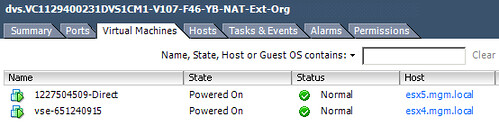
The screenshot below shows the dvPortgroup that represents the Org Network. The VM that was created called “Direct”, however vCD uses IDs to uniquely identify VMs and as such it is labeled as “1227504509-Direct” within vSphere. Please note the “F46” in the name of the dvPortgroup. This means that it is using a fenced network with ID 46. (fenced –> vCloud Network Isolation) This Network Pool happens to use VLAN 107 (V107), which was defined when the pool was created and is also shown in the screenshot below.

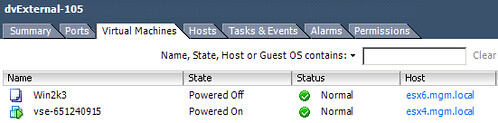
In order for VM “1227504509-Direct” to communicate to the outside world it will need a connection to the External Network. As shown and described above VMware vCloud Director uses vShield Edge to do this. In other words, the vShield Edge device will have multiple NICs. This is shown in the following screenshot. The External Network portgroup contains a vShield Edge device (vse-651240915) which is the same device as shown in the screenshot above.

This is the vShield Edge device that enables the VM “1227504509-Direct” to communicate with the outside world, as it is connected to both portgroups.

Traffic Flow

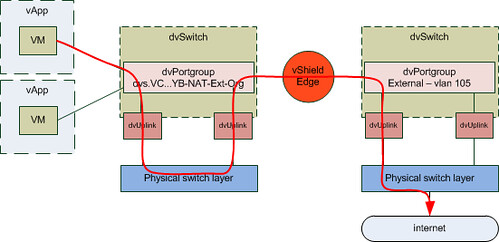
As it took me a while to understand how this worked, I have created a couple of diagrams. The first diagram shows all components we created and how they are linked:

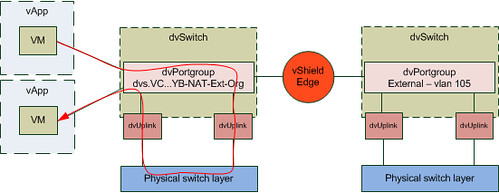
I guess this is still not saying much. Lets add the flow of the traffic to this diagram by extending it with another vApp. What if you would have two vApps connected to the same Org Network and both VMs of these vApps are on a different host in your cluster and the first VM wants to connect to the second VM? What does the flow of traffic look like? As you can see in the diagram below the VM of the first vApp is connected to the same dvPortgroup. However as both vApps reside on a different host the traffic will need to go to the physical switch layer first:

The other scenario I wanted to show is where a vApp wants to connect to a device on the outside world. In this case I labeled it as “internet” but it could be anything. Also I have assumed that the vShield Edge device resides on a different host than the VM that wants to connect to the internet.

It took me a while to write this “use case”. I hope this makes vCD networking slightly better to understand… but again the key here is to play around with it. If there are any questions please don’t hesitate to reach out to me! If I can find the time I will write another “use case” or maybe I will ask some of the other guys in my team to do something similar.

RVTools updated to 2.9.5

Duncan Epping · Sep 15, 2010 ·

This tool doesn’t need an introduction anymore. One of the most valuable free tools I know… RVTools. Rob found some spare time again and managed to update RVTools. It includes some bug fixes and new fields. Just download it and try it out, I am certain it will dig up something that you did not know about! Keep it up Rob,

Version 2.9.5 (September, 2010)

  • On vInfo tab new field: Guest heartbeat status. The heartbeat status is classified as:  gray – VMware Tools are not installed or not running, red – no heartbeat, guest operating system may have stopped responding. yellow -intermittent heartbeat, may be due to guest load. green – guest operating system is responding normally
  • On vMemory tab new fields: Ballooned memory, consumed overhead memory, private memory, shared memory, swapped memory and static memory entitlement
  • On vDatastore tab new field: Full device address (controller, target, device)
  • On vInfo tab new fields: Commited storage, uncommited storage and unshared storage
  • Bug fix! A semicolon in the annotations fields are no longer a problem for the export functions
  • Bug fix! Health check “Zombie vmdk” problems solved
  • Bug fix! Health check “inconsistent foldername” problems solved
  • Bug fix! On vport tab the column “notify switch” value solved
  • Bug fix! Sort problem on vNic tab on column “speed” solved

Vote Now!

Duncan Epping · Sep 14, 2010 ·

Yes, it is that time of the year again… vSphere-land.com’s voting for the Top 25 Blogs worldwide has started again. I had the honor of placing 1st three consecutive times and of course this time I want to be first again, although this year more than ever there seems to be a lot of competition out there!

My personal Top-10 changed slightly as a couple of bloggers did an outstanding job the last 6 months and others stopped or topics changed. Bloggers like Frank Denneman, who published amazing articles on Resource Management and NUMA scheduling, Simon Long with his VCP-4 online exam and Nick Weaver with the Uber VSA really stepped up to the plate!

Instead of asking for your votes, I am hoping each of you will select the top-10 blogs based on quality, longevity and frequency. (I personally find length of the article irrelevant, content is King!) I did wanted to list my top 10 articles over the last 6 months:

  1. Overhauled HA Deepdive
  2. ESXTOP
  3. VMware vCloud Director (vCD)
  4. vSphere 4.1, VMware HA New maximums and DRS integration will make our life easier
  5. Aligning your VMs virtual hard disks
  6. Memory Limits
  7. Changes to Snapshot mechanism Delete All
  8. HA/DRS and Flattened Shares
  9. IOps
  10. VMware related acronyms

Vote Now!

Creating a vCD Lab on your Mac/Laptop

Duncan Epping · Sep 13, 2010 ·

I was just building a vCD Lab and thought I would document the process. I know Hany has done something similar recently but mine is slightly different. I wanted to have a slim config from a memory perspective and virtual machine count perspective. Before I start, let’s give a warning… ***this is totally unsupported***

Pre-requisites:

  • CentOS 5 – 64 Bit
  • Oracle 10g Express
  • Windows 2008 – 64 Bit
  • ESXi 4.1
  • vCenter 4.1
  • vCD 1.0
  • vShield 4.1

We will be creating multiple VMs but for the sake of simplicity will be combining functionality where possible. First you will need to install multiple ESXi hosts and a vCenter server. I am assuming all of you know how to do this so I won’t go into detail here. If you don’t drop me a comment. I did list some of the recommendations/requirements:

vCenter / DNS / ESXi

  • Create a VM with 1 vCPU and 1 GB of memory. I used a 20GB thin disk, which should be more than sufficient as we will not be using VUM.
  • Connect the Windows 2008 – 64 Bit ISO and walk through the standard installation process. I will not describe every step, as all of you should be able to install an OS. However the following is recommended:
    • Fixed IP Address
    • I changed the host name to “vcenter”
    • Install DNS
      • pre-populate DNS with records for your two esxi hosts, vShield Manager and your vCD server.
  • I will not tell you how to install ESXi or vCenter for that matter. Just ensure you have two ESXi hosts with shared storage in a DRS enabled cluster, those are the requirements. Preferably with some memory resource. I gave both my ESXi hosts 3GB. There are a couple of options for shared storage:
    • You could use Openfiler as your iSCSI target for ESXi hosts (preferred), if you don’t know how to set it up read this excellent this article by Kiwi_Si.
    • You could enable NFS on your CentOS which also hosts your vCD and Oracle database
    • If you are using VMware Workstation enable “clustering” of disks… I haven’t tested this in a while though.

Result: vCenter Server, 1 Cluster containing at least 2 ESXi hosts with DRS enabled.

vShield Manager

You could run vShield Manager as a VM within your virtualized ESXi host, but from a performance perspective that is probably not the smartest thing to do. So we are going to import it into Fusion. For those using Windows VMware Workstation is also fine, or even Player.

I guess this is the most tricky part of the whole setup, you will need to convert the vShield OVA to a VM. Now this is not a must, you can also run the vShield on your virtual ESXi hosts, but I like to avoid this for performance reasons. So this is how I converted it:

  • Go to the folder which contains the OVA and go into the OVA and copy all files included into a separate folder
  • Download the OVF Tool to convert the vShield Manager OVF Files to a format that Fusion supports
    • Open a terminal window and “cd” to the folder which contains “VMware-ovftool-2.0.1-260188-mac.i386.sh”
    • Make the script executable by typing the following:
      chmod +x VMware-ovftool-2.0.1-260188-mac.i386.sh
    • Run the installer script by typing the following:
      ./VMware-ovftool-2.0.1-260188-mac.i386.sh
    • Confirm the installation with “yes”
    • Accept the EULA with “yes”
    • Confirm the path by pressing enter/return
    • The install should complete literally within seconds
    • Go to the folder that contains the “OVF” file and type the following:
      /opt/vmware/ovftool/ovftool.bin “VSM.ovf” .
    • Accept the EULA by typing “yes”
    • The conversion should now start and when it is completed a new folder should be created which contains your VMX file and your VMDK files. These can be imported into Fusion.
    • Copy the VSM Folder to the place you store your local VMs and open the VM within Fusion and fire it up
  • Now that you have VSM running on your Laptop/Macbook you will need to configure it. These steps are pretty straight forward, but they will need to happen in order for VSM to function correctly:
    • Open the vShield Manager console and login with user “admin” and password “default”
    • Type “enable”, enter the password “default” again and type “setup” to configure your VSM
    • Enter your IP, Subnet, Gateway and DNS details and exit to ensure these are active
  • That is it! Now you can use your internet browser to see if you can login to your VSM “https://<ipaddress”

Result: vShield Manager running within Fusion.

vCD VM

  • Create a VM with 1 vCPU and 1 GB of memory. I used a 20GB thin disk, which should be more than sufficient.
  • Connect the CentOS 5 – 64 Bit ISO and walk through the standard installation process. I will not describe every step, as all of you should be able to install an OS. However the following is recommended:
    • Default partitioning scheme
    • Fixed IP Address
    • Disable IP v6
    • Server GUI install
  • After the install is done you will need to reboot the VM and configure the OS. I recommend the following:
    • Disable the Firewall
    • Disable SELinux
    • Enable NTP
    • Create an additional user
  • Now that the VM has rebooted again we will need to upgrade all packages to the latest version and install VMware Tools all the required packages:
    • Install VMware Tools (extract the files from the archive and run the installer via a terminal window by going to the path where you extracted it and type:
      ./vmware-install.sh
      use all the default settings
    • Open a terminal window and type the following:
      yum update
      yum upgrade
    • Now install all the Oracle and vCD required packages:
      yum install alsa-lib bash chkconfig compat-libcom_err coreutils findutils glibc grep initscripts krb5-libs libgcc libICE libSM libstdc libX11 libXau libXdmcp libXext libXi libXt libXtst module-init-tools net-tools pciutils procps sed tar which
  • Install Oracle 10g Express (again note that this isn’t officially supported):
    • Copy the Oracle RPM file to your vCD VM
    • Open a terminal window and go to the path where you copied the Oracle RPM file
    • rpm -i oracle-xe-10.2.0.1-1.0.i386.rpm
    • /etc/init.d/oracle-xe configure
    • Use the default ports (8080 and 1521)
    • Enter the password twice
    • Select “y” to ensure the database daemon is started when the VM restarts
  • After the Oracle 10g Express server has been installed test if you can actually access it by opening a web browser. Try http://<ipaddress>:8080/apex
  • I would recommend to create a new user for the vCD environment:
    • Click “Administration”
    • Go to “Database Users” and click “Create User”
    • I would recommend to give it the name “vcloud” and an easy to remember password. Also make sure you tick the “DBA” tick box.
    • Click “Create”
  • Now it is time to install vCD (copy the bin file to your vCD VM)
    • First we need to create a virtual interface so that we have two IP addresses that vCD can use. Of course you can also add a second NIC, but I use this method to keep the VM configuration as simple as I possibly can:
      • Open a terminal windows and type the following:
        nano /etc/sysconfig/network-scripts/ifcfg-eth0:1
      • Add the following to the file you just opened, of course add the approriate IP address and net mask!
        BOOTPROTO=static
        DEVICE=eth0:1
        IPADDR=<ip address>
        NETMASK=<net mask>
        ONBOOT=yes
      • Save the file and restart the network by typing the following:
        service network restart
      • When you do an “ifconfig” it should show you two devices…
    • Open a terminal window and go to the path where you copied the vCD BIN file and make the bin file executable:
      chmod +x vmware-cloud-director-1.0.0-285979.bin
    • type the following to do the install
      ./vmware-cloud-director-1.0.0-285979.bin
    • It will ask you if you want to run the installer on an unsupported distro, type “y”
    • It will ask you if you want to run the configuration script, type “n”
    • Next we will create self signed certificates, open a terminal window and do the following:
    • Go to /etc and copy and paste the following:
      /opt/vmware/cloud-director/jre/bin/keytool -keystore certificates.ks -storetype JCEKS -storepass password -genkey -keyalg RSA -alias http -dname “cn=vcloud,  ou=vmware, o=vmware, c=US” -keypass password
      /opt/vmware/cloud-director/jre/bin/keytool -keystore certificates.ks -storetype JCEKS -storepass password -genkey -keyalg RSA -alias consoleproxy -dname “cn=vcloud,  ou=vmware, o=vmware, c=US” -keypass password
    • Now you should have a file called “certificates.ks” in /etc
    • Next we will need to configure vCD, type the following to start the configuration:
      /opt/vmware/cloud-director/bin/configure
    • Select your first IP address, this will be the IP address which is used for vCD Portal access
    • Select your second IP address, this will be the IP address which is used for the VM Remote Console
    • Type the path to your certificates store, which is “/etc/certificates.ks
    • Type the password, which is password
    • Press enter to skip the “syslog server”
    • Enter the host (or IP address) for the database
      127.0.0.1
    • Press enter/return to use default database port (1521)
    • Type the database service name
      xe
    • Type the database username, in my case:
      vcloud
    • Type the database password, in my case:
      vmware
    • Now the database will be initialized and the vCD install will be  completed
    • Type “y” to start the vCD service
    • You can monitor the progress of the vCD service start up as follows
      tail -f /opt/vmware/cloud-director/log/cell.log
    • It will show you the percentage of the initialization of the application that has completed. Of course it should say “Application Initialization: Complete. Server is ready in” at some point.

Result: VM with both Oracle 10g Express and vCloud Director 1.0.

Final Steps

That is it for the command-line stuff… All we need to do now is configure vCD through the web interface… here we go:

  • Open a browser and point it to “https://<vCloud Director Address>/cloud/
  • Click “Next” on the welcome screen
  • “Accept” the License Agreement
  • Type your license key and click “Next”
  • Create an Administrator account and type a password and click “Next”
  • Give the system a name, I called it “vCD”, and click “Next”
  • Review your settings and click “Finish” if they look okay

Now you should be presented with the following screen and you should be good to go!

So what’s next? Hany has listed a nice set of videos in his article that will describe how to create a Provider vDC, how to attach a vCenter server etc. Go ahead play around, have fun… enjoy the vCloud!

  • « Go to Previous Page
  • Page 1
  • Interim pages omitted …
  • Page 204
  • Page 205
  • Page 206
  • Page 207
  • Page 208
  • Interim pages omitted …
  • Page 336
  • Go to Next Page »

Primary Sidebar

About the Author

Duncan Epping is a Chief Technologist and Distinguished Engineering Architect at Broadcom. Besides writing on Yellow-Bricks, Duncan is the co-author of the vSAN Deep Dive and the vSphere Clustering Deep Dive book series. Duncan is also the host of the Unexplored Territory Podcast.

Follow Us

  • X
  • Spotify
  • RSS Feed
  • LinkedIn

Recommended Book(s)

Also visit!

For the Dutch-speaking audience, make sure to visit RunNerd.nl to follow my running adventure, read shoe/gear/race reviews, and more!

Do you like Hardcore-Punk music? Follow my Spotify Playlist!

Do you like 80s music? I got you covered!

Copyright Yellow-Bricks.com © 2026 · Log in