• Skip to primary navigation
  • Skip to main content
  • Skip to primary sidebar

Yellow Bricks

by Duncan Epping

  • Home
  • Unexplored Territory Podcast
  • HA Deepdive
  • ESXTOP
  • Stickers/Shirts
  • Privacy Policy
  • About
  • Show Search
Hide Search

Server

Cool Tool: VisualEsxtop

Duncan Epping · Jul 8, 2013 ·

My ESXTOP page is still one of the most visited pages I have, it actually comes in on a second spot just right after the HA Deepdive. Every once in a while I revise the page and this week it was time to add VisualEsxtop to the list of tools people should use. I figured I would write a regular blog post first and roll it up in to the page at the same time. So what is VisualEsxtop?

VisualEsxtop is an enhanced version of resxtop and esxtop. VisualEsxtop can connect to VMware vCenter Server or ESX hosts, and display ESX server stats with a better user interface and more advanced features.

That sounds nice right? Lets have a look how it works, this is what I did to get it up and running:

  • Go to “http://labs.vmware.com/flings/visualesxtop” and click “download”
  • Unzip “VisualEsxtop.zip” in to a folder you want to store the tool
  • Go to the folder
  • Double click “visualesxtop.bat” when running Windows (Or follow William’s tip for the Mac)
  • Click “File” and “Connect to Live Server”
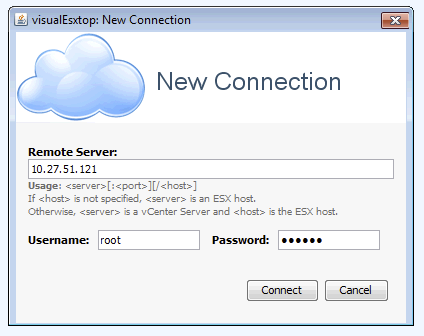
  • Enter the “Hostname”, “Username” and “Password” and hit “Connect”
  • That is it…

Now some simple tips:

  • By default the refresh interval is set to 5 seconds. You can change this by hitting “Configuration” and then “Change Interval”
  • You can also load Batch Output, this might come in handy when you are a consultant for instance and a customers sends you captured data, you can do this under: File -> Load Batch Output
  • You can filter output, very useful if you are looking for info on a specific virtual machine / world! See the filter section.

  • When you click “Charts”  and double click “Object Types” you will see a list of metrics that you can create a chart with. Just unfold the ones you need and double click them to add them to the right pane
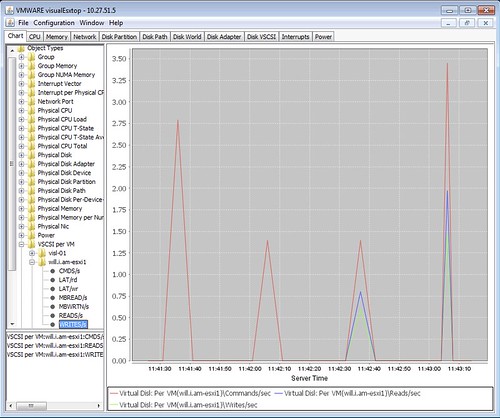
There are a bunch of other cool features in their like color-coding of important metrics for instance. Also the fact that you can show multiple windows at the same time is useful if you ask me and of course the tooltips that provide a description of the counter! If you ask me, a tool everyone should download and check out.

If you have feedback, make sure to leave a comment on the flings site as the engineers of this tool will be tracking that to see where improvements can be made.
 

Unmounting datastore fails due to vSphere HA?

Duncan Epping · Jul 5, 2013 ·

On the VMware Community Forums someone reported he was having issues unmounting datastores when vSphere HA was enabled. Internally I contacted various folks to see what was going on. The error that this customer was hitting was the following:

The vSphere HA agent on host '<hostname>' failed to quiesce file activity on datastore '/vmfs/volumes/<volume id>'

After some emails back and forth with Support and Engineering (awesome to work with such a team by the way!) the issue was discovered and it seems that in two separate instances issues were resolved that had to do with unmounting of datastores. Keith Farkas explained on the forums how you can figure out if you are hitting those exact problems or not and in which release they are fixed, but at I realize those kind of threads are difficult to find I figured I would post it here for future reference:

You can determine if you are encountering this issue by searching the VC log files. Find the task corresponding to the unmount request, and see if the follow error message is logged during the task’s execution (Fixed in 5.1 U1a) :

2012-09-28T11:24:08.707Z [7F7728EC5700 error 'DAS'] [VpxdDas::SetDatastoreDisabledForHACallback] Failed to disable datastore /vmfs/volumes/505dc9ea-2f199983-764a-001b7858bddc on host [vim.HostSystem:host-30,10.112.28.11]: N3Csi5Fault16NotAuthenticated9ExceptionE(csi.fault.NotAuthenticated)

While we are on the subject, I’ll also mention that there is another know issue in VC 5.0 that was fixed in VC5.0U1 (the fix is in VC 5.1 too). This issue related to unmounting a force mounted VMFS datastore. You can determine whether you are hitting this error by again checking the VC log files. If you see an error message such as the following with VC 5.0, then you may be hitting this problem. A work around, like above, is to disable HA while you unmount the datastore.

2011-11-29T07:20:17.108-08:00 [04528 info 'Default' opID=19B77743-00000A40] [VpxLRO] -- ERROR task-396 -- host-384 -- vim.host.StorageSystem.unmountForceMountedVmfsVolume: vim.fault.PlatformConfigFault:

CloudPhysics card builder, how awesome is that?

Duncan Epping · Jul 2, 2013 ·

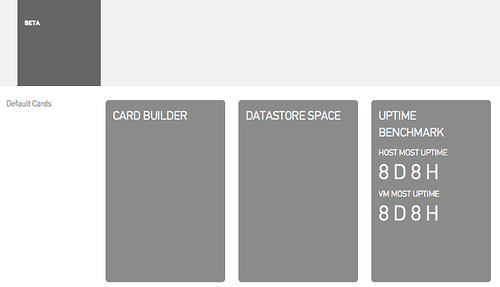
A while ago Irfan Ahmad (CloudPhysics CTO), Frank Denneman and I were discussing various ideas around the CloudPhysics platform… One of the ideas that Ifran and team pitched was this notion of a card builder. Both Frank and I are advisors to CloudPhysics and immidiately jumped up and said “YES PLEASE, when can we have it?” Over the last couple of weeks you have probably seen various blog posts pop up about the card builder that CloudPhysics created and I can honestly say that it has exceeded my expectations. (Suggested reads: Willam’s blog post, Anthony Spiteri’s post) So what is so special about this card designer? I think this paragraph from William’s blog post describes it best:

The vSphere platform provides a very powerful and rich set of APIs (Application Programming Interface) that can be consumed by both vSphere administrators as well as developers. However, there is a high learning curve when using the API and it takes quite a bit of time to learn and of course your manager is expecting the report to be done in the next 5 minutes. Even with abstraction tools such as PowerCLI, quickly building a robust, scalable and performant script is not always a trivial task, not to mention the maintenance and updates to the script because your manager wants to continually add more things to the report.

Not everyone is an API guru like William or a scripting god like Alan Renouf or Luc Dekens. Sure, these guys will knock out an awesome looking report in a matter of minutes, maybe 10 – 15 minutes depending on what kind of metrics they need and how complex the report will be. For normal people, like myself, who aren’t scripting gods this typically takes a lot longer. Personally I am happy if I can produce something within an hour, but when it gets more complex you are probably talking about way more than that, potentially a full day. The CloudPhysics card builder was designed to lower the barrier to create meaningful reports!

How simple is it? I would say, that if I can figure it out in seconds it is dead simple:

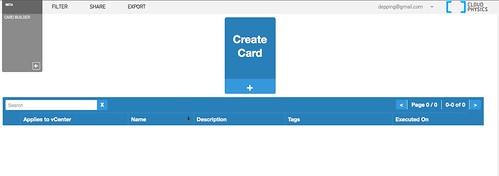
  1. Click “Card Builder”
    CloudPhysics Card Builder
  2. Click “Create card”
    CloudPhysics Card Builder
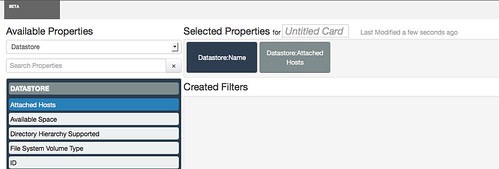
  3. Select the “Property”
    CloudPhysics Card Builder
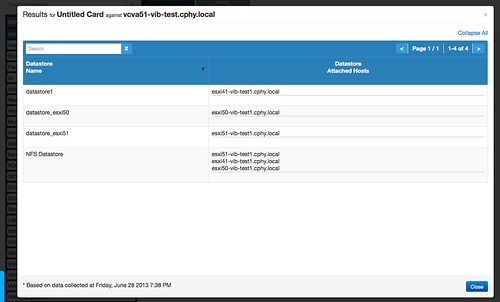
  4. I selected “Datastore:Name” and “Datastore:Attached Hosts” and below the results
    CloudPhysics Card Builder

That is it, really easy right? In just a couple of clicks I can see which hosts are connected to which datastores. Yes of course this was a simple example, but the nice thing is that you can make it as complex as you want or need. Currently this is in a limited Beta, but soon (I mean really soon!!) this will be exposed to the rest of the world. If you want to know more, just check the webinar recording by Irfan link can be found on the CPhy website!

Only thing I wonder is… why on earth did no one come up with this concept before for the virtualization space? Creating reports and should always be dead simple if you ask me, and now with CloudPhysics Card Builder it finally is.

Survey time!

Duncan Epping · Jul 1, 2013 ·

Today I received two requests to plug a survey. The first survey is on the topic of NAS usage and cloud storage and the second one on the topic of multi-tier apps. Please fill them out, as this is your way of defining what the future of VMware (potential) products and features looks like!

Takes about 2 minutes to fill out:

NAS / Cloud Storage survey:

This is a survey on alternatives to traditional NAS storage systems! We would like your opinion on NAS usage within your environment and consideration for alternatives to NAS solutions.

http://bit.ly/1aohsoG

And the second one, takes 10 minutes roughly, but with the chance of winning a giftcard:

Multi-tier app Survey:
We would like your input on virtualization of multi-tier applications in our quest for continuous improvement

We have created a survey to capture your feedback: http://tinyurl.com/VMware-multi-tier-application . The survey should only take 5-10 minutes to complete.

As an incentive, respondents will be entered in a drawing to win one of three $50 Visa gift cards!

The survey will be open until July 9, 2013, so please participate soon!

CPU Affinity and vSphere HA

Duncan Epping · Jun 27, 2013 ·

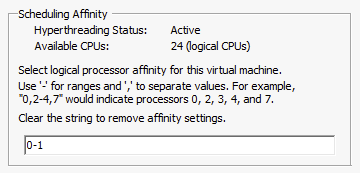
On the VMware Community Forums someone asked today if CPU Affinity and vSphere HA worked in conjunction and if it was supported. To be fair I never tested this scenario, but I was certain it was supported and would work… Never hurts to  validate though before you answer a question like that. I connected to my lab and disabled a VM for DRS so I could enable CPU affinity. I pinned the CPUs down to core 0 and 1 as shown in the screenshot below:

cpu affinity

After pinning the vCPUs to a set of logical CPUs I powered on the VM. The result was, as expected, a “Protected” virtual machine as shown in the screenshot below.

HA protection

But would it get restarted if anything happened to the host? Yes it would, and I tested this of course. I switched the server off which was running this virtual machine and within a minute vSphere HA restarted the virtual machine on one of the other hosts in the cluster. So there you have it, CPU Affinity and vSphere HA work fine.

PS: Would I ever recommend using CPU Affinity? No I would not!

  • « Go to Previous Page
  • Page 1
  • Interim pages omitted …
  • Page 123
  • Page 124
  • Page 125
  • Page 126
  • Page 127
  • Interim pages omitted …
  • Page 336
  • Go to Next Page »

Primary Sidebar

About the Author

Duncan Epping is a Chief Technologist and Distinguished Engineering Architect at Broadcom. Besides writing on Yellow-Bricks, Duncan is the co-author of the vSAN Deep Dive and the vSphere Clustering Deep Dive book series. Duncan is also the host of the Unexplored Territory Podcast.

Follow Us

  • X
  • Spotify
  • RSS Feed
  • LinkedIn

Recommended Book(s)

Also visit!

For the Dutch-speaking audience, make sure to visit RunNerd.nl to follow my running adventure, read shoe/gear/race reviews, and more!

Do you like Hardcore-Punk music? Follow my Spotify Playlist!

Do you like 80s music? I got you covered!

Copyright Yellow-Bricks.com © 2026 · Log in