• Skip to primary navigation
  • Skip to main content
  • Skip to primary sidebar

Yellow Bricks

by Duncan Epping

  • Home
  • Unexplored Territory Podcast
  • HA Deepdive
  • ESXTOP
  • Stickers/Shirts
  • Privacy Policy
  • About
  • Show Search
Hide Search

VMware

Virtual SAN and Network IO Control

Duncan Epping · Oct 29, 2013 ·

Since I started playing with Virtual SAN there was something that I more or less avoided / neglected and that is Network IO Control. However, Virtual SAN and Network IO Control should go hand-in-hand. (And as such the Distributed Switch.) Note that when using VSAN (beta) the Distributed Switch and Network IO Control come with it. I guess I skipped it as there were more exciting thing to talk about, but as more and more people are asking about it I figured it is time to discuss Virtual SAN and Network IO Control. Before we get started, lets list the type of networks we will have within the VSAN cluster:

  • Management Network
  • vMotion Network
  • Virtual SAN Network
  • Virtual Machine Network

Considering it is recommend to use 10GbE with Virtual SAN that is what I will assume with this blog post. In most of these cases, at least I would hope, there will be a form of redundancy and as such we will have 2 x 10GbE to our disposal. So how would I recommend to configure the network?

Lets start with the various portgroups and VMkernel interfaces:

  • 1 x Management Network VMkernel interface
  • 1 x vMotion VMkernel interface (All interfaces need to be in the same subnet)
  • 1 x Virtual SAN VMkernel interface
  • 1 x Virtual Machine Portgroup

Some of you might be surprised that I have only listed the vMotion VMkernel interface and the Virtual SAN VMkernel interface once… And after various discussions and thinking about this for those I figured I would keep things as simple as possible, especially considering the average IO profile of server environments.

By default we can make sure the various traffic types are separated on different physical ports, but we can also set limits and shares when desired. I do not recommend using limits though, why limit a traffic type when you can use shares and “artificially limit” your traffic types based on resource usage and demand?! Also note that shares and limits are enforced per uplink.

So we will be using shares, as shares only come in to play when there is contention. What we will do is take 20GbE in to account and carve it up. Easiest way, if you ask me, is to say each traffic type gets an X number of GbE assigned at a minimum which is based on some of the recommendations out there for these types of traffic:

  • Management Network –> 1GbE
  • vMotion VMK –> 5GbE
  • Virtual Machine PG –> 2GbE
  • Virtual SAN VMkernel interface –> 10GbE

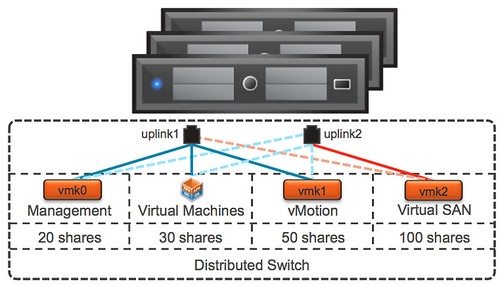
Now as you can see “management”, “virtual machine” and vMotion” traffic share Port 1 and “Virtual SAN” traffic uses Port 2. This way we have sufficient bandwidth for all the various types of traffic in a normal state. We also want to make sure that no traffic type can push out other types of traffic, for that we will use the Network IO Control shares mechanism.

Now lets look at it from a shares perspective.You will want to make sure that for instance vMotion and Virtual SAN always has sufficient bandwidth. I will work under the assumption that I only have 1 physical port available and all traffic types share the same physical port. We know this is not the case, but lets take a “worst case scenario” approach.

Lets assume you have a 1000 shares in total and lets take a worst case scenario in to account where 1 physical 10GbE ports has failed and only 1 is used for all traffic. By taking this approach you ensure that Virtual SAN always has 50% of the bandwidth to its disposal while leaving the remaining traffic types with sufficients bandwidth to avoid a potential self-inflicted DoS.

Traffic Type Shares Limit
Management Network  20 n/a
vMotion VMkernel Interface  50 n/a
Virtual Machine Portgroup  30 n/a
Virtual SAN VMkernel Interface  100 n/a

You can imagine that when you select the uplinks used for the various types of traffic in a smart way that even more bandwidth can be leveraged by the various traffic types. After giving it some thought, this is what I would recommend per traffic type:

  • Management Network VMkernel interface = Explicit Fail-over order = P1 active / P2 standby
  • vMotion VMkernel interface = Explicit Fail-over order = P1 active / P2 standby
  • Virtual Machine Portgroup = Explicit Fail-over order = P1 active / P2 standby
  • Virtual SAN VMkernel interface = Explicit Fail-over order = P2 active / P1 standby

Why use Explicit Fail-over order for these types? The best explanation here is predictability. By separating traffic types we allow for optimal storage performance while also providing vMotion and virtual machine traffic sufficient bandwidth.

Also vMotion traffic is bursty and can / will consume all available bandwidth, so when combined with Virtual SAN on the same uplink you could see how these two could potentially hurt each other. Of course depending on the IO profile of your virtual machines and the type of operations being done. But you can see how a vMotion of a virtual machine provisioned with a lot of memory can impact the available bandwidth for other traffic types. Don’t ignore this, use Network IO Control!

Lets try to visualize things, makes it easier to digest. Just to be clear, dotted lines are “standby” and the others are “active”.
Virtual SAN and Network IO Control

I hope this provides some guidance around how to configure Virtual SAN and Network IO Control in a VSAN environment. Of course there are various ways of doing it, this is my recommendation and my attempt to keep things simple and based on experience with the products.

4 is the minimum number of hosts for VSAN if you ask me

Duncan Epping · Oct 24, 2013 ·

<Update 1-oct-15>Make sure to read this article also as it is based on Virtual SAN 6.1, which is the current latest version </update>

What is the minimum number of hosts for VSAN? This is one of those discussions which is difficult… I mean, what is the minimum number of hosts for vSphere HA for instance. If you ask anyone that question then most people will say: the minimum number for HA is 2. However, when you think about why you are using vSphere HA then you will realize pretty quick that the actual minimum number is 3.

Why is that? Well you can imagine that when you need to upgrade your hosts you also want some form of resiliency for your virtual machines. Guess what, if you have only 2 hosts and you are upgrading 1 of them and the other fails… Where would your virtual machines be restarted? I can give you the answer: nowhere. The only host you had left is in maintenance mode and undergoing an upgrade. So in that case you are … euhm screwed.

Now lets looks at VSAN, in order to comply to a “number of failures to tolerate = 1” policy you will need 3 hosts at a minimum at all times. Even if 1 host fails miserably then you can still access your data because with 3 hosts and 2 mirror copies and a witness you will still have > 50% of your copies available. But what happens when you place one of those hosts in maintenance mode?

Well I guess when both remaining hosts keep on functioning as expected then all VMs will just keep on running, however if one fails… then… then you have a challenge. So think about the number of hosts you want to have supporting your VSAN datastore!

I guess the question then arises, with this “number of failures to tolerate” policy, how many hosts do I need at a minimum? How many mirror copies will be created and how many witnesses? Also, how many hosts will I need when I want to take “maintenance mode” in to consideration?

Number of Failures Mirror copies Witnesses Min. Hosts Hosts + Maintenance
0 1 0 1 host n/a
1 2 1 3 hosts 4 hosts
2 3 2 5 hosts 6 hosts
3 4 3 7 hosts 8 hosts

I hope that helps making the right decision…

How to configure the Virtual SAN observer for monitoring/troubleshooting

Duncan Epping · Oct 21, 2013 ·

There have been various blog posts on the topic of configuring the Virtual SAN observer on both Windows and Linux by Rawlinson Rivera and Erik Bussink. I like to keep things in a single location and document them for my own use so I figured I would do a write-up for yellow-bricks.com. First of all, what is the Virtual SAN / VSAN observer? One of our engineers (Christian Dickmann) published an internal blog on this topic and I believe it explains what it is / what it does best:

You will also find VSAN datastore as well as VM level performance statistics in the vSphere Web Client. If however you are the kind of guy who wants to really drill down on your VSAN performance in-depth, down to the physical disk layers, understand cache hit rates, reasons for observed latencies, etc. then the vSphere Web Client won’t satisfy your thirst in vSphere 5.5. That’s where the VSAN observer comes in.

So how do I enable it? Well I am a big fan of the vCenter Server Appliance so that will be my focus. Just a couple of short steps to get this up and running luckily:

  • Open an ssh session to your vCenter Server Appliance:
    • ssh root@<name or ip of your vcva>
  • Open rvc using your root account and the vCenter name, in my case:
    • rvc root@localhost
  • Now do a “cd” in to your vCenter object (you can do an “ls” so see what the names are of your objects on any level), and if you do tab it will be completed with your datacenter object:
    • cd localhost/Datacenter/
  • Now do a “cd” again, the first object is “computers” and the second is your “cluster”, in my case that looks as follows:
    • cd computers/VSANCluster/
  • Now you can start the VSAN observer using the following command:
    • vsan.observer . –run-webserver –force
  • Now you can see the observer querying stats every 60 seconds, and as mentioned you can stop this by doing a <Ctrl>+<C>

Fairly straight forward right? You can now go to the observer console using:

  • http://<vcenter name or ip>:8010
    The below is what it should look like (Thanks Rawlinson for the nice screenshot)

Now one thing that is important to realize is that everything is kept in memory until you stop the VSAN observer… So it will take up GBs after a couple of hours. This tool is intended for short term monitoring and troubleshooting. Now there are  some other commands in RVC that might be useful. One of the commands I found useful was “vsan.resync_dashboard”. Basically it shows you what is happening in terms of mirror sync’ing. If you fail a host, you should see the sync happening here…

I also found “vsan.vm_object_info” very useful and interesting as it allows you to see the state of your objects. And for the geeks who do not prefer to see the pretty graphs the observer shows, take a look at “vsan.vm_perf_stats”.

VC Ops included in the VMware Horizon Suite 5.3

Duncan Epping · Oct 15, 2013 ·

I was reading up on the announcements published today during VMworld. When talking about VDI/EUC with customers, and I am not an EUC guy so try to avoid this when I can, a couple of things always stood… First one was storage problems and the second one was monitoring. I think the announcements done today are a game-changer in that space, and I am sure that you will appreciate this:

New VMware Virtual SAN for Horizon View beta will deliver significantly lower upfront capital expense (CAPEX) and total cost of ownership (TCO) for virtual desktop infrastructure (VDI). The bundling of VMware vCenter Operations Manager for View in Horizon Suite, available at no additional cost, offers advanced VDI performance and operations management for large-scale virtual desktop production monitoring, advanced problem warning, faster time to resolution and complete infrastructure coverage.

How about that? I definitely think this a great step forward, and am happy to see that especially VC Ops is being included with the Horizon Suite. I can definitely recommend implementing it to those who own the Horizon Suite, and those who do not own the Suite yet, it might be time to invest. Please note that VSAN is still in Beta and is not been included from a licensing perspective but has been tested with the Horizon Suite. Use it in your test environments – play with it etc… but do not run your production workloads on it yet.  (Read Andre’s article for more details on the Horizon Suite.)

** EDIT, there was a lot of confusion yesterday about VSAN being bundled or not. Apparently the press release was only supposed to say that you can use VSAN with the Horizon Suite. There is no support, no bundling, no technology preview. **

Virtual SAN news flash pt 1

Duncan Epping · Oct 3, 2013 ·

I had a couple of things I wanted to write about with regards to Virtual SAN which I felt weren’t beefy enough to dedicate a full article to so I figured I would combine a couple of news worthy items and create a Virtual SAN news flash article / series.

  • I was playing with Virtual SAN last week and I noticed something I hadn’t noticed yet… I was running vSphere with an Enterprise license and I added the Virtual SAN license for my cluster. After adding the Virtual SAN license all of a sudden I had the Distributed Switch capability on the cluster I had VSAN licensed. Now I am not sure what this will look like when VSAN will go GA, but for now those who want to test with VSAN and want to use the Distributed Switch you can. Use the Distributed Switch to guarantee bandwidth (leveraging Network IO Control) to Virtual SAN when combining different types of traffic like vMotion / Management / VM traffic on a 10GbE pair. I would highly recommend to start playing around with this and get experienced. Especially because vSphere HA traffic and VSAN traffic are combined on a single NIC pair and you do not want HA traffic to be impacted by replication traffic.
  • The Samsung SM1625 SSD series (eMLC) has been certified for Virtual SAN. It comes in sizes ranging between 100Gb and 800GB and can do up to 120k IOps random read… Nice to see the list of supported SSDs expanding, will try to get my hands on one of these at some point to see if I can do some testing.
  • Most people by now are aware of the challenges there were with the AHCI controller. I was just talking with one of the VSAN engineers who mentioned that they have managed to do a full root cause analysis and pinpoint the root of this problem. Currently there is a team working on solving it and things are looking good and hopefully soon a new driver will be released, when we do I will let you guys know as I realize that many use these controllers in their home-lab.
  • « Go to Previous Page
  • Page 1
  • Interim pages omitted …
  • Page 66
  • Page 67
  • Page 68
  • Page 69
  • Page 70
  • Interim pages omitted …
  • Page 124
  • Go to Next Page »

Primary Sidebar

About the Author

Duncan Epping is a Chief Technologist and Distinguished Engineering Architect at Broadcom. Besides writing on Yellow-Bricks, Duncan is the co-author of the vSAN Deep Dive and the vSphere Clustering Deep Dive book series. Duncan is also the host of the Unexplored Territory Podcast.

Follow Us

  • X
  • Spotify
  • RSS Feed
  • LinkedIn

Recommended Book(s)

Also visit!

For the Dutch-speaking audience, make sure to visit RunNerd.nl to follow my running adventure, read shoe/gear/race reviews, and more!

Do you like Hardcore-Punk music? Follow my Spotify Playlist!

Do you like 80s music? I got you covered!

Copyright Yellow-Bricks.com © 2026 · Log in