• Skip to primary navigation
  • Skip to main content
  • Skip to primary sidebar

Yellow Bricks

by Duncan Epping

  • Home
  • Unexplored Territory Podcast
  • HA Deepdive
  • ESXTOP
  • Stickers/Shirts
  • Privacy Policy
  • About
  • Show Search
Hide Search

VMware

CPU Affinity and vSphere HA

Duncan Epping · Jun 27, 2013 ·

On the VMware Community Forums someone asked today if CPU Affinity and vSphere HA worked in conjunction and if it was supported. To be fair I never tested this scenario, but I was certain it was supported and would work… Never hurts to  validate though before you answer a question like that. I connected to my lab and disabled a VM for DRS so I could enable CPU affinity. I pinned the CPUs down to core 0 and 1 as shown in the screenshot below:
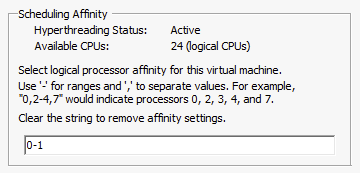
cpu affinity

After pinning the vCPUs to a set of logical CPUs I powered on the VM. The result was, as expected, a “Protected” virtual machine as shown in the screenshot below.

HA protection

But would it get restarted if anything happened to the host? Yes it would, and I tested this of course. I switched the server off which was running this virtual machine and within a minute vSphere HA restarted the virtual machine on one of the other hosts in the cluster. So there you have it, CPU Affinity and vSphere HA work fine.

PS: Would I ever recommend using CPU Affinity? No I would not!

(ab)using vSphere advanced settings?

Duncan Epping · Jun 24, 2013 ·

Almost on a daily basis, I get questions from colleagues and customers about specific advanced settings. Somehow they spotted a vSphere advanced setting and wonder if they should set it. They go on a hunt to figure out what it is this specific vSphere advanced setting does and typically find a description on a random website that makes it sound like it is a good idea to configure it. I even had someone asking if I could give a list of all optimized values for the advanced kernel parameters recently. My answer was short and maybe a bit blunt, but I think it was clear:

I hope the sign above makes it clear you should not randomly set advanced settings. Some of you will laugh and say “well that is obvious” while others probably will scratch their head and open their vSphere client and check the advanced settings section. I know I discuss advanced settings every once in a while, but you should only apply these settings when:

  1. You have a requirement to implement this advanced setting, do not tweak them “just because you can”. An example would be in a stretched cluster you set “disk.terminateVMOnPDLDefault” because of the infrastructure implemented.
  2. The advanced setting solves a problem in your environment (and preferably, in that case, see 3)
  3. When recommended by VMware Global Support Services

If you have implemented an advanced setting, document it and with every update or upgrade validate it is still applicable to that specific version or not. (If you are aspiring to be a VCDX, this is key.) If it no longer applies, remove revert to default!

How to register a Storage Provider using the vSphere Web Client

Duncan Epping · Jun 18, 2013 ·

I needed to register a Storage Provider for vSphere Storage APIs for Storage Awareness (VASA) today. I force myself to use the vSphere Web Client and it had me looking for this option for a couple of minutes. It actually was the second time this week I had to do this, so I figured if I need to search for it there will probably be more people hitting the same issue. So where can you register those VASA Storage Provider’s in the Web Client?

  • In your vSphere Web Client “home screen” click “vCenter”
  • Now in the “Inventory Lists” click “vCenter Servers”
  • Select your “vCenter Server” in the left pane
  • Click the “Manage” tab in the right pane
  • Click “Storage Provider” in the right pane
  • Click on the “green plus”
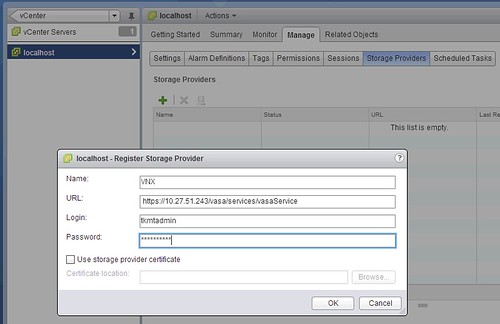
  • Fill out your details and hit “OK” just like the example below (VNX, block storage)
    registering a Storage Provider

I personally find this not very intuitive and would prefer to have it in the Rules and Profiles section of the Web Client, and when I do configure it… I should be able to configure it for all vCenter Server instances just by select all or individual vCenter Servers. Do you agree? I am going to push for this within VMware, so if you don’t agree, please speak up and let me know why :-).

How does Mem.MinFreePct work with vSphere 5.0 and up?

Duncan Epping · Jun 14, 2013 ·

With vSphere 5.0 VMware changed the way Mem.MinFreePct worked. I had briefly explained Mem.MinFreePct in a blog post a long time ago. Basically Mem.MinFreePct, pre vSphere 5.0, was the percentage of memory set aside by the VMkernel to ensure there are always sufficient system resources available. I received a question on twitter yesterday based on the explanation in the vSphere 5.1 Clustering Deepdive and after exchanging > 10 tweets I figured it made sense to just write an article.

https://twitter.com/vmcutlip/status/345289952684290048

Mem.MinFreePct used to be 6% with vSphere 4.1 and lower. Now you can imagine that when you had a host with 10GB you wouldn’t worry about 600MB being kept free, but that is slightly different for a host with 100GB as it would result in 6GB being kept free but still not an extreme amount right. What would happen when you have a host with 512GB of memory… Yes, that would result in 30GB of memory being kept free. I am guessing you can see the point now. So what changed with vSphere 5.0?

In vSphere 5.0 a “sliding scale” principle was introduced instead of Mem.MinFreePct. Let me call it “Mem.MinFree”, as I wouldn’t view this as a percentage but rather do the math and view it as a number instead. Lets borrow Frank’s table for this sliding scale concept:

Percentage kept free of –>
Memory Range
6% 0-4GB
4% 4-12GB
2% 12-28GB
1% Remaining memory

What does this mean if you have 100GB of memory in your host? It means that from the first 4GB of memory we will set aside 6% which equates to ~ 245MB. For the next 8GB (4-12GB range) we set aside another 4% which equates to ~327MB. For the next 16GB (12-28GB range) we set aside 2% which equates to ~ 327MB. Now from the remaining 72GB (100GB host – 28GB) we set aside 1% which equates to ~ 720MB. In total the value of Mem.MinFree is ~ 1619MB. This number, 1619MB, is being kept free for the system.

Now, what happens when the host has less than 1619MB of free memory? That is when the various memory reclamation techniques come in to play. We all know the famous “high, soft, hard, and low” memory states, these used to be explained as: 6% (High), 4% (Soft), 2% (Hard), 1% (Low). FORGET THAT! Yes, I mean that… forget these as that is what we used in the “old world” (pre 5.0). With vSphere 5.0 and up these water marks should be viewed as a Percentage of Mem.MinFree. I used the example from above to clarify it a bit what it results in.

Free memory state Threshold in Percentage
Threshold in MB
High water mark Higher than or equal to Mem.MinFree 1619MB
Soft water mark 64% of Mem.MinFree 1036MB
Hard water mark 32% of Mem.MinFree 518MB
Low water mark 16% of Mem.MinFree 259MB

I hope this clarifies a bit how vSphere 5.0 (and up) ensures there is sufficient memory available for the VMkernel to handle system tasks…

Available now: VMware Technical Journal, Summer 2013

Duncan Epping · Jun 11, 2013 ·

For those like me who love reading research papers by developers you might want to head over to labs.vmware.com as today a new version of the VMware Technical Journal was released, the summer 2013 edition. You can download it as a PDF on the website, or you can read the individual articles straight in your web browser. Below you can find the Table of Content, and the titles convinced me that these are worth reading. Personally I found the “Redefining ESXi IO Multipathing in the Flash ERA” very interesting… but I suggest you read all of them as it typically gives a good hint of what VMware engineering is working on now / or in the future!

  • Introduction
  • Memory Overcommitment in the ESX Server
  • Redefining ESXi IO Multipathing in the Flash Era
  • Methodology for Performance Analysis of VMware vSphere under Tier-1 Applications
  • vATM: VMware vSphere Adaptive Task Management
  • An Anomaly Event Correlation Engine: Identifying Root Causes, Bottlenecks, and Black Swans in IT Environments
  • Simplifying Virtualization Management with Graph Databases
  • Autonomous Resource Sharing for Multi-Threaded Workloads in Virtualized Servers
  • « Go to Previous Page
  • Page 1
  • Interim pages omitted …
  • Page 68
  • Page 69
  • Page 70
  • Page 71
  • Page 72
  • Interim pages omitted …
  • Page 124
  • Go to Next Page »

Primary Sidebar

About the Author

Duncan Epping is a Chief Technologist and Distinguished Engineering Architect at Broadcom. Besides writing on Yellow-Bricks, Duncan is the co-author of the vSAN Deep Dive and the vSphere Clustering Deep Dive book series. Duncan is also the host of the Unexplored Territory Podcast.

Follow Us

  • X
  • Spotify
  • RSS Feed
  • LinkedIn

Recommended Book(s)

Also visit!

For the Dutch-speaking audience, make sure to visit RunNerd.nl to follow my running adventure, read shoe/gear/race reviews, and more!

Do you like Hardcore-Punk music? Follow my Spotify Playlist!

Do you like 80s music? I got you covered!

Copyright Yellow-Bricks.com © 2026 · Log in