• Skip to primary navigation
  • Skip to main content
  • Skip to primary sidebar

Yellow Bricks

by Duncan Epping

  • Home
  • Unexplored Territory Podcast
  • HA Deepdive
  • ESXTOP
  • Stickers/Shirts
  • Privacy Policy
  • About
  • Show Search
Hide Search

ha

HA Architecture Series – Datastore Heartbeating (3/5)

Duncan Epping · Jul 26, 2011 ·

**disclaimer: Some of the content has been taken from the vSphere 5 Clustering Technical Deepdive book**

The first time I was playing around with 5.0 and particularly HA I noticed a new section in the UI called Datastore Heartbeating.
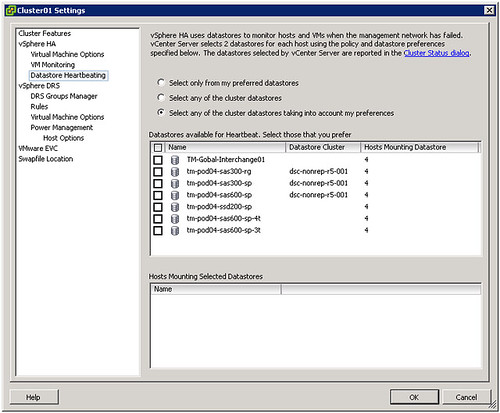
Those familiar with HA prior to vSphere 5.0 probably know that virtual machine restarts were always initiated, even if only the management network of the host was isolated and the virtual machines were still running. As you can imagine, this added an unnecessary level of stress to the host. This has been mitigated by the introduction of the datastore heartbeating mechanism. Datastore heartbeating adds a new level of resiliency and allows HA to make a distinction between a failed host and an isolated / partitioned host. Isolated vs Partitioned is explained in Part 2 of this series.

Datastore heartbeating enables a master to more correctly determine the state of a host that is not reachable via the management network. The new datastore heartbeat mechanism is only used in case the master has lost network connectivity with the slaves to validate whether the host has failed or is merely isolated/network partitioned. As shown in the screenshot above two datastores are automatically selected by vCenter. You can rule out specific volumes if and when required or even make the selection yourself. I would however recommend to let vCenter decide.

As mentioned by default it will select two datastores. It is possible however to configure an advanced setting (das.heartbeatDsPerHost) to allow for more datastores for datastore heartbeating. I can imagine this is something that you would do when you have multiple storage devices and want to pick a datastore from each, but generally speaking I would not recommend configuring this option as the default should be sufficient for most scenarios.

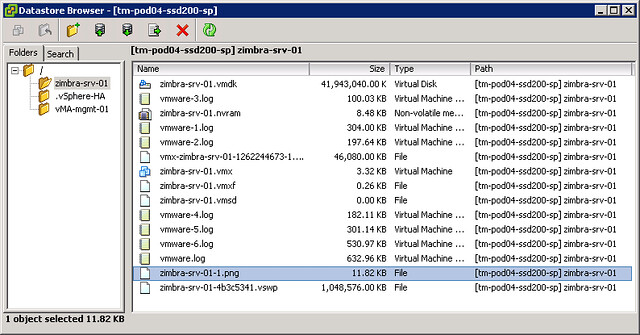
How does this heartbeating mechanism work? HA leverages the existing VMFS filesystem locking mechanism. The locking mechanism uses a so called “heartbeat region” which is updated as long as the lock on a file exists. In order to update a datastore heartbeat region, a host needs to have at least one open file on the volume. HA ensures there is at least one file open on this volume by creating a file specifically for datastore heartbeating. In other words, a per-host a file is created on the designated heartbeating datastores, as shown in the screenshot below. HA will simply check whether the heartbeat region has been updated.

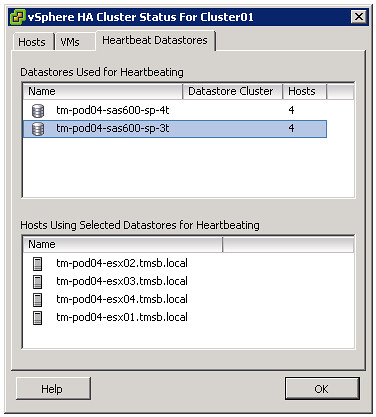
If you are curious which datastores have been selected for heartbeating. Just go to your summary tab on your cluster and click “Cluster Status”, the 3 tab “Heartbeat Datastores” will reveal it.
 

** Disclaimer: This article contains references to the words master and/or slave. I recognize these as exclusionary words. The words are used in this article for consistency because it’s currently the words that appear in the software, in the UI, and in the log files. When the software is updated to remove the words, this article will be updated to be in alignment. **
HA Architecture Series – Primary nodes? (2/5)

Duncan Epping · Jul 25, 2011 ·

**disclaimer: Some of the content has been taken from the vSphere 5 Clustering Technical Deepdive book**

As mentioned in an earlier post vSphere High Availability has been completely overhauled… This means some of the historical constraints have been lifted and that means you can / should / might need to change your design or implementation.

What I want to discuss today is the changes around the Primary / Secondary node concept that was part of HA prior to vSphere 5.0. This concept basically limited you in certain ways… For those new to VMware /vSphere, in the past there was a limit of 5 primary nodes. As a primary node was a requirement to restart virtual machines you always wanted to have at least 1 primary node available. As you can imagine this added some constraints around your cluster design when it came to Blades environments or Geo-Dispersed clusters.

vSphere 5.0 has completely lifted these constraints. Do you have a Blade Environment and want to run 32 hosts in a cluster? You can right now as the whole Primary/Secondary node concept has been deprecated. HA uses a new mechanism called the Master/Slave node concept. This concept is fairly straight forward. One of the nodes in your cluster becomes the Master and the rest become Slaves. I guess some of you will have the question “but what if this master node fails?”. Well it is very simple, when the master node fails an election process is initiated and one of the slave nodes will be promoted to master and pick up where the master left off. On top of that, lets take the example of a Geo-Dispersed cluster, when the cluster is split in two sites due to a link failure each “partition” will get its own master. This allows for workloads to be restarted even in a geographically dispersed cluster when the network has failed….

What is this master responsible for? Well basically all the tasks that the primary nodes used to have like:

  • restarting failed virtual machines
  • exchanging state with vCenter
  • monitor the state of slaves

As mentioned when a master fails a election process is initiated. The HA master election takes roughly 15 seconds. The election process is simple but robust. The host that is participating in the election with the greatest number of connected datastores will be elected master. If two or more hosts have the same number of datastores connected, the one with the highest Managed Object Id will be chosen. This however is done lexically; meaning that 99 beats 100 as 9 is larger than 1. That is a huge improvement compared to what is was like in 4.1 and prior isn’t it?

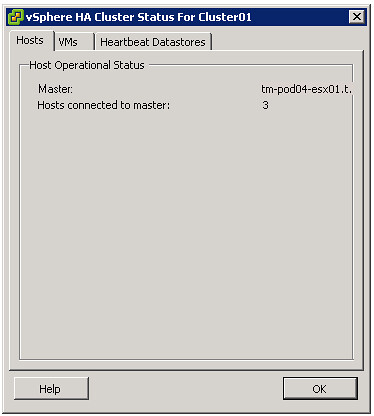
For those wondering which host won the election and became the master, go to the summary tab and click “Cluster Status”.

Isolated vs Partitioned

As this is a change in behavior I do want to briefly discuss the difference between an Isolation and a Partition. First of all, a host is considered to be either Isolated or Partitioned when it loses network access to a master but has not failed. To help explain the difference the states and the associated criteria below:

  • Isolated
    • Is not receiving heartbeats from the master
    • Is not receiving any election traffic
    • Cannot ping the isolation address
  • Partitioned
    • Is not receiving heartbeats from the master
    • Is receiving election traffic
    • (at some point a new master will be elected at which the state will be reported to vCenter)

In the case of an Isolation, a host is separated from the master and the virtual machines running on it might be restarted, depending on the selected isolation response and the availability of a master. It could occur that multiple hosts are fully isolated at the same time. When multiple hosts are isolated but can still communicate amongst each other over the management networks, it is called s a network partition. When a network partition exists, a master election process will be issued so that a host failure or network isolation within this partition will result in appropriate action on the impacted virtual machine(s).


** Disclaimer: This article contains references to the words master and/or slave. I recognize these as exclusionary words. The words are used in this article for consistency because it’s currently the words that appear in the software, in the UI, and in the log files. When the software is updated to remove the words, this article will be updated to be in alignment. **
HA Architecture Series – FDM (1/5)

Duncan Epping · Jul 22, 2011 ·

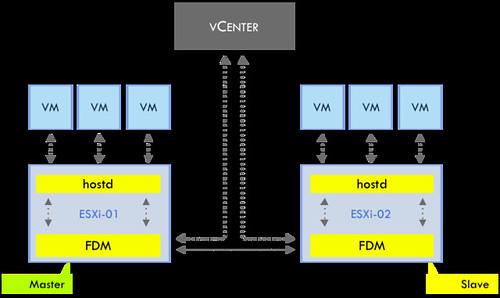
With vSphere 5.0 comes a new HA architecture. HA has been rewritten from the ground up to shed some of those constraints that were enforced by AAM. HA as part of 5.0, also referred to as FDM (fault domain manager), introduces less complexity and higher resiliency. From a UI perspective not a lot has changed, but there is a lot under the covers that has changed though, no more primary/secondary node concept as stated but a master/slave concept with an automated election process. Anyway, too much details for now, will come back to that later in a later article. Lets start with the basics first. As mentioned the complete agent as been rewritten and the dependency on VPXA has been removed. HA talks directly to hostd instead of using a translator to talk to VPXA with vSphere 4.1 and prior. This excellent diagram by Frank, also used in our book, demonstrates how things are connected as of vSphere 5.0.

The main point here though is that the FDM agent also communicates with vCenter and vCenter with the FDM agent. As of vSphere 5.0, HA leverages vCenter to retrieve information about the status of virtual machines and vCenter is used to display the protection status of virtual machines. On top of that, vCenter is responsible for the protection and unprotection of virtual machines. This not only applies to user initiated power-offs or power-ons of virtual machines, but also in the case where an ESXi host is disconnected from vCenter at which point vCenter will request the master HA agent to unprotect the affected virtual machines. What protection actually means will be discussed in a follow-up article. One thing I do want to point out is that if vCenter is unavailable, it will not be possible to make changes to the configuration of the cluster. vCenter is the source of truth for the set of virtual machines that are protected, the cluster configuration, the virtual machine-to-host compatibility information, and the host membership. So, while HA, by design, will respond to failures without vCenter, HA relies on vCenter to be available to configure or monitor the cluster.

Without diving straight in to the deep I want to point out two minor chances but huge improvements when it comes to managing/troubleshooting HA which I want to point out:

  • No dependency on DNS
  • Syslog functionality

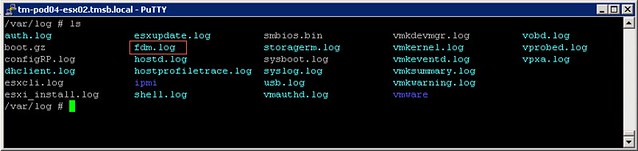
As of 5.0 HA is no longer dependent on DNS, as it works with IP addresses only. This is one of the major improvements that FDM brings. This also means that the character limit that HA imposed on the hostname has been lifted. (Pre-vSphere 5.0, hostnames were limited to 26 characters.) Another major change is the fact that the HA log files are part of the normal log functionality ESXi offer which means that you can find the log file in /var/log and it is picked up by syslog!

There are a couple of other major changes that I want to explain in the upcoming posts. Here is what you can expect to be published in the upcoming week:

  • Primary Nodes (2/5)
  • Datastore Heartbeating (3/5)
  • Restarting VMs (4/5)
  • Advanced Settings (5/5)


** Disclaimer: This article contains references to the words master and/or slave. I recognize these as exclusionary words. The words are used in this article for consistency because it’s currently the words that appear in the software, in the UI, and in the log files. When the software is updated to remove the words, this article will be updated to be in alignment. **
HA slotsize caveat…

Duncan Epping · Jul 21, 2011 ·

I had a question this week from one of my colleagues which had me dazzled for a while. A customer had an HA enabled cluster and used “Host Failures Cluster Tolerates” as the admission control policy. As you hopefully all know it uses a slot algorithm, in short:

HA uses the highest CPU reservation of any given VM and the highest memory reservation of any given VM. If no reservations of higher than 256Mhz are set HA will use a default of 256Mhz for CPU and a default of 0MB+memory overhead for memory.

In their case they ended up with a slot size of 405MB. However after validating the overhead of all machines they found that the largest memory overhead was 149MB. So where did this 405MB come from? Luckily one of the engineers responded to the email thread and managed to clear things up. With vCenter 2.5 we also used a default slotsize of 256MB for memory. This default slotsize is configured in “vpxd.cfg” and unfortunately after upgrading from 2.5 to vCenter 4.0 this setting is not reset. For this customer that meant that the result was:

256 (default slotsize) + 149 (dynamic memory overhead) = 405MB

Although a minor issue, definitely something to keep in mind when troubleshooting HA slotsize issues. Always check the vpxd.cfg and check if there are any values defined for “<slotMemMinMB>”.

Testing VM Monitoring on vSphere 5.0

Duncan Epping · Jul 20, 2011 ·

I was testing VM Monitoring and needed to trigger a Blue Screen of Death. Unfortunately the “CrashOnCtrlScroll” solution did not work so I needed a different solution. I finally managed to get it sorted by doing the following:

Add the following key to your registry by doing a copy and paste of the following line, note that I had to break up the line to make it viewable on my blog unfortunately:

reg add "HKEY_LOCAL_MACHINE\SYSTEM\CurrentControlSet\Control\CrashControl"
/v NMICrashDump /t REG_DWORD /d 0x1 /f

List all VMs running on the host to get the World ID of the VM, SSH into your ESXi 5.0 host and type the following:

esxcli vm process list

Write down or copy the world ID of the VM and send an NMI request to trigger the BSOD, replace “<world id>” with the appropriate ID:

vmdumper <world id vm> nmi

This results in a nice BSOD and followed by a reboot by VM Monitoring including a screenshot of the VMs console (see screenshot below) before the reboot.

  • « Go to Previous Page
  • Page 1
  • Interim pages omitted …
  • Page 29
  • Page 30
  • Page 31
  • Page 32
  • Page 33
  • Interim pages omitted …
  • Page 54
  • Go to Next Page »

Primary Sidebar

About the Author

Duncan Epping is a Chief Technologist and Distinguished Engineering Architect at Broadcom. Besides writing on Yellow-Bricks, Duncan is the co-author of the vSAN Deep Dive and the vSphere Clustering Deep Dive book series. Duncan is also the host of the Unexplored Territory Podcast.

Follow Us

  • X
  • Spotify
  • RSS Feed
  • LinkedIn

Recommended Book(s)

Also visit!

For the Dutch-speaking audience, make sure to visit RunNerd.nl to follow my running adventure, read shoe/gear/race reviews, and more!

Do you like Hardcore-Punk music? Follow my Spotify Playlist!

Do you like 80s music? I got you covered!

Copyright Yellow-Bricks.com © 2026 · Log in