• Skip to primary navigation
  • Skip to main content
  • Skip to primary sidebar

Yellow Bricks

by Duncan Epping

  • Home
  • Unexplored Territory Podcast
  • HA Deepdive
  • ESXTOP
  • Stickers/Shirts
  • Privacy Policy
  • About
  • Show Search
Hide Search

ha

Memory Tiering aware vSphere HA Admission Control in VCF/vSphere 9.1.1!

Duncan Epping · Sep 22, 2026 · Leave a Comment

To be fair, I have not had many customers complain about the fact that vSphere HA Admission Control was not Memory Tiering aware, but if you had concerns then it is good to know that this problem was resolved with the 9.1.1 release of VCF/vSphere. For those who never gave it any thought even, what was the problem?

When Memory Tiering is enabled, vSphere and vSphere HA considers the total amount of DRAM and the amount of NVMe of the Memory Tier as the total amount of available memory. So if you have 512GB of DRAM, and 512GB of NVMe for Memory Tiering, it would be considered as a single pool of memory of 1TB. Of course, this is the whole idea behind Memory Tiering, you have a hot and a cold tier and memory pages move up and down based on access patterns.

However, this only applies to memory pages of a VM (so for instance not of vSAN). On top of that, it only applies to memory pages which are not reserved and pinned to DRAM. On top of that, the memory overhead of a VM is also never considered for the NVMe tier. You can imagine that in certain scenarios, you could end up in the situation where vSphere HA expects there to be memory available, and even though there’s capacity in the memory pool, it is only in NVMe and not in DRAM. If that happens, it becomes impossible to restart a VM, as for instance the memory overhead always needs to be backed by DRAM.

As a result, starting with VCF/vSphere 9.1.1, the vSphere HA team has included logic for HA Admission Control to differentiate between DRAM and NVMe, and also between a tiered VM and a non-tiered VM. This by the way, only applies to the “Percentage based” admission control policy, and the “Failover Host” admission control policy. The slot policy does not differentiate between these!

Now when it comes to Admission Control and Memory Tiering, Admission Control will actually take the total amount of memory in to account (DRAM+NVMe tier) but it will also look at the capacity of DRAM only and consider that. When you set for instance the percentage to 25%, it will do the math for both DRAM as well as DRAM+NVMe, and new workloads will not be accepted unless they would pass both admission control calculations. This to prevent a situation where memory pages can be backed by NVMe and DRAM but for instance a reservation of the memory overhead cannot be guaranteerd by DRAM alone, as that would result in a failed restart.

There documentation of vSphere HA has been updated to reflect the latest changes, if you use Memory Tiering and have Admission Control enabled I would recommend looking at the documentation for the various examples of how it works. I would also highly recommend customers who use Memory Tiering and HA Admission Control to verify which policy has been selected, as that will also have an impact as explained above.

PS: the memory tiering aware HA Admission Control only comes in to play when DRS is enabled, and vSphere HA can call DRS for placement recommendations. It does not work when vCenter is unavailable and the SPE is used.

New vCLS architecture with vSphere 8.0 Update 3

Duncan Epping · Sep 24, 2024 ·

Some of you may have seen this, others may have not, as I had a question today around vCLS retreat mode with 8.0U3 I figured I would write something on the topic quickly. Starting with vSphere 8.0 Update we introduced a new architecture for vCLS aka vSphere Cluster Services. Pre-vSphere 8.0 Update the vCLS architecture was based on virtual machines with Photon OS. These VMs were there to assist in enabling and disabling primarily DRS. If something was wrong with these VMs then DRS would also be unable to function normally. In the past many of you have probably experienced situations where you had to kill and delete the vCLS VMs to restore functionality of DRS, for that VMware introduced a feature called “retreat mode” which basically killed and deleted the VMs for you. There were some other challenges with the vCLS VMs and as a result the team decided to create a new design for vCLS.

Starting with vSphere 8.0 Update 3 vCLS is now implemented as what I would call a container runtime, sometimes referred to as a Pod VM or PodCRX. In other words, when you upgrade to vSphere 8.0 Update 3 you will see your current vCLS VMs be deleted, and these new shiny vCLS VMs will pop up. How do you know if these VMs are created using a different mechanism? Well you can simply just see that in the UI as demonstrated below. See the “CRX” mention in the UI?

New vCLS architecture with vSphere 8.0 Update 3

So you may ask yourself, why should I even care? Well the thing is, you should not indeed. The new vCLS architecture uses less resources per VM, there are less vCLS VMs deployed to begin with (two instead of three), and they are more resilient. Also, when a host is for instance placed into maintenance mode while it has a vCLS VM running, that vCLS instance is deleted and recreated elsewhere. Considering the VMs are stateless and tiny, that is much more efficient than trying to vMotion it. Note, vMotion and SvMotion of these new (Embedded as they call them) type of vCLS VMs isn’t even supported to begin with.

Normally, vCLS retreat mode shouldn’t be needed anymore, but if you do end up in a situation where you need to clean up these instances, Retreat Mode is still fully supported with 8.0 U3 as well. You can find the Retreat Mode option in the same place as before, on your cluster object under “Configure –> vSphere Cluster Services –> General –> Edit vCLS Mode”. Simply select “Retreat Mode” and the clean up should happen automatically. When you want the VMs to be recreated, simply go back to the same UI and select “System managed”. This should then lead to the vCLS VMs being recreated.

I hope this helps,


vSphere 7.0 U3 contains two great vCLS enhancements

Duncan Epping · Sep 28, 2021 ·

I have written about vCLS a few times, so I am not going to explain what it is or what it does (detailed blog here). I do want to talk about what is part of vSphere 7.0 U3 specifically though as I feel these features are probably what most folks have been waiting for. Starting with vSphere 7.0 U3 it is now possible to configure the following for vCLS VMs:

  1. Preferred Datastores for vCLS VMs
  2. Anti-Affinity for vCLS VMs with specific other VMs

I created a quick demo for those who prefer to watch videos to learn these things if you don’t skip to the text below. Oh and before I forget, a bonus enhancement is that the vCLS VMs now have a unique name, this was a very common request from customers.

Why would you need the above functionality? Let’s begin with the “preferred datastore” feature, this allows you to specify where the vCLS VMs need to be provisioned to from a storage point of view. This would be useful in a scenario where you have a number of datastores that you would prefer to avoid. Examples could be datastores that are replicated or a datastore that is only intended to be used for ISOs and templates, or maybe you prefer to provision on hybrid storage versus flash storage.

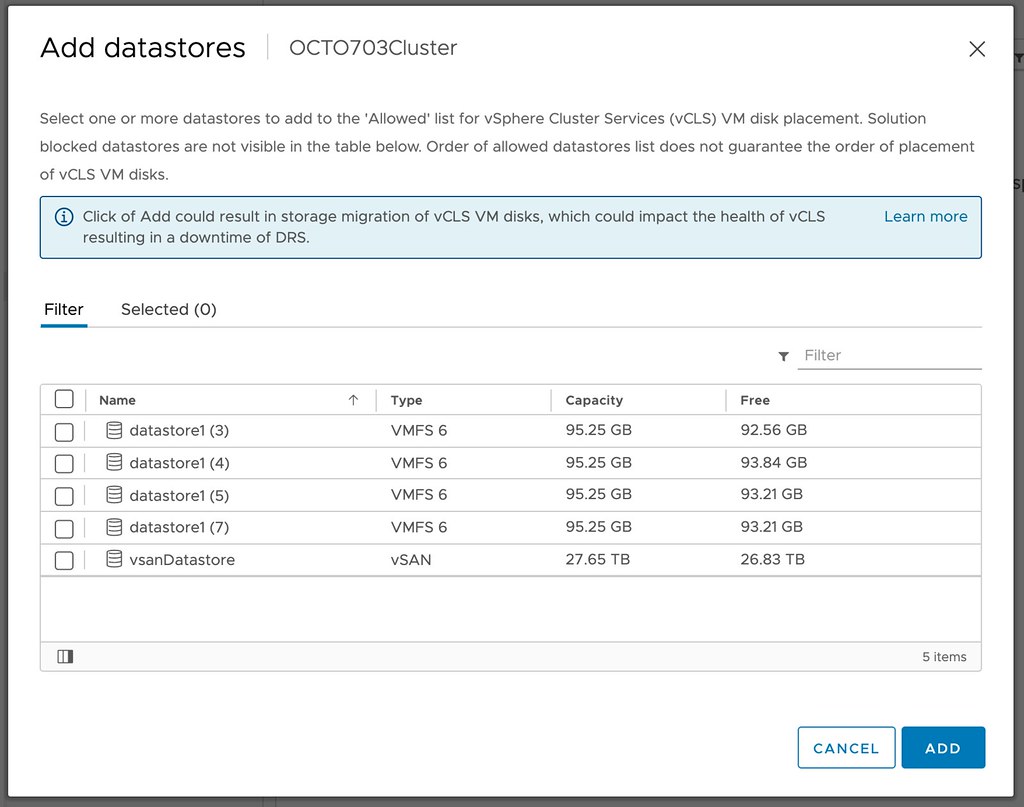
So how do you fix this? Well, it is simple, you click on your cluster object. You then click on “Configure”, and on “Datastores” under “vSphere Cluster Services”. Now you will see “VCLS Allowed”, if you click on “ADD” you now will be able to select the datastores to which these vCLS VMs should be provisioned.

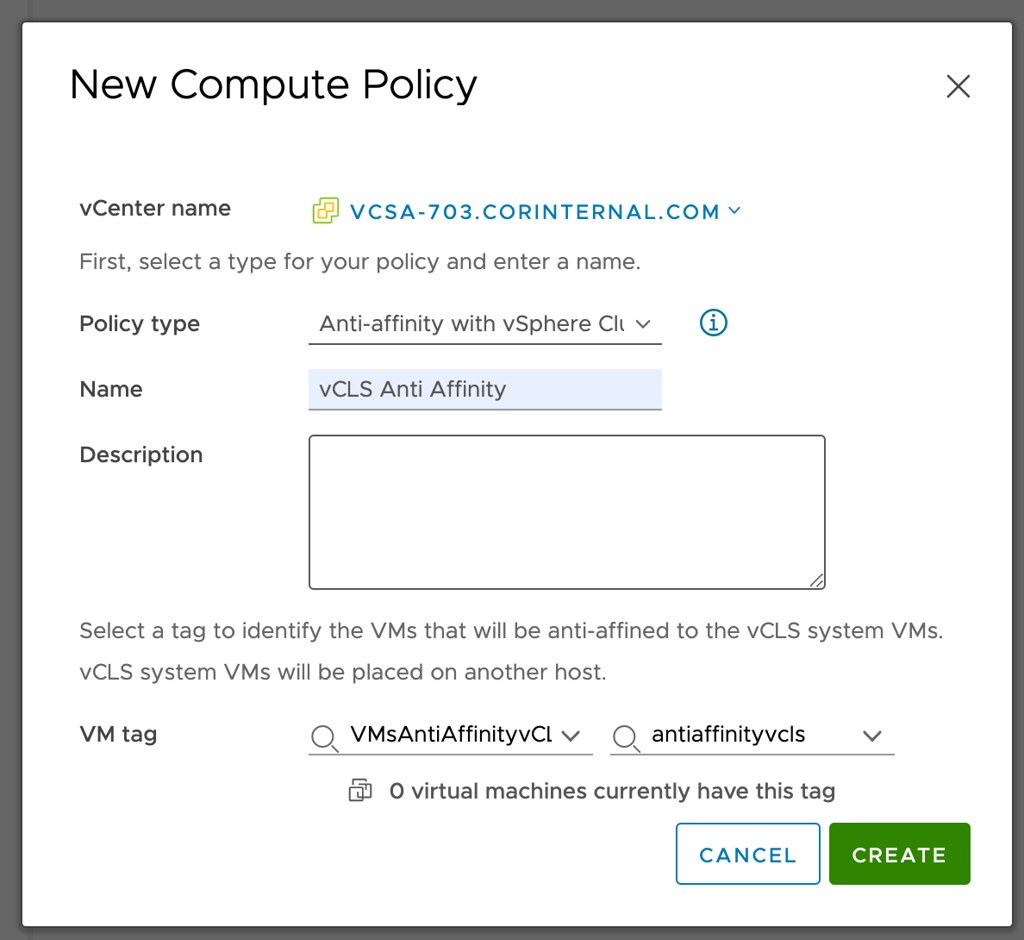
Next up Anti-Affinity for vCLS. You would this feature for situations where for instance a single workload needs to be able to solely run on a host, something like SAP for instance. In order to achieve this, you can use anti-affinity rules. We are not talking about regular anti-affinity rules. This is the very first time a brand new mechanism is used on-premises. I am talking about compute policies. Compute policies have been available for VMware Cloud on AWS customers for a while, but now are also appear to be coming to on-prem customers. What does it do? It enables you to create “anti-affinity” rules for vCLS VMs and specific other VMs in your environment by creating Compute Policies and using Tags!

How does this work? Well, you go to “Policies and Profiles” and then click “Compute Policies”. Now you can click “ADD” and create a policy. You now select “Anti Affinity with vSphere Cluster Services (vCLS) VMs”. Then you select the Tag you created for the VMs that should not run on the same hosts as the vCLS VMs, and then you click create. The vCLS VM Scheduler will then ensure that the vCLS VMs will not run on the same hosts as the tagged VMs. If there’s a conflict, the vCLS Scheduler will move away the vCLS VMs to other hosts within the cluster. Let’s reiterate that, the vCLS VMs will be vMotioned to another host in your cluster, the tagged VMs will not be moved!

Hope that helps!

Issue adding tags to the vCLS VMs with vCenter Server 7.0 U2b

Duncan Epping · Jun 1, 2021 ·

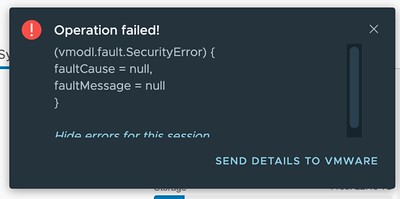
Today I was talking to one of our field folks and he asked if there was an issue with Tags in combination with vCLS VMs in 7.0 U2b specifically. I had tested assigning tags to vCLS VMs before, and it worked just fine. With 7.0 U2b unfortunately this has stopped working. The error you will see displayed in the vSphere Client is the following:

(vmodl.fault.SecurityError) {
faultCause = null,
faultMessage = null
}

Or as it shows in the UI:

So what can you do about it? Well, unfortunately not much right now, I filed a bug and uploaded the logs, engineers are looking at it as we speak, and hopefully, I will have an answer for those who need to use tags soon.

UPDATE: Engineering has found a workaround, customers who can’t wait for the fix can contact GSS to get the workaround implemented!

Can I make a host in a cluster the vSphere HA primary / master host?

Duncan Epping · May 21, 2021 ·

There was an interesting question on the VMware VMTN Community this week, although I wrote about this in 2016 I figured I would do a short write-up again as the procedure changed since 7.0u1. The question was if it was possible to make a particular host in a cluster the vSphere HA primary (or master as it was called previously) host. The use case was pretty straightforward, in this case, the customer had a stretched cluster configuration with vSAN, they wanted to make sure that the vSphere HA primary host was located in the “preferred” site, as this could potentially speed up the restart of VMs. Now, mind you, that when I say “speed up” we are talking about 2-3 seconds difference at most, but for some folks, this may be crucial. I personally would not recommend making configuration changes, but if you do want to do this, vSphere does have the option to do so.

When it comes to vSphere HA, there’s no UI option or anything like that to assign the “primary/master” host role. However, there’s the option to specify an advanced setting on a host level to indicate that a certain host needs to be favored during the primary/master election. Again, this is not very common for customers to configure, but if you desire to do so, it is possible. The advanced setting is called “fdm.nodeGoodness” and depending on which version you use, you will need to configure it either via the fdm.cfg file, or via the configstorecli. You can read about this process in-depth here.

Of course, I did try if this worked in my lab, here’s what I did, I first list the current configured advanced options using configstorecli for vSphere HA:

configstorecli config current get -g cluster -c ha -k fdm
{
   "mem_reservation_MB": 200,
   "memory_checker_time_in_secs": 0
}

Next, I will set the “node_goodness” for my host, when setting this it will need to be a positive value, in my case I am setting it to 10000000. I first dumped the current config in a json file:

configstorecli config current get -g cluster -c ha -k fdm > test.json

Next, I edited the file and added the setting “node_goodness” with a value of 10000000, so that is looks as follows:

{ 
    "mem_reservation_MB": 200, 
    "memory_checker_time_in_secs": 0,
    "node_goodness": 10000000
} 

I then imported the file:

configstorecli config current set -g cluster -c ha -k fdm -infile test.json

After importing the file and reconfiguring for HA on one of my hosts, you can see in the screenshots below that the master role moved from 1507 to 1505.


I also created a quick demo, for those who prefer video content:

  • Page 1
  • Page 2
  • Page 3
  • Interim pages omitted …
  • Page 54
  • Go to Next Page »

Primary Sidebar

About the Author

Duncan Epping is a Chief Technologist and Distinguished Engineering Architect at Broadcom. Besides writing on Yellow-Bricks, Duncan is the co-author of the vSAN Deep Dive and the vSphere Clustering Deep Dive book series. Duncan is also the host of the Unexplored Territory Podcast.

Follow Us

  • X
  • Spotify
  • RSS Feed
  • LinkedIn

Recommended Book(s)

Also visit!

For the Dutch-speaking audience, make sure to visit RunNerd.nl to follow my running adventure, read shoe/gear/race reviews, and more!

Do you like Hardcore-Punk music? Follow my Spotify Playlist!

Do you like 80s music? I got you covered!

Copyright Yellow-Bricks.com © 2026 ยท Log in