• Skip to primary navigation
  • Skip to main content
  • Skip to primary sidebar

Yellow Bricks

by Duncan Epping

  • Home
  • Unexplored Territory Podcast
  • HA Deepdive
  • ESXTOP
  • Stickers/Shirts
  • Privacy Policy
  • About
  • Show Search
Hide Search

esxi

Podcast 79 – Building your homelab

Duncan Epping · Jan 21, 2010 ·

The VMTN/PlanetV12n Podcast 79 was all about homelabs. You can download the MP3 here, subscribe to the podcast via iTunes here, or listen in live here every wednesday. As always I tried to capture most links that have been posted. The link by the way also contains a summary of what has been discussed. Have fun:

  • Simon S. – VMware ESX(i) Home Lab – Why, What and How? Considerations when building your own home lab
  • Duncan – My Homelab
  • Gabe – White box ESX home lab
  • Jason Boche – EMC Celerra NS-120
  • Bouke – v-Water: ESXi overclocked, watercooled
  • Simon – vT.A.R.D.I.S – 10 ESXi node cluster on a trolley as demonstrated at London VMUG
  • Dave – Whitebox HCL
  • Eric’s articles on whiteboxes
  • Maish – Install ESX on your Laptop – I had a Crazy Idea
  • Ultimate ESX whitebox
  • Iomega IX4-200D

My Homelab

Duncan Epping · Jan 19, 2010 ·

This weeks VMTN podcast is about Homelabs. John  Troyer asked on twitter who had a homelab and if they already posted an article about it. Most bloggers already did but I never got to it. Weird thing is that the common theme for most virtualization bloggers seems to be physical! Take a look at what some of these guys have in their home lab and try to imagine the associated cost in terms of cooling, power but also the noise associated with it.

  • Jason Boche – EMC Celerra NS-120
  • Chad Sakac – Building a home lab (check the storage he has at home!)
  • Gabe – White box ESX home lab

I decided to take a completely different route. Why buy three or four servers when you can run all your ESX hosts virtually on a single desktop. Okay, I must admit, it is a desktop on steroids but it does save me a lot of (rack)space, noise, heat and of course electricity. Here are the core components of which my Desktop consists:

  • Asustek P6T WS Pro
  • Intel Core i7-920
  • 6 x 2GB Kingston 1333Mhz
  • 2 x Seagate Cheetah SAS 15k6 in RAID-0

I also have two NAS devices on which I have multiple iSCSI LUNs and NFS shares. I even have replication going on between the two devices! Works like a charm.

  • 2 x Iomega IX4-200d

There’s one crucial part missing. On my laptop I use VMware Player but on my desktop I like to use VMware Workstation. Although VMware Player might just work fine, I like to have a bit more functionality at my disposal like teaming for instance.

  • VMware Workstation 7.0

That’s my lab. I installed 3 x ESXi 4.0 Update 1 in a VM and installed Windows 2008 in a VM with vCenter 4.0 Update 1. Attached the ESX hosts to the iSCSI LUNs and NFS Shares and off we go. Single box lab!

Real life RAID penalty example added to the IOps article

Duncan Epping · Jan 11, 2010 ·

I just added a real life RAID penalty example to the IOps article. I know Sys Admins are lazy,  so here’s the info I just added:

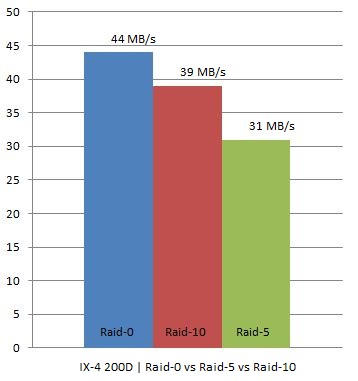
I have two IX4-200Ds at home which are capable of doing RAID-0, RAID-10 and RAID-5. As I was rebuilding my homelab I thought I would try to see what changing RAID levels would do on these homelab / s(m)b devices. Keep in mind this is by no means an extensive test. I used IOmeter with 100% Write(Sequential) and 100% Read(Sequential). Read was consistent at 111MB for every single RAID level. However for Write I/O this was clearly different, as expected. I did all tests 4 times to get an average and used a block size of 64KB as Gabes testing showed this was the optimal setting for the IX4.

In other words, we are seeing what we were expecting to see. As you can see RAID-0 had an average throughput of 44MB/s, RAID-10 still managed to reach 39MB/s but RAID-5 dropped to 31MB/s which is roughly 21% less than RAID-10.

I hope I can do the “same” tests on one of the arrays or preferably both (EMC NS20 or NetApp FAS2050) we have in our lab in Frimley!

vSphere ESXi 4.0 on a USB memory stick

Duncan Epping · Jan 10, 2010 ·

One of the articles which has always been in my top 10 most read(with most hits coming from google) is “ESXi 3.5 Update 2 on a USB memory key“. I have always used win image and 7-zip to get the job done. Basically you are cloning the image to a USB drive, which is fairly easy but we could use less tools and use a fully supported method:


  1. Download VMware Player (it’s free and it rocks!)
    Of course VMware Workstation also works.
  2. Download ESXi from VMware here
  3. Install VMware Player (next / next / finish)
  4. Create new VM and connect to ESXi iso
  5. Insert a USB flash drive
  6. Boot from the ESXi ISO image
  7. Connect the USB device to the VM and select “mass storage device”
  8. Select the USB drive when the “Select a Disk” screen is shown
  9. Next, Next, Finish
  10. Now your USB drive is ready to go

Keep in mind, although you install ESXi there’s no server name or IP-address assigned to the installation. This is a generic USB install which can be used in any server or easily be cloned. But then again why would you clone it when you can install it in less time.

ESXi – lessons learned part 4

Duncan Epping · Jan 9, 2010 ·

I was just figuring something out from the command line on an ESXi 4.0 host. I needed to mount a partition but a regular “mount” did not work so it took me a couple of seconds to realize why. The solution was simple and similar to the regular mount command:

/usr/bin/busybox mount

also might come in handy:

/usr/bin/busybox fdisk -l

Busybox… indeed, that’s what is being used under the hood and that’s what needs to be used for specific commands. Just run /usr/bin/busybox and you will see which commands you will have to your disposal. Another command I often use when working on the ESXi console is “vim-cmd”. Remember these…

  • « Go to Previous Page
  • Page 1
  • Interim pages omitted …
  • Page 25
  • Page 26
  • Page 27
  • Page 28
  • Page 29
  • Interim pages omitted …
  • Page 66
  • Go to Next Page »

Primary Sidebar

About the Author

Duncan Epping is a Chief Technologist and Distinguished Engineering Architect at Broadcom. Besides writing on Yellow-Bricks, Duncan is the co-author of the vSAN Deep Dive and the vSphere Clustering Deep Dive book series. Duncan is also the host of the Unexplored Territory Podcast.

Follow Us

  • X
  • Spotify
  • RSS Feed
  • LinkedIn

Recommended Book(s)

Also visit!

For the Dutch-speaking audience, make sure to visit RunNerd.nl to follow my running adventure, read shoe/gear/race reviews, and more!

Do you like Hardcore-Punk music? Follow my Spotify Playlist!

Do you like 80s music? I got you covered!

Copyright Yellow-Bricks.com © 2026 · Log in