• Skip to primary navigation
  • Skip to main content
  • Skip to primary sidebar

Yellow Bricks

by Duncan Epping

  • Home
  • Unexplored Territory Podcast
  • HA Deepdive
  • ESXTOP
  • Stickers/Shirts
  • Privacy Policy
  • About
  • Show Search
Hide Search

5

Using vSphere 5 auto-deploy in your home lab

Duncan Epping · Aug 25, 2011 ·

I was just playing around with auto-deploy and I figured I would quickly scribble down the steps required to configure it. The documentation is okay but it often refers me back and forth in the document which makes it difficult to read at times. Here is what I did to get it working. I was in doubt if I would add screenshots, but that would make this article fairly lengthy and I am sure that most of you wouldn’t need it any way. I have my complete lab virtualized at home, so this whole setup is running in VMware Workstation.

  • Download vCenter Server 5
  • Download the ESXi 5.0 Offline Bundle
  • Install vCenter Server 5
  • Install Powershell 2.0 (installed it on the vCenter Server)
  • Install PowerCLI (installed it on the vCenter Server)
  • Install Auto-deploy (also located on vCenter iso) (installed it on the vCenter Server)
  • Install TFTP Server (I used Solarwinds) (installed it on the vCenter Server)
    • Click “File” and “Configure” and start the TFTP Server
    • A folder C:\TFTP-Root will be created
    • Make sure if you are running this on Windows that the Firewall is open for TFTP
  • Open up your vCenter Client
  • Go to the Home screen and click “Auto Deploy”
  • Click “Download TFTP Boot Zip”
    • I temporarily disabled IE ESC to be able to quickly download the zip file (Control Panel –> Add / Remove Programs –> Turn Windows Features On/Off –> Look for “Configure IE ESC in the Security Information section)
  • Unzip the TFTP Boot Zip file in your TFTP-Root folder
  • Copy the location of “BIOS DHCP File Name as mentioned in your Auto Deploy screen. This will be “undionly.kpxe.vmw-hardwired”.
  • Go to your DHCP Server and add the filename and the ip address of the
    • In my case this is what I added to the advanced settings in my Tomato Router/DHCP server:
      dhcp-boot=undionly.kpxe.vmw-hardwired,,192.168.1.45
    • In the case of a MS DHCP Server you will need to follow this MS KB article. (#66 and #67 should be sufficient)
  • Now it should be possible to boot your host, however you should see a screen that tells you that there no ESXi image associated yet. Now we need to do some PowerCLI magic…
  • First of all we will need to set the execution policy to “remotesigned” if you haven’t done so already, in my case I haven’t as this is a brand new installed Windows VM:
    Set-ExecutionPolicy RemoteSigned
  • Now you can open up PowerCLI and connect to your vCenter Server:
    Connect-VIServer <vcenter name>
  • Next we will need to add a software depot, this is the Offline Bundle file you downloaded at the beginning:
    Add-EsxSoftwareDepot c:\tmp\VMware-ESXi-5.0.0-469512-depot.zip
  • Now that you’ve added the depot you will need to identify the ImageProfile you wan to use. Run the following command to list the image profiles:
    Get-EsxImageProfile
  • In my case it returns the following:
    Name
    ——-
    ESXi-5.0.0-469512-no-tools ….
    ESXi-5.0.0-469512-standard ….
  • We will use the “Standard” image profile as we want to be able to install VMware Tools as well through vCenter. In order to use it we will need to define a rule. This basically tells the client which image it should pick up during the PXE Boot. No key thing with this command is the “-Pattern” as that basically defines which machines will get boot the image. In my case everything is running within VMware Workstation and the vendor will always be “VMware Virtual Platform” so I decided to use that is the identifier for this specific rule.
    New-DeployRule –Name “FirstTimeBoot” –Item “ESXi-5.0.0-469512-standard” –Pattern “model=VMware Virtual Platform”
  • This will take a while as it is unzipping and uploading the required packages. When it has successfully completed we will need to make this deploy rule active:
    Add-DeployRule -DeployRule FirstTimeBoot
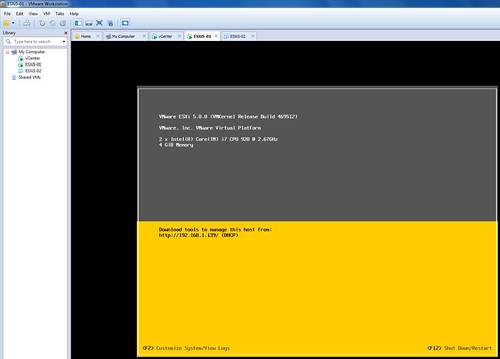
  • That’s it, now the host should be able to boot up using the assigned image profile. See the screenshot below of my PXE booted ESXi host within VMware Workstation
    Using vSphere 5 auto-deploy in your home lab

Now if you would go to vCenter and check your Datacenter you will see a host appearing. This host however will still need to be configured and that is the second portion of this exercise…

What we creating here is a stateless configuration. That means we will need to use host profiles in order to configure this host correctly after reach reboot. These are the steps I took to create a host profile for my Lab hosts:

  • Configure the host as needed. Don’t forget things like NTP, Storage, Networking, Scratch etc.
  • Go to Host Profiles
  • Create a New Profile from an existing host
  • Select the host you just configured
  • Give it a name that you will remember, I used “ESXiLabHostProfile”
  • After creating the host profile you will need to attach the host to the profile and check for compliancy. This test should fail as you will need to create an answer file first.
    • Right click the host and select “Update Answer File”
    • Check all settings (ip-address etc) and when finished click “update”
    • Right click the host and select “Check Answer File”, result should be “x”
    • Select the host and click “Check Compliance”, result should be “compliant”
  • Before we will create a new deploy rule we will want to add the HA depot and create a new image profile which includes the HA agent as we will want our hosts to be part of that. If you don’t add it the “new-deployrule” statement will throw a message that you will need to add it. First we will add the vSphere HA depot. The ip-address should of course be replace with the ip-address of your own vCenter server:
    Add-EsxSoftwareDepot http://192.168.1.45:80/vSphere-HA-depot
  • Now we will need to clone the ESXi Standard depot and add the HA agent to it:
    New-EsxImageProfile -CloneProfile ESXi-5.0.0-469512-standard -name “ESXiHA”
    Add-EsxSoftwarePackage -ImageProfile “ESXiHA” -SoftwarePackage vmware-fdm
  • Now we will create a new deploy rule and associate it with the just created host profile called “ESXiLabHostProfile”. We will also directly enable this new rule. Note that “HA-DRS” is the name of my cluster in this case. First we will remove the old rule to make sure we start with a clean slate:
    Remove-DeployRule -DeployRule FirstTimeBoot -delete
    New-DeployRule –Name “ProductionBootRule” –Item “ESXiHA”, ESXiLabHostProfile, HA-DRS –Pattern “model=VMware Virtual Platform”
    Add-DeployRule -DeployRule “ProductionBootRule”
  • Now you can restart the ESXi host and it should end up in the cluster (HA-DRS) with the correct host profile (ESXiLabHostProfile) and completely configured ready for action! (Note that for the next host you will need to create the answer file as well initially for it to work correctly.)

That’s it for today… Hope it helps, I had a lot of fun exploring this cool new feature! I love it but boy do I feel like a n00b playing around with PowerCLI after having seen some of Alan‘s or Luc‘s magic. Gabe also has a nice article on this topic… check it out, worth reading!


Changelog:
Edit 1: Changed naming scheme
Download it now… vSphere 5

Duncan Epping · Aug 25, 2011 ·

The wait is finally over… I’ve noticed many people on twitter craving for it so I figured it wouldn’t harm anyone if I would provide the links to the download page. Here are the links to the direct page of ESXi and vCenter

  • VMware ESXi 5.0 (Build 469512)
  • VMware vCenter 5.0 (Build 456005) (vCenter Server Appliance also available as of today (26/08))
  • VMware Data Recovery 2.0 (Build 433157)
  • vSphere Storage Appliance 1.0
  • VMware vShield Zones for vSphere 5 (Build 216288)
  • Documentation link (docs also available in epub and kindle format!)
    • What’s New in VMware vSphere 5.0
    • VMware vSphere 5.0 Release Notes
  • Some tools which will come in handy:
    • VMware vSphere PowerCLI 5.0
    • VMware vCenter Update Manager PowerCLI
    • VMware GuestAppMonitor SDK (HA Application Monitoring)
    • VMware vSphere Management Assistant 5.0 (vMA)
    • VMware vSphere CLI
  • vSphere 5 Compatible and Updated Products:
    • vCenter Operations 1.0.1 (release notes)
    • VMware vCenter Capacity IQ 1.5.2 (release notes)

Evaluation Guides:

  • VMware vSphere 5 Evaluation Guide – Volume One
  • VMware vSphere 5 Evaluation Guide – Volume Two – Advanced Storage Features
  • VMware vSphere 5 Evaluation Guide – Volume Three – Advanced Networking Features
  • VMware vSphere 5 Evaluation Guide – Volume Four – Auto Deploy
  • VMware Data Recovery Evaluation Guide

What’s new whitepapers (release at launch last month):

  • What’s New in vSphere 5.0
  • What’s New in VMware vSphere 5.0: VMware vCenter
  • What’s New in VMware vSphere 5.0: Platform Whitepaper
  • What’s New in VMware vSphere 5.0: Performance Whitepaper
  • What’s New in VMware vSphere 5.0: Storage Whitepaper
  • What’s New in VMware vSphere 5.0: Networking Whitepaper
  • What’s New in VMware vSphere 5.0: Availability Whitepaper
  • What’s New in VMware Data Recovery 2.0 Technical Whitepaper
  • VMware vSphere Storage Appliance Technical Whitepaper
  • What’s New in VMware vCenter Site Recovery Manager 5 Technical Whitepaper
  • What’s New in VMware vCloud Director 1.5 Technical Whitepaper

By the way, did you know there were over 140 new features in vSphere 5.0? Check out my article on the VMware vSphere Blog for a full list and for a nice contest / challenge!

Changelog:
edit 1 – added links to VSA, Zones and Data Recovery)
edit 2 –  added eval guide links
edit 3 – added different management tools etc
edit 4 – added a list with compatible and updated products

Mandatory DRS Rules and HA

Duncan Epping · Aug 24, 2011 ·

On twitter Mike Laverick asked a question around DRS Affinity Rules and if HA would respect these. In this particular instance the question was around VM-Host affinity rules and I noticed multiple tweeps responding and figured it would not hurt to repeat this.

There are two different types of VM-Host affinity rules:

  1. Must aka mandatory
  2. Should aka preferential

The difference between these two with regards to HA is that HA will always respect a must rule. These are mandatory, even if that results in downtime for the VM. The should rule is also known as the preferential rule. In others words it would be nice if this rule can be respected, but if it can’t… no harm.

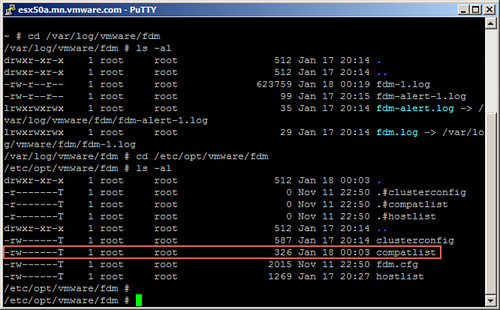
How does HA know which VM belongs to which host with regards to DRS rules? Well that is fairly straight forward. HA keeps track of which VM is compatible with which hosts. This “VM to Host compatibility list” is used for portgroups and datastores but also for DRS rules. Check the screenshot below for a hint…

Mandatory DRS Rules and HA

Please note, this is a very old article about HA, there are tons of new articles on this topic. Just do a search on my blog, or download my ebook freely available via Rubrik.

Swap to host cache aka swap to SSD?

Duncan Epping · Aug 18, 2011 ·

Before we dive in to it, lets spell out the actual name of the feature “Swap to host cache”. Remember that, swap to host cache!

I’ve seen multiple people mentioning this feature and saw William posting a hack on how to fool vSphere (feature is part of vSphere 5 to be clear) into thinking it has access to SSD disks while this might not be the case. One thing I noticed is that there seems to be a misunderstanding of what this swap to host cache actually is / does and that is probably due to the fact that some tend to call it swap to SSD. Yes it is true, ultimately your VM would be swapping to SSD but it is not just a swap file on SSD or better said it is NOT a regular virtual machine swap file on SSD.

When I logged in to my environment first thing I noticed was that my SSD backed datastore was not tagged as SSD. First thing I wanted to do was tag it as SSD, as mentioned William already described this in his article and it is well documented in our own documentation as well so I followed it. This is what I did to get it working:

  • Check the NAA ID in the vSphere UI
  • Opened up an SSH session to my ESXi host
  • Validate which SATP claimed the device:
    esxcli storage nmp device list
    In my case: VMW_SATP_ALUA_CX
  • Verify it is currently not recognized as SSD by typing the following command:
    esxcli storage core device list -d naa.60060160916128003edc4c4e4654e011
    should say: “Is SSD : False”
  • Set “Is SSD” to true:
    esxcli storage nmp satp rule add -s VMW_SATP_ALUA_CX  –device naa.60060160916128003edc4c4e4654e011  –option=enable_ssd
  • I reloaded claim rules and ran them using the following commands:
    esxcli storage core claimrule load
    esxcli storage core claimrule run
  • Validate it is set to true:
    esxcli storage core device list -d naa.60060160916128003edc4c4e4654e011
  • Now the device should be listed as SSD

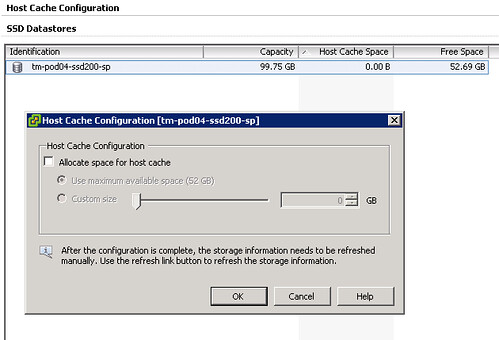
Next would be to enable the feature… When you go to your host and click on the “Configuration Tab” there should be a section called “Host Cache Configuration” on the left. When you’ve correctly tagged your SSD it should look like this:

Please note that I already had a VM running on the device and hence the reason it is showing some of the space as being in use on this device, normally I would recommend using a drive dedicated for swap. Next step would be enabling the feature and you can do that by opening the pop-up window (right click your datastore and select “Properties”). This is what I did:

  • Tick “Allocate space for host cache”
  • Select “Custom size”
  • Set the size to 25GB
  • Click “OK”

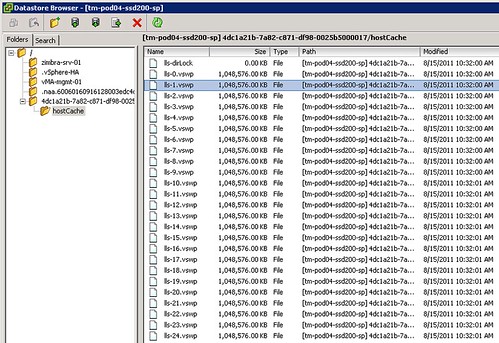
Now there is no science to this value as I just wanted to enable it and test the feature. What happened when we enabled it? We allocated space on this LUN so something must have been done with it? I opened up the datastore browser and I noticed a new folder was created on this particular VMFS volume:

Not only did it create a folder structure but it also created 25 x 1GB .vswp files. Now before we go any further, please note that this is a per host setting. Each host will need to have its own Host Cache assigned so it probably makes more sense to use a local SSD drive instead of a SAN volume. Some of you might say but what about resiliency? Well if your host fails the VMs will need to restart anyway so that data is no longer relevant, in terms of disk resiliency you should definitely consider a RAID-1 configuration. Generally speaking SAN volumes are much more expensive than local volumes and using local volumes also removes the latency caused by the storage network. Compared to the latency of a SSD (less than 100 μs), network latency can be significant. So lets recap that in a nice design principal:

Basic design principle
Using “Swap to host cache” will severely reduce the performance impact of VMkernel swapping. It is recommended to use a local SSD drive to elimate any network latency and to optimize for performance.

How does it work? Well fairly straight forward actually. When there is severe memory pressure and the hypervisor needs to swap memory pages to disk it will swap to the .vswp files on the SSD drive instead. Each of these, in my case, 25 files are shared amongst the VMs running on this host. Now you will probably wonder how you know if the host is using this Host Cache or not, that can of course simply be validated by looking at the performance statistics within vCenter. It contains a couple of new metrics of which “Swap in from host cache” and “Swap out to host cache” (and the “rate”…) metrics are most important to monitor. (Yes, esxtop has metrics as well to monitor it namely LLSWR/s  and LLSWW/s)

What if you want to resize your Host Cache and it is already in use? Well simply said the Host Cache is optimized to allow for this scenario. If the Host Cache is completely filled memory pages will need to be copied to the regular .vswp file. This could mean that the process takes longer than expected and of course it is not a recommended practice as it will decrease performance for your VMs as these pages more than likely at some point will need to be swapped in. Resizing however can be done on the fly, no need to vMotion away your VMs. Just adjust the slider and wait for the process to complete. If you decide to complete remove all host cache for what ever reason than all relevant data will be migrated to the regular .vswp.

What if the Host Cache is full? Normally it shouldn’t even reach that state, but when you run out of space in the host cache pages will be migrated from your host cache to your regular vswap file and it is first in first out in this case, which should be the right policy for most workloads. Now chances of course of having memory pressure to the extend where you fill up a local SSD are small, but it is good to realize what the impact is. If you are going down the path of local SSD drives with Host Cache enabled and will be overcommitting it might be good to do the math and ensure that you have enough cache available to keep these pages in cache rather than on rotating media. I prefer to keep it simple though and would probably recommend to equal the size of your hosts memory. In the case of a host with 128GB RAM that would be a 128GB SSD. Yes this might be overkill, but the price difference between 64GB and 128GB is probably neglect-able.

Basic design principle
Monitor swap usage. Although “Swap to host cache” will reduce the impact of VMkernel swapping it will not eliminate it. Take your expected consolidation ratio into account including your HA (N-X) strategy and size accordingly. Or keep it simple and just use the same size as physical memory.

One interesting use case could be to place all regular swap files on very cheap shared storage (RAID5 of SATA drives) or even local SATA storage using the “VM swapfile location” (aka. Host local swap) feature. Then install a host cache for any host these VMs can be migrated to. This should give you the performance of a SSD while maintaining most of the cost saving of the cheap storage. Please note that the host cache is a per-host feature. Hence in the time of a vMotion all data from the cache will need to be transferred to the destination host. This will impact the time a vMotion takes. Unless your vMotions are time critical, this should not be an issue though. I have been told that VMware will publish a KB article with advise how to buy the right SSDs for this feature.

Summarizing, Swap to SSD is what people have been calling this feature and that is not what it is. This is a mechanism that caches memory pages to SSD and should be referred to as “Swap to host cache”. Depending on how you do the math all memory pages can be swapped to and from SSD. If there is insufficient space available memory pages will move over to the regular .vswp file. Use local SSD drives to avoid any latency associated with your storage network and to minimize costs.

vSphere 5 Clustering Deepdive available at VMworld

Duncan Epping · Aug 17, 2011 ·

When self-publishing you face a couple of challenges and one of those is to get your books available in bookstores and at events. Frank managed to get our book available at VMworld and it will be sold at the VMworld Bookstore. If you haven’t picked up your copy yet this will be your chance to do so and you might even be able to get it signed at the show! (We are considering a book signing session if people are interested, reply here if you are!) Be warned, as far as we know it will be the only vSphere 5.0 book available at VMworld so we are expecting that it will sell out fairly quick.

  • « Go to Previous Page
  • Page 1
  • Interim pages omitted …
  • Page 7
  • Page 8
  • Page 9
  • Page 10
  • Page 11
  • Interim pages omitted …
  • Page 14
  • Go to Next Page »

Primary Sidebar

About the Author

Duncan Epping is a Chief Technologist and Distinguished Engineering Architect at Broadcom. Besides writing on Yellow-Bricks, Duncan is the co-author of the vSAN Deep Dive and the vSphere Clustering Deep Dive book series. Duncan is also the host of the Unexplored Territory Podcast.

Follow Us

  • X
  • Spotify
  • RSS Feed
  • LinkedIn

Recommended Book(s)

Also visit!

For the Dutch-speaking audience, make sure to visit RunNerd.nl to follow my running adventure, read shoe/gear/race reviews, and more!

Do you like Hardcore-Punk music? Follow my Spotify Playlist!

Do you like 80s music? I got you covered!

Copyright Yellow-Bricks.com © 2026 · Log in