• Skip to primary navigation
  • Skip to main content
  • Skip to primary sidebar

Yellow Bricks

by Duncan Epping

  • Home
  • Unexplored Territory Podcast
  • HA Deepdive
  • ESXTOP
  • Stickers/Shirts
  • Privacy Policy
  • About
  • Show Search
Hide Search

5

vSphere Storage Appliance – Why I think it is cool

Duncan Epping · Sep 19, 2011 ·

While doing some workshops and presentations for some of our partners and customers one of the comments I usually here when discussing the vSphere Storage Appliance is “Why not just buy a cheap NAS device”? Well there are a couple of arguments:

  • Support, many lower end cheap devices are not on the HCL
  • Management, most storage devices require specific knowledge and can be difficult to setup
  • Resiliency, yes resiliency..

Resiliency is what I want to expand on. I like the vSphere Storage Appliance because of the resilience it offers. Many lower end storage devices have a single storage processor and some even a single power-supply but that is different for the VSA. Lets assume you have a 3 node cluster with each of these three serving up their local storage. What will it look like?

I hope this image is clear but what we see above is a three node cluster. Each node holds 2 volumes. One “active” volume and a Replica volume. Now the Replica volume is where the resiliency comes in to play. If one of the nodes would fail one of the other nodes, depending on which holds the replica, picks up! Yes indeed the VSA volumes are RAID-1 and the failure is literally detected in seconds. Note that this is a synchronous technique, so an acknowledgement is required from both the active and replica of the datastore.

In my example above when ESXi-1 (on the left) would fail then ESXi-2 (middle) would pick up as it is holding the replica. Note that this is a seamless fail-over if the VM is running on a node other than ESXi-1. The amount of time it takes for the fail-over to occur is literally second and the replica will be available through the same ip-address. If the VM happened to be running on ESXi-1 than vSphere HA would restart that virtual machine is in any other scenario.

This video demos what it looks like when a host fails:

For more details on the VSA I would like to recommend the following articles by Cormac Hogan:

  • http://blogs.vmware.com/vsphere/2011/08/new-enhanced-vsphere-50-storage-features-part-4-vsphere-storage-appliance.html
  • http://blogs.vmware.com/vsphere/2011/08/vsphere-storage-appliance-vsa-useful-links.html
  • http://blogs.vmware.com/vsphere/2011/08/vsphere-storage-appliance-part-2-resilience.html
  • http://blogs.vmware.com/vsphere/2011/08/vsphere-storage-appliance-vsa-installed-configured-in-10-minutes.html
CDP Information using the commandline…

Duncan Epping · Sep 18, 2011 ·

I was doing some troubleshooting this week and needed the CDP network info. I did not have access to a vSphere client, only HP iLO access. I remoted into the ESXi box and enable ESXi Shell. I knew that I could dig up the info using esxcfg-info but the amount of details provided are overwhelming and I would rather get only the info back I need without too much hassle. I figured there was another way:

vim-cmd hostsvc/net/query_networkhint

The one thing that I find it very useful for is to check the configured VLAN(s) on the port. Below is the result of the above command:

(vim.host.PhysicalNic.NetworkHint) [
(vim.host.PhysicalNic.NetworkHint) {
dynamicType = ,
device = "vmnic0",
subnet = (vim.host.PhysicalNic.NetworkHint.IpNetwork) [
(vim.host.PhysicalNic.NetworkHint.IpNetwork) {
dynamicType = ,
vlanId = 3001,
ipSubnet = "10.91.34.1-10.91.35.254",
},
(vim.host.PhysicalNic.NetworkHint.IpNetwork) {
dynamicType = ,
vlanId = 2912,
ipSubnet = "10.91.32.1-10.91.32.63",
}
],
connectedSwitchPort = (vim.host.PhysicalNic.CdpInfo) null,
lldpInfo = (vim.host.PhysicalNic.LldpInfo) null,
},
]

Windows 8 on ESXi 5.0?

Duncan Epping · Sep 18, 2011 ·

I saw a couple of questions on the VMTN Communities around running Windows 8 Dev Preview on ESXi 5.0 and support and the fact that it doesn’t work. Although the OS is listed in the dropdown list after you have created a VM it does not mean it is supported. Support for Operating Systems should always be validated through the following page: http://www.vmware.com/resources/compatibility/search.php?deviceCategory=software. Currently Windows 8 Dev Preview is not on the list and as such not supported, which means no guarantee that it will work. As some have already noticed it won’t work (HAL_INITIALIZATION_FAILED), for now… as I am sure the engineers at VMware are working on it as I am typing this article. (That’s no guarantee a solution / workaround will come in the near future though.)

There’s a KB article on this topic http://kb.vmware.com/kb/2006859, if you are interested I would suggest bookmarking it or subscribing to it.

I want to point out though that you can run Windows 8 in Workstation 8 or Fusion 4. Yes I know that these are paid products, but you can download the eval version which is valid for 30 days. Workstation 8 comes with VMware Player 4.0, which is completely free! (Not available as a separate download yet unfortunately.)

Installing Windows 8 is straight forward, just use the Windows 7 – 64 Bit profile that is part of both Fusion and Workstation.

Multiple-NIC vMotion in vSphere 5…

Duncan Epping · Sep 17, 2011 ·

How do you setup multiple-NIC vMotion? I had this question 3 times in the past couple of days during workshops so I figured it was worth explaining how to do this. It is fairly straight forward to be honest and it is more or less similar to how you would setup iSCSI with multiple vmknic’s. More or less as there is one distinct difference.

KB article has been published, including the video I recorded

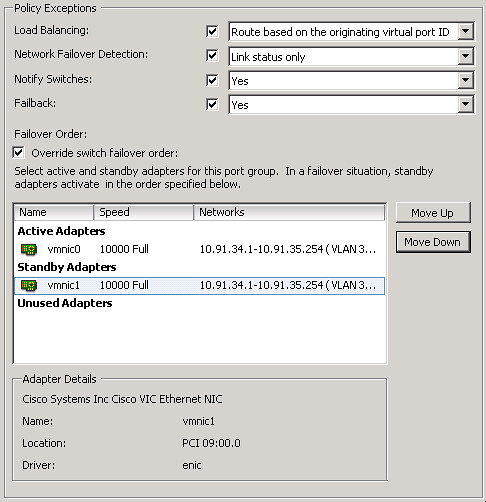
You will need to bind each VMkernel Interface (vmknic) to a physical NIC. In other words:

  • Create a VMkernel Interface and give it the name “vMotion-01”
  • Go to the settings of this Portgroup and configure 1 physical NIC-port as active and all others as “standby” (see the screenshot below for an example)
  • Create a second VMkernel Interface and give it the name “vMotion-02”
  • Go to the settings of this Portgroup and configure a different NIC-port as active and all others as “standby”
  • and so on…

Now when you will initiate a vMotion multiple NIC ports can be used. Keep in mind that even when you vMotion just 1 virtual machine both links will be used. Also, if you don’t have dedicated links for vMotion you might want to consider using Network I/O Control. vMotion can saturate a link and at least when you’ve set up Network I/O Control and assigned the right amount of shares each type of traffic will get what it has been assigned.

Setting up multiple-nic vMotion

For a video on how to do this:

<update: dvSwitch details below>

For people using dvSwitches it is fairly straight forward: You will need to create two dvPortgroups. These portgroup will need to have the “active/standby” setup (Teaming and Failover section). After that you will need to create two Virtual Adapters and bind each of these to a specific dvPortgroup.

And again the video on how to set this up:

Host Profile noncompliant when using local SAS drives with vSphere 5?

Duncan Epping · Sep 16, 2011 ·

While playing around with vSphere 5.0 in my home lab I discovered something with regards to Host Profiles. I installed a host and created a Host Profile from that host. When I installed a new host and linked the host profile the following error would be returned (also see screenshot below) that the host was noncompliant:

Specification state absent from host: device '<datastore>' state needs to be set to 'on'
Host state doesn't match specification: device '<datastore>' needs to be reset
Specification state absent from host: device '<datastore>' Path Selection Policy needs to be set to 'VMW_PSP_FIXED'
Host state doesn't match specification: device '<datastore>' Path Selection Policy needs to be set to default for claiming SATP

After digging around I thought the issue where the ESXi installer didn’t recognize the SAS disk as a local disk and as such wouldn’t create a scratch partition and I figured this might be the same thing. I start digging and it seems to be a “similar” problem. The SAS disk is seen as a shared disk and as such the NAA identifier is stored. Now in my case each host will have a local disk and each of those disks will have a unique NAA ID which means that even if you apply your host profile it will not be compliant. After digging a bit further I bumped into a KB article (2002488) that actually describes this exact problem.

There’s a “work around” to get rid of the “compliance” alert as mentioned in the KB article:

The compliance error can be ignored if the issue is only a device ID mismatch. To avoid generating a compliance error, you can also disable the PSA and NMP profiles under Storage Configuration in the host profile as long as you do not change other PSA or NMP profile settings.

I read the article 14 times and still didn’t have a clue what they were referring to but this is how you “disable” the PSA and NMP profile for these devices:

  • Right click the Host Profile and click “Enable/Disable Profile Configuration
  • Unfold “Storage Configuration”
  • Unfold “Pluggable Storage Architecture (PSA) …
  • De-select “PSA Device Configuration”
  • Unfold “Native Multi-Pathing (NMP)”
  • Unfold “PSP and SATP configuration for NMP devi…”
  • De-select “PSP configuration for”
  • Click “OK”

This resolved the issue I had. I’ve also requested the KB article (2002488) to be updated to include these steps by the way. Hopefully it will be changed soon.

  • « Go to Previous Page
  • Page 1
  • Interim pages omitted …
  • Page 5
  • Page 6
  • Page 7
  • Page 8
  • Page 9
  • Interim pages omitted …
  • Page 14
  • Go to Next Page »

Primary Sidebar

About the Author

Duncan Epping is a Chief Technologist and Distinguished Engineering Architect at Broadcom. Besides writing on Yellow-Bricks, Duncan is the co-author of the vSAN Deep Dive and the vSphere Clustering Deep Dive book series. Duncan is also the host of the Unexplored Territory Podcast.

Follow Us

  • X
  • Spotify
  • RSS Feed
  • LinkedIn

Recommended Book(s)

Also visit!

For the Dutch-speaking audience, make sure to visit RunNerd.nl to follow my running adventure, read shoe/gear/race reviews, and more!

Do you like Hardcore-Punk music? Follow my Spotify Playlist!

Do you like 80s music? I got you covered!

Copyright Yellow-Bricks.com © 2026 ยท Log in