 Today the vSAN Deep Dive ebook promo starts for the UK market! Unfortunately, Amazon only allows us to run these promotions in 2 stores, .com and .co.uk. So we scheduled them where possible. Starting today the ebook will be available on .co.uk for 0.99 pounds for a full week! So to be clear, it starts on the 20th of January and ends on the 27th! Pick it up here: https://www.amazon.co.uk/VMware-vSAN-6-7-Deep-Dive-ebook/dp/B07L8CNZ53/. After the 27th the book will return to the normal price. We hope you all will enjoy it.
Map head-mounted display to AMD ReLive VR instance
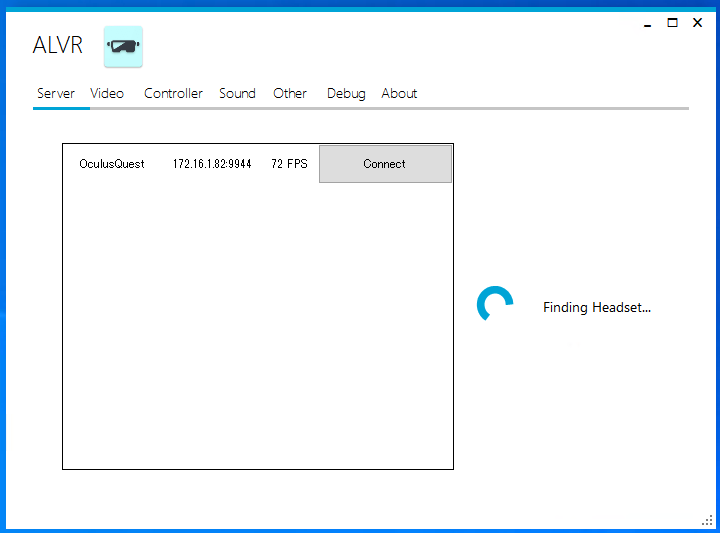
Warning before the post, I don’t have a good solution for you unfortunately at this time. One of the things I have been testing during my Take 3 is to have multiple head-mounted displays (VR goggles) on the same network connecting to multiple VMs. With ALVR this is pretty easy to do as the ALVR interface allows you to select the head-mounted display (HMD) you want to connect with as shown below. Very easy to use, and it allows you to always connect to the same head-mounted display as there’s an “auto-reconnect” option as well. (Which wasn’t always consistently reconnecting in my testing, unfortunately.)
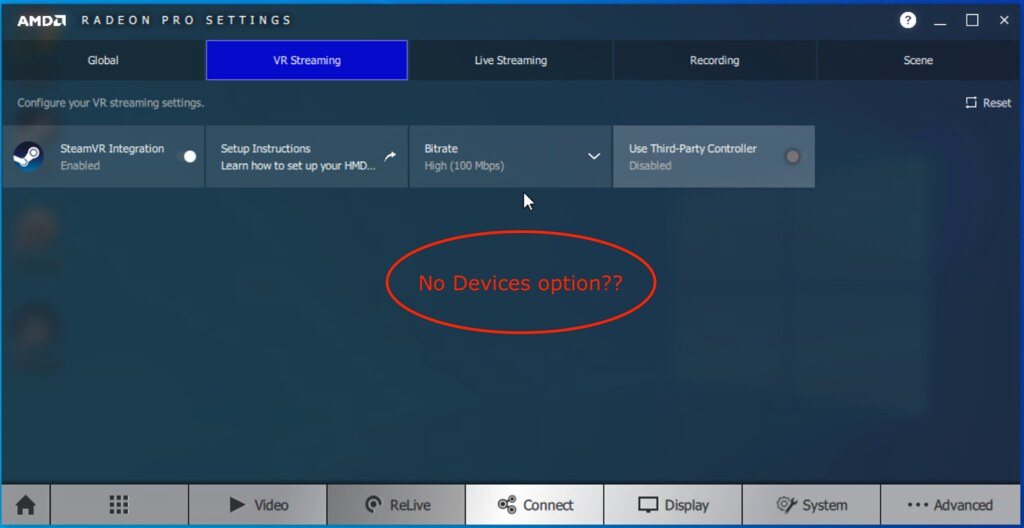
I figured AMD would offer something similar, and it appears they do. After installing the AMD Radeon Pro software I couldn’t find the option that was described on Github. In the Radeon Pro software there’s no “devices” tab. Then I noticed that this is, unfortunately, only available for Adrenalin 2020, which is different then Radeon Pro software. So it seems that this functionality hasn’t been ported yet.
Can you get around it? Well, of course, you can have multiple VMs with ReLive VR instances running and have HMD’s connect to them, but this would be completely random. During normal behavior this wouldn’t be a problem, but when troubleshooting this would make life a lot more challenging. The way to get around it today would be to create different (wifi) networks and separate each pair (VM+ReLive VR instance and HMD) logically. This would work okay with a few head-mounted displays, but of course would not scale when you have more than a few. Let’s hope that AMD solves this problem soon. I reached out to AMD for a comment, they mentioned that you can use the Adenalin 2020 driver as well for the Pro cards, and that the feature for the Pro card is coming soon.
Can’t enable AMD ReLive VR during install of Radeon Pro Software?
Yesterday I bumped into an issue where I wanted to enable AMD ReLive VR but the option didn’t show in the configuration window strangely enough. I remembered that the first time I installed the Radeon Pro Software for Enterprise I had an option to enable AMD ReLive VR during the process, but I couldn’t recall seeing the option this time during the install. I simply reinstalled Radeon Pro assuming the option would pop up but it didn’t. It seems that this was caused by the fact that there were already AMD drivers installed, a bit strange as all other AMD Radeon Pro components can be selected and installed when there’s a driver present, but ReLive simply won’t show up as an option.
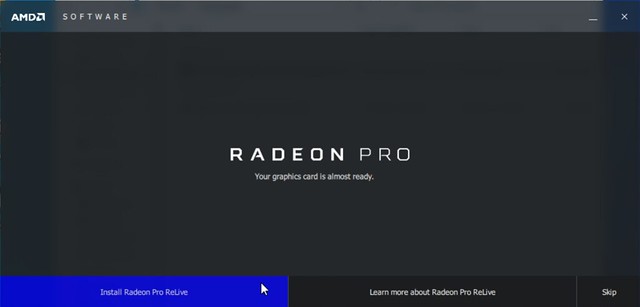
So I used the AMD provided tools to completely uninstall all AMD Radeon related software. When you do this and you reboot the VM you will be presented the following screen at the end of the install of the Radeon Pro software, this then allows you to install ReLive VR, which you can then configure and enable through the settings window as also shown below.

Enabling maintenance mode via esxcli
I have been having to place my lab host into maintenance mode a few times now via the command-line, for whatever reason I just keep forgetting the command that I should use to place my host into maintenance mode using esxcli, so I figured I would dump it here so I can find it easily. Hopefully, now it sticks…
enter maintenance mode:
esxcli system maintenanceMode set --enable true
exit maintenance mode:
esxcli system maintenanceMode set --enable false
AMD Radeon settings window transparent in a VM?
I have been playing with VR technology for the past month. The last couple of weeks my focus has been to install/configure a VM which streams the VR app over wifi to a headset. I ran into a problem with ALVR last week as documented here, but I also ran into an issue with the AMD Radeon software when I wanted to use the AMD tools to stream a VR app. When you install the AMD Radeon software within a VM and want to configure the (passthrough) graphics card or ReLive VR the Radeon configuration window shows up transparent, it looks as below. Which means you can’t configure it, you can’t enable things like ReLive VR.
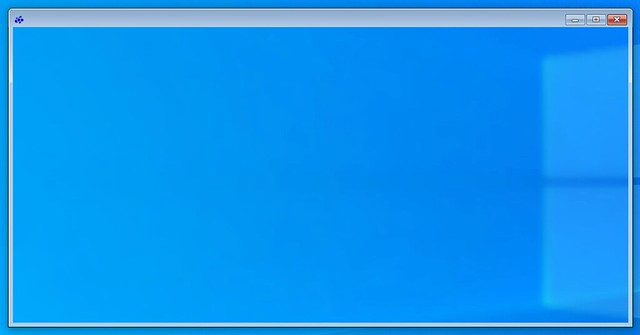
The only way to get the window to show up normal is to remove the VMware SVGA device using Device Manager. Simply completely remove it and restart the VM and the problem is solved. If you have svga.present set to false you will need to click “view hidden devices” in Device Manager first before you can remove the installed software/driver by the way. When rebooted it will look normal again and it will allow you to enable and configure ReLive VR, or any other options you need to configure of course.
