• Skip to primary navigation
  • Skip to main content
  • Skip to primary sidebar

Yellow Bricks

by Duncan Epping

  • Home
  • Unexplored Territory Podcast
  • HA Deepdive
  • ESXTOP
  • Stickers/Shirts
  • Privacy Policy
  • About
  • Show Search
Hide Search

vSAN

vSAN Express Storage Architecture cluster sizes supported?

Duncan Epping · Dec 20, 2022 ·

On VMTN a question was asked about the size of the cluster being supported for vSAN Express Storage Architecture (ESA). There appears to be some misinformation out there on various blogs. Let me first state that you should rely on official documentation when it comes to support statements, and not on third party blogs. VMware has the official documentation website, and of course, there’s core.vmware.com with material produced by the various tech marketing teams. This is what I would rely on for official statements and or insights on how things work, and then of course there are articles on personal blogs by VMware folks. Anyway. back to the question, which cluster size is supported?

For vSAN ESA, VMware supports the exact same configuration when it comes to the cluster size as it supports for OSA. In other words, as small as a 2-node configuration (with a witness), as large as a 64-node configuration, and anything in between!

Now when it comes to sizing your cluster, the same applies for ESA as it does for OSA, if you want VMs to automatically rebuild after a host failure or long-term maintenance mode action, you will need to make sure you have capacity available in your cluster. That capacity comes in the form of storage capacity (flash) as well as host capacity. Basically what that means is that you need to have additional hosts available where the components can be created, and the capacity to resync the data of the impacted objects.

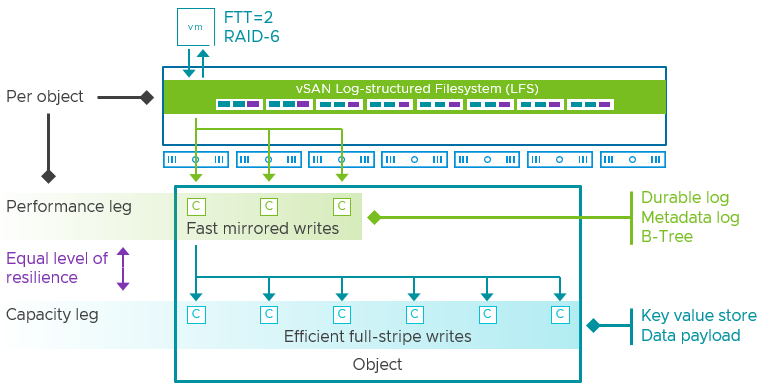
If you look at the diagram below, you see 6 components in the capacity leg and 7 hosts, which means that if a host fails you still have a host available to recreate that component, again, on this host you also still need to have capacity available to resync the data so that the object is compliant again when it comes to data availability.
I hope that explains first of all what is supported from a cluster size perspective, and secondly why you may want to consider adding additional hosts. This of course will depend on the requirements you have and the budget you have.
vSAN 8.0 ESA – Dude, where’s my vSAN disk group?

Duncan Epping · Nov 29, 2022 ·

Last week I was talking to a customer and he mentioned that he deployed vSAN 8.0 in his lab and he was shocked that when he wanted to define disk groups he noticed that they don’t exist anymore. Well, not in vSAN 8.0 ESA (Express Storage Architecture) that is. They do still exist in the Original Storage Architecture! The big change with vSAN 8.0 ESA is that the “bottleneck” in the previous architecture has been removed. No longer will you select a single device for caching for a particular disk group, and no longer do you designate devices purely for capacity.

With vSAN 8.0 ESA all your devices will be part of a single storage pool, and all those devices will contribute to both storage capacity as well as storage performance! The added benefit of course is the fact that writes and reads will be distributed across all devices, removing a potential choking point, and also removing a single point of failure. Why? Well with vSAN OSA when the caching device fails the whole disk group becomes unavailable. With ESA that is no longer the case as there’s no caching device!

So how does vSAN ESA provide both optimal efficiency for capacity as well as optimal performance? Well, it does this by introducing additional layers. The idea is that vSAN will provide write performance at the level of RAID-1 but space efficiency at the level of RAID-5 or RAID-6. That would be the best of both worlds. It would need to do this however while taking into consideration that we are also dealing with different types of flash devices than you normally would be with vSAN OSA. In other words, writes will also need to be optimized for the types of devices used (TLC), and it will also need to be future-proof for devices that may be supported later on (QLC).

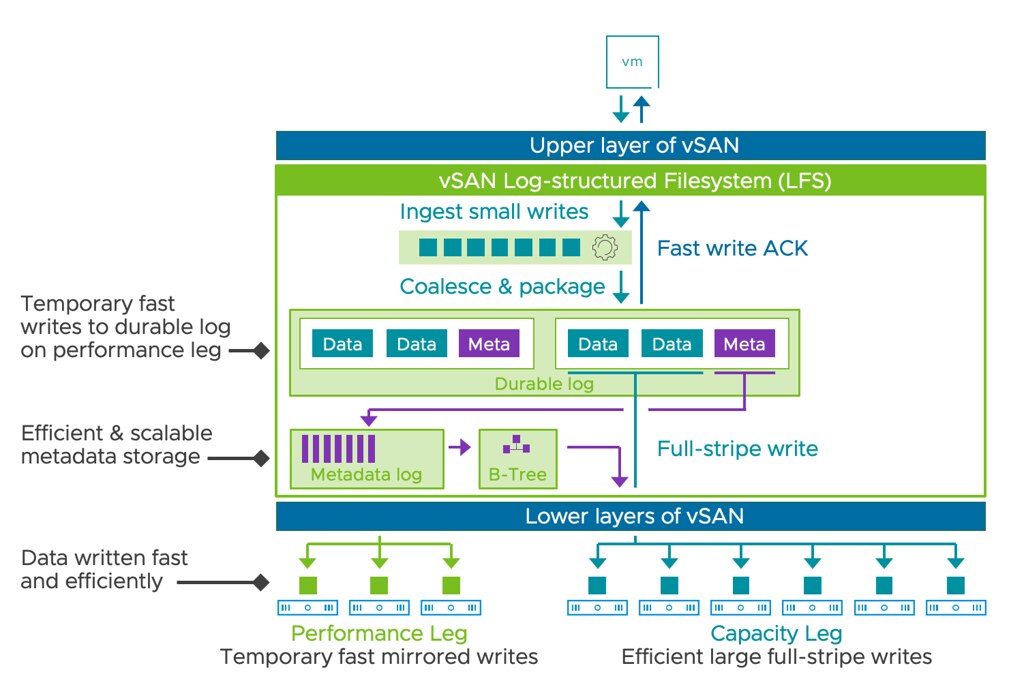
One of the key elements in this new architecture is the introduction of the “log-structured filesystem” and the “durable log”. Let’s look at the below diagram first.

What we do with vSAN ESA is that all data is written to the log-structured file system first in the durable log. This ensures that data is persistently stored. This is what the “performance leg” provides. The performance leg literally stores the writes first. That could be 4KB blocks, or 32KB blocks, or whatever. It stores the data first, collects a full stripe write (512KB), and then writes the data to the capacity leg. Why these 2-layers? Well, the performance leg is a RAID-1 configuration, so it is optimal for write performance, while in general, the capacity leg will be RAID-5 or RAID-6, which is optimal for space efficiency. By creating this small performance leg component that holds the durable log, vSAN is capable of immediately acknowledging the writes as it is persisted in the log, and then when there’s a full stripe write it efficiently as RAID-5 or RAID-6.

Now of course, in the UI you will be able to see those new performance leg components and the capacity leg components. They are not marked as “performance” or “capacity” but they are easily recognizable. I created a quick demo that talks you through the above. If you are interested, check it out!

vSAN 8.0 ESA – Introducing Adaptive RAID-5

Duncan Epping · Nov 15, 2022 ·

Starting with vSAN 8.0 ESA (Express Storage Architecture) VMware has introduced an adaptive RAID-5 mechanism. What does this mean? Essentially, vSAN deploys a particular RAID-5 configuration depending on the size of the cluster! There are two options, let’s list them out and discuss them individually.

  • RAID-5, 2+1, 3-5 hosts
  • RAID-5, 4+1, 6 hosts or more

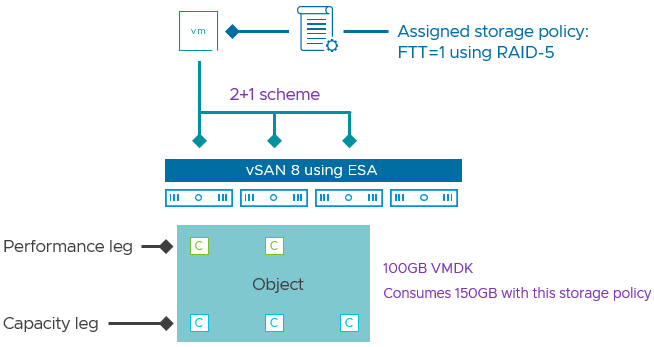
As mentioned in the above list, depending on the cluster size, you will see a particular RAID-5 configuration. Clusters of up to 5 hosts will see a 2+1 configuration when RAID-5 is selected. For those wondering, the below diagram will show what this looks like. 2+1 configurations will have a 150% overhead, meaning that when you store 100GB of data, this will consume 150GB of capacity.

Now, when you have a larger cluster, meaning 6 hosts or more, vSAN will deploy a 4+1 configuration. The big benefit of this is that the “capacity overhead” goes down from 150% to 125%, in other words, 100GB of data will consume 125GB of capacity.

What is great about this solution is that vSAN will monitor the cluster size. If you have 6 hosts and a host fails, or a host is placed into maintenance mode etc, vSAN will automatically scale down the RAID-5 configuration from 4+1 to 2+1 after a time period of 24 hours. I of course had to make sure that it actually works, so I created a quick demo that shows vSAN changing the RAID-5 configuration from 4+1 to 2+1, and then back again to 4+1 when we reintroduce a host into the cluster.

One more thing I need to point out. The Adaptive RAID-5 functionality also works in a stretched cluster. So if you have a 3+3+1 stretched cluster you will see a 2+1 RAID-5 set. If you have a 6+6+1 cluster (or more in each location) then you will see a 4+1 set. Also, if you place a few hosts into maintenance mode or hosts have failed then you will see the configuration change from 4+1 to 2+1, and the other way around when hosts return for duty!

For more details, watch the demo, or read this excellent post by Pete Koehler on the VMware website.

Are Nested Fault Domains supported with 2-node configurations with vSAN 8.0 ESA?

Duncan Epping · Oct 28, 2022 ·

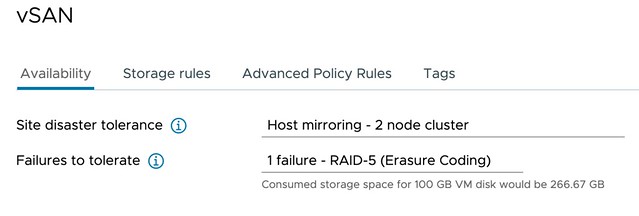
Short answer, yes 2-node configurations with vSAN 8.0 ESA support Nested Fault Domains. Meaning that when you have a 2-node configuration you can also protect your data within each host with RAID-1, RAID-5, or RAID-6! The configuration of this is pretty straightforward. You create a policy with “Host Mirroring” and select the protection you want in each host. The screenshot below demonstrates this.

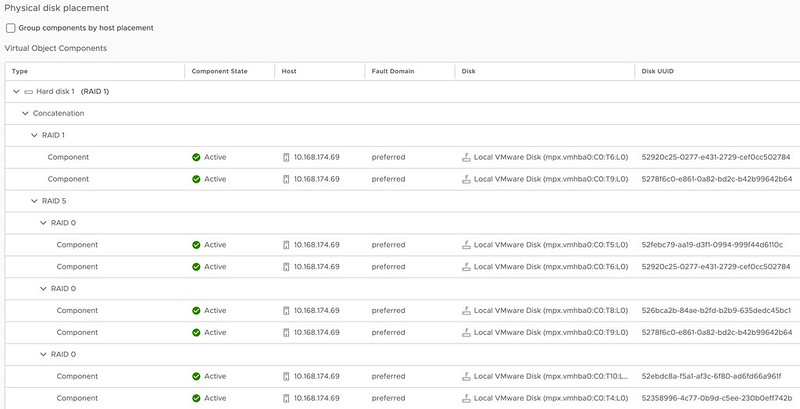
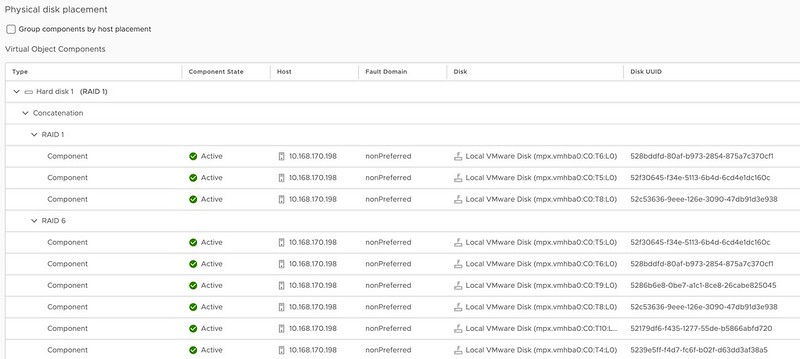
In the above example, I mirror the data across hosts and then have a RAID-5 configuration within each host. Now when I create a RAID-5 configuration within each host I will get the new vSAN ESA 2+1 configuration. (2 data blocks, 1 parity block) If you have 6 devices or more in your host, you can also create a RAID-6 configuration, which is 4+2. (4 data blocks, 2 parity blocks) This provides a lot of flexibility and can lower the overhead when desired compared to RAID-1. (RAID-1 = 100% overhead, RAID-5 = 50% overhead for 2+1, RAID-6 = 50% overhead) When you use RAID-5 and RAID-6 and look at the layout of the data it will look as shown in the next two screenshots, the first screenshot shows the RAID-5 configuration, and the second the RAID-6 configuration.

vSAN ESA 2-node nested fault domain raid-5

vSAN ESA 2-node nested fault domain raid-6

One thing you may wonder when looking at the screenshots is why they also have a RAID-1 configuration for the VMDK object, this is the “performance leg” that vSAN ESA implements. For RAID-5, which is “FTT=1”, this means you get 2 components. For RAID-6, which is FTT=2, this means you will get 3 components so you can tolerate 2 failures.

I hope that helps answer some of the questions folks had on this subject!


vSAN 8.0 ESA and Compression by default?

Duncan Epping · Oct 24, 2022 ·

Starting with vSAN 8 ESA (Express Storage Architecture) how data services have been implemented has changed significantly compared to the Original Storage Architecture. In vSAN OSA compression (and deduplication) happens before the data is stored on disk on each of the hosts the data is stored on. With vSAN 8.0 ESA this has changed completely. With vSAN ESA compression actually happens all the way at the top of the architecture, as shown and explained in the diagram/slide below.

vSAN ESA and Compression by Default?

Now, the big benefit of course of this is that if you compress the data first, and you compress the data from let’s say 4K to 2K then only 2K needs to be sent over the network to all hosts where the data is being stored. Not only that, if data needs to encrypted then only 2KB needs to be encrypted, and of course when you checksum the data then also only 2KB needs to be checksummed. So what are the savings here when encryption is enabled on ESA vs OSA?

  • Less data to send over the network
  • Less data to encrypt when encryption is enabled
  • Less data to checksum
  • Compression only takes place on the source host, and not on the destination hosts, so a lower number of CPU cycles is used for each IO

Also, with vSAN ESA the granularity in terms of compression is also different than with vSAN OSA. With OSA vSAN would compress from 4KB down to 2KB and that is it. If it couldn’t compress down to 2KB then it would not compress the block. With vSAN ESA that has changed. vSAN ESA will aim to always compress, but of course, it needs to make sense. No point in compressing 4KB down to 3.8KB. And yes, vSAN ESA will also go beyond 2KB if possible. As mentioned above in the screenshot, theoretically it is possible to reach an 8:1 compression ratio per 4KB block.

Now, the other difference is that you enable/disable compression through policy. How do you do this? When you create a policy for ESA you have the options in Storage Rules as shown in the screenshot below, “No Preference” (Default), “No space efficiency”, “Compression only”, and “Deduplication and compression”.

Now, let’s be clear, “Deduplication and compression” is not an option for ESA as “Deduplication” has not been implemented just yet. When you configure either of the other three options the outcome is as follows:

  • No preference – Compression enabled
  • No space efficiency – Compression disabled
  • Compression only – Compression enabled

Can you validate this? Yes, you can, and of course, I did to show you how that works. I created three policies with the above options selected for each respectively. I also created three VMs, with each of them having the appropriate policy selected as you can see in the screenshot below. VM_CompDisabled has the policy “Comp_Disabled” associated with it, and of course, that policy had “No space efficiency” selected.

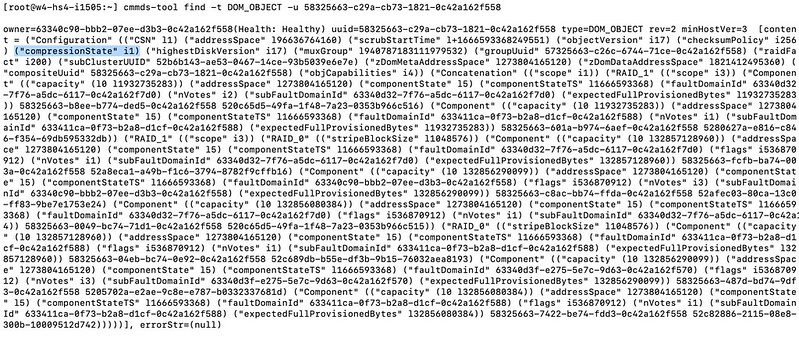
Now, where can you see if the object actually has compression enabled or disabled? Well, this is where it becomes a bit more complex, unfortunately (yes, I filed a feature request). If you want to validate it you will have to go to the command line and check the object itself. Simply copy the UUID you see in the screenshot above and use the command “cmmds-tool find -t DOM_OBJECT -u <UUID>“. When you run this command you will receive a lengthy output, and that output will contain the following string,("compressionState" i1), when compression is disabled.

Compression Enabled on vSAN ESA Object

One more thing I want to mention, as compression does not happen on a “physical” disk layer, or on the “disk group layer” as they do with vSAN OSA. If you switch between policies where compression is enabled/disabled, you will not see a massive rewrite of data occurring. When you switch from Disabled to Enabled only newly written data will be compressed! Same applies to when you switch back. Only newly written data will be impacted by the policy change.

For those who prefer to hear/see me going through the UI to disable compression on a per-VM basis, make sure to watch the below demo!

  • « Go to Previous Page
  • Page 1
  • Interim pages omitted …
  • Page 12
  • Page 13
  • Page 14
  • Page 15
  • Page 16
  • Interim pages omitted …
  • Page 71
  • Go to Next Page »

Primary Sidebar

About the Author

Duncan Epping is a Chief Technologist and Distinguished Engineering Architect at Broadcom. Besides writing on Yellow-Bricks, Duncan is the co-author of the vSAN Deep Dive and the vSphere Clustering Deep Dive book series. Duncan is also the host of the Unexplored Territory Podcast.

Follow Us

  • X
  • Spotify
  • RSS Feed
  • LinkedIn

Recommended Book(s)

Also visit!

For the Dutch-speaking audience, make sure to visit RunNerd.nl to follow my running adventure, read shoe/gear/race reviews, and more!

Do you like Hardcore-Punk music? Follow my Spotify Playlist!

Do you like 80s music? I got you covered!

Copyright Yellow-Bricks.com © 2026 ยท Log in