• Skip to primary navigation
  • Skip to main content
  • Skip to primary sidebar

Yellow Bricks

by Duncan Epping

  • Home
  • Unexplored Territory Podcast
  • HA Deepdive
  • ESXTOP
  • Stickers/Shirts
  • Privacy Policy
  • About
  • Show Search
Hide Search

Server

What does support for vMotion with active/active (a)sync mean?

Duncan Epping · Mar 23, 2015 ·

Having seen so many cool features being released over the last 10 years by VMware you sometimes wonder what more they can do. It is amazing to see what level of integration we’ve see between the different datacenter components. Many of you have seen the announcements around Long Distance vMotion support by now.
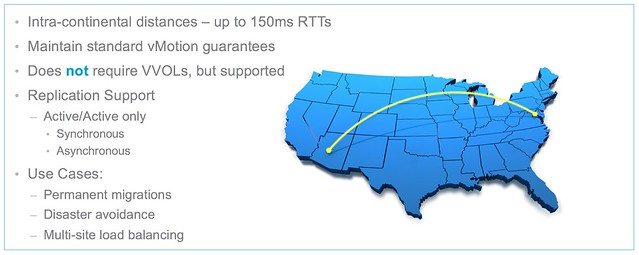
When I saw this slide something stood out to me instantly and that is this part:

  • Replication Support
    • Active/Active only
      • Synchronous
      • Asynchronous

What does this mean? Well first of all “active/active” refers to “stretched storage” aka vSphere Metro Storage Cluster. So when it comes to long distance vMotion some changes have been introduced for sync stretched storage. (** note that “active/active” storage is not required for long distance vMotion**)With stretched storage writes can come from both sides at any time to a volume and will be replicated synchronously. Some optimizations have been done to the vMotion process to avoid writes during switchover to avoid any delay during the process as a result of replication traffic.

For active/active asyncronous the story is a bit different. Here again we are talking about “stretched storage” but in this case the asynchronous flavour. One important aspect which was not mentioned in the deck is that async requires Virtual Volumes. Now, at the time of writing there is no vendor yet who has a VVol capable solution that offers active/active async. But more important, is this process any different than the sync process? Yes it is!

During the migration of a virtual machine which uses virtual volumes, with an “active/active async” configuration backing it, the array is informed that a migration of the virtual machine is taking place and is requested to switch from asynchronous replication to synchronous. This to ensure that the destination is in-sync with the source when the VM is switched over from side A to side B. Besides switching from async to sync when the migration has completed the array is informed that the migration has completed. This allows the array to switch the “bias” of the VM for instance, especially in a stretched environment this is important to ensure availability.

I can’t wait for the first vendor to announce support for this awesome feature!
Another way to fix your non compliant host profile

Duncan Epping · Mar 20, 2015 ·

I found out there is another way to fix your non compliant host profile problems with vSphere 6.0 when you have SAS drives which are detected as shared storage while they are not. This method is a bit more complicated though and there is a command line script that you will need to use: /bin/sharedStorageHostProfile.sh. It works as follows:

  • Run the following to dump all your local details in a folder on your first host
    /bin/sharedStorageHostProfile.sh local /folder/youcreated1/
  • Run the following to dump all your local details in a folder for your second host, you can do this on your first host if you have SSH enabled
    /bin/sharedStorageHostProfile.sh remote /folder/youcreated2/ <name or ip of remote host>
  • Copy the outcome of the second host to folder where the outcome of your first host is stored. You will need to copy the file “remote-shared-profile.txt”.
  • Now you can compare the outcomes by running:
    /bin/sharedStorageHostProfile.sh compare /folder/youcreated1/
  • After comparing you can run the configuration as follows:
    /bin/sharedStorageHostProfile.sh configure /folder/youcreated1/
  • Now the disks which are listed as cluster wide resources but are not shared between the hosts will be configured as non-shared resources. If you want to check what will be changed before running the command you can simply do a “more” of the file the info is stored in:
    more esxcli-sharing-reconfiguration-commands.txt
    esxcli storage core device setconfig -d naa.600508b1001c2ee9a6446e708105054b --shared-clusterwide=false
    esxcli storage core device setconfig -d naa.600508b1001c3ea7838c0436dbe6d7a2 --shared-clusterwide=false

You may wonder by now if there isn’t an easier way, well yes there is. You can do all of the above by running the following simple command. I preferred to go over the steps so at least you know what is happening.

/bin/sharedStorageHostProfile.sh automatic <name-or-ip-of-remote-host>

After you have done this (first method or second method) you can now create your host profile of your first host. Although the other methods I described in the post of yesterday are a bit simpler, I figured I would share this as well as you never know when it may come in handy!

Host Profile noncompliant when using local SAS drives with vSphere 6?

Duncan Epping · Mar 19, 2015 ·

A couple of years ago I wrote an article titled “Host Profile noncompliant when using local SAS drives with vSphere 5?” I was informed by one of our developers that we actually solved this problem in vSphere 6. It is not something I had see yet so I figured I would look at what we did to prevent this from happening and it appears there are two ways to solve it. In 5.x we would solve it by disabling the whole tree, which is kind of a nasty workaround if you ask me. In 6.0 we fixed it in a far better way.

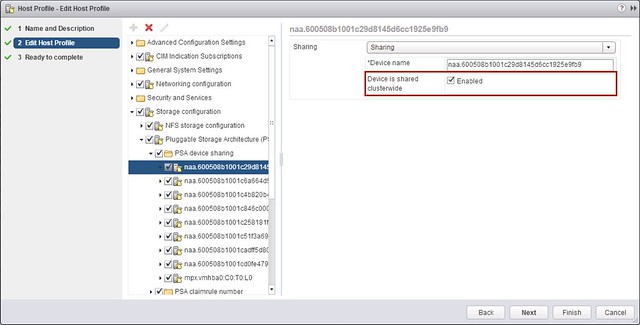
When you create a new host profile and edit is you now have some extra options. One of those options being able to tell if a disk is a shared cluster resource or not. By disabling this for your local SAS drives you avoid the scenario where your host profile shows up as noncompliant on each of your hosts.

There is another way of solving this. You can use “esxcli” to mark your devices correctly and then create the host profile. (SSH in to the host.)

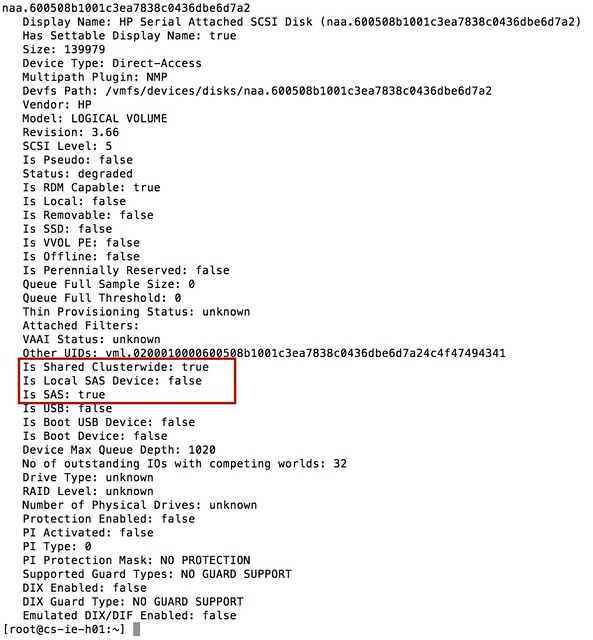
First list all devices using the following command, I took a screenshot of my outcome but yours will look slightly different of course.

esxcli storage core device list

Now that you know your naa identifier for the device you can make the change by issueing the following command and setting “Is Shared Clusterwide” to false:

esxcli storage core device setconfig -d naa.1234 --shared-clusterwide=false

Now you can create the host profile. Hopefully you will find the cool little enhancement in esxcli and host profiles useful, I certainly do!

Get your download engines running, vSphere 6.0 is here!

Duncan Epping · Mar 12, 2015 ·

Yes the day is finally there, vSphere 6.0 / SRM / VSAN (and more) finally available. So where do you find it? Well that is simple… here:

  • ESXi 6.0
  • vCenter Server 6.0
  • vSphere Data Protection 6.0
  • vSphere Replication 6.0
  • vRealize Orchestrator Appliance 6.0.1
  • VMware vCenter Operations Manager Foundation 5.8.5
  • vCenter Site Recovery Manager 6.0
  • VMware vRealize Automation 6.2.1
  • VMware vRealize Operations Manager 6.0.1
  • VMware vRealize Business 6.1.0 for vSphere
  • VMware vRealize Infrastructure Navigator 5.8.4

Have fun!

vVols primer

Duncan Epping · Mar 9, 2015 ·

I was digging through my blog for a link to a vVols primer article and I realized I never wrote one. I did an article which described what Virtual Volumes (VVol) is in 2012 but that is it. I am certain that Virtual Volumes is a feature that will be heavily used with vSphere 6.0 and beyond, so it was time to write a primer. What is vVols about? What will they bring to the table?

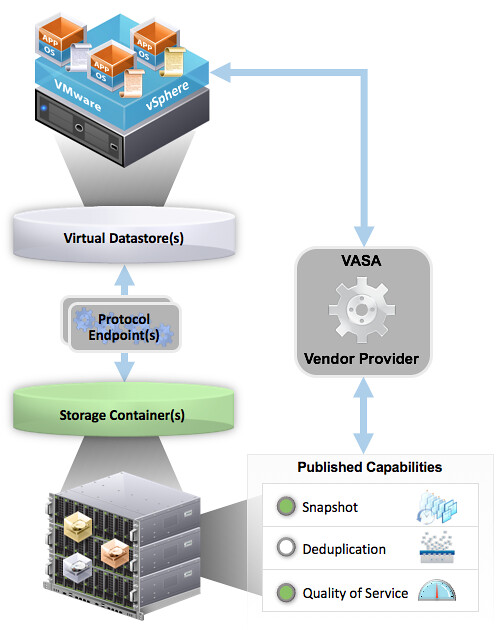
First and foremost, vVols was developed to make your life (vSphere admin) and that of the storage administrator easier. This is done by providing a framework that enables the vSphere administrator to assign policies to virtual machines or virtual disks. In these policies capabilities of the storage array can be defined. These capabilities can be things like snapshotting, deduplication, raid-level, thin / thick provisioning etc. What is offered to the vSphere administrator is up to the Storage administrator, and of course up to what the storage system can offer to begin with. When a virtual machine is deployed and a policy is assigned then the storage system will enable certain functionality of the array based on what was specified in the policy. So no longer a need to assign capabilities to a LUN which holds many VMs, but rather a per VM or even per VMDK level control. So how does this work? Well lets take a look at an architectural diagram first.

Virtual Volumes primer

The diagram shows a couple of components which are important in the VVol architecture. Lets list them out:

  • Protocol Endpoints aka PE
  • Virtual Datastore and a Storage Container
  • Vendor Provider / VASA
  • Policies
  • vVols

Lets take a look at all of these three in the above order. Protocol Endpoints, what are they?

Protocol Endpoints are literally the access point to your storage system. All IO to vVols is proxied through a Protocol Endpoint and you can have 1 or more of these per storage system, if your storage system supports having multiple of course. (Implementations of different vendors will vary.) PEs are compatible with different protocols (FC, FCoE, iSCSI, NFS) and if you ask me that whole discussion with vVols will come to an end. You could see a Protocol Endpoint as a “mount point” or a device, and yes they will count towards your maximum number of devices per host (256). (Virtual Volumes it self won’t count towards that!)

Next up is the Storage Container. This is the place where you store your virtual machines, or better said where your vVols end up. The Storage Container is a storage system logical construct and is represented within vSphere as a “virtual datastore”. You need 1 per storage system, but you can have many when desired. To this Storage Container you can apply capabilities. So if you like your virtual volumes to be able to use array based snapshots then the storage administrator will need to assign that capability to the storage container. Note that a storage administrator can grow a storage container without even informing you. A storage container isn’t formatted with VMFS or anything like that, so you don’t need to increase the volume in order to use the space.

But how does vSphere know which container is capable of doing what? In order to discover a storage container and its capabilities we need to be able to talk to the storage system first. This is done through the vSphere APIs for Storage Awareness. You simply point vSphere to the Vendor Provider and the vendor provider will report to vSphere what’s available, this includes both the storage containers as well as the capabilities they possess. Note that a single Vendor Provider can be managing multiple storage systems which in its turn can have multiple storage containers with many capabilities. These vendor providers can also come in different flavours, for some storage systems it is part of their software but for others it will come as a virtual appliance that sits on top of vSphere.

Now that vSphere knows which systems there are, what containers are available with which capabilities you can start creating policies. These policies can be a combination of capabilities and will ultimately be assigned to virtual machines or virtual disks even. You can imagine that in some cases you would like Quality of Service enabled to ensure performance for a VM while in other cases it isn’t as relevant but you need to have a snapshot every hour. All of this is enabled through these policies. No longer will you be maintaining that spreadsheet with all your LUNs and which data service were enabled and what not, no you simply assign a policy. (Yes, a proper naming scheme will be helpful when defining policies.) When requirements change for a VM you don’t move the VM around, no you change the policy and the storage system will do what is required in order to make the VM (and its disks) compliant again with the policy. Not the VM really, but the vVols.

The great thing about vVols is the fact that you know have a granular control over your workloads. Some storage systems will even allow you to assign IO profiles to your VM to ensure optimal performance. Also, when you delete a VM the vVols will be deleted and the space will automatically be reclaimed by the storage system, no more fiddling with vmkfstools. Another great thing about virtual volumes is that even when you delete something within your VM this space can also be reclaimed by the storage system. When your storage system supports T10 UNMAP that is.

That is in short how vVols work and what they bring. You as the vSphere administrator create policies and assign those to VMs, while the storage administrator manages capacity and capabilities. Easy right?!

  • « Go to Previous Page
  • Page 1
  • Interim pages omitted …
  • Page 89
  • Page 90
  • Page 91
  • Page 92
  • Page 93
  • Interim pages omitted …
  • Page 336
  • Go to Next Page »

Primary Sidebar

About the Author

Duncan Epping is a Chief Technologist and Distinguished Engineering Architect at Broadcom. Besides writing on Yellow-Bricks, Duncan is the co-author of the vSAN Deep Dive and the vSphere Clustering Deep Dive book series. Duncan is also the host of the Unexplored Territory Podcast.

Follow Us

  • X
  • Spotify
  • RSS Feed
  • LinkedIn

Recommended Book(s)

Also visit!

For the Dutch-speaking audience, make sure to visit RunNerd.nl to follow my running adventure, read shoe/gear/race reviews, and more!

Do you like Hardcore-Punk music? Follow my Spotify Playlist!

Do you like 80s music? I got you covered!

Copyright Yellow-Bricks.com © 2026 · Log in