• Skip to primary navigation
  • Skip to main content
  • Skip to primary sidebar

Yellow Bricks

by Duncan Epping

  • Home
  • Unexplored Territory Podcast
  • HA Deepdive
  • ESXTOP
  • Stickers/Shirts
  • Privacy Policy
  • About
  • Show Search
Hide Search

Server

Using differently sized disks in a VSAN environment

Duncan Epping · May 13, 2014 ·

Internally someone asked this question, and at the Italian VMUG I had someone asking me the same question… What if I want to scale out, or scale-up, and need to add differently sized disks to my existing VSAN environment? Will that be an as expensive exercise as with (some) traditional RAID systems?

Some of you have introduced new disks to RAID sets in the pasts may have seen this: you add a 2TB disk to a RAID config that only has 1TB disks and you waste 1TB as the RAID set only includes the capacity of the other disks. VSAN is not like this fortunately!

With VSAN you can scale-up and scale-out dynamically. VSAN does not, to a certain extend, care about the disk capacity. For VSAN the disk is just destination to store objects, and there is no filesystem or lower level formatting going on to stripe blocks across the disks, sure it uses a filesystem… but this is “local” to the disk, and not across disks. So whether it is a 1TB disk you add to an environment with all 1TB disks, or you add a 2TB disk, it will not matter to VSAN. Same applies to replacing disks by the way, if you need to replace a 1TB disk because it has gone bad and would like to use a 2TB disk instead… go ahead! Each disk will have its own filesystem, and the full capacity can be used by VSAN!

The question then arises, will it make a difference if I use RAID-0 or Passthrough at the disk controller level? Again, it does not. Keep in mind that when you do RAID-0 configurations for VSAN that each disk is in its own RAID-0 configuration. Meaning that if you have 3 disks, you will have 3 x RAID-0 set each containing 1 disk. Of course, there is a small implication here when you replace disks as you will need to remove the old RAID-0 set with that disk and create a new RAID-0 set with the new disk, but that is fairly straight forward.

One thing to keep in mind though, from an architectural / operational perspective… if you swap out a 1TB disk for a 2TB disk then you will need to ask yourself will this impact the experience for my customers. Will the performance be different? Because 100 IOps coming from the same disk for 1TB is different then 100IOps coming from the same disk for 2TB, as you will (simply said) be sharing the 100IOps with more VMs (capacity). In short: 100 IOps for a 1000GB disk = 0,1 IOps per GB BUT 100 IOps for a 2000GB disk = 0,05 IOps per GB, you can see the potential impact right… You have more capacity per disk, but with the same number of IOps being provided by that disk. Hopefully though the majority of IO (all writes will for sure, and most reads) will be handles by flash so the impact should be relatively low. Still, something to consider.

HA restarts in a DR/DA event

Duncan Epping · May 3, 2014 ·

I received a couple of questions last week about HA restarts in the scenario where a full site failure has occurred or a part of the storage system has failed and needs to be taken over by another datacenter. Yes indeed this is related to stretched clusters and HA restarts in a DR/DA event.

The questions were straight forward, how does the restart time-out work and what happens after the last retry? I wrote about HA restarts and the sequence last year, so lets just copy and paste that here:

  • Initial restart attempt
  • If the initial attempt failed, a restart will be retried after 2 minutes of the previous attempt
  • If the previous attempt failed, a restart will be retried after 4 minutes of the previous attempt
  • If the previous attempt failed, a restart will be retried after 8 minutes of the previous attempt
  • If the previous attempt failed, a restart will be retried after 16 minutes of the previous attempt

You can extend the restart retry by increasing the value “das.maxvmrestartcount”. And then after every 15/16 minutes a new restart will be attempted. The question this triggered though is why would it even take 4 retries? The answer I got was: we don’t know if we will be able to fail over the storage within 30 minutes and if we will have sufficient compute resources…

Here comes the sweet part about vSphere HA, it actually is a pretty smart solution, it will know if VMs can be restarted or not. In this case as the datastore is not available there is absolutely no point in even trying and HA as such will not even bother. As soon as the storage becomes available though the restart attempts will start. Same applies to compute resource, if for whatever reason there is insufficient unreserved compute resources to restart your VMs then HA will wait for them to become available… nice right!?! Do note I emphasized the word “unreserved” as that is what HA cares about and not actually about used resources.

PernixData feature announcements during Storage Field Day

Duncan Epping · Apr 23, 2014 ·

During Storage Field Day today PernixData announced a whole bunch of features that they are working on and will be released in the near future. In my opinion there were four major features announced:

  • Support for NFS
  • Network Compression
  • Distributed Fault Tolerant Memory
  • Topology Awareness

Lets go over these one by one:

Support for NFS is something that I can be brief about I guess; as it is what it says it is. Something that has come up multiple times in conversations seen on twitter around Pernix and it looks like they have managed to solve the problem and will support NFS in the near future. One thing I want to point out, PernixData does not introduce a virtual appliance in order to support NFS or create an NFS server and proxy the IOs, sounds like magic right… Nice work guys!

It gets way more interesting with Network compression. What is it, what does it do? Network Compression is an adaptive mechanism that will look at the size of the IO and analyze if it makes sense to compress the data before replicating it to a remote host. As you can imagine especially with larger block sizes (64K and up) this could significantly reduce the data that is transferred over the network. When talking to PernixData one of the questions I had was well what about the performance and overhead… give me some details, this is what they came back with as an example:

  • Write back with local copy only = 2700 IOps
  • Write back + 1 replica = 1770 IOps
  • Write back + 1 replica + network compression = 2700 IOps

As you can see the number of IOps went down when a remote replica was added. However, it went up again to “normal” values when network compression was enabled, of course this test was conducted using large blocksizes. When it came to CPU overhead it was mentioned that the overhead so far has been demonstrated to be negligible.You may ask yourself why, it is fairly simple: the cost of compression weighs up against the CPU overhead and results in an equal performance due to lower network transfer requirements. What also helps here is that it is an adaptive mechanism that does a cost/benefit analyses before compressing. So if you are doing 512 byte or 4KB IOs then network compression will not kick in, keeping the overhead low and the benefits high!

I personally got really excited about this feature: DFTM = Distributed Fault Tolerant Memory. Say what? Yes, distributed fault tolerant memory! FVP, indeed besides virtualizing flash, can now also virtualize memory and create an aggregated pool of resources out of it for caching purposes. Or in a more simplistic way: what they allow you to do is reserve a chunk of host memory as virtual machine cache. Once again happens on a hypervisor level, so no requirement to run a virtual appliance, just enable and go! I would want to point out though that there is “cache tiering” at the moment, but I guess Satyam can consider that as a feature request. Also, when you create an FVP cluster hosts within that cluster will either provide “flash caching” capabilities or “memory caching” capabilities. This means that technically virtual machines can use “local flash” resources while the remote resources are “memory” based (or the other way around). I would avoid this at all cost personally though as it will give some strange unpredictable performance result.

So what does this add? Well crazy performance for instance…. We are talking 80k IOps easily with a nice low latency of 50-200 microseconds. Unlike other solutions, FVP doesn’t restrict the size of your cache either. By default it will make a recommendation of 50% unreserved capacity to be used per host. Personally I think this is a bit high, as most people do not reserve memory this will typically result 50% of your memory to be recommended… but fortunately FVP allows you to customize this as required. So if you have 128GB of memory and feel 16GB of memory is sufficient for memory caching then that is what you assign to FVP.

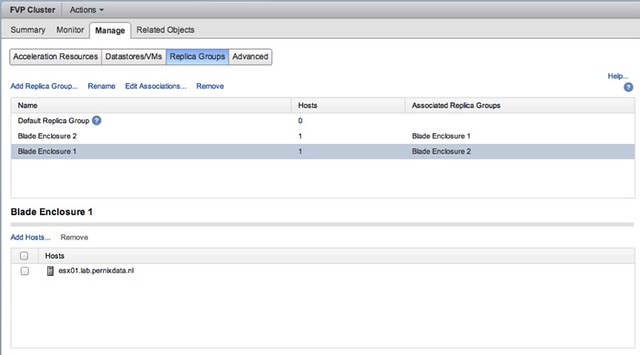
Another feature that will be added is Topology Awareness. Basically what this allows you to do is group hosts in a cluster and create failure domains. An example may make this a bit easier to grasp: Lets assume you have 2 blade chassis each with 8 hosts, when you enable “write back caching” you probably want to ensure that your replica is stored on a blade in the other chassis… and that is exactly what this feature allows you to do. Specify replica groups, add hosts to the replica groups, easy as that!

And then specify for your virtual machine where the replica needs to reside. Yes you can even specify that the replica needs to reside within its failure domain if there are requirements to do so, but in the example below the other “failure domain” is chosen.

Is that awesome or what? I think it is, and I am very impressed by what PernixData has announced. For those interested, the SFD video should be online soon, and those who are visiting the Milan VMUG are lucky as Frank mentioned that he will be presenting on these new features at the event. All in all, an impressive presentation again by PernixData if you ask me… awesome set of features to be added soon!

Heartbleed Security Bug fixes for VMware

Duncan Epping · Apr 19, 2014 ·

It seems to be patch Saturday as today a whole bunch of updates of products were released. All of these updates relate to the heartbleed security bug fix. There is no point in listing every single product as I assume you all know the VMware download page by now, but I do want to link the most commonly used for your convenience:

  • VMware vCenter Server 5.5 U1a
    • VCVA 5.5 U1a
  • VMware vCenter Server 5.5c
    • VCVA 5.5c
  • ESXi KB:VMware ESXi 5.5, Patch ESXi550-201404420-SG
  • ESXi KB:VMware ESXi 5.5, Patch Release ESXi550-201404001
  • VMware vCloud Networking and Security 5.5.2

Time to update, but before you do… if you are using NFS based storage make sure to read this first before jumping straight to vSphere 5.5 U1a!

Alert: vSphere 5.5 U1 and NFS issue!

Duncan Epping · Apr 19, 2014 ·

Some had already reported on this on twitter and the various blog posts but I had to wait until I received the green light from our KB/GSS team. An issue has been discovered with vSphere 5.5 Update 1 that is related to loss of connection of NFS based datastores. (NFS volumes include VSA datastores.)

*** Patch released, read more about it here ***

This is a serious issue, as it results in an APD of the datastore meaning that the virtual machines will not be able to do any IO to the datastore at the time of the APD. This by itself can result in BSOD’s for Windows guests and filesystems becoming read only for Linux guests.

Witnessed log entries can include:

2014-04-01T14:35:08.074Z: [APDCorrelator] 9413898746us: [vob.storage.apd.start] Device or filesystem with identifier [12345678-abcdefg0] has entered the All Paths Down state.
2014-04-01T14:35:08.075Z: [APDCorrelator] 9414268686us: [esx.problem.storage.apd.start] Device or filesystem with identifier [12345678-abcdefg0] has entered the All Paths Down state.
2014-04-01T14:36:55.274Z: No correlator for vob.vmfs.nfs.server.disconnect
2014-04-01T14:36:55.274Z: [vmfsCorrelator] 9521467867us: [esx.problem.vmfs.nfs.server.disconnect] 192.168.1.1/NFS-DS1 12345678-abcdefg0-0000-000000000000 NFS-DS1
2014-04-01T14:37:28.081Z: [APDCorrelator] 9553899639us: [vob.storage.apd.timeout] Device or filesystem with identifier [12345678-abcdefg0] has entered the All Paths Down Timeout state after being in the All Paths Down state for 140 seconds. I/Os will now be fast failed.
2014-04-01T14:37:28.081Z: [APDCorrelator] 9554275221us: [esx.problem.storage.apd.timeout] Device or filesystem with identifier [12345678-abcdefg0] has entered the All Paths Down Timeout state after being in the All Paths Down state for 140 seconds. I/Os will now be fast failed.

If you are hitting these issues than VMware recommends reverting back to vSphere 5.5. Please monitor the following KB closely for more details and hopefully a fix in the near future: http://kb.vmware.com/kb/2076392


  • « Go to Previous Page
  • Page 1
  • Interim pages omitted …
  • Page 105
  • Page 106
  • Page 107
  • Page 108
  • Page 109
  • Interim pages omitted …
  • Page 336
  • Go to Next Page »

Primary Sidebar

About the Author

Duncan Epping is a Chief Technologist and Distinguished Engineering Architect at Broadcom. Besides writing on Yellow-Bricks, Duncan is the co-author of the vSAN Deep Dive and the vSphere Clustering Deep Dive book series. Duncan is also the host of the Unexplored Territory Podcast.

Follow Us

  • X
  • Spotify
  • RSS Feed
  • LinkedIn

Recommended Book(s)

Also visit!

For the Dutch-speaking audience, make sure to visit RunNerd.nl to follow my running adventure, read shoe/gear/race reviews, and more!

Do you like Hardcore-Punk music? Follow my Spotify Playlist!

Do you like 80s music? I got you covered!

Copyright Yellow-Bricks.com © 2026 · Log in