• Skip to primary navigation
  • Skip to main content
  • Skip to primary sidebar

Yellow Bricks

by Duncan Epping

  • Home
  • Unexplored Territory Podcast
  • HA Deepdive
  • ESXTOP
  • Stickers/Shirts
  • Privacy Policy
  • About
  • Show Search
Hide Search

Various

NVIDIA rendering issues? Look at the stats!

Duncan Epping · Feb 14, 2020 ·

I’ve been down in the lab for the last week doing performance testing with virtual reality workloads and streaming these over wifi to an Oculus Quest headset. In order to render the graphics remotely, we leveraged NVIDIA GPU technology (RTX 8000 in my case here in the lab). We have been getting very impressive results, but of course at some point hit a bottleneck. We tried to figure out which part of the stack was causing the problem and started looking at the various NVIDIA stats through nvidia-smi. We figured the bottleneck would be GPU, so we looked at things like GPU utilization, FPS etc. Funny enough this wasn’t really showing a problem.

We then started looking at different angles, and there are two useful commands I would like to share. I am sure the GPU experts will be aware of these, but for those who don’t consider themselves an expert (like myself) it is good to know where to find the right stats. While whiteboarding the solution and the different part of the stacks we realized that GPU utilization wasn’t the problem, neither was the frame buffer size. But somehow we did see FPS (frames per second) drop and we did see encoder latency go up.

First I wanted to understand how many encoding sessions there were actively running. This is very easy to find out by using the following command. The screenshot below shows the output of it.

nvidia-smi encodersessions

As you can see, this shows 3 encoding sessions. One H.264 session and two H.265 sessions. Now note that we have 1 headset connected at this point, but it leads to three sessions. Why? Well, we need a VM to run the application, and the headset has two displays. Which results in three sessions. We can, however, disable the Horizon session using the encoder, that would save some resources, I tested that but the savings were minimal.

I can, of course, also look a bit closer at the encoder utilization. I used the following command for that. Note that I filter for the device I want to inspect which is the “-i <identifier>” part of the below command.

nvidia-smi dmon -i 00000000:3B:00.0

The above command provides the following output, the “enc” column is what was important to me, as that shows the utilization of the encoder. Which with the above 3 sessions was hitting 40% utilization roughly as shown below.

How did I solve the problem of the encoder bottleneck in the end? Well I didn’t, the only way around that is by having a good understanding of your workload and proper capacity planning. Do I need an NVIDIA RTX 6000 or 8000? Or is there a different card with more encoding power like the V100 that makes more sense? Figuring out the cost, performance and the trade-off here is key.

Two more weeks until the end of my Take 3 experience, and what a ride it has been. If you work for VMware and have been with the company for 5 years… Consider doing a Take 3, it is just awesome!
Can’t enable AMD ReLive VR during install of Radeon Pro Software?

Duncan Epping · Jan 8, 2020 ·

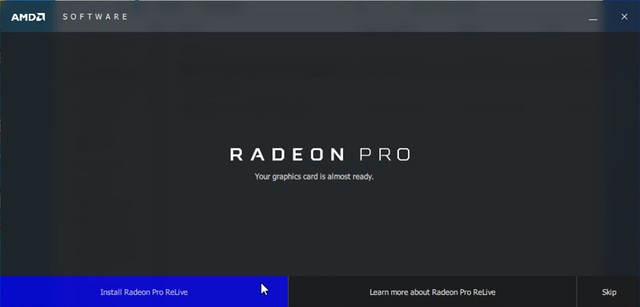
Yesterday I bumped into an issue where I wanted to enable AMD ReLive VR but the option didn’t show in the configuration window strangely enough. I remembered that the first time I installed the Radeon Pro Software for Enterprise I had an option to enable AMD ReLive VR during the process, but I couldn’t recall seeing the option this time during the install. I simply reinstalled Radeon Pro assuming the option would pop up but it didn’t. It seems that this was caused by the fact that there were already AMD drivers installed, a bit strange as all other AMD Radeon Pro components can be selected and installed when there’s a driver present, but ReLive simply won’t show up as an option.

So I used the AMD provided tools to completely uninstall all AMD Radeon related software. When you do this and you reboot the VM you will be presented the following screen at the end of the install of the Radeon Pro software, this then allows you to install ReLive VR, which you can then configure and enable through the settings window as also shown below.

AMD Radeon settings window transparent in a VM?

Duncan Epping · Jan 6, 2020 ·

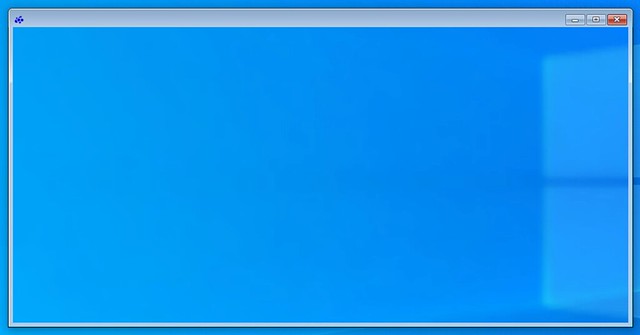
I have been playing with VR technology for the past month. The last couple of weeks my focus has been to install/configure a VM which streams the VR app over wifi to a headset. I ran into a problem with ALVR last week as documented here, but I also ran into an issue with the AMD Radeon software when I wanted to use the AMD tools to stream a VR app. When you install the AMD Radeon software within a VM and want to configure the (passthrough) graphics card or ReLive VR the Radeon configuration window shows up transparent, it looks as below. Which means you can’t configure it, you can’t enable things like ReLive VR.

The only way to get the window to show up normal is to remove the VMware SVGA device using Device Manager. Simply completely remove it and restart the VM and the problem is solved. If you have svga.present set to false you will need to click “view hidden devices” in Device Manager first before you can remove the installed software/driver by the way. When rebooted it will look normal again and it will allow you to enable and configure ReLive VR, or any other options you need to configure of course.

Seeing green only on your HMD when using ALVR to stream an app?

Duncan Epping · Jan 2, 2020 ·

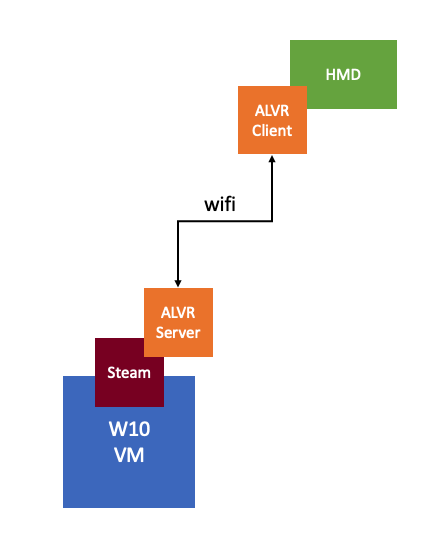
I have been testing various things as part of the Take 3 I started not too long ago. While I was setting up my environment I ran into a few issues. One of those issues was something very strange. Just so people understand what I am testing, I have an Oculus Quest headset to which I want to stream a VR app over WIFI from a powerful VM which has a passthrough GPU. Now by default, this isn’t possible. The Quest wasn’t intended for this particular usecase. In order to do this you need to setup some kind of remoting technology, which is where ALVR comes in to play. ALVR is an open source remoting/streaming solution for VR applications. Huh, what are you doing? Well as shown in the diagram below I am basically running an App using Steam within Windows and then streaming that output using ALVR from the server to the client, where the client runs as an app on the HMD (head-mounted display).

There’s also AMD ReLive VR and NVIDIA Cloud XR by the way, of which I have also tested AMD ReLive VR, which is embedded in the AMD Driver and can be enabled through the AMD advanced settings. Anyway, while testing this solution I had to disable the display head by setting “svga.present = false” in order for ALVR to work (otherwise I would get an error stating “could not create graphics device for adapter 0”), which means that as a result, I can’t access the VM using the Web/Remote Console, unfortunately.

So in order to launch the VR app and ALVR Server I have to RDP into the Windows 10 VM. When doing so I can launch the apps and connect the Headmount to ALVR Server, great… But when putting on the headset I would only see green, basically a big green screen. So why did this happen? Well, it appears that it is an artifact caused by the fact that I am launching the VR app from within an RDP session. When using RDP you end up using a specific video driver for the screen rendering, which is not something ALVR (or AMD ReLive VR) understands. So in order to get around it, you will need to log in from a “proper” console to the Windows VM and launch the app from there so that it is rendered by the AMD or NVIDIA driver instead. I used TightVNC to get around the problem, there are other solutions, but this was the fastest to implement for me.

VR and AR, what is it good for besides gaming? (Take 3 learnings)

Duncan Epping · Dec 9, 2019 ·

I first got introduced to Virtual Reality (VR) in the 90’s. Back then it was all about gaming of course. Even today though the perception is that it is mainly about gaming, and to be honest that was also my perception. When I spoke with Alan Renouf the first time about the project he was working on and I saw his keynote demo I didn’t really see the opportunity. It all felt a bit gimmicky, to be honest, but can you blame me when the focus of the demo is moving workloads to the cloud by picking up a VM and throwing it over “the fence”.

In the last few days, as part of my Take 3, I have been mainly reading up on VR and AR use cases. I listened to podcasts and watched a dozen youtube videos. While listening, reading and watching it became clear to me that the perception I have(had) is way off. I had never given this much thought I guess, but the more I read, watch, hear, the more I get excited about the opportunities for VR/AR out there.

I believe right now training is a big opportunity. When I heard about this I related it back to my own job, but that is not really where the opportunity is today. The opportunity here is training for dangerous, challenging, or hazardous scenarios, which are often expensive and difficult to create. Okay, let’s get a bit more specific here, one of the examples I learned about last week was training for firefighters. Not just the actual fire fighting, but also the investigation of for instance how and where the fire started.

It isn’t something I ever thought about, but in order to train firefighters they create a room inside a container, burn down the container and then have groups of firefighters try to figure out how and where the fire started. The problem is though if they train 10 groups per day, only the last group can touch the objects and do a proper investigation. With VR this problem is solved, as after every training session you reset and start over. Same for instance could apply to police force training for things like crime scene investigation. Or for instance training of personnel working (nuclear) power plants, oil platforms, etc etc. Or even customer services training for retailers like Walmart, let them deal with difficult customers in VR first, let them handle dozens of difficult situations in VR before they are exposed to “real” customers.

There are many companies that have a need for (realistic) training of personnel in an easy, repeatable, and relatively affordable way. VR and AR allows you to do just that. If you want to learn more, I recommend listening to the Virtually Speaking Podcast episode covering Spatial Computing.

  • « Go to Previous Page
  • Page 1
  • Interim pages omitted …
  • Page 6
  • Page 7
  • Page 8
  • Page 9
  • Page 10
  • Interim pages omitted …
  • Page 127
  • Go to Next Page »

Primary Sidebar

About the Author

Duncan Epping is a Chief Technologist and Distinguished Engineering Architect at Broadcom. Besides writing on Yellow-Bricks, Duncan is the co-author of the vSAN Deep Dive and the vSphere Clustering Deep Dive book series. Duncan is also the host of the Unexplored Territory Podcast.

Follow Us

  • X
  • Spotify
  • RSS Feed
  • LinkedIn

Recommended Book(s)

Also visit!

For the Dutch-speaking audience, make sure to visit RunNerd.nl to follow my running adventure, read shoe/gear/race reviews, and more!

Do you like Hardcore-Punk music? Follow my Spotify Playlist!

Do you like 80s music? I got you covered!

Copyright Yellow-Bricks.com © 2026 ยท Log in