• Skip to primary navigation
  • Skip to main content
  • Skip to primary sidebar

Yellow Bricks

by Duncan Epping

  • Home
  • Unexplored Territory Podcast
  • HA Deepdive
  • ESXTOP
  • Stickers/Shirts
  • Privacy Policy
  • About
  • Show Search
Hide Search

BC-DR

EMC SRDF Storage Replication Adapter

Duncan Epping · Jan 30, 2009 ·

I was delivering a Site Recovery Manager Jumpstart today. During the configuration of the Storage Replication Adapter(SRA) the task got stuck at 23%. I’ve seen the configuration of the SRA get stuck once before at 23% so I knew it was the “DiscoverLuns” command that failed for one reason or the other.

We ran the configuration of the SRA again and it stopped after exactly five minutes. We decided to run the DiscoverLuns task again but this time manual with use of command.pl and a xml file as input. If you read the previous article on DiscoverLuns you know how to feed command.pl with the xml file and what info the file should contain.

Running the DiscoverLuns manually worked great, but it actually took little over 15 minutes to complete before the complete results were returned by the EMC DMX3. During the configuration via the GUI the task failed after exactly 5 minutes, so it seemed to time-out. Opening up vmware-dr.xml, which can be found in the Site Recovery Manager installation folder, revealed a time out of 300 seconds:

<CommandTimeout>300</CommandTimeout>

We changed the value to 1800, restarted the SRM service and reconfigured the SRA successful.
Storage Replication Adapter: discoverLuns…

Duncan Epping · Jan 20, 2009 ·

Today I was implementing Site Recovery Manager with a colleague(Thanks Andy!!). During the configuration of the HP EVA SRA(Storage Replication Adapter) we received the following error:

discoverLuns script failed to execute properly

The error indicates that that the first part of the SRA configuration “discoverArrays” worked but when discovering the LUN’s and it’s replica’s it bailed out(23%). So after checking the config files and log files we decided to run the scriptfile, that the SRA uses, manually and see what happens.

First we created an XML file which feeds the script. The XML file contained the following, which can be copied from the SRM Log files:

<?xml version=”1.0″ encoding=”ISO-8859-1″?>
<Command>
<Name>discoverLuns</Name>
<ConnectSpec>
<Name>HP StorageWorks EVA Virtualization Adapter</Name>
<Address>san.yellow-bricks.com</Address>
<Username>user</Username>
<Password>password</Password>
</ConnectSpec>
<ArrayId>YB-SAN-01</ArrayId>
<OutputFile>C:\TEMP\SAN.Log</OutputFile>
<LogLevel>trivia</LogLevel>
</Command>

Now we were able to run the script with the XML file as input:

perl command.pl < file.xml

In our case running the script manually with the XML file as input didn’t return an error. This gave us the idea that it might be account or permissions related. During the configuration of the SRA we entered domain credentials, which were the same as the account being used during the manual run of the script. So it wasn’t the SRA account that was causing these problems.

After diving into the configuration we stumbled upon the SRM Service. The SRM service was started with a Local System account. We decided to change the account used for the Service from “Local” to a domain account… and indeed problem solved.

One would expect this to be part of the SRA documentation, but it isn’t. We contacted VMware Support and they had the same configuration running in their test environment except for the fact that they weren’t using AD authentication. In their case the Local System account just worked fine.

I’ve emailed Support all the log files and according to them our suspicion was correct. It seems to be related to the HP EVA SRA. The HP SRA seems to use the wrong account for authentication at one point during the script. Next up: Contact HP Support and let’s see if they can a) fix this or b) update their documentation.

How to use trusted certificates with SRM

Duncan Epping · Jan 15, 2009 ·

When we were playing around with Site Recovery Manager last week we had the opportunity to ask a bunch of questions to Lee Dilworth. Lee is a Specialist System Engineer for Site Recovery Manager. During the discussion Lee told us about a document that Horst Mundt, also a VMware employee, wrote about using trusted certificates. We received the document via email and I wanted to share this with you. After a quick search on the internet I noticed that Horst already uploaded his document to VI:OPS:

SRM establishes a secure connection between the protected and the recovery site.

There are two options for authentication: Credential based or certificate based.

If you install SRM into an existing environment, make sure to choose the method that is appropriate for your environment.

If you have not changed the default certificates that were installed by the VMware vCenter server setup then go for credential based authentication. You do not need to read the this document.

If you have installed SSL certificates issued by a trusted CA on your VMware vCenter servers then go for certificate based authentication. The document explains how certificates need to be setup in order for this to work.

Site Recovery Manager and MSCS

Duncan Epping · Jan 13, 2009 ·

When reading several SRM docs I was wondering if Microsoft Clustering was supported or not. I knew that in version 1.0 it wasn’t supported. When reading the Release Notes I noticed the following:

Full Support for RDM devices
SRM now provides full support for virtual machines that use raw disk mapping (RDM) devices. This enables support of several new configurations, including Microsoft Cluster Server. (Virtual machine templates cannot use RDM devices.)

Microsoft Clustering Services is supported as of Update 1. But you will need to keep in mind when creating your Recovery Plan that all nodes of the cluster will belong to the same Protection Group and can possibly  be started up or shutdown at the same time….. I haven’t configured SRM in combination with MSCS so far, if any of you has any tips/tricks let me know.

Site Recovery Manager is not about installing… Part II

Duncan Epping · Jan 12, 2009 ·

I’ve been playing around with Site Recovery Manager these last couple of days. Installing it was really easy and same goes for the basic configuration. I already wrote a blog about this topic a month ago or so but now I’ve experienced it myself. Most of the time during a Site Recover Manager project will be spent during the Plan & Design phase and writing documentation. I will just give you one example why. The following was taken from the SRM Course material:

Datastore Group
Replicated datastores containing the complete set of virtual machines that you want to protect with SRM

Protection Group
A group of virtual machines that are failed over together during test and recovery

For those who don’t know, there’s a one on one mapping between Datastore Groups and Protection Groups. So in other words, once you’ve mapped a Datastore Group to a Protection Group there’s no way of changing it without having to recreate the Protection Group.

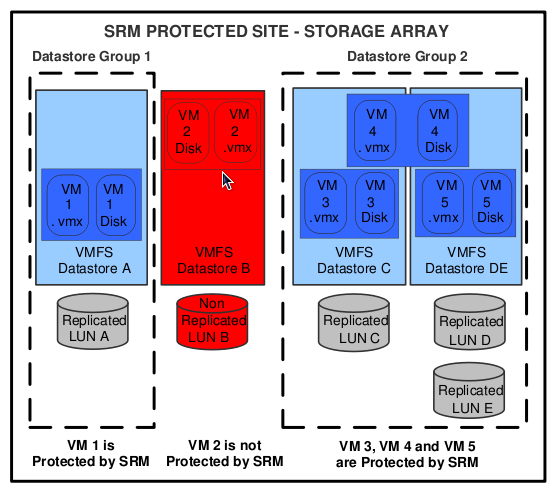
I think a picture says more than a 1000 words so I stole this one from the Evaluator Guide to clarify the relationship between datastore, Datastore Groups and Protection Groups:

Notice that there are multiple datastores in Datastore Group 2 because VM4 has disks in both datastores. So these datastores are joined into one Datastore Group. This Datastore Group will have a one to one relationship with a Protection Group. Keep in mind, this is really important: a Protection Group contains VM’s that are failed over together during test and recovery.

If you’ve got VM’s with multiple disks on multiple datastores with no logic in which disk is placed on which datastore you could and probably will end up with all datastores being member of the same Datastore Group. Being member of the same Datastore Group means being part of the same Protection Group. Being part of the same Protection Group will result in a less granular fail-over. It’s all or nothing in this case and I can imagine most companies would like to have some sort of tiering model in place or even better fail over services one at a time. (This doesn’t mean by the way that if you create multiple Protection Group that you can’t fail over everything at the same time, they can all be joined in a Recovery Plan)

Some might think that you would be able to randomly add disks to datastores after you finished configuring. This clearly isn’t the case. If you add a disk to a protected(!) VM the Datastore Group will be recomputed. In our situation this meant that all VM’s in the “Medium Priority” Protection Group were moved over to the “High Priority” Protection Group. This was caused by the fact that we added a disk to a “Medium Priority” VM and placed it on a “High Priority” datastore. As you can imagine this also causes your Recovery Plans to end up with a “warning”, you will need to reconfigure the moved VM’s before you can fail them over as part of your “High Priority” datastore. (Which probably wasn’t the desired strategy…)

When I was searching the internet for information on SRM I stumbled upon this article on the VMware Uptime blog by Lee Dilworth. I’ve taken the following from the “What we’ve learnt” post, which confirms what we’ve seen the last couple of days:

Datastore Group computation is triggered by the following events:

  • Existing VM is deleted or unregistered
  • VM is storage vmotioned to a different datastore
  • New disk is attached to VM on a datastore previously not used by the VM
  • New datastore is created
  • Existing datastore is expanded

So in other words, moving VM’s from one Datastore to another or creating a new disk on a different Datastore can cause problems because the Datastore Group computation will be re-run. Not only do you need to take virtual disk placement in consideration when configuring SRM, you will also need to be really careful when moving virtual disks. Documentation, Design and Planning is key here.

I would suggest documenting current disk placement before you even start implementing SRM, and given the results you might need to move disks around before you start with SRM. Make sure to check your documentation and design before randomly adding virtual disks when SRM has been implemented. Documenting your current disk placement can be done easily with the script that Hugo created this week by the way, and I would suggest to regularly create reports and save them.

Expect some more SRM stuff coming up over the next couple of weeks.

  • « Go to Previous Page
  • Page 1
  • Interim pages omitted …
  • Page 55
  • Page 56
  • Page 57
  • Page 58
  • Page 59
  • Interim pages omitted …
  • Page 63
  • Go to Next Page »

Primary Sidebar

About the Author

Duncan Epping is a Chief Technologist and Distinguished Engineering Architect at Broadcom. Besides writing on Yellow-Bricks, Duncan is the co-author of the vSAN Deep Dive and the vSphere Clustering Deep Dive book series. Duncan is also the host of the Unexplored Territory Podcast.

Follow Us

  • X
  • Spotify
  • RSS Feed
  • LinkedIn

Recommended Book(s)

Also visit!

For the Dutch-speaking audience, make sure to visit RunNerd.nl to follow my running adventure, read shoe/gear/race reviews, and more!

Do you like Hardcore-Punk music? Follow my Spotify Playlist!

Do you like 80s music? I got you covered!

Copyright Yellow-Bricks.com © 2026 · Log in