• Skip to primary navigation
  • Skip to main content
  • Skip to primary sidebar

Yellow Bricks

by Duncan Epping

  • Home
  • Unexplored Territory Podcast
  • HA Deepdive
  • ESXTOP
  • Stickers/Shirts
  • Privacy Policy
  • About
  • Show Search
Hide Search

BC-DR

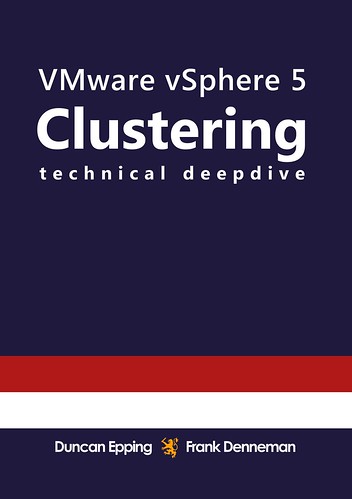
Hot of the press: vSphere 5.0 Clustering Technical Deepdive

Duncan Epping · Jul 12, 2011 ·

** Update: Available now: paperback full |paperback black & white **

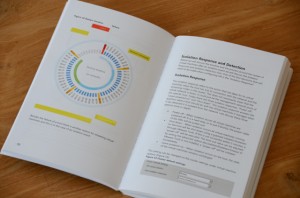
After months of hard work the moment is finally there, the release of our new book: vSphere 5.0 Clustering Technical Deepdive! When we started working, or better said, planning an update of the book we never realized the amount of work required. Be aware that this is not a minor update. This book covers HA (full rewrite as HA has been rewritten for 5.0), DRS (mostly rewritten to focus on resource management) and Storage DRS (new!). Besides these three major pillars we also decided to add what we call supporting deepdives. The supporting deepdives added are: vMotion, Storage vMotion, Storage I/O Control and EVC. This resulted in roughly 50% more content (totaling 348 pages) than the previous book, also worth noting that every single diagram has been recreated and are they cool or what?

Before I will give you the full details I want to thanks a couple of people who have helped us tremendously and without whom this publication would not have been possible. First of all I would like to thank my co-author Frank “Mr Visio” Denneman for all his hard work. Frank and I would also like to thank our VMware management team for supporting us on this project. Doug “VEEAM” Hazelman thanks for writing the foreword! A special thanks goes out to our technical reviewers and editors: Doug Baer, Keith Farkas and Elisha Ziskind (HA Engineering), Anne Holler, Irfan Ahmad and Rajesekar Shanmugam (DRS and SDRS Engineering), Puneet Zaroo (VMkernel scheduling), Ali Mashtizadeh and Gabriel Tarasuk-Levin (vMotion and Storage vMotion Engineering), Doug Fawley and Divya Ranganathan (EVC Engineering). Thanks for keeping us honest and contributing to this book.

As promised in the multiple discussions we had around our 4.1 HA/DRS book we wanted to make sure to offer multiple options straight away. While Frank finalized the printed copy I worked on formatting the ebook. Besides the black&white printed version we are also offering a full color version of the book and a Kindle version. The black&white sells for $ 29.95, the full color for $ 49.95 and the Kindle for an ultra cheap price: $ 9.95. Needless to say that we recommend the Kindle version. It is cheap, full color and portable or should we say virtual… who doesn’t love virtual? On a sidenote, we weren’t planning on doing a black and white release but due to the extremely high production costs of the full color print we decided to offer it as an extra service. Before I give the full description here are the direct links to where you can buy the book. (Please note that Amazon hasn’t listed our book yet, seems like an indexing issue, should be resolved soon hopefully For those who cannot wait to order the printed copy check-out Createspace or Comcol.

Amazon:
eBook (Kindle) – $ 9.99
(price might vary based on location as amazon charges extra for delivery)
Black & White Paper – $ 29.95
Full Color Paper – $ 49.95

Createspace:
Black & White Paper – 29.95
Full Color Paper – 49.95

For the EMEA folks comcol.nl offered to distribute it again, paper black & white can be found here, and full color here.

VMware vSphere 5.0 Clustering Technical Deepdive zooms in on three key components of every VMware based infrastructure and is by no means a “how to” guide. It covers the basic steps needed to create a vSphere HA and DRS cluster and to implement Storage DRS. Even more important, it explains the concepts and mechanisms behind HA, DRS and Storage DRS which will enable you to make well educated decisions. This book will take you in to the trenches of HA, DRS and Storage DRS and will give you the tools to understand and implement e.g. HA admission control policies, DRS resource pools, Datastore Clusters and resource allocation settings. On top of that each section contains basic design principles that can be used for designing, implementing or improving VMware infrastructures and fundamental supporting features like vMotion, Storage I/O Control and much more are described in detail for the very first time.

This book is also the ultimate guide to be prepared for any HA, DRS or Storage DRS related question or case study that might be presented during VMware VCDX, VCP and or VCAP exams.

Coverage includes:
– HA node types
– HA isolation detection and response
– HA admission control
– VM Monitoring
– HA and DRS integration
– DRS imbalance algorithm
– Resource Pools
– Impact of reservations and limits
– CPU Resource Scheduling
– Memory Scheduler
– DPM
– Datastore Clusters
– Storage DRS algorithm
– Influencing SDRS recommendations

Be prepared to dive deep!

Pick it up, leave a comment and of course feel free to make those great mugshots again and ping them over via Facebook or our Twitter accounts! For those looking to buy in bulk (> 20) contact clusteringdeepdive@gmail.com.
das.failureinterval and das.iostatsinterval clarification

Duncan Epping · Jun 22, 2011 ·

Today someone asked a question about advanced settings for VM Monitoring which is probably the most underestimated feature of VMware HA. As the Availability Guide is not really clear on this I decided it was worth sharing. Below you can find the original question that was asked on the VMTN Forum:

What is the point of having both of these settings? Why not just one that incorporates both? If das.failureinterval and das.iostatsinterval are both set for 2 minutes, it will wait 2 minutes before reseting the VM. If das.failureinterval is set to 2 minutes and  das.iostatsinterval is set to 5 minutes, it will wait five minutes before resetting the VM. The availability guide doesn’t seem explicit in this area.

The only thing that kind of makes sense would be if das.iostatsinterval is set to 2 minutes and das.failureinterval is set to 5 minutes, then the VM would reboot after 2 minutes. Is that correct?!? The availability guide makes it seem like the das.iostatsinterval is a backup check to das.failureinterval, but it doesn’t say the opposite is true as well…

These two settings do something completely different. Let me try to explain it. das.iostatsinterval is the interval that is used to check against if there was any Network or Storage over the last two minutes. This will only be verified after the amount of seconds defined by das.faulureinterval has been exceeded without any VMware Tools heartbeat being received.

In the example this user provided the VM would be rebooted two minutes after it has failed IF it hasn’t had any network/storage I/O for 5 minutes which is probably unlikely. So what does that mean for these values? Well I would  always recommend to align them. There is no point in validating on network/storage I/O for over the past 5 minutes when you trigger the validation after two minutes of the lack of heartbeats as it might have failed 2 minutes 15 seconds ago.

sneak peek of the upcoming vSphere Clustering book

Duncan Epping · Jun 10, 2011 ·

For those who are not following Frank’s blog, he just posted a sneak peek of the upcoming vSphere Clustering book. It looks really really slick in full color. I promise you won’t be disappointed. Go to Frank’s article for more details.

das.failuredetection time and relationship with isolation response

Duncan Epping · May 27, 2011 ·

I had this question coincidentally two times of the last 3 weeks and I figured that it couldn’t hurt explaining it here as well. The question on the VMTN community was as follows:

on 13 sec: a host which hears from none of the partners will ping the isolation address
on 14 sec: if no reply from isolation address it will trigger the isolation response
on 15 sec: the host will be declared dead from the remaining hosts, this will be confirmed by pinging the missing host
on 16 sec: restarts of the VMs will begin

My first question is: Do all these timings come from the das.failuredetectiontime? That is, if das.failuredetectiontime is set to e.g. 30000 (30 sec) then on the 28th second a potential isolated host will try to ping the isolation address and do the Isolation Response action at 29 second?

Or is the Isolation Response timings hardcoded and always happens at 13 sec?

My second question, if the answer is Yes on above, why is the recommendation to increase das.failuredetectiontime to 20000 if having multiple Isolation Response addresses? If the above is correct then this would make to potential isolated host to test its isolation addresses at 18th second and the restart of the VMs will begin at 21 second, but what would be the gain from this really?

To which my answer was very short fortunately:

Yes, the relationship between these timings is das.failuredetectiontime.

Increasing the das.failuredetectiontime is usually recommended when an additional das.isolationaddress is specified. the reason for this is that the “ping” and the “result of the ping” needs time and by added 5 seconds to the failure detection time you allow for this test to complete correctly. After which the isolation response could be triggered.

After having a discussion on VMTN about this and giving it some thought and bouncing my thoughts with the engineers I came to the conclusion that the recommendation to increase das.failuredetectiontime with 5 seconds when multiple isolation addresses are specified is incorrect. The sequence is always as follows regardless of the value of das.failuredetectiontime:

  • The ping will always occur at “das.failuredetectiontime -2”
  • The isolation response is always triggered at “das.failuredetectiontime -1”
  • The fail-over is always initiated at “das.failuredetectiontime +1”

The timeline in this article explains the process well.

Now, this recommendation to increase das.failuredetectiontime was probably made in times where many customers were experiencing network issues. Increasing the time decreases the chances of running in to an issue where VMs are powered down due to a network outage. Sorry about all the confusion and unclear recommendations.

Per-volume management features in 4.x

Duncan Epping · Apr 7, 2011 ·

Last week I noticed that one of the articles that I wrote in 2008 is still very popular. This article explains the various possible combinations of the advanced settings “EnableResignature” and “DisallowSnapshotLUN”. For those who don’t know what these options do in a VI3 environment; they allow you to access a volume which is marked as “unresolved” due to the fact that the VMFS metadata doesn’t match the physical properties of the LUN. In other words, the LUN that you are trying to access could be a Snapshot of a LUN or a copy (think replication) and vSphere is denying you access.

These advanced options where often used in DR scenarios where a fail-over of a LUN needed to occur or when for instance when a virtual machine needed to be restored from a snapshot of a volume. Many of our users would simply change the setting for either EnableResignature to 1 or for DisallowSnapshotLUN to 0 and force the LUN to be available again. Those readers who paid attention noticed that I used “LUN” instead of “LUNs” and here lies one of the problems…. These settings were global settings. Which means that ANY given LUN that was marked as “unresolved” would be resignatured or mounted. This unfortunately more than often lead to problems where incorrect volumes were mounted or resignatured. These volumes should probably have not have been presented in the first place but that is not the point. The point is that a global setting increases the chances that issues like these occur. With vSphere this problem was solved as VMware introduced “esxcfg-volume -r”.

This command enables you to resignature on a per volume basis…. Well not only that, “esxcfg-volume -m” enables you to mount volumes and “-l” is used to list volumes. Of course you can also do this through the vSphere client as well:

  • Click the Configuration tab and click Storage in the Hardware panel.
  • Click Add Storage.
  • Select the Disk/LUN storage type and click Next.
  • From the list of LUNs, select the LUN that has a datastore name displayed in the VMFS Label column and click Next.
    The name present in the VMFS Label column indicates that the LUN is a copy that contains a copy of an existing VMFS datastore.
  • Under Mount Options, select Assign a New Signature and click Next.
  • In the Ready to Complete page, review the datastore configuration information and click Finish.

But what if I do want to resignature all these volumes at once? What if you have a corner case scenario where this is a requirement? Well in that case you could actually still use the advanced features as they haven’t exactly disappeared, they have been hidden in the UI (vSphere Client) but they are still around. From the commandline you can still query the status:

esxcfg-advcfg -g /LVM/EnableResignature

Or you can change the global configuration option:

esxcfg-advcfg -s 1 /LVM/EnableResignature

Please note that the first step was hiding them, but they will be deprecated at some future release. It is recommended to use “esxcfg-volume” and resignature on a per volume basis.

  • « Go to Previous Page
  • Page 1
  • Interim pages omitted …
  • Page 42
  • Page 43
  • Page 44
  • Page 45
  • Page 46
  • Interim pages omitted …
  • Page 63
  • Go to Next Page »

Primary Sidebar

About the Author

Duncan Epping is a Chief Technologist and Distinguished Engineering Architect at Broadcom. Besides writing on Yellow-Bricks, Duncan is the co-author of the vSAN Deep Dive and the vSphere Clustering Deep Dive book series. Duncan is also the host of the Unexplored Territory Podcast.

Follow Us

  • X
  • Spotify
  • RSS Feed
  • LinkedIn

Recommended Book(s)

Also visit!

For the Dutch-speaking audience, make sure to visit RunNerd.nl to follow my running adventure, read shoe/gear/race reviews, and more!

Do you like Hardcore-Punk music? Follow my Spotify Playlist!

Do you like 80s music? I got you covered!

Copyright Yellow-Bricks.com © 2026 · Log in