• Skip to primary navigation
  • Skip to main content
  • Skip to primary sidebar

Yellow Bricks

by Duncan Epping

  • Home
  • Unexplored Territory Podcast
  • HA Deepdive
  • ESXTOP
  • Stickers/Shirts
  • Privacy Policy
  • About
  • Show Search
Hide Search

VMware

Creating a vSAN 7.0 Stretched Cluster

Duncan Epping · Mar 31, 2020 ·

A while ago I wrote this article and created this demo showing the creation of a vSAN Stretched Cluster. I bumped into the article/video today when I was looking for something and figured that it is time to recreate the vSAN Stretched Cluster demo. I recorded it today, using vSphere / vSAN 7, and just wanted to share it with you here. Hope you enjoy it.
vSAN 7.0 UI enhancements for vSphere Replication

Duncan Epping · Mar 24, 2020 ·

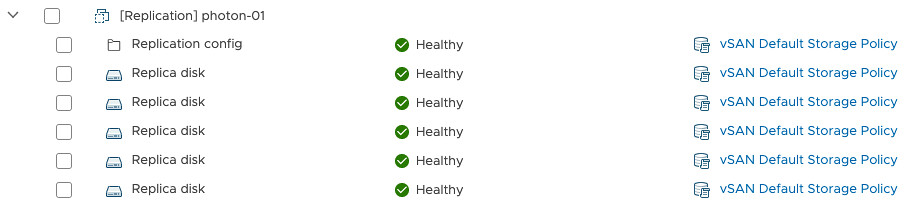
I have been playing around with vSphere / vSAN 7.0 the past week or so. Today I configured vSphere Replication between two vCenter Server instances with vSphere / vSAN 7.0. I wanted to check out the enhancements that were introduced in the UI. Although they are relatively small enhancements, I feel they will make your life as an administrator much easier. The problem people had with VMs which were replicated using vSphere Replication is the fact that the vSphere Client didn’t show much information about the objects. You could not see how much capacity was consumed, or even to what the object belonged to. vSphere 7.0 changes this! When you go to the vSAN section under Monitoring you can now in the “Virtual Objects” pane not only see the objects, you can also easily identify to which VM they belong and you can easily see the different “point in time” copies associated with the VM.

On top of that, the Capacity overview also shows you these details under “User Objects”. Interested in what it looks like? Just watch the demo below, it is just under 2 minutes, a nice quick to-the-point overview of what was introduced for vSphere Replication in vSAN 7.0


Introducing vSAN File Services as part of vSAN 7.0

Duncan Epping · Mar 17, 2020 ·

There was a great article by Cormac talking about vSAN File Services published last week. I had some articles planned, but hadn’t started yet, so when I saw the article I figured I would do something different. No point in rehashing what Cormac has already shared right. I figured I would shoot another demo, and do a brief write-up so people know what vSAN File Services is all about. In vSAN/vSphere 7.0 there’s now a new feature, and this is vSAN File Service. vSAN File Services can simply be enabled on a cluster level and provides you NFS 3 and 4.1 capabilities. The great thing about the solution is that you can create file shares and associate policies with the file shares. In other words, you can have a file share with RAID-1, RAID-5, or maybe even striping or stretched across locations when that is supported.

When you enable File Service, vSAN will deploy a number of “agent VMs” and these VMs/appliances are fully managed by vSAN. These agent VMs run Photon OS and have the file service capabilities enabled through docker/container technology. After these File Service Agent VMs have been deployed, the docker container instances have been instantiated and configured, vSAN File Service will be up and running and available for use. Next, you could simply create a file share and start consuming it. But before I reveal everything, let’s just head over to the demo below. I hope you enjoy it!

vSphere 7 and DRS Scalable Shares, how are they calculated?

Duncan Epping · Mar 16, 2020 ·

I wrote a post and recorded a short demo that explained this cool new feature called Scalable Shares, part of vSphere 7 / DRS, last week. I didn’t want to go too deep in the post, but now that I am getting more questions about how this actually works, I figured I would provide some examples to explain it. As mentioned in my previous post, Scalable Shares solves a problem many have been facing over the last decade or so, which is that DRS does not take the number of VMs in the pool into account when it comes to allocating resources. So as an example:

Just imagine you have a resource pool called “Test”, it is a resource pool with “normal” shares and has 4 VMs. Let’s say this resource pool has 4000 shares.

Now compare that resource pool to the “Production” pool, which has shares set to “high” but has 24 VMs. Let’s say this resource pool has 8000 shares.

This is a very extreme example, but it shows you immediately what the problem is. On a per VM basis, the VMs in the production resource pool, would receive far less resources when there’s contention as DRS would simply divvy up the resources based on the assignment of the shares of the resource pool. Test would receive 1/3 of the resource (4000 of 12000 total shares), and production would receive 2/3 of the resources (8000 of 12000 total shares). If you would divide that by the number of VMs in each pool, it is obvious that the VMs in Test are in a better situation than the VMs in Production.

So how would this work if you Scalable Shares enabled? Well, let’s list some facts first:

  • A resource pool looks like a VM with 4 vCPUs and 16GB of memory to DRS
  • Scalable Shares looks at the total amount of shares in the Resource Pool (all vCPUs!)
  • For a resource pool high is 8000 shares, normal is 4000 shares and low is 2000 shares
    • Note, that this is based on 4 vCPUs, so the real values are 2000, 1000, 500.

The calculation would be as following:

Resource Pool Shares = (4 vCPU * Shares of Pool )* (Total number of shares of all vCPUs in resource pool)

So as an example, in the case I have Test with normal shares and 4 VMs, and Production with high shares and 24 VMs, and all VMs have a single vCPU with normal priority the calculation for those two resource pools would be:

Test = (4 * 1000) * (4 * 1000) = 16,000,000 shares

Production = (4 * 2000) * (24 * 1000) = 192,000,000 shares

In other words, Production has 12 times more the number of shares as Test has when Scalable Shares is enabled. I hope that clears things up!

NVIDIA rendering issues? Look at the stats!

Duncan Epping · Feb 14, 2020 ·

I’ve been down in the lab for the last week doing performance testing with virtual reality workloads and streaming these over wifi to an Oculus Quest headset. In order to render the graphics remotely, we leveraged NVIDIA GPU technology (RTX 8000 in my case here in the lab). We have been getting very impressive results, but of course at some point hit a bottleneck. We tried to figure out which part of the stack was causing the problem and started looking at the various NVIDIA stats through nvidia-smi. We figured the bottleneck would be GPU, so we looked at things like GPU utilization, FPS etc. Funny enough this wasn’t really showing a problem.

We then started looking at different angles, and there are two useful commands I would like to share. I am sure the GPU experts will be aware of these, but for those who don’t consider themselves an expert (like myself) it is good to know where to find the right stats. While whiteboarding the solution and the different part of the stacks we realized that GPU utilization wasn’t the problem, neither was the frame buffer size. But somehow we did see FPS (frames per second) drop and we did see encoder latency go up.

First I wanted to understand how many encoding sessions there were actively running. This is very easy to find out by using the following command. The screenshot below shows the output of it.

nvidia-smi encodersessions

As you can see, this shows 3 encoding sessions. One H.264 session and two H.265 sessions. Now note that we have 1 headset connected at this point, but it leads to three sessions. Why? Well, we need a VM to run the application, and the headset has two displays. Which results in three sessions. We can, however, disable the Horizon session using the encoder, that would save some resources, I tested that but the savings were minimal.

I can, of course, also look a bit closer at the encoder utilization. I used the following command for that. Note that I filter for the device I want to inspect which is the “-i <identifier>” part of the below command.

nvidia-smi dmon -i 00000000:3B:00.0

The above command provides the following output, the “enc” column is what was important to me, as that shows the utilization of the encoder. Which with the above 3 sessions was hitting 40% utilization roughly as shown below.

How did I solve the problem of the encoder bottleneck in the end? Well I didn’t, the only way around that is by having a good understanding of your workload and proper capacity planning. Do I need an NVIDIA RTX 6000 or 8000? Or is there a different card with more encoding power like the V100 that makes more sense? Figuring out the cost, performance and the trade-off here is key.

Two more weeks until the end of my Take 3 experience, and what a ride it has been. If you work for VMware and have been with the company for 5 years… Consider doing a Take 3, it is just awesome!

  • « Go to Previous Page
  • Page 1
  • Interim pages omitted …
  • Page 24
  • Page 25
  • Page 26
  • Page 27
  • Page 28
  • Interim pages omitted …
  • Page 124
  • Go to Next Page »

Primary Sidebar

About the Author

Duncan Epping is a Chief Technologist and Distinguished Engineering Architect at Broadcom. Besides writing on Yellow-Bricks, Duncan is the co-author of the vSAN Deep Dive and the vSphere Clustering Deep Dive book series. Duncan is also the host of the Unexplored Territory Podcast.

Follow Us

  • X
  • Spotify
  • RSS Feed
  • LinkedIn

Recommended Book(s)

Also visit!

For the Dutch-speaking audience, make sure to visit RunNerd.nl to follow my running adventure, read shoe/gear/race reviews, and more!

Do you like Hardcore-Punk music? Follow my Spotify Playlist!

Do you like 80s music? I got you covered!

Copyright Yellow-Bricks.com © 2026 · Log in