• Skip to primary navigation
  • Skip to main content
  • Skip to primary sidebar

Yellow Bricks

by Duncan Epping

  • Home
  • Unexplored Territory Podcast
  • HA Deepdive
  • ESXTOP
  • Stickers/Shirts
  • Privacy Policy
  • About
  • Show Search
Hide Search

VMware

How to login to the vCLS VMs!?

Duncan Epping · Nov 17, 2020 ·

I was asked this question this week, how you can login to the vCLS VMs. Now before I share the video, I want to mention that I do not encourage people doing this, but as it is documented and supported I do want to provide a simple “how to” for how this works. If you want to login to the vCLS VM, maybe for troubleshooting if needed or for auditing, you can do so by SSH’ing first into your vCenter Server. When logged in to the vCenter Server you run the following command, which then returns the password, this will then allow you to login to the console of the vCLS VM. Again, I do not want to encourage you to do this. Either way, below you find the command for retrieving the password, and a short demo of me retrieving the password and logging in.

/usr/lib/vmware-wcp/decrypt_clustervm_pw.py


Did you know vSphere 7.0 Update 1 also has a Skyline Health Check for vSphere Clustering Services?

Duncan Epping · Nov 6, 2020 ·

I did not know this, but yesterday the PM for vCLS reached out to me and informed me that we now have a Skyline Health Check as well for vSphere Clustering Services. The funny thing is that I actually requested this health check to be added after having a discussion on the topic of vCLS with the PM. Very impressive how fast the engineering team managed to include an additional health check for a brand new feature, this close to the release. I created a short demo, which shows you where you can find the vSphere Skyline Health option in the vSphere Client, and of course, it shows the vCLS Health Check being triggered. If you see the health check triggered, you can as mentioned enable retread mode and disable it again, this will provision a fresh set of vCLS VMs. How you do this you can find in this “considerations blog“, or simply watch the demo I shared here.

vSphere HA configuration for HCI Mesh!

Duncan Epping · Oct 29, 2020 ·

I wrote a vSAN HCI Mesh Considerations blog post a few weeks ago. Based on that post I received some questions, and one of the questions was around vSphere HA configurations. Interestingly I also had some internal discussions around how vSAN HCI Mesh and HA were integrated. Based on the discussions I did some testing just to validate my understanding of the implementation.

Now when it comes to vSphere HA and vSAN the majority of you will be following the vSAN Design Guide and understand that having HA enabled is crucial for vSAN. Also when it comes to vSAN configuring the Isolation Response is crucial, and of course setting the correct Isolation Address. However, so far there’s been an HA feature which you did not have to configure for vSAN and HA to function correctly, and that feature is VM Component Protection aka APD / PDL responses.

Now, this changes with HCI Mesh. Specifically for HCI Mesh the HA and vSAN team have worked together to detect APD (all paths down) down scenarios! When would this happen? Well if you look at the below diagram you can see that we have “Client Clusters” and a “Server Cluster”. The “Client Cluster” consumes storage from the “Server Cluster”. If for whatever reason a host in the “Client Cluster” loses access to the “Server Cluster”, it results in the VMs on that host consuming storage on the “Server Cluster” to lose access to the datastore. This is essentially an APD (all paths down) scenario.

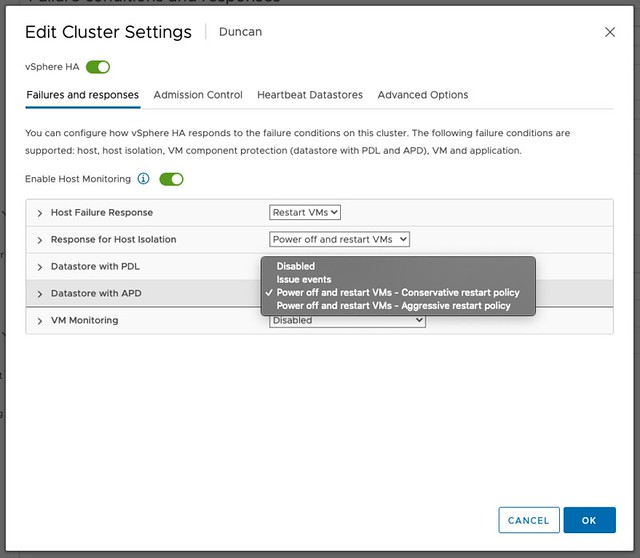
Now, to ensure the VMs are protected by HA for this situation you only need to enable the APD response. This is very straight-forward. You simply go to the HA cluster settings and set the “Datastore with APD” setting to either “Power off and restart VMs – Conservative” or “Power off and restart VMs – Aggressive”. The difference between conservative and aggressive is that with conservative HA will only kill the VMs when it knows for sure the VMs can be restarted, wherewith aggressive it will also kill the VMs on a host impacted by an APD while it isn’t sure it can restart the VMs. Most customers will use the “Conservative Restart Policy” by the way.

As I also mentioned in the HCI Mesh Considerations blog, one thing I would like to call out is the timing for the APD scenario: The APD is declared after 60 seconds, after which the APD response (restart) is triggered automatically after 180 seconds. Mind that this is different than with an APD response with traditional storage, as with traditional storage it will take 140 seconds before the APD is declared. You can, of course, in the log file see that an APD is detected, declared and VMs are killed as a result. Note that the “fdm.log” is quite verbose, so I copied only the relevant lines from my tests.

APD detected for remote vSAN Datastore /vmfs/volumes/vsan:52eba6db0ade8dd9-c04b1d8866d14ce5
Go to terminate state for VM /vmfs/volumes/vsan:52eba6db0ade8dd9-c04b1d8866d14ce5/a57d9a5f-a222-786a-19c8-0c42a162f9d0/YellowBricks.vmx due to APD timeout (CheckCapacity:false)
Failover operation in progress on 1 Vms: 1 VMs being restarted, 0 VMs waiting for a retry, 0 VMs waiting for resources, 0 inaccessible vSAN VMs.

Now for those wondering if it actually works, of course, I tested it a few times and recorded a demo, which can be watched on youtube (easier to follow in full screen), or click play below. (Make sure to subscribe to the channel for the latest videos!)

I hope this helps!

VMware vSphere Cluster Services (vCLS) considerations, questions and answers.

Duncan Epping · Oct 9, 2020 ·

In the vSphere 7.0 Update 1 release VMware introduced a new service called the VMware vSphere Cluster Services (vCLS). vCLS provides a mechanism that allows VMware to decouple both vSphere DRS and vSphere HA from vCenter Server. Niels Hagoort wrote a lengthy article on this topic here. You may wonder why VMware introduces this, well as Niels states. by decoupling the clustering services (DRS and HA) from vCenter Server via vCLS we ensure the availability of critical services even when vCenter Server is impacted by a failure.

vCLS is a collection of multiple VMs which, over time, will be the backbone for all clustering services. In the 7.0 U1 release a subset of DRS functionality is enabled through vCLS. Over the past week(s) I have seen many questions coming in and I wanted to create a blog with answers to these questions. When new questions or considerations come up, I will add these to the list below.

[Read more…] about VMware vSphere Cluster Services (vCLS) considerations, questions and answers.

Announcing VMware Cloud Disaster Recovery! (VCDR)

Duncan Epping · Sep 30, 2020 ·

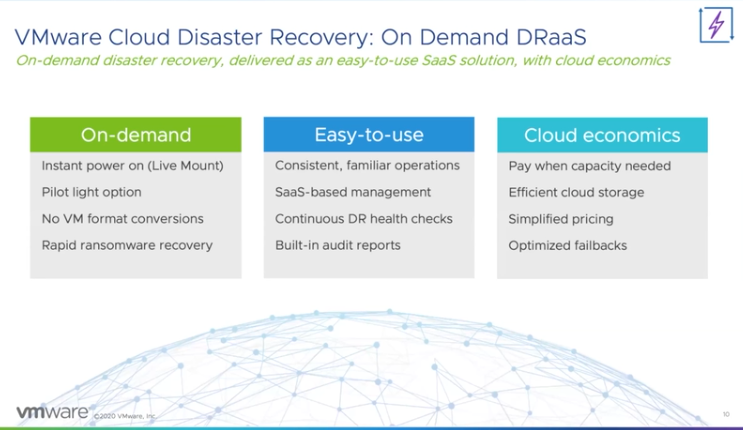
Most of you probably saw the announcements around the acquisition of Datrium not too long ago. One of the major drivers for that acquisition was the Disaster Recovery solution which Datrium developed. This week at VMworld this service was announced as a new VMware disaster recovery option. The service is named VMware Cloud Disaster Recovery, and it provides the ability to replicate workloads from on-prem into cloud storage, and recover from cloud storage into VMware Cloud on AWS! The three key pillars of the service are ease of use, fast recovery, cloud economics.

The solution is extensively covered in three VMworld sessions (HCI2876, HCI2886, HCI2865). I have watched all three and will provide a short summary here. What capabilities does VMware Cloud DR (VCDR) provide and why is VMware heading into this space?

The why was well explained by Mark Chuang in HCI2876, customers are saying that:

  • “DR is very complex and expensive to manage, and I can’t add IT Headcount”
  • “Our data grows 10-15% every year, with physical DR it is hard to accommodate the growth in the datacenter to meet the needs”
  • “We only test full DR once a year because it is disruptive. Any time there is a major change, how can we know it still works? It is a huge issue!”

I guess that makes it clear why VMware is interested in this space, it is a huge problem for customers and the solution typically comes at a high cost. VMware has always been in the business of solving complex solutions in preferably a simple way, and that is exactly what VMware Cloud Disaster Recovery delivers, a simple solution at a relatively low cost.

So what does it bring from a feature/functionality stance?

it all starts with cloud economics, to which ease-of-use also contributes, in my opinion. VMware Cloud Disaster Recovery is super simple to configure and it replicates data to “cheap and deep” cloud storage. This ensures that the cost can be kept low, and note that all of the typical cost that comes with cloud storage (network etc) are all included in the service offering by VMware. The challenge however typically with cloud storage is that it is relatively slow when it comes to restoring, but this is where the “on-demand” capabilities come into play. VMware Cloud DR provides the ability to instantly power-on workloads through a live mount option, without the need to convert the stored data back to a VM format.

When configuring the VMware Cloud DR solutions you will need to install/configure a DRaaS Connector on-prem. This on-prem Connector connects you to the SaaS platform and will provide the required details to the SaaS Orchestrator, note that you can have multiple DRaaS connectors for resiliency and performance reasons. When the connection is configured you will then be able to create “Protection Groups” and “DR Plans”. Those who have worked with Site Recovery Manager will recognize the terms. For those who haven’t:

  • Protection Groups – These groups list the workloads which will be protected by VMware Cloud DR. Of course you can define the protection schedule, basically how many snapshots need to be shipped remote cloud storage per day/week/month.
  • DR Plans – These plans list workloads that would need to be failed over when the plan is triggered, and for instance, include the order in which the workloads need to be powered on. Also, if workloads need to get a different IP address in the cloud, then you can specify this here also.

Of course besides creating protection groups and DR plans you have the ability to test and failover the workloads in those plans, again, very similar to what Site Recovery Manager offers. Before I forget, you will have the option of course to select the snapshot you want to recover from. So you can go back to any point in time. What is unique here is that VMs are powered without (initially) moving data from cloud storage to your VMware Cloud on AWS. It basically mounts an NFS share from the SaaS platform and the scale-out file system ensures that the VMs can be instantly be powered on. After you have tested the recovery you can then decide to migrate the VMs to your SDDC, or you can of course also discard the workloads if that is something you desire. Last but not least, of course, you also have the ability to replicate back to on-prem, so that you can bring your workloads back whenever you have recovered your environment from the disaster that occurred and you are ready to run those workloads on-prem again.

Now there are many more details, but I am not going to share those in this post, I may do a couple of additional blogs at a future time. I hope the above gives a good overview of what the offering will provide. For more details, I would recommend watching the VMworld sessions on this topic (HCI2876, HCI2886, HCI2865). The last thing I want to share though is where the solution will be available, or at least what is being planned. As shown below, the offering should be available in multiple regions soon.

  • « Go to Previous Page
  • Page 1
  • Interim pages omitted …
  • Page 20
  • Page 21
  • Page 22
  • Page 23
  • Page 24
  • Interim pages omitted …
  • Page 124
  • Go to Next Page »

Primary Sidebar

About the Author

Duncan Epping is a Chief Technologist and Distinguished Engineering Architect at Broadcom. Besides writing on Yellow-Bricks, Duncan is the co-author of the vSAN Deep Dive and the vSphere Clustering Deep Dive book series. Duncan is also the host of the Unexplored Territory Podcast.

Follow Us

  • X
  • Spotify
  • RSS Feed
  • LinkedIn

Recommended Book(s)

Also visit!

For the Dutch-speaking audience, make sure to visit RunNerd.nl to follow my running adventure, read shoe/gear/race reviews, and more!

Do you like Hardcore-Punk music? Follow my Spotify Playlist!

Do you like 80s music? I got you covered!

Copyright Yellow-Bricks.com © 2026 ยท Log in