• Skip to primary navigation
  • Skip to main content
  • Skip to primary sidebar

Yellow Bricks

by Duncan Epping

  • Home
  • Unexplored Territory Podcast
  • HA Deepdive
  • ESXTOP
  • Stickers/Shirts
  • Privacy Policy
  • About
  • Show Search
Hide Search

esxi

Aligning your VMs virtual hard disks

Duncan Epping · Apr 8, 2010 ·

I receive a lot of hits on an old article regarding aligning your VMDKs. This article doesn’t actually explain why it is important but only how to do it. The how is not actually as important in my opinion. I do however want to take the opportunity to list some of the options you have today to align your VMs VMDKs. Keep in mind that some require a license(*) or login for that matter:

  • UberAlign by Nick Weaver
  • mbralign by NetApp(*)
  • vOptimizer by Vizioncore(*)
  • GParted (Free tool, Thanks Ricky El-Qasem).

First let’s explain why alignment is important. Take a look at the following diagram:
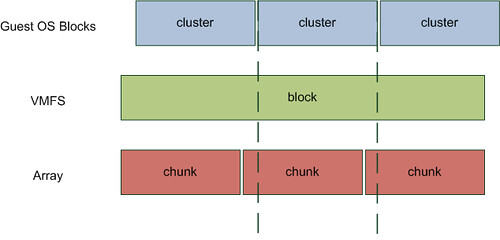
In my opinion there is no need to discuss VMFS alignment. Everyone, and if  you don’t you should!, creates their VMFS via vCenter which means it is automatically aligned and you won’t need to worry about it. However you will need to worry about the Guest OS. Take Windows 2003, by default when you install the OS your partition is misaligned. (Both Windows 7 and Windows 2008 create aligned partitions by the way.) Even when you create a new partition it will be misaligned. As you can clearly see in the diagram above every cluster will span multiple chunks. Well actually it depends. I guess that’s the next thing to discuss but first let’s show what an aligned OS partition looks like:
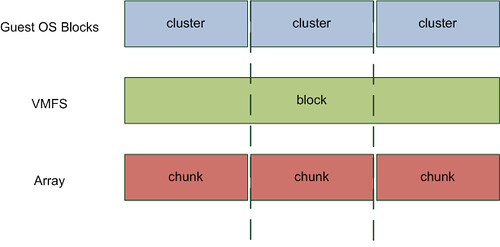
I would recommend everyone to read this document. Although it states at the beginning it is obsolete it still contains relevant details! And I guess the following quote from the vSphere Performance Best Practices whitepaper says it all:

Src
The degree of improvement from alignment is highly dependent on workloads and array types. You might want to refer to the alignment recommendations from your array vendor for further information.

Now you might wonder why some vendors are more effected by misalignment than others. The reason for this is block sizes on the back end. For instance NetApp uses a 4KB block size (correct me if I am wrong). If your filesystem uses a 4KB block size (or cluster size as Microsoft calls it) as well this basically means every single IO will require the array to read or write to two blocks instead of 1 when your VMDK’s are misaligned as the diagrams clearly show.

Now when you take for instance an EMC Clariion it’s a different story. As explained in this article, which might be slightly outdated, Clariion arrays use a 64KB chunk size to write their data which means that not every Guest OS cluster is misaligned and thus EMC Clariion is less effected by misalignment. Now this doesn’t mean EMC is superior to NetApp, I don’t want to get Vaughn and Chad going again ;-), but it does mean that the impact of misalignment is different for every vendor and array/filer. Keep this in mind when migrating and / or creating your design.
What’s the point of setting “–IOPS=1” ?

Duncan Epping · Mar 30, 2010 ·

To be honest and completely frank I really don’t have a clue why people recommend setting “–IOPS=1” by default. I have been reading all these so called best practices around changing the default behaviour of “1000” to “1” but none of these contain any justification. Just to give you an example take a look at the following guide: Configuration best practices for HP StorageWorks Enterprise Virtual Array (EVA) family and VMware vSphere 4. The HP document states the following:

Secondly, for optimal default system performance with EVA, it is recommended to configure the round robin load balancing selection to IOPS with a value of 1.

Now please don’t get me wrong, I am not picking on HP here as there are more vendors recommending this. I am however really curious how they measured “optimal performance” for the HP EVA. I have the following questions:

  • What was the workload exposed to the EVA?
  • How many LUNs/VMFS volumes were running this workload?
  • How many VMs per volume?
  • Was VMware’s thin provisioning used?
  • If so, what was the effect on the ESX host and the array? (was there an overhead?)

So far none of of the vendors have published this info and I very much doubt, yes call me sceptical, that these tests have been conducted with a real life workload. Maybe I just don’t get it but  when consolidating workloads a threshold of a 1000 IOPS isn’t that high is it? Why switch after every single IO? I can imagine that for a single VMFS volume this will boost the performance as all paths will be equally hit and load distribution on the array will be optimal. But for a real life situation where you would have multiple VMFS volumes this effect decreases.  Are you following me? Hmmm, let me give you an example:

Test Scenario 1:

1 ESX 4.0 Host
1 VMFS volume
1 VM with IOMeter
HP EVA and IOPS set to 1 with Round Robin based on the ALUA SATP

Following HP’s best practices the Host will have 4 paths to the VMFS volume. However as the HP EVA is an Asymmetric Active Active array(ALUA) only two paths will be shown as “optimized”. (For more info on ALUA read my article here and Frank’s excellent article here.) Clearly when IOPS is set to 1 and there’s a single VM pushing IOs to the EVA on a single VMFS volume the “stress” produced by this VM would be equally divided on all paths without causing any spiky behaviour. In contrary to what a change of paths every “1000 IOs” might do. Although a 1000 is not a gigantic number it will cause spikes in your graphs.

Now lets consider a different scenario. Let’s take a more realistic one:

Test Scenario 2:

8 ESX 4.0 Hosts
10 VMFS volumes
16 VMs per volume with IOMeter
HP EVA and IOPS set to 1 with Round Robin based on the ALUA SATP

Again each VMFS volume will have 4 paths but only two of those will be “optimized” and thus be used. We will have 160 VMs in total on this 8 Host cluster and 10 VMFS volumes which means 16 VMs per VMFS volume. (Again following all best practices.) Now remember we will only have two optimized paths per VMFS volume and we have 16 VMs driving traffic to a volume, but not only 16 VMs this is also coming from 8 different hosts to these Storage Processors. Potentially each host is sending traffic down every single path to every single controller…

Let’s assume the following:

  • Every VM produces 8 IOps on average
  • Every host runs 20 VMs of which 2 will be located on the same VMFS volume

This means that every ESX host changes the path to a specific VMFS volume every 62 seconds(1000/(2×8)), with 10 volumes that’s a change every 6 seconds on average per host. With 8 hosts in a cluster and just two Storage Processors… You see where I am going? Now I would be very surprised if we would see a real performance improvement when IOPS is set to 1 instead of the default 1000. Especially when you have multiple Hosts running multiple VMs hosted on multiple VMFS volumes. If you feel I am wrong here or work for a Storage Vendor and have access to the scenarios used please don’t hesitate to join the discussion.

<update> Let me point out though that every situation is different, if you have had discussions with your storage vendor based on your specific requirements and configuration and this recommendation was given… Do not ignore it, ask why and if it indeed fits –> implement! Your storage vendor has tested various configurations and knows when to implement what, this is just a reminder that implementing “best practices” blind is not always the best option!</update>

Cool new HA feature coming up to prevent a split brain situation!

Duncan Epping · Mar 29, 2010 ·

I already knew this was coming up but wasn’t allowed to talk about it. As it is out in the open on the VMTN community I guess I can talk about it as well.

One of the most common issues experienced with VMware HA is a split brain situation. Although currently undocumented, vSphere has a detection mechanism for these situations. Even more important the upcoming release ESX 4.0 Update 2 will also automatically prevent it!

First let me explain what a split brain scenario is, lets start with describing the situation which is most commonly encountered:

4 Hosts – iSCSI / NFS based storage – Isolation response: leave powered on

When one of the hosts is completely isolated, including the Storage Network, the following will happen:

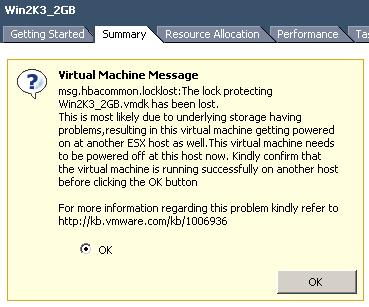
Host ESX001 is completely isolated including the storage network(remember iSCSI/NFS based storage!) but the VMs will not be powered off because the isolation response is set to “leave powered on”. After 15 seconds the remaining, non isolated, hosts will try to restart the VMs. Because of the fact that the iSCSI/NFS network is also isolated the lock on the VMDK will time out and the remaining hosts will be able to boot up the VMs. When ESX001 returns from isolation it will still have the VMX Processes running in memory. This is when you will see a “ping-pong” effect within vCenter, in other words VMs flipping back and forth between ESX001 and any of the other hosts.

As of version 4.0 ESX(i) detects that the lock on the VMDK has been lost and issues a question if the VM should be powered off or not. Please note that you will(currently) only see this question if you directly connect to the ESX host. Below you can find a screenshot of this question.

With ESX 4 update 2 the question will be auto-answered though and the VM will be powered off to avoid the ping-pong effect and a split brain scenario! How cool is that…

Network loss after HA initiated failover

Duncan Epping · Mar 25, 2010 ·

I had a discussion with one of my readers last week and just read this post on the VMTN community which triggered this article.

When you create a highly available environment take into account that you will need to have enough vSwitch ports available when a failover needs to occur. By default a vSwitch will be created with 56 ports and in general this is sufficient for most environments. However when two of your hosts fail in a 10 host cluster you might end up with 60 or more VMs running on a single host. If this would happen several VMs would not have a vSwitch port assigned.

The most commonly used command when creating an automated build procedure probably is:

esxcfg-vswitch -a vSwitch1

This would result in a vSwitch named “vSwitch1” with the default amount of 56 ports. Now it is just as easy to set it up with 128 ports for instance:

esxcfg-vswitch -a vSwitch1:128

Always design for a worst case scenario. Also be aware of the overhead, some ports are reserved for internal usage. You might want to factor in some additional ports for this reason as for instance in the example above you will have 120 ports available for your VMs and not the 128 you specified.

ESXi lockdown mode

Duncan Epping · Mar 23, 2010 ·

During the VCDX Defense panels one of the candidates mentioned using lock down mode for ESXi to add an extra layer of security. It seems that there is a common misunderstanding about the lockdown mode. Here’s how our documentation describes it:

Enabling lockdown mode disables all direct root access to ESXi machines. Any subsequent local changes to the host must be made in a vSphere Client session or vSphere CLI command to vCenter Server using a fully editable Active Directory account. You can also use a local user account defined by the host. By default, no local user accounts exist on the ESXi system. Such accounts can only be created prior to enabling lockdown mode in a vSphere Client session directly on the ESXi system. The changes to the host are limited to the privileges granted to that user locally on that host.

I guess this table explains it a bit better, I ripped this from “it’s all virtual” so credits where credits are due:

Access method Lockdown Disabled Access granted Lockdown Enabled Access granted
vCenter Yes Yes
Physical Console access with root Yes Yes
Physical Console access with anyother user No No
vSphere Client directly to ESXi with root Yes No
vSphere Client directly to ESXi with anyother user Yes Yes
PowerCLI / RCLI to ESXi with root Yes No
PowerCLI / RCLI to ESXi with anyother user Yes Yes
  • « Go to Previous Page
  • Page 1
  • Interim pages omitted …
  • Page 20
  • Page 21
  • Page 22
  • Page 23
  • Page 24
  • Interim pages omitted …
  • Page 66
  • Go to Next Page »

Primary Sidebar

About the Author

Duncan Epping is a Chief Technologist and Distinguished Engineering Architect at Broadcom. Besides writing on Yellow-Bricks, Duncan is the co-author of the vSAN Deep Dive and the vSphere Clustering Deep Dive book series. Duncan is also the host of the Unexplored Territory Podcast.

Follow Us

  • X
  • Spotify
  • RSS Feed
  • LinkedIn

Recommended Book(s)

Also visit!

For the Dutch-speaking audience, make sure to visit RunNerd.nl to follow my running adventure, read shoe/gear/race reviews, and more!

Do you like Hardcore-Punk music? Follow my Spotify Playlist!

Do you like 80s music? I got you covered!

Copyright Yellow-Bricks.com © 2026 · Log in