• Skip to primary navigation
  • Skip to main content
  • Skip to primary sidebar

Yellow Bricks

by Duncan Epping

  • Home
  • Unexplored Territory Podcast
  • HA Deepdive
  • ESXTOP
  • Stickers/Shirts
  • Privacy Policy
  • About
  • Show Search
Hide Search

ESX

Virtual Machines appear to be running or registered on multiple ESX Servers

Duncan Epping · Apr 17, 2009 ·

I was doing my daily round on the VMTN Forums and noticed this topic on VMs flickering between ESX hosts. I’ve personally never witnessed this and didn’t even knew it was a known issue. Luckily Troy Clavell pointed the topic starter out to a KB article related to this exact issue. Apparently it’s being caused by the fact that the VM is registered on two hosts at the same time.

Symptoms:

  • After one of the following, a Virtual Machine appears as being registered on two ESX Servers:
    • A VMotion fails to complete correctly or times out in VirtualCenter
    • A DRS issue where virtual machines are VMotioned automatically in quick succession
    • When a machine is powered on during VMware HA failover.
    • The Service Console on an ESX host is low on memory starving the vpxa process
  • In VirtualCenter, you see the virtual machine as appearing on one ESX Server for a few seconds, then it seems to be on the other.
  • The virtual machine may appear to jump back and forth among different ESX hosts.

I’m not going to copy/paste the solution cause the KB article will probably change over time, but it’s most definitely worth looking into… it does sound like something that can happen to all of us.

Minor Update: RVTools 2.5.1

Duncan Epping · Apr 15, 2009 ·

It’s just a minor update this time from Rob de Veij: RVTools 2.5.1

Version 2.5.1 (April 15, 2009) Bug fix! Better exception handling on the vDisk and vNetwork tab pages. With the help from Alan Civita this problem is now solved! Thanks again Alan.

The Basics: How to kill a VM that’s stuck during shutdown?

Duncan Epping · Apr 15, 2009 ·

I just replied to a topic on the VMTN forums and thought it might be useful to write it down here as well. (I thought I already did, but a search didn’t turn up anything.)

When a VM gets stuck during shutdown or isn’t responding anymore you can easily kill the VM. First option is the command line version of vCenter’s “shutdown vm”, first list all the VMs running on the host so you can copy and paste the <config> in to the next command. The command “vmware-cmd <config> stop trysoft” will try to initiate a soft shutdown first, in other words a shutdown via the Guest OS, if that doesn’t work it will do a power off. Now, as most of you probably already experienced, sometimes it’s impossible to shutdown the VMs in a normal way. This is where 2nd, 3rd and 4th option come in to place. Option two uses vm-support to kill the VM, use “-x” to list the VM id’s and kill it with “-X”. The third option uses vimsh, in this case we use vmware-vim-cmd, “vmsvc/getallvms” lists all VMs and the id’s and with “vmsvc/poweroff” you can specify the VM that needs to be powered off. The fourth option is the Linux/Unix way of doing it, find the process id of the VM via “ps -auxwww” and just kill it.

  1. vmware-cmd -l
    vmware-cmd <config> stop trysoft
  2. vm-support -x
    vm-support -X <vmid>
  3. vmware-vim-cmd vmsvc/getallvms
    vmware-vim-cmd vmsvc/poweroff <vm id>
  4. ps -auxwww | grep <vm name>
    kill <process id>
  5. if option three isn’t successful do the following:
    kill -9 <process id>

As VMwareWolf points out, there’s an excellent KB article on this subject to be found here: http://kb.vmware.com/kb/1004340

Rescan for datastores, exploring the next version of ESX/vCenter

Duncan Epping · Apr 8, 2009 ·

I love exploring new products, no matter how many times I click through the GUI and browse through the directory structure on the console you discover will discover something new everyday.

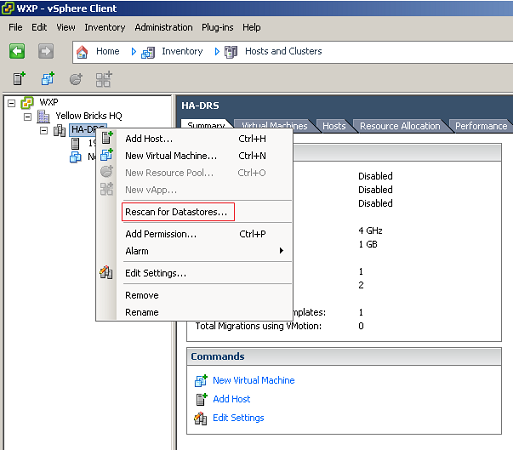
I never noticed this one, but as of the next version of ESX/vCenter you can rescan your complete cluster or datacenter just by right clicking on the object and click on “Rescan for Datastore”. Cool now I will not need to run a script anymore…

Cool tool update: RVTools 2.5

Duncan Epping · Apr 8, 2009 ·

Rob de Veij has done it again….  a brand new version of RVTools, 2.5!

Here are the new features of this release:

  • The installation file now understands how to upgrade without the need to uninstall the previous version first.
  • The documentation file is now also deployed to the program directory.You can start the Adobe reader from the RVTools “help” menu.
  • New fields on vInfo tab: Network #1 to Network #4
  • New fields on vDisk tab: Level, Shares, SCSI Controller, Unit id and vmdk path name. I’m now using the “config.hardware” information to fill this tab page. In the previous versions of the program I was using the guest information which have a strong dependency with the VMware tools.
  • New fields on vNetwork tab: Adapter type and Mac Address type.I’m now using the “config.hardware” information to fill this tab page. In the previous versions of the program I was using the guest information which have a strong dependency with the VMware tools.
  • New field on vHost tab: Number of VMs per core
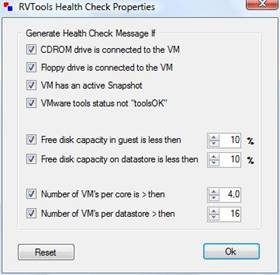
  • New tab! vHealth. Displays health check messages.There are 8 possible “Health Check” messages:
    1. VM has a CDROM device connected!
    2. VM has a Floppy device connected!
    3. VM has an active snapshot!
    4. VMware tools are out of date, not running or not installed!
    5. On disk xx is yy% disk space available! The threshold value is zz%
    6. On datastore xx is yy% disk space available! The threshold value is zz%
    7. There are xx VMs active per core on this host. The threshold value is zz%
    8. There are xx VMs active on this datastore. The threshold value is zz%
  • You can set your “own” health check threshold values in the “Health Check Properties” form.
  • « Go to Previous Page
  • Page 1
  • Interim pages omitted …
  • Page 29
  • Page 30
  • Page 31
  • Page 32
  • Page 33
  • Interim pages omitted …
  • Page 83
  • Go to Next Page »

Primary Sidebar

About the Author

Duncan Epping is a Chief Technologist and Distinguished Engineering Architect at Broadcom. Besides writing on Yellow-Bricks, Duncan is the co-author of the vSAN Deep Dive and the vSphere Clustering Deep Dive book series. Duncan is also the host of the Unexplored Territory Podcast.

Follow Us

  • X
  • Spotify
  • RSS Feed
  • LinkedIn

Recommended Book(s)

Also visit!

For the Dutch-speaking audience, make sure to visit RunNerd.nl to follow my running adventure, read shoe/gear/race reviews, and more!

Do you like Hardcore-Punk music? Follow my Spotify Playlist!

Do you like 80s music? I got you covered!

Copyright Yellow-Bricks.com © 2026 · Log in