• Skip to primary navigation
  • Skip to main content
  • Skip to primary sidebar

Yellow Bricks

by Duncan Epping

  • Home
  • Unexplored Territory Podcast
  • HA Deepdive
  • ESXTOP
  • Stickers/Shirts
  • Privacy Policy
  • About
  • Show Search
Hide Search

vSAN File Service SMB capability not showing up in the vSAN 7.0 U1 UI?

Duncan Epping · Dec 3, 2020 ·

I had two customers who ran into this issue the last week. They ran into the situation where the UI did not show the SMB capabilities after upgrading to vSphere/vSAN 7.0 Update 1. You can solve this pretty quickly by upgrading vSAN File Service as well. Just go to the vSAN Services page, go to File Service and click “Check Upgrade”. After the validation, simply do the “Upgrade”. After the upgrade, the new options will appear!


After the upgrade has completed you can now click “Edit” on the service: File Service. This will then allow you to for instance configure the Active Directory integration etc. Pretty straight forward right?

vCLS VMs not powering on, insufficient resources error

Duncan Epping · Nov 26, 2020 ·

This week I had someone internally me asking about a situation where vCLS VMs (learn more about vSphere Cluster Service here.) were not powering on and an error was thrown stating “insufficient resources”. I had seen this issue before at some point and I knew it had something to do with the VM version and EVC. The details of the error messages seem to support that. The UI showed the following on the “power on virtual machine” task:

Insufficient resources

And then when you would look at the details of the error you could see the following:

The target host does not support the virtual machine's current hardware requirements.

Or you could see:

Feature 'MWAIT' was absent, but must be present.

So how do you solve this problem? First of all, this could be two different problems. We solved it the following way, please note that the second option was just us fiddling around to get the VMs provisioned and powered-on, and this is not the official VMware procedure to get it working. I have reported this to the engineers to figure out why this happens, and to get it fixed. There are two options, please use Option 1, as this is a requirement for EVC and the recommended method when you see the “MWAIT” error:

Option 1:

Verify if “Monitor/MWAIT” is set to Enabled in the BIOS. If it is set to Disabled, then this is why the power-on fails. vCLS has per-VM EVC enabled on the VM.

If you can’t enable Monitor/MWAIT, then below is the procedure for disabling “per VM EVC” for the provisioned vCLS VMs.

Option 2:

  1. Upgrade the VM’s “Compatibility” version to at least “VM version 14” (right-click the VM)
  2. Click on the VM, click on the Configure tab and click on “VMware EVC”
  3. Click on “Edit” and click on “Yes” when you are informed to not make changes to the VM
  4. Disable “EVC”
  5. Repeat for the other vCLS VMs

I want to mention cosmin.gq, as it seems the issue (and resolution with regards to disabling EVC) was also reported on that blog, and considering they reported it in October already it only seems fair to mention them here also.

vSphere HA reporting not enough failover resources fault with stretched cluster failure scenario

Duncan Epping · Nov 20, 2020 ·

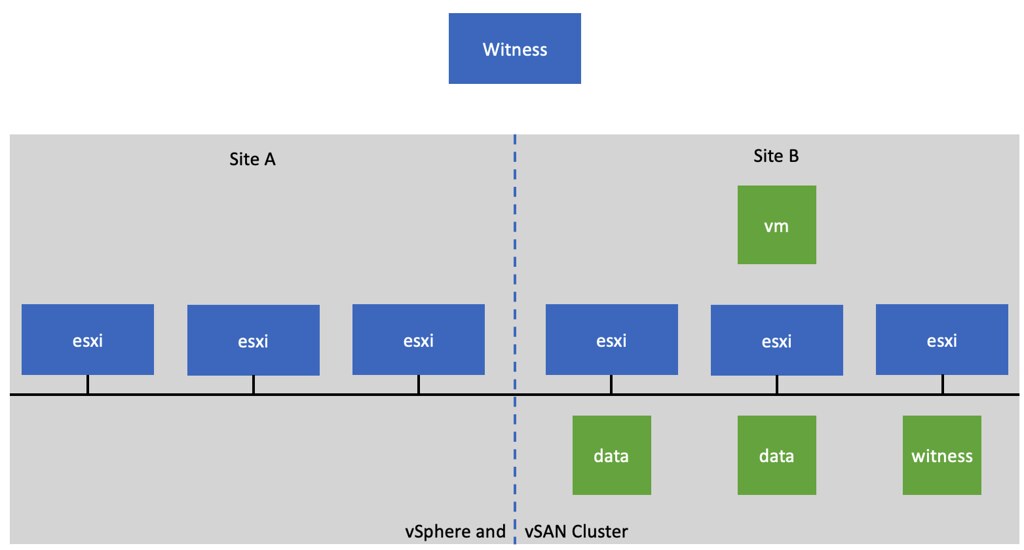
Last few months I had a couple of customers asking why vSphere HA was reporting “not enough failover resources” fault in a stretched cluster failure scenario for virtual machines that are still up and running. Now before I explain why, let’s paint a picture first to make it clear what is happening here. When you run a stretched cluster you can have a scenario where a particular VM (or multiple VMs) are not mirrored/replicated across locations. Now note, with vSAN you can specify for any given VM on a VM level how and if the VM should be available across locations. Typically you would see a VM with RAID-1 across locations, and then RAID-1/5/6 within a location. However, you can also have a scenario where a VM is not replicated across locations, but from a storage point of view only available within a location, this is depicted in the diagram below.

Now in this scenario, when Site A is somehow partitioned from Site B, you will see alarms/errors which indicate that vSphere HA has tried to restart the VM that is located in Site B in Site A and that is has failed as a result of not having enough failover resources.

This, of course, is not the result of not having sufficient failover resources, but it is the result of the fact that Site A does not have access to the required storage components to restart the VM. Basically what HA is reporting is that it doesn’t have the resources which have the ability to restart the impacted VM(s).

Now, if you have paid attention, you will probably wonder why HA tries to restart the VM in the first place, as the VM will still be running in this scenario. Why is it still running? Well the VM isn’t stretched, and this is a partition and not an isolation, which means the isolation response doesn’t kill the VM. So why restart it? Well, as Site A is partitioned from Site B, Site A does not know what the status is of Site B. Site A only knows that Site B is not responding at all, and the only thing it can do is assume the full site has failed. As a result it will attempt a failover for all VMs that were/are running in Site B and were protected by vSphere HA.

Hope that explains why this happens. If you are not sure you understand the full scenario, I recorded a quick five minute video actually walking through the scenario and explaining what happens. You can watch that below, or simply go to youtube.

Virtual Events I will be presenting/speaking at the upcoming months

Duncan Epping · Nov 19, 2020 ·

The past year has been really strange for me. As you know a lot of time goes into speaking at events, or doing a series of customer meetings. Due to COVID that all rapidly changed in March of this year. Fortunately, it didn’t mean I was out of work, we had to figure some stuff out in the first few weeks, but quickly everyone shifted towards this virtual approach. We (Cormac, Frank, and I) have presented at some great events the past 8 months, and there are some very interesting events coming which I will be speaking at (some with Cormac and Frank, and some without them).

Even though many of these events are listed/advertized as regional events, as they are all virtual it means anyone can tune in. I wanted to share a few events I have planned before Christmas, which could be worth attending! In some cases my session is in Dutch, but I called that out in the list.

  • 1-December >> Define Tomorrow Keynote – https://live.computerworld.co.uk/talks/keynote-how-hci-is-revolutionizing-the-datacenter-today-and-tomorrow/
  • 3-December >> VMware vSAN 7.0 U1 Webinar – https://www.vmware.com/learn/695402_EN_REG.html?src=so_5fa4046b6e733
  • 8-December >> VMUG Usercon Nederland Breakout – https://vmugvirtualnlusercon.vfairs.com/ (Note, my session will be in Dutch)
  • 10-December >> VMUG Usercon Portland Keynote – https://vmugvirtualportlandusercon.vfairs.com/

So if you are interesting in hearing about things like vSAN, Cloud Native Storage, vSphere, and much more, make sure to sign up for one of these events!

How to login to the vCLS VMs!?

Duncan Epping · Nov 17, 2020 ·

I was asked this question this week, how you can login to the vCLS VMs. Now before I share the video, I want to mention that I do not encourage people doing this, but as it is documented and supported I do want to provide a simple “how to” for how this works. If you want to login to the vCLS VM, maybe for troubleshooting if needed or for auditing, you can do so by SSH’ing first into your vCenter Server. When logged in to the vCenter Server you run the following command, which then returns the password, this will then allow you to login to the console of the vCLS VM. Again, I do not want to encourage you to do this. Either way, below you find the command for retrieving the password, and a short demo of me retrieving the password and logging in.

/usr/lib/vmware-wcp/decrypt_clustervm_pw.py


  • « Go to Previous Page
  • Page 1
  • Interim pages omitted …
  • Page 47
  • Page 48
  • Page 49
  • Page 50
  • Page 51
  • Interim pages omitted …
  • Page 502
  • Go to Next Page »

Primary Sidebar

About the Author

Duncan Epping is a Chief Technologist and Distinguished Engineering Architect at Broadcom. Besides writing on Yellow-Bricks, Duncan is the co-author of the vSAN Deep Dive and the vSphere Clustering Deep Dive book series. Duncan is also the host of the Unexplored Territory Podcast.

Follow Us

  • X
  • Spotify
  • RSS Feed
  • LinkedIn

Recommended Book(s)

Also visit!

For the Dutch-speaking audience, make sure to visit RunNerd.nl to follow my running adventure, read shoe/gear/race reviews, and more!

Do you like Hardcore-Punk music? Follow my Spotify Playlist!

Do you like 80s music? I got you covered!

Copyright Yellow-Bricks.com © 2026 ยท Log in