• Skip to primary navigation
  • Skip to main content
  • Skip to primary sidebar

Yellow Bricks

by Duncan Epping

  • Home
  • Unexplored Territory Podcast
  • HA Deepdive
  • ESXTOP
  • Stickers/Shirts
  • Privacy Policy
  • About
  • Show Search
Hide Search

Server

Running ESXi in “Degraded Mode”, what does that mean?

Duncan Epping · Jun 15, 2020 ·

I received a question today, and I didn’t have the answer so I reached out to one of the developers.  This person found this line in the ESXi documentation where it states the following, and the question was what does running ESXi in degrade mode actually means, or what is the impact?

If a local disk cannot be found, then ESXi 7.0 operates in degraded mode where certain functionality is disabled and the /scratch partition is on the RAM disk, linked to /tmp. You can reconfigure /scratch to use a separate disk or LUN. For best performance and memory optimization, do not run ESXi in degraded mode.

In other words “degrade mode” is a situation where you are running ESXi with a boot disk configuration which is undesired. In this case, the boot disk configuration (size, etc) results in the fact that /scratch is not stored on persistent media, but rather in RAM, which means that state is lost during a reboot. This could lead to various problems, hence it called degraded mode or state. Note that although you are now running in “degraded” mode, it could easily prevent you from upgrading potentially in the future.

So how do you resolve this problem? Follow the recommendations VMware provides for the ESXi configuration:

  • An 8 GB USB or SD and an additional 32 GB local disk. The ESXi boot partitions reside on the USB or SD and the ESX-OSData volume resides on the local disk.
  • A local disk with a minimum of 32 GB. The disk contains the boot partitions and ESX-OSData volume.
  • A local disk of 142 GB or larger. The disk contains the boot partitions, ESX-OSData volume, and VMFS datastore.

Although not a requirement, I would urge to read and follow the next sections from the documentation:

  • Although an 8 GB USB or SD device is sufficient for a minimal installation, you should use a larger device. The additional space is used for an expanded core dump file and the extra flash cells of a high-quality USB flash drive can prolong the life of the boot media. Use a 32 GB or larger high-quality USB flash drive.
  • If you install ESXi on M.2 or other non-USB low-end flash media, delete the VMFS datastore on the device immediately after installation.

If you want to mitigate the situation after upgrading to ESXi 7.0 you can add a new local disk and enable “autoPartition=TRUE” and reboot. At reboot, the disk will be partitioned and populated for usage. The use of this advanced setting, and others which relate to ESXi 7.0, are described in this KB article here.

For those wondering, “ESXi-OSData” is the partition where we now store the content of what was previously stored in “scratch”, “core”, and “locker”. Niels wrote a deep-dive on the vSphere blog here, go check that out.

Event Season has lifted off! #VirtualRoadshow

Duncan Epping · May 28, 2020 ·

It seems that Event Season has lifted off, and the virtual roadshow has really started. I can’t remember a point in time where I had this many events scheduled in a few months. Actually, I think I have more events scheduled in the upcoming 3 months than I had in the previous 12. I guess the whole Corona situation has made people realize that we don’t necessarily need to be in a single room together to share knowledge and discuss interesting situations, architectures, and/or problems. Considering I have many different events planned, I figured I would share the links where you can register for these. If you are a VMUG leader and are interested in hosting a virtual event, feel free to drop me (or Frank Denneman / Cormac Hogan) a note, and we can see how we can fit it in our schedule.

  • June 4th – VMUG Romania – VMware Platform for a New Decade with Frank Denneman, Cormac Hogan and Duncan Epping
  • June 23rd – VMware vSAN 7.0 what’s new Webinar by Duncan Epping
  • June 25th – VMUG Scotland / Ireland – VMware Platform for a New Decade with Frank Denneman, Cormac Hogan and Duncan Epping
  • June 30th – VMUG Germany – VMware Platform for a New Decade with Frank Denneman, Cormac Hogan and Duncan Epping
  • July 2nd – VMUG England – VMware Platform for a New Decade with Frank Denneman, Cormac Hogan and Duncan Epping
  • July 7th – VMware vSAN File Services and Cloud Native Workloads with Cormac Hogan and Duncan Epping
  • September 9th – VMUG Southern Virginia – with Frank Denneman, Cormac Hogan and Duncan Epping
  • September 17th – VMUG Nordics (Denmark / Norway / Sweden) – VMware Platform for a New Decade with Frank Denneman, Cormac Hogan and Duncan Epping
  • October 6th – VMUG New York Keynote – Duncan Epping
  • December 10th – VMUG Portland Keynote – Duncan Epping

These are the “public” virtual events that are planned right now in a virtual format. There are a few more events that I will be presenting at, but these are mostly invite-only events for VMware TAM customers. Of course, we are also working with various other VMUGs that had events scheduled to see how we can turn it into a successful virtual event, so the above list will be updated in the near future probably.

If you are a member of any of the above VMUG chapters, make sure to register, and I hope to see you at one of those events.

Whitepaper: Running Augmented and Virtual Reality Applications on VMware vSphere using NVIDIA CloudXR

Duncan Epping · May 15, 2020 ·

As many of you know by now, I worked on this project with the VXR team at VMware to try to run Augmented and Virtual Reality Applications on VMware vSphere. The white paper demonstrates that, using VMware vSphere backed by NVIDIA Virtual GPU technology, AR/VR applications can be run on a Windows 10 virtual machine with an NVIDIA vGPU, and streamed to a standalone AR/VR device, such as the Oculus Quest or Vive Focus Plus, using NVIDIA’s CloudXR protocol. It was a very interesting project as we had some real challenges I did not expect. I am not going to reveal the outcome of the project and our findings, you will need to read the white paper for that, it will also give you a good understanding of the use cases around these technologies in my opinion. One thing I can reveal right here though is that these workloads are typically graphic intense. I want to share with you one image which in my opinion explains why this is:

Traditional apps/workloads usually run on a single monitor with a frame rate of 30 frames per second. VR applications are presented in a VR headset. A VR headset has a display for both eyes, that doubles the number of megapixels per second immediately, but these displays also expect 72 frames per second or more typically. This is to avoid motion sickness. All of this is described in-depth in the white paper, of course including our findings around GPU utilization when running VR/AR applications using NVIDIA CloudXR, NVIDIA and VMware vGPU on top of VMware vSphere. I hope you enjoy reading the paper as much as I enjoyed the project!

Go here to sign up for the white paper: https://pathfinder.vmware.com/activity/projectvxr

Running vSphere 6.7 or 6.5 and configured HA APD/PDL responses? Read this…

Duncan Epping · May 14, 2020 ·

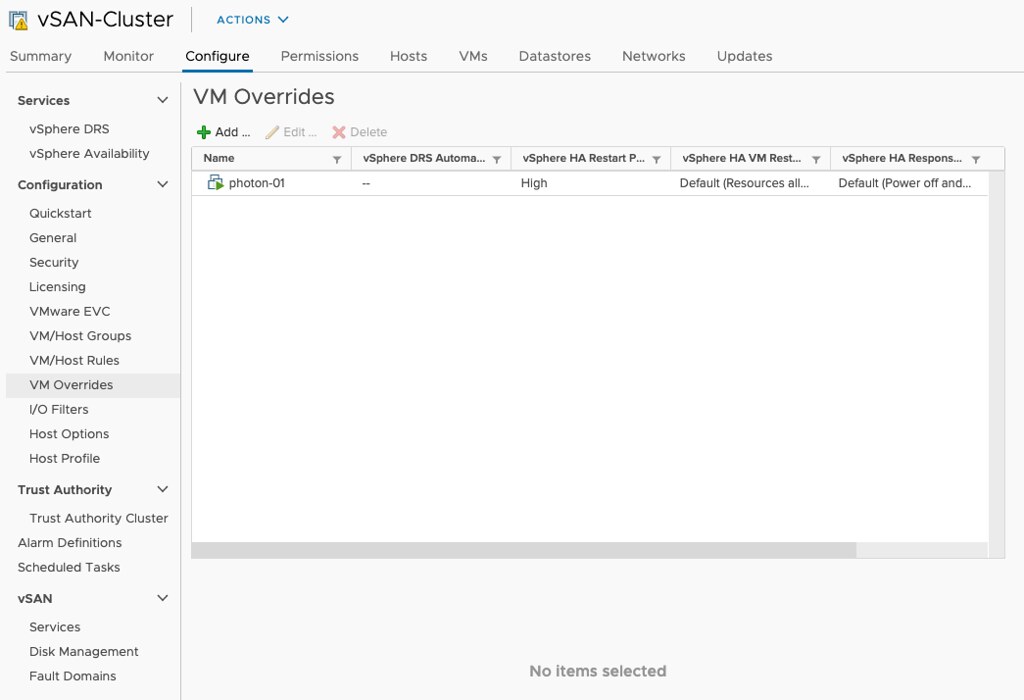
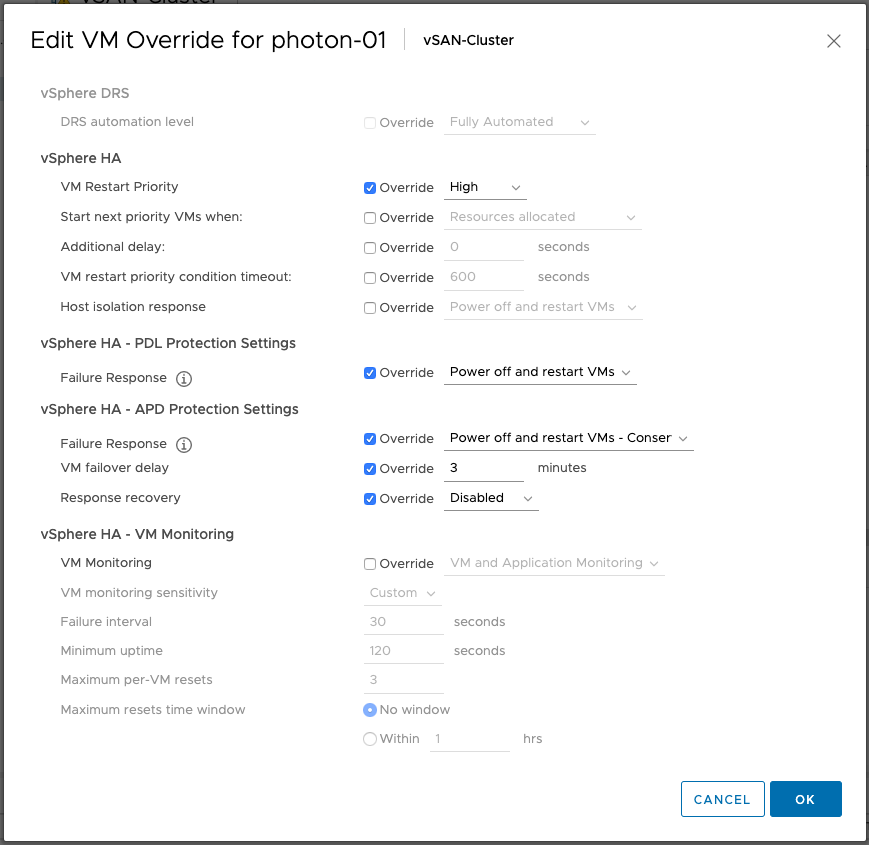
If you are running vSphere 6.7 or 6.5 and have not installed 6.7 P02 yet (6.5 P05 is available soon) and you have APD/PDL responses configured within vSphere HA it could be that an issue causes VMs not to be failed over when an APD or PDL occurs. This is a known issue in the release, and P02 or P05 solves this problem. What is the problem? Well, a bug causes VMs which are listed in “VM overrides” to have settings that are not configured to be set to “disabled” instead of “unset”, in specific the APD/PDL setting.

This means that even though you have APD/PDL responses configured on a cluster level, the VM level configuration overrides it as it would be set to “disabled”. It doesn’t matter really why you added them to VM Overrides, could be to configure VM Restart Priority for instance. The frustrating part is that the UI doesn’t show you it is disabled as it looks like it is not configured.

If you can’t install the patch just yet, for whatever reason, but you do have VMs in VM Overrides, make sure to go to VM Overrides and explicitly configure the VMs to have the APD/PDL responses enabled similar to what it is configured to on a cluster level as shown in the screenshots below.

vSphere HA internals: VMCP super aggressive option in vSphere 7

Duncan Epping · May 11, 2020 ·

Most of you probably heard about a feature called VMCP aka VM Component Protection. If not, this is the functionality in vSphere HA that enabled you to restart VMs which have been impacted by a PDL (permanent device loss) or APD (all paths down) scenario. (If you have no idea what I am talking about read this article first.)

When you configure the APD response you have four options:

  1. Disable
  2. Issue Event
  3. Power Off / Restart – Conservative
  4. Power Off / Restart – Aggressive

The main difference between Conservative and Aggressive is that if you find yourself in a situation where HA isn’t sure whether a VM can be restarted during an APD scenario it will not power off the VM when using Conservative. If you have it configured as Aggressive it will power off the VM. However, if HA is certain that a VM can’t be powered on it will not power off the VM. Basically it prefers availability of the VM.

As you can imagine, in certain scenarios having a VM running while it is impacted by an “APD” situation makes no sense. The VM has lost access to storage, and you simply may prefer to kill the workload. Why? Well, when it loses access to storage it can’t write to disk. You could find yourself in a situation where a change is acknowledged and you think it is written to disk but it somehow is sitting in a memory cache etc.

If you prefer the VM to be killed, regardless of whether it can be restarted or not, you can enable this via a vSphere HA advanced setting. Now before you implement this, do note that if a cluster-wide APD situation occurs, you could find yourself in the scenario where ALL virtual machines are powered off by HA and not restarted as the resources are not available. Anyway, if you feel this is a requirement, you can configure the following vSphere HA advanced setting in vSphere 7:

das.restartVmsWithoutResourceChecks = true
  • « Go to Previous Page
  • Page 1
  • Interim pages omitted …
  • Page 26
  • Page 27
  • Page 28
  • Page 29
  • Page 30
  • Interim pages omitted …
  • Page 336
  • Go to Next Page »

Primary Sidebar

About the Author

Duncan Epping is a Chief Technologist and Distinguished Engineering Architect at Broadcom. Besides writing on Yellow-Bricks, Duncan is the co-author of the vSAN Deep Dive and the vSphere Clustering Deep Dive book series. Duncan is also the host of the Unexplored Territory Podcast.

Follow Us

  • X
  • Spotify
  • RSS Feed
  • LinkedIn

Recommended Book(s)

Also visit!

For the Dutch-speaking audience, make sure to visit RunNerd.nl to follow my running adventure, read shoe/gear/race reviews, and more!

Do you like Hardcore-Punk music? Follow my Spotify Playlist!

Do you like 80s music? I got you covered!

Copyright Yellow-Bricks.com © 2026 · Log in