• Skip to primary navigation
  • Skip to main content
  • Skip to primary sidebar

Yellow Bricks

by Duncan Epping

  • Home
  • Unexplored Territory Podcast
  • HA Deepdive
  • ESXTOP
  • Stickers/Shirts
  • Privacy Policy
  • About
  • Show Search
Hide Search

Server

Secured down your environment with vShield App and locked out of vCenter?

Duncan Epping · Nov 16, 2011 ·

** Disclaimer: This is for educational purposes, please don’t make these .vmx changes in your environment as it is not supported! **

Yesterday I showed how to recover from a vShield App crash. Now bare in mind that this scenario is very rare. Today I decided to lock down my environment to the level where it was impossible to login to vCenter Server or vShield Manager. I added L2 and L3 “Any – Any” block rules to the Datacenter which hosts vCenter and vShield Manager. I needed to get access back to my vCenter host so I started digging and this is how I managed to get it back… it was a lot easier than expected:

  1. http://<ip-address-of-vShield-manager>
  2. remove/change rule

Was it really that simple? Yes it was, even after applying block rules I could still access vShield Manager. I wondered why so I started digging in to it.

If you look at the vShield Manager UI you will see that all VMs are listed except for vShield Manager and the vShield App FW VMs. The reason for this is that the vShield VMs are considered to be Service VMs. You can actually see this when you go to your Cluster in the vShield Manager UI and check the “Summary” as it will list the amount of Service VMs as shown in the screenshot below.
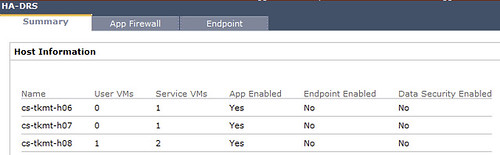
I wondered what caused these VMs to be listed as Service VMs so I looked at the .vmx file of the vShield VMs and spotted the following entries:

  • vShield Manager.vmx:
    vshield.vmtype = "Manager"
    vshield.vmversion = "5.0"
    vshield.vmbuild = "473791"
  • vShield App FW.vmx:
    vshield.vmtype = "Zones"
    vshield.vmversion = "3.0"
    vshield.vmbuild = "473791"

Another thing that I noticed in the .vmx file for vShield Manager is that it did not have a filter applied, in other words traffic goes straight to the VM. This was the reason traffic was not blocked by the rules we created. The next thing I wanted to test is what would happen if I would remove the filters from the vCenter VM and simply add the three .vmx entries that the vShield Manager had? The reason I wanted to test this is because I wanted to know if a filter would be applied or not.

Instead of (ab)using my vCenter VM for this (I might need it later on) I created a test VM. I booted up the VM to see if it would get the filter and made sure the rules I created were applied. I couldn’t access the VM as expected as the filter and the rules were applied. I powered it off, removed the filter, added the three entries (vShield Manager) and booted up the VM… No changes were made to the VM and I could still access it. Is this useful for your production environment? No it is not, as it is definitely not recommended to make changes like these as it is totally unsupported and could lead to unexpected results. It is nice to know though…

ESXi commandline work….

Duncan Epping · Nov 16, 2011 ·

I am just playing around in my lab and needed to do a couple of common ESXi commandline tasks which I figured I would document as they will come in handy at some point.

  • List all VMs registered to this host (This reveals the Vmid needed for other commands)
    vim-cmd /vmsvc/getallvms
  • Unregister a VM
    vim-cmd /vmsvc/unregister <Vmid>
  • Register a VM
    vim-cmd /solo/register /path/to/file.vmx
  • Get power state of a VM
    vim-cmd /vmsvc/power.getstate <Vimid>
  • Power off a VM
    vim-cmd /vmsvc/power.off <Vmid>
  • Power on a VM
    vim-cmd /vmsvc/power.on <Vmid>

vShield App broke down on the host that is running vCenter now what?

Duncan Epping · Nov 15, 2011 ·

I was playing around with vShield App and I locked out my vCenter VM which happened to be hosted on the cluster which was protected by vShield App. Yes I know that it is not recommended, but I have a limited amount of compute resources in my lab and I can’t spare a full server just for vCenter so I figured I would try it anyway and by breaking stuff I learn a lot more.

I wanted to know what happened when my vShield App virtual machine would fail. So I killed it and of course I couldn’t reach vCenter anymore. The reason for this being is the fact that a so-called dvfilter is used. The dvfilter basically captures the traffic, sends it to the vShield App VM which inspects it and then sends it to the VM (or not depending on the rules). As I killed my vShield App VM there was no way it would work. If I would have had my vCenter available I would just vMotion the VMs to another host and the problem would be solved, but it was my vCenter which was impacted by this issue. Before I started digging myself I did a quick google and I noticed this post by vTexan. He had locked himself out by creating strict rules, but my scenario was different. What were my options?

Well there are multiple options of course:

  1. Move the VM to an unprotected host
  2. Disarm the VM
  3. Uninstall vShield

As I did not have an unprotected host in my cluster and did not want to uninstall vShield I had only 1 option left. I figured it couldn’t be too difficult and it actually wasn’t:

  1. Connect your vSphere Client to the ESXi host which is running vCenter
  2. Power Off the vCenter VM
  3. Right click the vCenter VM and go to “Edit Settings”
  4. Go to the Options tab and click General under Advanced
  5. Click Configuration Parameters
  6. Look for the “ethernet0.filter0” entries and remove both values
  7. Click Ok, Ok and power on your vCenter VM

As soon as your vCenter VM is booted you should have access to vCenter again. Isn’t that cool? What would happen if your vShield App would return? Would this vCenter VM be left unprotected? No it wouldn’t, vShield App would actually notice it is not protected and add the correct filter details again so that the vCenter VM will be protected. If you want to speed this process up you could of course also vMotion the VM to a host which is protected. Now keep in mind that while you do the vMotion it will insert the filter again which could cause the vCenter VM to disconnect. In all my tests so far it would reconnect at some point, but that is no guarantee of course.

Tomorrow I am going to apply a security policy which will lock out my vCenter Server and try to recover from that… I’ll keep you posted.

** Disclaimer: This is for educational purposes, please don’t try this at home… **

Repeated characters when typing in your VMs remote console?

Duncan Epping · Nov 14, 2011 ·

Today I was working on a couple of test scenarios in a remote lab. For some reason the latency was a lot higher than normal and I was very difficult to type anything in the Remote Console through the vCenter Client. Every single character I tried popped up 2 or 3 times… which makes it very difficult to type a password as you can imagine. I knew I read a KB article about this exact problem a long time ago. Considering it is KB 196 I probably wasn’t the first to bump in to this. The solution is fairly simple:

  • Power off the VM
  • Edit Settings
  • Click the Options Tab
  • Click “General”
  • Click “Configuration Parameters”
  • Click “Add Row”
  • Enter the name: keyboard.typematicMinDelay
  • Enter the value: 2000000

Although the KB article doesn’t mention it, this also applies to vSphere 5.0.

What happens to powered off VMs when a host fails?

Duncan Epping · Nov 11, 2011 ·

I had the question today what happens to a powered off VM when the host they are registered against fails? This customer always has multiple powered off VMs and was afraid their VMs would show up as orphaned. I was pretty confident that the VM would be re-registered against one of the remaining hosts in the cluster, but I validated it just in case and this is what the events section of the VM shows:

Relocating from cs-tkmt-h08, emc-vnx-fcoe to cs-tkmt-h05, emc-vnx-fcoe

In other words, the VM is relocated from my ESXi host cs-tkmt-h08 to cs-tkmt-h05. No need to worry about orphaned VMs and manually registering them against the remaining hosts… vSphere does it for you.

  • « Go to Previous Page
  • Page 1
  • Interim pages omitted …
  • Page 165
  • Page 166
  • Page 167
  • Page 168
  • Page 169
  • Interim pages omitted …
  • Page 336
  • Go to Next Page »

Primary Sidebar

About the Author

Duncan Epping is a Chief Technologist and Distinguished Engineering Architect at Broadcom. Besides writing on Yellow-Bricks, Duncan is the co-author of the vSAN Deep Dive and the vSphere Clustering Deep Dive book series. Duncan is also the host of the Unexplored Territory Podcast.

Follow Us

  • X
  • Spotify
  • RSS Feed
  • LinkedIn

Recommended Book(s)

Also visit!

For the Dutch-speaking audience, make sure to visit RunNerd.nl to follow my running adventure, read shoe/gear/race reviews, and more!

Do you like Hardcore-Punk music? Follow my Spotify Playlist!

Do you like 80s music? I got you covered!

Copyright Yellow-Bricks.com © 2026 · Log in