• Skip to primary navigation
  • Skip to main content
  • Skip to primary sidebar

Yellow Bricks

by Duncan Epping

  • Home
  • Unexplored Territory Podcast
  • HA Deepdive
  • ESXTOP
  • Stickers/Shirts
  • Privacy Policy
  • About
  • Show Search
Hide Search

Server

Back to Basics: Deploying the vCenter Server appliance

Duncan Epping · Sep 11, 2012 ·

I am going to do a couple of blogposts with “basic” workflows using the Web Client. Let me know if you find this useful or not… I will start with deploying the vCenter Server appliance and will assume you all know how to install ESXi. I prefer using the vCenter Server appliance in my lab as I can deploy it in minutes without the need to pre-install an OS etc.

The following steps outline the import process of the vCenter Server appliance.

  • Open the vSphere Client
  • Click “File – Deploy OVF Template”
  • Browse for the OVA file
  • Provide a name for the to be imported virtual machine, in our case “vCenter-01”
  • Select a datastore where this virtual machine should be stored
  • Use the default Disk Format
  • Provide the networking details like IP address, DNS, netmask etc.
  • Finish the wizard

During the reinstallation of my lab environment I ran in to this issue a couple of times. In my environment when I deploy the vCenter Server Virtual Appliance (VCVA) I always got the following error on the remote console:

No Networking Detected

This seems to happen when I point my vSphere Client directly to a host and import the OVA. When you point your vSphere Client directly at a host you do not have the option to fill out the networking details in the OVF wizard. (At least I don’t…) When I point my vSphere Client to a vCenter Server and import the OVA I get the option to fill out the networking details.
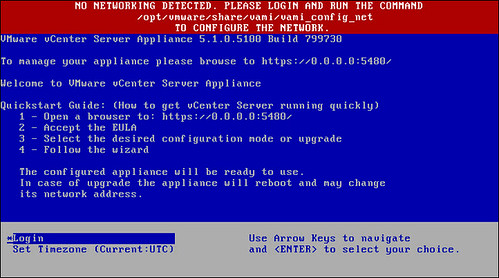
no networking detected vcenter server

You can configure networking fairly simple. Just login to the console and type the following:

/opt/vmware/share/vami/vami_config_net

Make sure to fill out the following sections:

2) Default Gateway
3) Hostname
4) DNS
6) IP Address Allocation for eth0

After this has been done type 1 to exit the configuration tool. Now the VCVA should be configured. In some cases I noticed that the “default gateway” setting did not stick. I would suggest validating this on the network tab of your management console, which can be found here: https://<IP address or DNS name of your vCenter instance>:5480.

Now that you have successfully deployed the vCenter Server appliance you can start exploring the new vCenter Web Client: https://<IP address or DNS name of your vCenter instance>:9443/vsphere-client/
vCloud Suite 5.1 available

Duncan Epping · Sep 11, 2012 ·

No I didn’t set my alarm clock like Eric Sloof, just to be one of the first to post it… hence the reason this is “late”. But I got some more lined up for you though in the upcoming days. Now that the vCloud Suite 5.1 is available. Make sure to start your download engines and prep to upgrade. Before you start downloading, make sure to hit the launch page. I created a nice short URL for it

VMware NOW – Get the Latest Info on VMware Product Launches:
http://vmwa.re/vcloudnow

Download links:

  • ESXi 5.1.0 Installable
  • vCenter Server 5.1.0 and modules
  • VMware vCloud Director 5.1.0
  • VMware vCenter Site Recovery Manager 5.1.0
  • VMware vCenter Infrastructure Navigator 1.2.0
  • VMware vCenter Operations Management 5.0.3
  • VMware vCenter Configuration Manager 5.5.1
  • vSphere Data Protection 5.1.0 
  • vSphere Replication 5.1.0
  • vSphere Storage Appliance 5.1.0 
  • vCloud Networking and Security 5.1.0
  • vSphere PowerCLI 5.1
  • vSphere CLI 5.1
  • vCenter Orchestrator Appliance 5.1.0
  • vSphere Management Assistant 5.1

What’s new docs:

  • What’s New in VMware vSphere 5.1
  • What’s new in VMware vCenter 5.1
  • What’s New in VMware vSphere 5.1 – Networking
  • What’s New in VMware vSphere 5.1 – Platform
  • What’s New in VMware vSphere 5.1 – Storage
  • What’s New in VMware vSphere 5.1 – Performance
  • Introduction to VMware vSphere Replication
  • Introduction to VMware vSphere Data Protection
  • What’s new in VMware vSphere Storage Appliance
  • What’s new in vCloud Director 5.1


vSphere 5.1 All Paths Down (APD) enhancements

Duncan Epping · Sep 10, 2012 ·

I’ve written about Permanent Device Loss multiple times but another scenario that some of you might have encountered is All Paths Down. All Paths Down already describes the scenario, but an example would be when for whatever reason the network between the host and the array fails. This would be result in an APD condition, meaning that the LUNs are unreachable due to the fact that all paths to the LUN are gone.

Some of you who have been in this scenario probably also have seen hosts being disconnected. In some cases, I’ve seen this happening at one point, a host might even freeze up. This would typically happen when a lot of I/O was sent to the datastore. This is of course something that everyone would want to avoid and hence a new advanced setting has been introduced, a new mechanism to handle APD conditions.

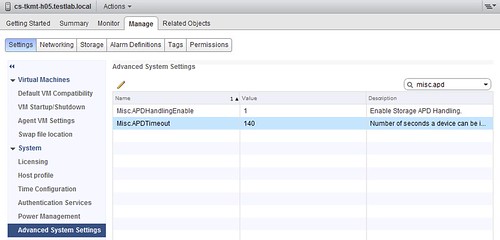
This brand new setting is called Misc.APDHandlingEnable. It can be set to 0 or 1. A value of zero means that ESXi will stick to the “old” method which is to always retry failed I/O’s. A value of 1 enables the new behavior. The behavior will allow ESXi to “fast-fail” I/Os. This will happen after 140 seconds by default. Fast-failing I/Os is what will prevent the host to be disconnected or frozen up.  This is configurable though through Misc.APDTimeout. Note you can set a filter in the Web Client to find the right advanced setting as shown in the screenshot below. Note that the minimum value for Misc.APDTimeout is 20 seconds.

Cormac Hogan has a great article about APD with a lot more technical details, make sure to read it.

Number 1 book at the VMworld Store this year was…

Duncan Epping · Sep 9, 2012 ·

The vSphere 5.1 Clustering Deepdive! Thanks everyone for your support, we very much appreciate it!

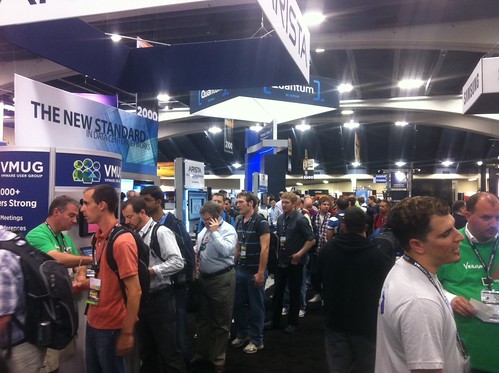
How cool is it that an independent book hits the top of the chart two years in a row?! Frank and I are really pleased about this and we did not expect this at all. Especially not considering we also gave away a 1000 copies at VMworld for free. We want to thank our sponsors CloudPhysics and Fusion IO, and the MyVMUG people for hosting this give-away in their booth!

Oh by the way, my apologies to all vendors out there which had this massive queue (it was all throughout the solutions exchange) in front of their booth on Tuesday with people all waiting to get their free copy of our book. Thanks everyone for picking a up copy, don’t forget to check out the sponsors and don’t forget to sign up for your local VMUG.

VMworld session report: INF-STO2223 – Tech Preview vSphere Integration with Existing Storage

Duncan Epping · Sep 7, 2012 ·

A couple of weeks ago I posted an article about Virtual Volumes aka vVOLs. This week at VMworld Thomas (Tom) Phelan and Vijay Ramachandran delivered a talk which again addressed this topic but they added Virtual Flash to the mix. The session was “INF-STO2223”.

For those attending Barcelona, sign up for it! It is currently scheduled once on Wednesday at 14:00.

The session started out with a clear disclaimer, this was a technology preview and there is no guarantee whatsoever that this piece of technology will ever be released.

Tom Phelan covered Virtual Flash and Vijay covered Virtual Volumes but as Virtual Volumes was extensively covered in my other blog post I would like to refer back to that blog post for more details on that topic. This blog post will discuss the “Virtual Flash” portion of the presentation, virtual flash or vFlash in short is often also called “SSD caching”.

The whole goal of the Virtual Flash project is to allow vSphere to manage SSD as a cluster resource, just like CPU and memory today. Sounds familiar right for those who read the blog post about vCloud Distributed Storage?! The result of this project should be a framework which allows partners to insert their caching solution and utilize SSD resources more effectively without some of the current limitations.

Virtual Flash may be VM-transparent but also VM-aware. Meaning that it should for instance be possible to allocate resources per virtual machine or virtual disk. Some controls that should be included are reservations, shares and limits. On top of that, it should fully work with  vMotion and integrate with DRS.

Two concepts were explained:

  1. VM transparent caching
  2. VM-aware caching

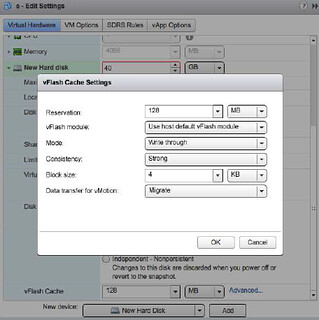
VM transparent caching uses a hypervisor kernel caching module which sits directly in the virtual disk’s data path. It can be used in two modes, write thru cache (read only) and write back cache (read and write). On top of that it will provide the ability to migrate cache content during a vMotion or discard the cache.

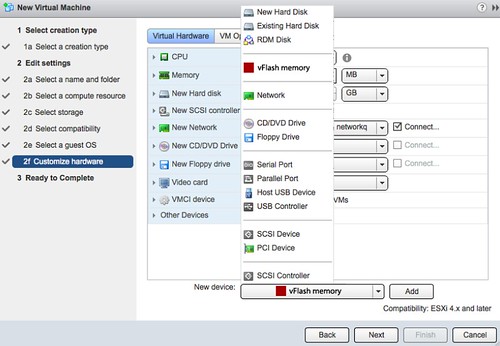
VM-aware caching is a type of caching where the Virtual Flash resource is presented directly to the virtual machine as a device. This allows the virtual machine to control the caching algorithm. The cache will in this case automatically “follow” the virtual machine during migration. It should be pointed out that if the VM is powered off the cache is flushed.

For those managing virtual environments, architecting them or providing health check services… think about the most commonly faced problem, yes that typically is storage performance related. Just imagine for a second having a caching solution at your disposal which could solve most of these problems…. Indeed that would be awesome. Hopefully we will hear more soon!

  • « Go to Previous Page
  • Page 1
  • Interim pages omitted …
  • Page 141
  • Page 142
  • Page 143
  • Page 144
  • Page 145
  • Interim pages omitted …
  • Page 336
  • Go to Next Page »

Primary Sidebar

About the Author

Duncan Epping is a Chief Technologist and Distinguished Engineering Architect at Broadcom. Besides writing on Yellow-Bricks, Duncan is the co-author of the vSAN Deep Dive and the vSphere Clustering Deep Dive book series. Duncan is also the host of the Unexplored Territory Podcast.

Follow Us

  • X
  • Spotify
  • RSS Feed
  • LinkedIn

Recommended Book(s)

Also visit!

For the Dutch-speaking audience, make sure to visit RunNerd.nl to follow my running adventure, read shoe/gear/race reviews, and more!

Do you like Hardcore-Punk music? Follow my Spotify Playlist!

Do you like 80s music? I got you covered!

Copyright Yellow-Bricks.com © 2026 · Log in