• Skip to primary navigation
  • Skip to main content
  • Skip to primary sidebar

Yellow Bricks

by Duncan Epping

  • Home
  • Unexplored Territory Podcast
  • HA Deepdive
  • ESXTOP
  • Stickers/Shirts
  • Privacy Policy
  • About
  • Show Search
Hide Search

Management & Automation

The uncrowned king of PowerCLI is Alan Renouf

Duncan Epping · Nov 5, 2009 ·

No, I am not exaggerating. Alan Renouf truly is the uncrowned king of PowerCLI. Although I’ve seen some amazing scripts from other people as well Alan always seems to bring that little extra to make him stand out. No this is not an Alan Renouf appreciation blog article, although he deserves one, this article is about his two latest additions.

The first one is the Virtu-Al VESI & PowerGui Powerpack. If you are like me, not a powercli hero, this is what you were looking for all along. Alan has bundled all his script into a Powerpack which enables you to import all his scripts at once and run them with a single click. All scripts are placed into categories which makes them easy to find. Not only can you use them you can also modify them to your needs. Of course if you do improve these scripts give some feedback to Alan so that he might be able to incorporate it into the Powerpack.

The second one is Version 3 of the daily report or vCheck as it is called as of v3. I wrote about version 1 and many people have downloaded it and are using it in their environment. The script just got better and a whole set of new features have been added. Alan was smart enough to ask around in the community what his report was lacking and incorporated all these tips in Version 3 of vCheck(previously known as the Daily Report). Again, if you feel there is anything missing don’t hesitate to leave a comment and ask Alan if he can add it… Here’s the list of new features:

  • Status report to screen whilst running interactively
  • At the top of the script you can now turn off any areas you do not want to report on (this makes it faster to run)
  • VMs on Local storage has been changed to report VMs stored on datastores attached to only one host
  • VM active alerts
  • Cluster Active Alerts
  • If HA Cluster is set to use host datastore for swapfile, check the host has a swapfile location set
  • Host active Alerts
  • Dead SCSI Luns
  • VMs with over x amount of vCPUs
  • vSphere check: Slot Sizes
  • vSphere check: Outdated VM Hardware (Less than V7)
  • VMs in Inconsistent folders (the name of the folder is not the same as the name)
  • Added the number of issues to each title line

Carter can you please hand over your crown to Alan?! Thanks,
VMware vCenter Chargeback 1.0.1

Duncan Epping · Oct 27, 2009 ·

VMware has just released a new version of VMware vCenter Chargeback. Below you can find the “what’s new” details from the release notes:

vCenter Chargeback 1.0.1 | 10/29/2009 | Build 204097

Last Document Update: 10/29/2009

What’s New in this Release

vCenter Chargeback 1.0.1 provides the following new features:

  • Support for Windows Authentication
    This release of vCenter Chargeback supports Windows Authentication for SQL Server databases. If you are using SQL Server for the vCenter Chargeback database or for the vCenter Server database, then you can configure the application to use Windows Authentication instead of SQL Authentication.
  • New computing resource and billing policies added
    This release of vCenter Chargeback introduces a new computing resource, vCPU, and two new billing policies, vCPU Count and Memory Size and Fixed Cost and vCPU Count and Memory Size. These policies enable you to calculate cost based on the number of virtual CPUs and the amount of memory allocated to the virtual machines.
  • Resource Summary section lists rolled-up usage data for all entities
    The Resource Summary section of the chargeback reports show the rolled-up usage data for all the entities.
  • Global fixed cost history is retained
    This release of vCenter Chargeback lets you to set different cost values for different time periods on the same global fixed cost. The old values are retained and not overwritten.
  • Ability to undo to the most recent operation on the chargeback hierarchy
    The most recent operation on the chargeback hierarchy can be undone. This undo feature is available for entities that are added or moved in the hierarchy. The undo option is not available for rename and delete operations.
  • Ability to use the vCenter Chargeback APIs
    vCenter Chargeback APIs provide an interface to programmatically use the various features of vCenter Chargeback. As an application developer, you can use these APIs to build chargeback applications or integrate vCenter Chargeback with your internal billing systems and compliance policies. Please do note that the APIs released with this version of vCenter Chargeback are only for a technical preview.
  • DRS Deepdive part II

    Duncan Epping · Oct 22, 2009 ·

    Yesterday I posted the DRS Deepdive. One of the questions still left open was how DRS decides which VM to move to create a balance cluster. After a lot of digging for non-NDA info I found this “procedure” in a VMworld presentation(TA16) amongst some other cool info.

    The following procedure is used to form a set of recommendations to correct the imbalanced cluster:

    While (load imbalance metric > threshold) {
    move = GetBestMove();
      If no good migration is found:
        stop;
      Else:
        Add move to the list of recommendations;
        Update cluster to the state after the move is added;
    }

    Step by step in plain English:

    While the cluster is imbalanced (Current host load standard deviation > Target host load standard deviation) select a VM to migrate based on specific criteria and simulate a move and recompute the “Current host load standard deviation” and add to the migration recommendation list. If the cluster is still imbalanced(Current host load standard deviation > Target host load standard deviation) repeat procedure.

    Now how does DRS select the best VM to move? DRS uses the following procedure:

    GetBestMove() {
      For each VM v:
        For each host h that is not Source Host:
          If h is lightly loaded compared to Source Host:
          If Cost Benefit and Risk Analysis accepted
          simulate move v to h
          measure new cluster-wide load imbalance metric as g
      Return move v that gives least cluster-wide imbalance g.
    }

    Again in plain English:

    For each VM check if a VMotion to each of the hosts which are less utilized than source host would result in a less imbalanced cluster and meets the Cost Benefit and Risk Analysis criteria. Compare the outcome of all tried combinations(VM<->Host) and return the VMotion that results in the least cluster imbalance.

    This should result in a migration which gives the most improvement in terms of cluster balance, in other words: most bang for the buck! This is the reason why usually the larger VMs are moved as they will most likely decrease “Current host load standard deviation” the most. If it’s not enough to balance the cluster within the given threshold the “GetBestMove” gets executed again by the procedure which is used to form a set of recommendations.

    Now the next question would be what does “Cost Benefit” and “Risk Analysis” consist of and why are we doing this?

    First of all we want to avoid a constant stream of VMotions and this will be done by weighing costs vs benefits vs risks. These consists of:

    • Cost benefit
      Cost: CPU reserved during migration on t he target host
      Cost: Memory consumed by shadow VM during VMotion on the target host
      Cost: VM “downtime” during the VMotion
      Benefit: More resources available on source host due to migration
      Benefit: More resources for migrated VM as it moves to a less utilized host
      Benefit: Cluster Balance
    • Risk Analysis
      Stable vs unstable workload of the VM (historic info used)

    Based on these consideration a cost-benefit-risk metric will be calculated and if this has an acceptable value the VM will be consider for migration.

    I will consolidate both post in a single blog page today to make it easier to find!

    DRS Deepdive

    Duncan Epping · Oct 21, 2009 ·

    Last week I mentioned which metrics DRS used for load balancing VMs across a cluster. Of course the obvious question was when the DRS Deepdive would be posted. I must admit I’m not an expert on this topic as like most of you I always took for granted that it worked out of the box. I can’t remember that there ever was the need to troubleshoot DRS related problems, or better said I don’t think I’ve ever seen an issue which was DRS related.

    This article will focus on two primary DRS  functions:

    1. Load balancing VMs due to imbalanced Cluster
    2. VM Placement when booting

    I will not be focusing on Resource Pools at all as I feel that there are already more than enough articles which explain these. The Resource Management Guide also contains a wealth of info on resource pools and this should be your starting place!

    Load Balancing

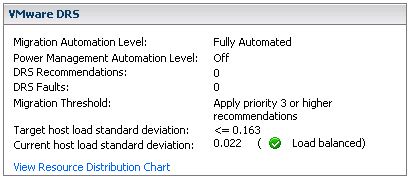
    First of all VMware DRS evaluates your cluster every 5 minutes. If there’s an imbalance in load it will reorganize your cluster, with the help of VMotion, to create an evenly balanced cluster again. So how does it detect an imbalanced Cluster? First of all let’s start with a screenshot:

    fig 1

    There are three major elements here:

    1. Migration Threshold
    2. Target host load standard deviation
    3. Current host load standard deviation

    Keep in mind that when you change the “Migration Threshold” the value of the “Target host load standard deviation” will also change. In other words the Migration Threshold dictates how much the cluster can be “imbalanced”. There also appears to be a direct relationship between the amount of hosts in a cluster and the “Target host load standard deviation”. However, I haven’t found any reference to support this observation. (Two host cluster with threshold set to three has a THLSD of 0.2, a three host cluster has a THLSD of 0.163.) As said every 5 minutes DRS will calculate the sum of the resource entitlements of all virtual machines on a single host and divides that number by the capacity of the host:

    sum(expected VM loads) / (capacity of host)

    The result of all hosts will then be used to compute an average and the standard deviation. (Which effectively is the “Current host load standard deviation” you see in the screenshot(fig1).) I’m not going to explain what a standard deviation is as it’s explained extensively on Wiki.

    If the environment is imbalanced and the Current host load standard deviation exceeds the value of the “Target host load standard deviation” DRS will either recommend migrations or perform migrations depending on the chosen setting.

    Every migration recommendation will get a priority rating. This priority rating is based on the Current host load standard deviation. The actual algorithm being used to determine this is described in this KB article. I needed to read the article 134 times before I actually understood what they were trying to explain so I will use an example based on the info shown in the screenshot(fig1). Just to make sure it’s absolutely clear, LoadImbalanceMetric is the Current host load standard deviation value and ceil is basically a “round up”. The formula mentioned in the KB article followed by an example based on the screenshot(fig1):

    6 - ceil(LoadImbalanceMetric / 0.1 * sqrt(NumberOfHostsInCluster))
    6 - ceil(0.022 / 0.1 * sqrt(3))

    This would result in a priority level of 5 for the migration recommendation if the cluster was imbalanced.

    The only question left for me is how does DRS decide which VM it will VMotion… If anyone knows, feel free to chip in. I’ve already emailed the developers and when I receive a reply I will add it to this article and create a seperate article about the change so that it stands out.

    VM Placement

    The placement of a VM when being powered on is as you know part of DRS. DRS analyzes the cluster based on the algorithm described in “Load Balancing”. The question of course is for the VM which is being powered on what kind of values does DRS work with? Here’s the catch, DRS assumes that 100% of the provisioned resources for this VM will be used. DRS does not take limits or reservations into account. Just like HA, DRS has got “admission control”. If DRS can’t guarantee the full 100% of the resources provisioned for this VM can be used it will VMotion VMs away so that it can power on this single VM. If however there are not enough resources available it will not power on this VM.

    That’s it for now… Like I said earlier, if you have more indepth details feel free to chip in as this is a grey area for most people.

    Best Practices: running vCenter virtual (vSphere)

    Duncan Epping · Oct 9, 2009 ·

    Yesterday we had a discussion on running vCenter virtual on one of the internal mailinglists. One of the gaps identified was the lack of a best practices document. Although there are multiple for VI3 and there are some KB articles these do need seem to be easy to find or complete. This is one of the reasons I wrote this article. Keep in mind that these are my recommendations and they do not necessarily align with VMware’s recommendations or requirements.

    Sizing

    Sizing is one of the most difficult parts in my opinion. As of vSphere the minimum requirements of vCenter have changed but it goes against my personal opinion on this subject. My recommendation would be to always start with 1 vCPU for environments with less than 10 hosts for instance. Here’s my suggestion:

    • < 10 ESX Hosts
      • 1 x vCPU
      • 3GB of memory
      • Windows 64Bit OS(preferred) or Windows 32Bit OS
    • > 10 ESX Hosts but < 50 ESX Hosts
      • 2 x vCPU
      • 4GB of memory
      • Windows 64Bit OS(preferred) or Windows 32Bit OS
    • > 50 ESX hosts but < 200 ESX Hosts
      • 4 x vCPU
      • 4GB of memory
      • Windows 64Bit OS(preferred) or Windows 32Bit OS
    • > 200 ESX Hosts
      • 4 x vCPU
      • 8GB of memory
      • Windows 64Bit OS(requirement)

    My recommendation differ from VMware’s recommendation. The reason for this is that in small environments(<10 Hosts) there’s usually more flexibility for increasing resources in terms of scheduling down time. Although 2 vCPUs are a requirement I’ve seen multiple installations where a single vCPU was more than sufficient. Another argument for starting with a single vCPU would be “Practice What You Preach”. (How many times have you convinced an application owner to downscale after a P2V?!) I do however personally prefer to always use a 64Bit OS to enable upgrades to configs with more than 4GB of memory when needed.

    vCenter Server in a HA/DRS Cluster

    1. Disable DRS(Change Automation Level!) for your vCenter Server and make sure to document where the vCenter Server is located (My suggestion would be the first ESX host on the cluster).
    2. Make sure HA is enabled for your vCenter Server, and set the startup priority to high. (Default is medium for every VM.)
    3. Make sure the vCenter Server VM gets enough resources by setting the shares for both Memory and CPU to “high”.
    4. Make sure other services and servers on which vCenter depends are also starting automatically, with a high priority and in the correct order like:
      1. Active Directory.
      2. DNS.
      3. SQL.
    5. Write a procedure to boot the vCenter / AD / DNS / SQL manually in case of a complete power outage occurs.

    Most of these recommendations are pretty obvious but you would be surprised how many environments I’ve seen where for instance MS SQL had a medium startup priority and vCenter a high priority. Or where after a complete power outage no one knows how to boot the vCenter Server. Documenting standard procedures is key here; especially know that with vSphere vCenter is more important than ever before.

    Source:
    http://kb.vmware.com/kb/1009080

    http://kb.vmware.com/kb/1009039
    ESX and vCenter Server Installation Guide
    Upgrade Guide

    • « Go to Previous Page
    • Page 1
    • Interim pages omitted …
    • Page 17
    • Page 18
    • Page 19
    • Page 20
    • Page 21
    • Interim pages omitted …
    • Page 44
    • Go to Next Page »

    Primary Sidebar

    About the Author

    Duncan Epping is a Chief Technologist and Distinguished Engineering Architect at Broadcom. Besides writing on Yellow-Bricks, Duncan is the co-author of the vSAN Deep Dive and the vSphere Clustering Deep Dive book series. Duncan is also the host of the Unexplored Territory Podcast.

    Follow Us

    • X
    • Spotify
    • RSS Feed
    • LinkedIn

    Recommended Book(s)

    Also visit!

    For the Dutch-speaking audience, make sure to visit RunNerd.nl to follow my running adventure, read shoe/gear/race reviews, and more!

    Do you like Hardcore-Punk music? Follow my Spotify Playlist!

    Do you like 80s music? I got you covered!

    Copyright Yellow-Bricks.com © 2026 · Log in