I was just playing around with auto-deploy and I figured I would quickly scribble down the steps required to configure it. The documentation is okay but it often refers me back and forth in the document which makes it difficult to read at times. Here is what I did to get it working. I was in doubt if I would add screenshots, but that would make this article fairly lengthy and I am sure that most of you wouldn’t need it any way. I have my complete lab virtualized at home, so this whole setup is running in VMware Workstation.
- Download vCenter Server 5
- Download the ESXi 5.0 Offline Bundle
- Install vCenter Server 5
- Install Powershell 2.0 (installed it on the vCenter Server)
- Install PowerCLI (installed it on the vCenter Server)
- Install Auto-deploy (also located on vCenter iso) (installed it on the vCenter Server)
- Install TFTP Server (I used Solarwinds) (installed it on the vCenter Server)
- Click “File” and “Configure” and start the TFTP Server
- A folder C:\TFTP-Root will be created
- Make sure if you are running this on Windows that the Firewall is open for TFTP
- Open up your vCenter Client
- Go to the Home screen and click “Auto Deploy”
- Click “Download TFTP Boot Zip”
- I temporarily disabled IE ESC to be able to quickly download the zip file (Control Panel –> Add / Remove Programs –> Turn Windows Features On/Off –> Look for “Configure IE ESC in the Security Information section)
- Unzip the TFTP Boot Zip file in your TFTP-Root folder
- Copy the location of “BIOS DHCP File Name as mentioned in your Auto Deploy screen. This will be “undionly.kpxe.vmw-hardwired”.
- Go to your DHCP Server and add the filename and the ip address of the
- In my case this is what I added to the advanced settings in my Tomato Router/DHCP server:
dhcp-boot=undionly.kpxe.vmw-hardwired,,192.168.1.45 - In the case of a MS DHCP Server you will need to follow this MS KB article. (#66 and #67 should be sufficient)
- In my case this is what I added to the advanced settings in my Tomato Router/DHCP server:
- Now it should be possible to boot your host, however you should see a screen that tells you that there no ESXi image associated yet. Now we need to do some PowerCLI magic…
- First of all we will need to set the execution policy to “remotesigned” if you haven’t done so already, in my case I haven’t as this is a brand new installed Windows VM:
Set-ExecutionPolicy RemoteSigned - Now you can open up PowerCLI and connect to your vCenter Server:
Connect-VIServer <vcenter name> - Next we will need to add a software depot, this is the Offline Bundle file you downloaded at the beginning:
Add-EsxSoftwareDepot c:\tmp\VMware-ESXi-5.0.0-469512-depot.zip - Now that you’ve added the depot you will need to identify the ImageProfile you wan to use. Run the following command to list the image profiles:
Get-EsxImageProfile - In my case it returns the following:
Name
——-
ESXi-5.0.0-469512-no-tools ….
ESXi-5.0.0-469512-standard …. - We will use the “Standard” image profile as we want to be able to install VMware Tools as well through vCenter. In order to use it we will need to define a rule. This basically tells the client which image it should pick up during the PXE Boot. No key thing with this command is the “-Pattern” as that basically defines which machines will get boot the image. In my case everything is running within VMware Workstation and the vendor will always be “VMware Virtual Platform” so I decided to use that is the identifier for this specific rule.
New-DeployRule –Name “FirstTimeBoot” –Item “ESXi-5.0.0-469512-standard” –Pattern “model=VMware Virtual Platform” - This will take a while as it is unzipping and uploading the required packages. When it has successfully completed we will need to make this deploy rule active:
Add-DeployRule -DeployRule FirstTimeBoot - That’s it, now the host should be able to boot up using the assigned image profile. See the screenshot below of my PXE booted ESXi host within VMware Workstation
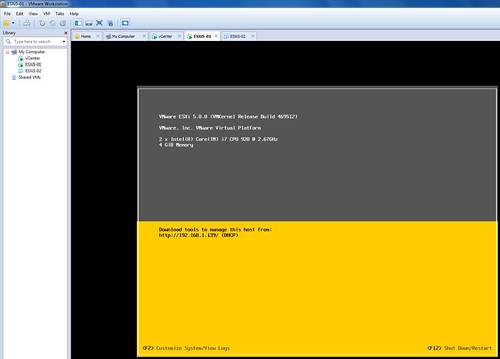
Now if you would go to vCenter and check your Datacenter you will see a host appearing. This host however will still need to be configured and that is the second portion of this exercise…
What we creating here is a stateless configuration. That means we will need to use host profiles in order to configure this host correctly after reach reboot. These are the steps I took to create a host profile for my Lab hosts:
- Configure the host as needed. Don’t forget things like NTP, Storage, Networking, Scratch etc.
- Go to Host Profiles
- Create a New Profile from an existing host
- Select the host you just configured
- Give it a name that you will remember, I used “ESXiLabHostProfile”
- After creating the host profile you will need to attach the host to the profile and check for compliancy. This test should fail as you will need to create an answer file first.
- Right click the host and select “Update Answer File”
- Check all settings (ip-address etc) and when finished click “update”
- Right click the host and select “Check Answer File”, result should be “x”
- Select the host and click “Check Compliance”, result should be “compliant”
- Before we will create a new deploy rule we will want to add the HA depot and create a new image profile which includes the HA agent as we will want our hosts to be part of that. If you don’t add it the “new-deployrule” statement will throw a message that you will need to add it. First we will add the vSphere HA depot. The ip-address should of course be replace with the ip-address of your own vCenter server:
Add-EsxSoftwareDepot http://192.168.1.45:80/vSphere-HA-depot - Now we will need to clone the ESXi Standard depot and add the HA agent to it:
New-EsxImageProfile -CloneProfile ESXi-5.0.0-469512-standard -name “ESXiHA”
Add-EsxSoftwarePackage -ImageProfile “ESXiHA” -SoftwarePackage vmware-fdm - Now we will create a new deploy rule and associate it with the just created host profile called “ESXiLabHostProfile”. We will also directly enable this new rule. Note that “HA-DRS” is the name of my cluster in this case. First we will remove the old rule to make sure we start with a clean slate:
Remove-DeployRule -DeployRule FirstTimeBoot -delete
New-DeployRule –Name “ProductionBootRule” –Item “ESXiHA”, ESXiLabHostProfile, HA-DRS –Pattern “model=VMware Virtual Platform”
Add-DeployRule -DeployRule “ProductionBootRule” - Now you can restart the ESXi host and it should end up in the cluster (HA-DRS) with the correct host profile (ESXiLabHostProfile) and completely configured ready for action! (Note that for the next host you will need to create the answer file as well initially for it to work correctly.)
That’s it for today… Hope it helps, I had a lot of fun exploring this cool new feature! I love it but boy do I feel like a n00b playing around with PowerCLI after having seen some of Alan‘s or Luc‘s magic. Gabe also has a nice article on this topic… check it out, worth reading!
Changelog:
Edit 1: Changed naming scheme
In my experience, if you’re having difficulties with “Click “Download TFTP Boot Zip”” not working, please disable IPv6 on the vCenter Server.
I am unable to download the TFTP boot zip file. We have just brought up a new vcenter installation. any ideas?
thank you. that saved me a big headache.
Thanks for posting a wonderful topic, i have one query on this. i am getting bellow error message when i am running Get-EsxImageProfile in vSphere Power CLI.
[vSphere PowerCLI] C:\Program Files\VMware\Infrastructure\vSphere PowerCLI> Get-
EsxImageProfile
The term ‘Get-EsxImageProfile’ is not recognized as the name of a cmdlet, funct
ion, script file, or operable program. Check the spelling of the name, or if a
path was included, verify that the path is correct and try again.
At line:1 char:20
+ Get-EsxImageProfile <<<<
+ CategoryInfo : ObjectNotFound: (Get-EsxImageProfile:String) [],
CommandNotFoundException
+ FullyQualifiedErrorId : CommandNotFoundException
Thanks in advance
regards
Rohit
is that the only cmdlet that doesn’t work?
Thanks for the reply,yes
i am using VMware-PowerCLI-5.0.0-374833
Why aren’t you using the latest build?
VMware-PowerCLI-5.0.0-435426.exe is what I use?
i have checked with my frnd, event they are also stuck on same command “Get-EsxImageProfile”. this command is not in powerCLI
The fact that you’re using the older build may be the issue. I believe that in earlier builds you had to manually install the ImageBuilder snap-in. In most recent builds, it’s intalled by default.
In older build, you can try:
# add-PSSnapin VMware.ImageBuilder
the latest build of powerCLI has that command. I used it today. Yello Bricks rocks!
The above Add-PSSnapin comment saved me some added frustration so thanks for that. I installed the latest version PowerCLI (5.1.0-793510) on a fresh Win2K8-R2 box and the image building commands weren’t listed or available. Kinda hard to test VSphere 5.1 Autodeploy if you can create a custom image! The Add-PSSnapin comment did the trick.
Thanks for the great article Duncan. I have been running vmware in workstation 7.1.4 for a long time. ESXi and everything, no problems.
Now I tried to install ESXi 5.0 from the install ISO, not the offline bundle and it comes up with the error
I know the message is not correct as it is turned on in the BIOS and I do not experience the same error in ESXi 4.1. Did you got the same message during your installs? Do you think workstation just need an update to fully support 5.0?
Thoughts?
Thanks,
Fred
Fred,
Did you get Hardware Virtualization is not a feature of the CPU, or is not enabled in the BIOS?
I receive a warning on the installation of ESXi 5 that says: “HARDWARE_VIRTUALIZATION WARNING: Hardware Virtualization is not a feature of the CPU, or is not enabled in the BIOS”. I checked the BIOS on my laptop (Dell M6500) to verify that virtualization is enabled, but I am wondering if the error is originating from the BIOS of the VM. A peek into the PhoenixBIOS Setup Utility of the VM shows no option to enable virtualization that I can see. Am I missing something?
I am trying to install ESXi 5 as a VM in VMware Workstation 7.1.4 (latest available build), but I don’t see ESXi 5 as a supported operating system.
I am also wondering how to simulate shared storage that would normally be configured as SAN attached storage if I were installing ESXi on bare-metal servers. Can anyone point me in the right direction?
Thanks in advance!
Andy,
Check this thread if you haven’t already found a solution:
http://communities.vmware.com/message/1834281#1834281
Did you ever get past this error? I am having the same issue installing ESXi 5.0 on VMware Workstation 7.1
My CPU is i7 and hardware virtualizations is enabled and all the test from intel and Microsoft say it’s enabled. I can install ESXi 4.1u1 without any problems.
Duncan,
Where did you find the GA depot:
VMware-ESXi-5.0.0-469512-depot.zip
vmware.com under the ESXi download link…
I noticed that if you only have a trail license the download link for the offline depot no longer shows up.
However you can use the following command instead of downloading the depot: Add-EsxSoftwareDepot https://hostupdate.vmware.com/so
ftware/VUM/PRODUCTION/main/vmw-depot-index.xml
Thanks Duncan!
For others wondering how to change the -pattern in the deployment rule, just run “get-vmhostattributes -vmhost “EsxiHostname”” to get a full list of the available options.
This only applies to hosts that are already in vcenter BTW.
Duncan,
Do you have any insight into why PXE Manager was not GA’d for this role instead of Auto-Deploy? I have been using in on a lab in a laptop for switching between 4.1 and 5 and to show the power of stateless computing. The auto-deploy seems to rely on downloading 3rd party software and a lot more manipulation. I thought the PXE manager was an unbelievable tool. Thanks.
Hello Duncan,
I had to delete the HA-DRS in “New-DeployRule –Name “ProductionBootRule” –Item “ESXiHA”, ESXiLabHostProfile, HA-DRS –Pattern “model=VMware Virtual Platform””. Maybe a mistake by editing the naming scheme? However, great work and have fun in Vegas.
With kind Regards,
J. Bold
HA-DRS is the cluster… let me make it more clear.
ok, call me a nut. My Lesson for this evening is: Before I comment anything I’ve to think twice and test it to the end. Thanks again, Joerg.
🙂
Trying to do the new-deployrule and add-deployrule
I get back that they don’t exist. I installed the powercli for 5.
Can you do the following:
add-PSSnapin VMware.ImageBuilder
Thanks, I just did that and the response was it is already installed….
brain fart…..
I installed auto deploy BEFORE installing powerCLI. I uninstalled and reinstalled auto deploy and the commands are there.
Thanks for your time.
Hi,
To resolved this problem you can run following command
Add-PSSnapin Vmware.DeployAutomation
Thanks
Dhiraj Mishra
Is auto-deploy only for ESX5 or will it work for deploying 4.1 ESX?
for esxi4 you need to download the autodeploy appliance from labs.vmware.com, i tested that one as well as the plugin for esxi5, both work perfect.
was able to get autodeploy configured and the image built. when i built it loads to booting through vmware autodeploy, loads the cache….but just hangs..
any ideas?
also i am unable to see the ‘vsphere-ha-depot’ when trying to import that software depot..
does something else need to be installed to see it?
not sure if this may be the cause of my problem.
Did you create a cluster yet? Not sure if that is a requirement, but I did that first.
yes. i currently have a cluster built and HA enabled. current there is one 5.0 host in it.
when i do the Add-EsxSoftwareDepot http://vc/vsphere/vsphere-ha-depot i get a not found.
i did all steps without that depot, however when i do the pxe boot it boots and days getting image from auto deploy server, shows all the attributes, but hangs at the vws/cache step.
Try it without “/vsphere/”.
I did try I mistyped before. I did add-esxSoftwareDepot http:///vSphere-HA-depot
and got not found. Couldn’t manually browse to it either. Do I need to do something special to enable/install?
Okay lets try again but now with the correct string:
add-esxSoftwareDepot http://vcenter-server-name/vSphere-HA-depot
replace vcenter-server-name with the name of your vCenter server OR the ip-address and yes you will need to be able to access this url via a browser as well and it should return a blank page. Can you access http://vcenter-server-name ?
I apologize, copy and paste from the tablet did cut it off..
i was following your cheat-sheet guide and did perform the full url.
“add-esxSoftwareDepot http://vcenter.contoso.com/vSphere-HA-depot”
i am unable to connect to that URL. however i can connect to http://vcenter.contoso.com and see the standard vcenter web page where i can browse datastore, use webclient and download vsphere client.
it just seems that vSphere-HA-depot does not exist…and not sure why, this happened to us on two seperate vSphere installations.
I also booted it without the HA agent by the way, that should just work fine. What type of host are you using?
hosts are ibm 3650’s
Still seeing a bunch of wierd problems. When i try to do a New-DeployRule i am getting
Exception: System.Web.Services.Protocols.SoapException: Method not found: CheckP
xeProfileForProblems
at System.Web.Services.Protocols.SoapHttpClientProtocol.ReadResponse(SoapClie
ntMessage message, WebResponse response, Stream responseStream, Boolean asyncCal
l)
at System.Web.Services.Protocols.SoapHttpClientProtocol.Invoke(String methodN
ame, Object[] parameters)
at RbdApi.RbdService.CheckPxeProfileForProblems(ManagedObjectReference _this)
at VMware.DeployAutomation.RbdHelper.ConvertToPxeProfile(RbdClient rbdClient,
RemoteImageProfile profileWrapper)
any ideas? im using the latest version of powercli and all. something isnt happy and im not sure what it is.
can you post the full command you are using?
everything is good now. for some reason we werent using the latest builds of vcenter and that screwed us up.
Hi Duncan.
I am using Vcenter appliance (in a workstation 7 lab), so therefore, can I install autodeploy, tftp, and powercli on another windows server vm, or do i have to use the full blown vcenter ?
regards
Imran
Auto-Deploy is part of the Appliance, I am not using the appliance at the moment so cannot validate if TFTP is on there as well.
PowerCLI will need to be installed on a Windows VM indeed.
I’d deployed using Workstation8 and Esxi 5.0 and using this exact instruction and its worked… Excellent instruction. Appreciate you so much. M
I am also unable to download the TFTP boot zip file. The file download window shows some bytes transferred but then dosn’t progress. Using Windows 2003 so no IPv6 running.
Duncan stated above in doc ” temporarily disabled IE ESC to be able to quickly download the zip file (Control Panel –> Add / Remove Programs –> Turn Windows Features On/Off –> Look for “Configure IE ESC in the Security Information section) “
FYI: I tried this with the vCenter Appliance and I was successful. I skipped the following steps:
Install Powershell 2.0 (installed it on the vCenter Server)
Install Auto-deploy (also located on vCenter iso) (installed it on the vCenter Server)
I installed the TFTP server and PowerCLI onto mylaptop. Everything worked as it should. I am unsure if the TFTP server is included with the vCenter Appliance. Is a command-line available for the vCenter Appliance? root/vmware did not let me in…
Duncan,
Are you aware of a process to add the 1000v VEM to the auto-deploy image profile?
Thanks,
T.J.
I never tried it, will see if and how that can be done…
It is a vib: http://www.cisco.com/en/US/docs/unified_computing/ucs/sw/vm_fex/vmware/cli/config_guide/CLI_VMware_VM-FEX_UCSM_Configuration_Guide_chapter3.html
You can just add it to the image using the “Add-EsxSoftwarePackage” cmdlet.
Interesting results:
1. I added the VEM offline bundle to the image
2. I added my host to the 1000v
3. I updated my host profile
4. I removed the AutoDeployRule
5. I created a new AutoDeployRUle with the updated host-profile.
Upon reboot the networking seems to revert back to a standard vSwitch. It actually creates a new one called “M-switch”. I was hoping I would be able to have auto-deploy automatically place a host into the 1000v dvSwitch. I will keep troubleshooting and let you know if I get it working.
I figured out the problem. There is a field in the host profile section:
Networking configuration -> Host virtual NIC -> switch : vnic : management -> Stateless boot properties for virtual NIC
For some reason, that was set to VLAN 200, while my PXE boot environment was on the native VLAN. The host would come up, install ESXi stateless, and when it tried to apply the host profile, it put itself in VLAN 200, effectively disconnecting it from my DHCP, and losing connectivity.
It works great now!
Hi Duncan,
Thanks for all these hints. Itried it and it works 99%..
How can I get the deployed hosts licensed? I have atztached a license to my Reference host. I have updated the profile, applied the profiule to the depolyed hosts, but they run in Eval mode. How can I incroporate the license in the profile?
Thanks for a hint
regards,
Werni
Werni,
Have you seen page 73 in the Install and Setup Guide? http://pubs.vmware.com/vsphere-50/topic/com.vmware.ICbase/PDF/vsphere-esxi-vcenter-server-50-installation-setup-guide.pdf
Emma
Thanks Emma,
RTFM – maybe I should read the manuals from time to time.
Werni
We set up a new vCenter Server 5.0 incl. TFTP Server and Auto Deploy Feature, being able to boot a host from it.
The only difference to your scripts is that we use physical instead of virtual ESXi
What we did is the following:
– Upload TFT Boot Image
– Add Software Depot from ESXi Offline Depot
– Create Deployment Rule for first boot (Server boot’s successfull from this Rule)
– Change settings on newly booted ESXi host
– Create Host Profile from newly created ESXi host
– Create Answer File based on new Host Profile
– Check that host is compliant with new Host Profile
– Attach vmware-fdm software package to the ESXi Image
– Create new Deployment Rule based on new software package incl. name of Cluster and Host Profile
– Remove old Deployment Rule (no longer needed)
– Check Rule Compliance
Now we reboot the host, it boots up with the newly created Image, but says the Host is not compliant.
On the Host Summary Screen we can see that the correct Host Profile is attached as well as the Image Profile.
We also checked the logs, but could not see a real reason why it does not Apply the attached host profile.
Any tip on what we missed might be helpfull, as from my understanding it should apply the host profile after the boot and reconnect is successfull.
Thanks
Yves
Does the server by any chance have a local SAS disk? And why does it say it isn’t compliant?
Hi Duncan,
the server has a local SAS disk, but boots from PXE.
On the profile, it does not setup the VMKernel NIC on the distributed switch and also does not remove the VM Network Port Group on the Standard switch. Both are configured in Host Profile and setup in the Answer File.
If we set the host to maintenance mode and apply the profile manually all is fine. Once we reboot the host all config is reset, we get again the “VM Network” and the VMKernel NIC is gone again. That is why I think it simply doesn’t use the attached host profile…
Any idea????
Thanks
Yves
Must be something with the answering file. But also check out this article: http://www.yellow-bricks.com/2011/09/16/host-profile-noncompliant-when-using-local-sas-drives-with-vsphere-5/
Hi Duncan,
thanks for the suggestion, but as we can apply the host profile manually without any issues I don’t think it is the SAS problem.
What could be wrong with the Answer File, I have used auto deploy so far only with virtual ESXi hosts when we did VDC setups…
Could you give me an idea on what to check on the answer file?
Thanks a lot
Yves
Hi Duncan,
With AutoDeploy when adding a software depot (ie. Add-EsxSoftwareDepot c:\tmp\VMware-ESXi-5.0.0-469512-depot.zip,
then Get-EsxImageProfile and finally New-DeployRule –Name “FirstTimeBoot” –Item “ESXi-5.0.0-469512-standard” –
Pattern “model=VMware Virtual Platform”) and unzipping and uploading the packages where are the packages uploaded to? Are they uploaded into the vCenter database or somewhere else?
They are stored on the Auto-Deploy server in the cache directories…
Will this work with Enterprise Plus licensing only? Or are lower end licenses good for auto-deploy as well?
Thanks.
Hi,
I can’t find any ““Update Answer File”” button or option in my vcenter when I right click a pxe booted host ?
Is it ESX only and not ESXi ?
Thanks
Found it under home>management>host profiles>yourvcentername menu, check “host and clusters” tab. Not directly right click on your host in your inventory -_-
Also the host profile is not compliant but only when you edit the host profile after creation and change some values of some fields like “hostname” under dns section to “user speficied while applying the configuration”.
Could you clarify this for other users?
Thanks!
Hi,
Thanks for the wonderful blog.
However I have two questions:
1. For “Add-ESXSoftwareDepot” cmdlet to work do I need “AutoDeploy”
2. Are there any pre-requisites for Auto deploy installation, as am unable to install AutoDeploy.
Thanks in advance !
If using Windows 2008 DHCP server the correct settings are:
066 Boot Server Host Name
067 Boot Filename
Ref: http://pubs.vmware.com/vsphere-50/index.jsp?topic=/com.vmware.vsphere.vcenterhost.doc_50/GUID-3B5AF2B1-C534-4426-B97A-D14019A8010F.html
Sorry some info was dropped in that post:
066 Boot Server
Host Name Ip Address
067 Boot Filename
undionly.kpxe.vmw-hardwired
Duncan hope you can advise?
I have successfully got as far as
Add-DeployRule -DeployRule “ProductionBoot”
Remove-DeployRule -DeployRule Staging -delete
Boot host
However, the host goes back to try and PXE boot to TFTP and rebuild, what am I missing as I have created the Host Profile before rebooting.
I am doing thin in preparation of VCP using VMWare Workstation.
Thanks in anticipation.
Brian
Did you try following: http://www.yellow-bricks.com/2011/09/05/cheat-sheet-auto-deploy/
Duncan, you rock. Thanks for this article, it made getting PXE and Autodeploy setup in my home lab go ubersmooth. Keep it up!
i am not sure how to use the host profile in vcenter with the deployment. i keep getting a noncompliant host profile
why is it when i use
-pattern “model=Vmware Virtual platform”
it does not like it.
Nice Post….
Got everything pretty much good to go but noticed some interesting behaviour RE: iSCSI storage.
On rebooting an ESXi host it seems to get a brainfreeze with reattaching the iSCSI datstores so naturally it is unable to become compliant with respect to the host profile.
After many a trial and error I found out that the vNics attached to the iSCSI vmkernel ports loose connectivity to my Openfiler NAS. (Also in Workstation)
After changing the vNIC’s around and back again the host profile can update and become compliant again.
Not sure if this is a VM Worstation thing or is this an actual bug with using Auto Deploy and Host Profiles.
Hopefully I have explained myself enough otherwise I’d be more than happy to post my design and elaborate more on the issue…. trying to keep the post short and to the point.
Has anyone else run into problems downloading the deploy-tftp.zip file from vCenter? The download starts but never completes, despite being only 500k! I’ve got this issue in my lab and at least one other person has also found the same problem;
http://communities.vmware.com/message/1991704#1991704
I’ve worked around it for the time being but curious to know the root cause.
Great guide, thanks yellow-brick!
However, I have an issue. Everything is working great until I get to:
New-DeployRule –Name “ProductionBootRule” –Item “ESXiHA”, ESXiLabHostProfile, HA-DRS –Pattern “model=VMware Virtual Platform”
When I put in the name of the Profile on the Vcenter server, I get the following error:
New-DeployRule : 4/3/2012 1:55:22 PM New-DeployRule Object is on a different server: Infra-HostProfile
I have confirmed that is the name of the host profile, yet I cannot get aroung this error?
Hey I just ran into this today. You’re (were) connected to the same Vcenter server multiple times. Either disconnect or close and re-open your PowerCLI session.
@Frank, Probably obvious but ..you only need to enter “model=VMware Virtual Platform” if your ESXi host has been virtualised using vSphere or Workstation.
for example, If you are testing AutoDep on a physical server change it to “vendor=cisco” or your chosen H/W vendor.
Hi
Thanks for this article, I’m finding it very useful. Am having difficulties though. My server seems to hang just after the “Booting through VMware Autodeploy” screen (with the list of machine attributes, and the ESXi image). All looks okay but it just hangs at the line /vmw/cache…
Any ideas what could be the issue ?
many thanks in advance
Hi Duncan.
I’m using Auto Deploy in 5.1 (home lab 2 servers) and wonder if I should forget all about static ips. I used to set static for about all networking iSCSI, vMotion and the hosts.
Seems like hard to set in Host Profiles….
IN DNS and Routing I used to name my hosts. Now they come up as localhost…can host profiles auto name hosts?
Regards
I have a question about redirecting the TFTP-Root files to a sub-directory of TFTP-Root.
In a shared environment with multiple pxe boots taking place from the same tftp server this is a critical design element for me to deploy this technology.
I have looked at the Auto Deploy documentation and I do not see any information about using a subfolder. Is there a way to specify this, for example, when creating the option 66 value on the DHCP scope?
Thank you for the great walk through. I am wondering however about where you would put the servers for this in a real production environment. I always worry about the worst case of the entire datacenter losing power and me having to boot from a cold room so I don’t see how I could have this virtualized. Seems a dedicated server would be needed but I am very interested in your thoughts.
Thank you
Hi!
A Dutch friend and I had some spare time this weekend, so we teamed up and built our ghetto lab in preparation for VCP and just for fun ofcourse 😉 .
Our lab’s each contain 3 (whitebox) hosts. I wanted to make a setup in which I just had to add a MAC and of we go.
I followed your howto and I am able to boot the 3 hosts, until this happens:
https://dl.dropboxusercontent.com/u/829511/f0e857e3-2f79-49a0-ba7d-87e2b93b3c19.png
We don’t know for sure, but we think it had to do with the fact that ESXi 5.5 does not contains the drivers for Realtek NIC’s as 5.1 did. (other people think it’s because the image is corrupt)
So we started tinkering with our “images” but we are getting the following error when we are trying to “inject” our net-r8168 drivers.
PowerCLI C:\> Add-EsxSoftwarePackage -SoftwarePackage “net-r8168” -ImageProfile ESXiHA-ImageProfile
Add-EsxSoftwarePackage : Cannot process argument transformation on parameter ‘SoftwarePackage’. VMware_bootbank_net-r81
68_8.013.00-3vmw.510.0.0.799733
At line:1 char:41
+ Add-EsxSoftwarePackage -SoftwarePackage “net-r8168” -ImageProfile ESXiHA-ImagePr …
+ ~~~~~~~~~~~
+ CategoryInfo : InvalidData: (:) [Add-EsxSoftwarePackage], ParameterBindingArgumentTransformationExcepti
on
+ FullyQualifiedErrorId : ParameterArgumentTransformationError,VMware.ImageBuilder.Commands.AddProfilePackage
We know it is a long shot, since it’s a whitebuild setup. But do you mind looking into it with us?
Thanks!
The link got broken 😉
https://dl.dropboxusercontent.com/u/829511/f0e857e3-2f79-49a0-ba7d-87e2b93b3c19.JPG
Hi Duncan,
That is really good documents. As this is my first attempt, and I have successfully implement. But I cant logged in to ESXi. I tried with default user root and password: vmware But I cant logged in.
Could you please help me.
Hmm started looking into using Auto deploy within our environment and noticed the following
Note: VMware does not support the use of stateless caching when used within a HA cluster.
http://kb.vmware.com/selfservice/microsites/search.do?cmd=displayKC&docType=kc&docTypeID=DT_KB_1_1&externalId=2032881
The sole reason why we are looking at using Auto deploy was to simplify the deployment and update process.
IE update the repository with the new Image, reboot the hosts the new image is installed and it joins it back into the cluster again.
However if we want the resilience of stateless caching we can add it into a HA cluster is this correct or am I reading this wrong?
I have a lab with two physical ESXi 5.5 hosts (ESX03, ESX04). I thought it would be sweet to prove out Auto Deploy in this lab by attempting to install ESX05 into a VM and join the VM into the cluster (not to actually host nested VMs, just to prove out Auto Deploy, then shut the virtual host down). I was attempting the PXE boot portion using IOS DHCP, this was failing and I don’t know why, configuration is below. Any ideas?
ip dhcp pool ESX05-vNIC0
host 192.168.240.18 255.255.255.0
hardware-address 0050.56b0.40c8
default-router 192.168.240.1
dns-server 192.168.95.250 192.168.240.250
client-name ESX05-vNIC0
option 66 ip 192.168.240.254
option 67 ascii undionly.kpxe.vmw-hardwired
After confirming no firewall, same VLAN, TFTP server running, and no fat-fingered entries anywhere, this link describes the behavior I still see (TFTP open timeout). http://www.bootix.com/support/problems_solutions/pxe_e32_tftp_open_timeout.html
I interpreted TFTP open timeout under these conditions to mean that the VM itself wasn’t receiving the DHCP options from IOS DHCP, I just can’t seem to prove it. I was not able to confirm options sent from IOS DHCP to the client via Cisco debug but I don’t know if that’s part of the typical debug output anyways.
I moved from IOS DHCP to Microsoft, the PXE portion now looks fine, I now need to deal with setting up my images. I also added to the end of my VMX file changes to allow me to run ESXi within a VM:
vhv.enable = “TRUE”
hypervisor.cpuid.v0 = “FALSE”
I probably won’t spend much more time messing with IOS DHCP. At this point I’m less curious about solving that problem and more curious to have this question answered:
Can I achieve what I’m trying to do with success?
Cheers all!
For those who are interested in this similar setup, I did get it working.
With PXE working per above w/ MS DHCP, I proceeded to set up my Auto Deploy repository, images, etc. Opened PowerCLI, entered these commands:
connect-viserver 192.168.240.254 <—- my vCenter server
add-esxsoftwaredepot "C:\Users\administrator.STAGING\Desktop\AutoDeploy\OfflineBundle\update-from-esxi5.5-5.5_update01.zip" <—- .zip could be located in any directory, add .zip to repository
get-esximageprofile | select-object Name <—- get name of images in repository
new-deployrule -name "Staging" -pattern "mac=00:50:56:b0:40:c8" -item "ESXi-5.5.0-20140302001-standard" <—- create rule named "Staging", match MAC, boot ESXi image
add-deployrule -deployrule "Staging" <—- make the previous rule 'active'
Reboot VM and wallah. VM PXE boots the ESXi image over the network loads into memory. The VM has no 'hard disk' (VMDK) at all, just CPU and RAM.
I may try to fix IOS DHCP problem just because I'm curious though this would probably never get deployed in a customer environment. I'll probably work on fine tuning, Host Profiles and such, but there you have it, Auto Deploy proven with no physical host, used a VM to emulate what would happen on a real host instead.
Cheers all!
Is it possible to give boot options in stateless ?
New-EsxImageProfile -CloneProfile ESXi-5.0.0-469512-standard -name “ESXiHA”
this prompts for vendor string on esxi 5.1 …WHY ?
Please update your steps and perhaps explain why this occurs and what to do ?