• Skip to primary navigation
  • Skip to main content
  • Skip to primary sidebar

Yellow Bricks

by Duncan Epping

  • Home
  • Unexplored Territory Podcast
  • HA Deepdive
  • ESXTOP
  • Stickers/Shirts
  • Privacy Policy
  • About
  • Show Search
Hide Search

VMware

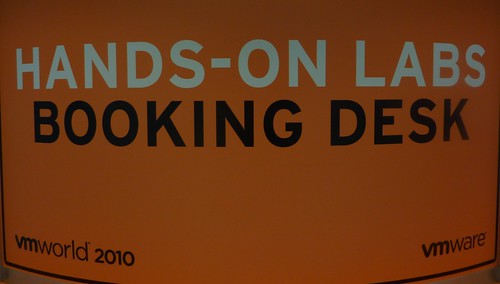
VMworld Labs Europe – Open on Monday!!

Duncan Epping · Oct 10, 2010 ·

Yes, we will be open on Monday from 13:00 till 18:00! Not only that, but the for the remaining days the labs will open up at 08:00. Some might wonder why the schedule changed, the reason for it is simple the amount of VMworld registrations was so overwhelming VMware wanted to offer everyone the opportunity to get the most out of VMworld. So if you are coming down to the Bella Center on Monday to register stick around and do some labs! There are enough topics to spent your whole Monday afternoon in the Bella Center. My personal favorites definitely are:

  • VMware View 4.5 Install and Configure
  • VMware vShield
  • VMware vCloud Director Install and Configure
  • VMware vCloud Director Networking
  • VMware vSphere Performance & Tuning

But besides these 5 there are about 25 other labs, so enough to get your hands dirty.
vCD – Networking part 3 – Use case 2

Duncan Epping · Oct 6, 2010 ·

Part 1 explained the basic concepts of networking within vCD(VMware vCloud Director), Part 2 focussed on Network Pools and Part 3 focussed on a use case which was a vApp directly connected to an External routed Org Network. It took me a while to develop part 3 and I wasn’t sure if I could find the time to do another use case or not. I received a dozen requests for another use case so I decided to free up some time to help you guys out. Please read the other parts of this series before you start reading this part. Okay, let’s dive into those trenches.

vApp fenced to an Internal Org Network

Use case:

  1. Environments where vApps are copied and redeployed for  test and development purposes. There is no connection back to the customers datacenter to avoid any interference that could be cause by these test environments.

We will start with the basics. The flow of the network in this case will be:

vmware vCD cloud director networking logical diagram

Although only two different type of networks are used, this could of course result in multiple layers if and when for instance multiple vApp Networks are created. For the purpose of this exercise we will create a vApp with 3 VMs including two different networks. You could say you classical three-tier application.

  1. WEB = Web Frontend
  2. APP =Application Server
  3. DB = Databaser Server

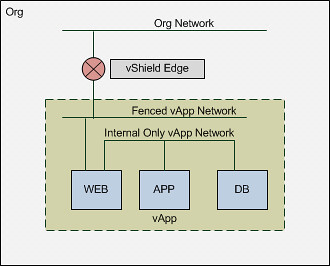
As you can imagine we don’t need users accessing the Application or Database Server so these two will be on a separate network segment. The Web Frontend will need to be accessible though and it will need to be able to access both the Application and the Database Server. Logically speaking that will look as follows:

vmware vCD cloud director networking logical 3-tier app diagram

Please note that the Org Network doesn’t connect back to anything! This means that in order for you to connect to your WEB vm you will need to go through the vCD Portal! Of course you could still test if your web services are working by simply deploying a desktop VM with windows XP in the same Org. Now I can hear some of you think why not just a NAT-Routed Org Network, well that is something that would work as well, but than it would be really similar to what use case 1 provided and this is purely for educational purposes.

Creating the Networks

The first step of course is to ensure you have a Network Pool. If you haven’t already created, you can use Part 2 of this series as a reference.  I am assuming here you already have a network pool and will go straight to the Org Network, which is option 7 on the home screen.

vmware vCD cloud director networking screenshot

Now you will need to select the Org that this Network will belong to and then you can decide what type of network you will create. You can do this in either “Typical” or “Advanced” mode. Both will give you the same options but it is named slightly different and Advanced will only allow you to create 1 network at a time where with Typical you can create multiple. As we have used Typical in the previous use case we will use Advanced this time. We are going to create a fully isolated Org Network so we will select “Internal Organization Network”.

vmware vCD cloud director networking screenshot

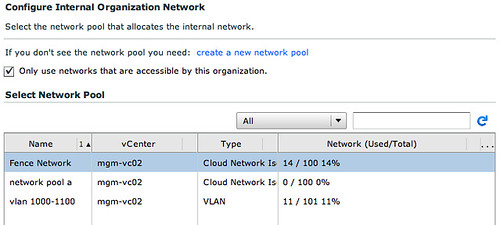
Next up we will need to select a network pool. Now you might ask yourself why we will need one when the Org Network is completely isolated? Well we will need cross-host communication when vApp/VMs need to communicate with each other and don’t reside on the same host. Although it sounds very logical, it is often overseen that this is what a network pool does. It enables cross-host communication. In this case we will select the vCloud Network Isolation Network Pool.

vmware vCD cloud director networking screenshot

Now we will need to specify the IP details for this Org Network. These IP addresses will be consumed by the VMs that are configured to use the “static pool”, in our case that will be the vShield Edge device that is deployed as part of this Isolated Network (deployed for DHCP services etc) and the WEB virtual machine.

vmware vCD cloud director networking screenshot

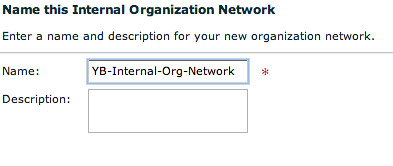
Of course we will need to give it a name. I tend to use the name of the Org and the type of Org Network I created.

vmware vCD cloud director networking screenshot

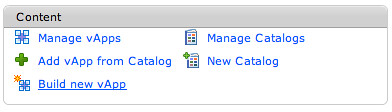
Now we will need to build a vApp. As stated this vApp will contain multiple VMs.

vmware vCD cloud director networking screenshot

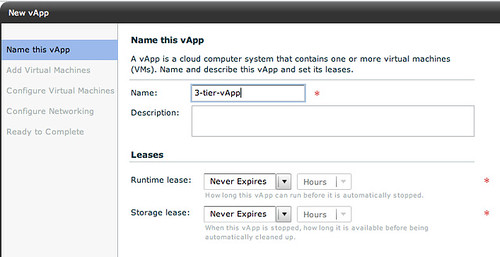
We will give it a name.

vmware vCD cloud director networking screenshot

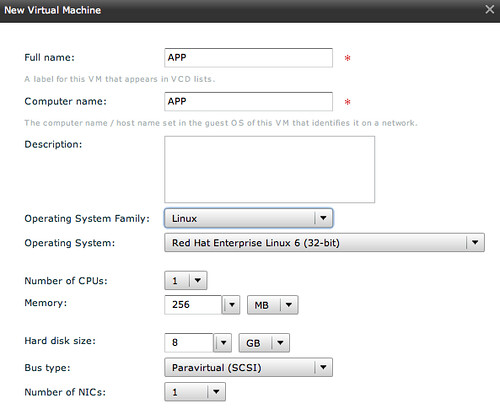
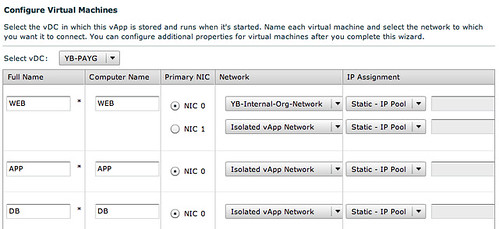
And we will start adding multiple VMs to it. The WEB virtual machine will have 2 NICs as it will need to connect to a device outside of vApp and to two VMs inside of the vApp.

vmware vCD cloud director networking screenshot

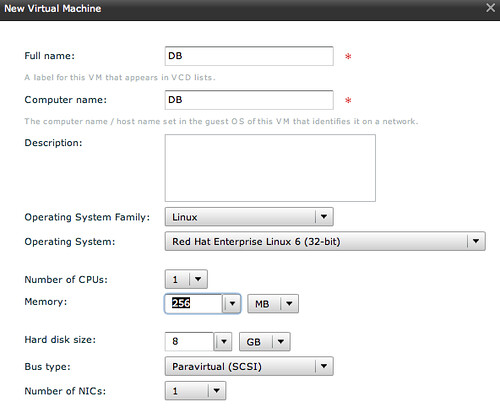
The following two VMs “APP” and “DB” will be configured with a single NIC as they will only need to connect to each other, all contained within the vApp.

vmware vCD cloud director networking screenshot

vmware vCD cloud director networking screenshot

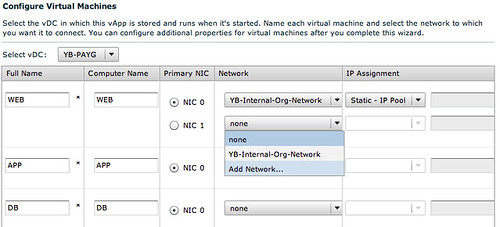
Now this is the part where we will assign specific network segments to the NICs. For WEB we will connect “NIC 0” to the Internal Org Network and NIC 1 will need to be connected to a vApp Network.

vmware vCD cloud director networking screenshot

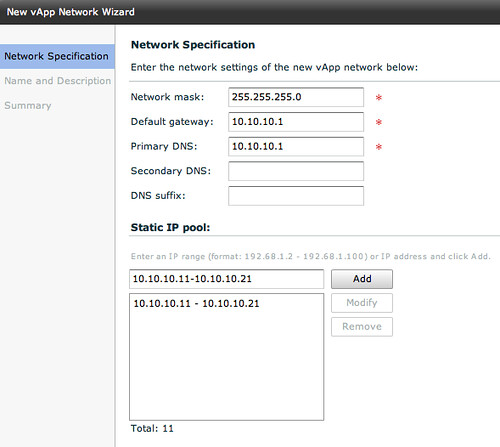
This vApp Network however will need to be created first. Please note that this is a vApp network, so only available to those VMs which are part of this vApp! Again we will need to specify IP details for the VMs to consume.

vmware vCD cloud director networking screenshot

When we have done this and have given the vApp network a name we can connect the remaining VMs to the same network.

vmware vCD cloud director networking screenshot

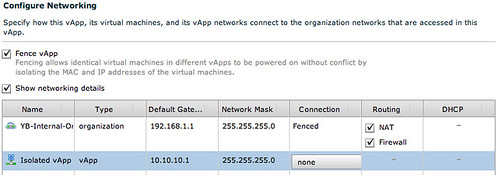
Now in order to have multiple copies of the same vApp running within the Org we will select “Fenced” mode for the vApp which basically will deploy a vShield Edge device.

vmware vCD cloud director networking screenshot

I guess this diagram that vCD creates makes it a bit more clear what your vApp connectivity will look like:

vmware vCD cloud director networking screenshot

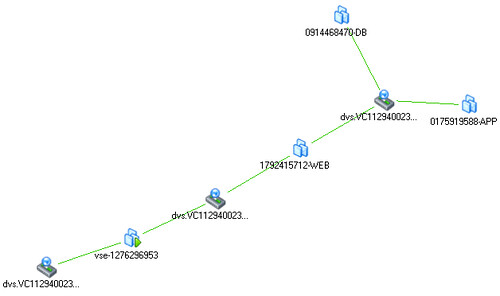
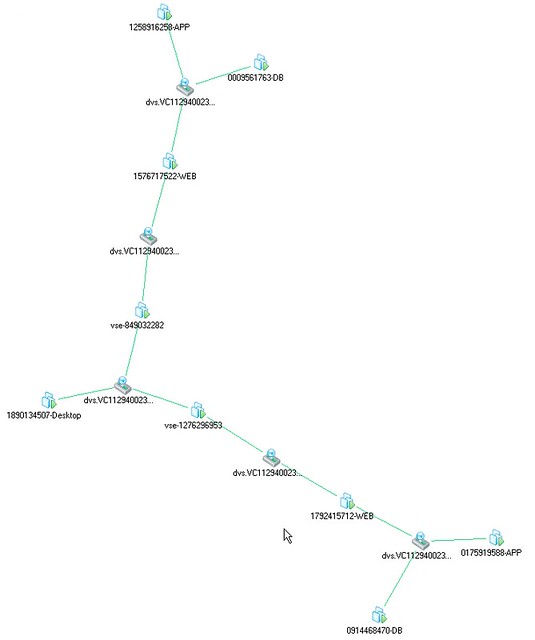
And if that isn’t enough you can also check the Maps functionality that vCenter offers. This will give you a great view of how this vApp is connected within vSphere.

vmware vCD cloud director networking screenshot

So what about that desktop? And what about if we have two copies of that vApp running? Well this is what the map would look like if when we have created these. On the middle left you will see the desktop that is used for testing the WEB VMs. Both WEB virtual machines can be accessed through the VSE device, which of course means that you will need to setup NAT, but we will leave an in-depth explanation around that for the next article.

vmware vCD cloud director networking screenshot

Summary

vCloud Director Network is really powerful, but as shown by this use case it can get very complex rather fast especially when you are using multiple layers. In this example we kept it simple by using an isolated network, an External NAT/Routed Org Network would have added another layer. Features like vCenter Maps will however make it easier to understand what has been created on the vSphere layer to enable these layers of networking, make sure you take advantage of functionality like this when exploring vCD!

Vote Now!

Duncan Epping · Sep 14, 2010 ·

Yes, it is that time of the year again… vSphere-land.com’s voting for the Top 25 Blogs worldwide has started again. I had the honor of placing 1st three consecutive times and of course this time I want to be first again, although this year more than ever there seems to be a lot of competition out there!

My personal Top-10 changed slightly as a couple of bloggers did an outstanding job the last 6 months and others stopped or topics changed. Bloggers like Frank Denneman, who published amazing articles on Resource Management and NUMA scheduling, Simon Long with his VCP-4 online exam and Nick Weaver with the Uber VSA really stepped up to the plate!

Instead of asking for your votes, I am hoping each of you will select the top-10 blogs based on quality, longevity and frequency. (I personally find length of the article irrelevant, content is King!) I did wanted to list my top 10 articles over the last 6 months:

  1. Overhauled HA Deepdive
  2. ESXTOP
  3. VMware vCloud Director (vCD)
  4. vSphere 4.1, VMware HA New maximums and DRS integration will make our life easier
  5. Aligning your VMs virtual hard disks
  6. Memory Limits
  7. Changes to Snapshot mechanism Delete All
  8. HA/DRS and Flattened Shares
  9. IOps
  10. VMware related acronyms

Vote Now!

HA Cli

Duncan Epping · Aug 3, 2010 ·

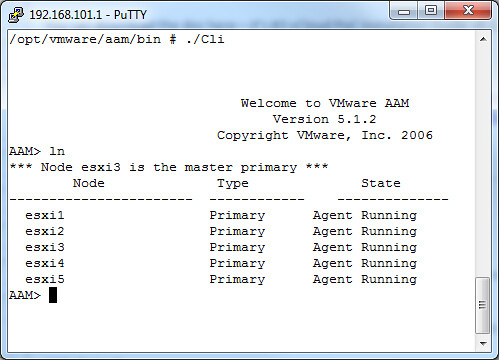
I was just playing around with the HA Cli and noticed that when you give an “ln” (listNodes) that the failover coordinator (aka master primary) is also listed. I have never noticed this before, but don’t have a pre-vSphere 4.1 environment to test it on to see if this existed before 4.1. If you want to test it in your own environment just simply run “/opt/vmware/aam/bin/Cli” and give the “ln” command as shown in the screenshot below:

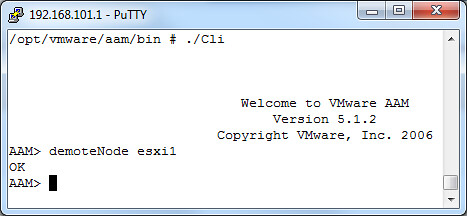
I also tested demoting of a node just for fun. In this case I demoted the node “esxi1” from primary to secondary:

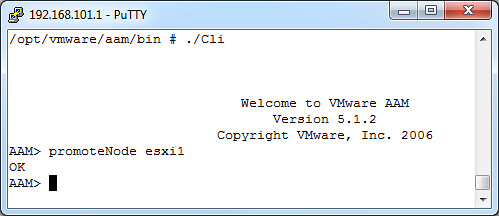
And of course I promoted it again to primary:


** Disclaimer: This article contains references to the words master and/or slave. I recognize these as exclusionary words. The words are used in this article for consistency because it’s currently the words that appear in the software, in the UI, and in the log files. When the software is updated to remove the words, this article will be updated to be in alignment. **

VMware related acronyms

Duncan Epping · Jul 29, 2010 ·

We were just talking about some random VMware acronyms during a lab day and I thought I would write the ones down which some of us didn’t know. (Even google did not have the answer to some) I guess the most difficult one to figure out was VPXA/VPXD, which refers to VPX which was the official name for vCenter back in the days….

  • FDM = Fault Domain Manager
  • CSI = Clustering Services Infrastructure
  • PAE = Propero Application Environment
  • ESX = Elastic Sky X
  • GSX = Ground Storm X or Ground Swell X
  • VPX = Virtual Provisioning X
  • VPXA = Virtual Provisioning X Agent
  • VPXD = Virtual Provisioning X Daemon
  • VMX = Virtual Machine eXecutable
  • AAM = Automated Availability Manager
  • VIX = Virtual Infrastructure eXtension
  • VIM = Virtual Infrastructure Management
  • DAS = Distributed Availability Service
  • ccagent = Control Center agent
  • vswif = Virtual Switch Interface
  • vami =Virtual Appliance Management Infrastructure
  • vob = VMkernel Observation
  • MARVIN = Modular Automated Rackable Infrastructure Node
  • WCP = Workload Control Plane

How about code names for releases? Well we had a couple, note that the first name usually refers to ESX and the second to vCenter, so for KL “Kadinsky” was the code name for ESX and Logan for vCenter:

  • DM = Dali/McKinley = VI 3.0
  • NP = Neptune/Pluto = VI 3.5
  • KL = Kadinsky/Logan = vSphere 4.0
  • KL.next = vSphere 4.1
  • MN = Matisse/Newberry = vSphere 5.0
  • OP = Oliveira/Pikes = vSphere 5.5

Of course the big question is where the “X” comes from in ESX, GSX etc. To be honest I don’t know but according to VMware old-timer Mike Di Petrillo (source is this interview (21:30) by Rodney Haywood) the X had been added by an Engineer to make it sound technical and cool!

If there are any to VMware related acronyms that you feel should be on the list which are not too obvious… leave me a comment. (And too obvious would be something like vDS.)

  • « Go to Previous Page
  • Page 1
  • Interim pages omitted …
  • Page 89
  • Page 90
  • Page 91
  • Page 92
  • Page 93
  • Interim pages omitted …
  • Page 124
  • Go to Next Page »

Primary Sidebar

About the Author

Duncan Epping is a Chief Technologist and Distinguished Engineering Architect at Broadcom. Besides writing on Yellow-Bricks, Duncan is the co-author of the vSAN Deep Dive and the vSphere Clustering Deep Dive book series. Duncan is also the host of the Unexplored Territory Podcast.

Follow Us

  • X
  • Spotify
  • RSS Feed
  • LinkedIn

Recommended Book(s)

Also visit!

For the Dutch-speaking audience, make sure to visit RunNerd.nl to follow my running adventure, read shoe/gear/race reviews, and more!

Do you like Hardcore-Punk music? Follow my Spotify Playlist!

Do you like 80s music? I got you covered!

Copyright Yellow-Bricks.com © 2026 · Log in