My colleague Rene Jorissen just posted a config example for a port-channel and trunk configuration for VMware. So for those interested in networking check it out.
VMware
VCB and Solaris 32 Bit VM’s
One of my readers just emailed me the following, again thanks for this info which might me useful to any of you guys out there playing with VCB:
Today with the help of VMware Support I solved a strange problem.
With all my Solaris10-32Bit VM’ s I was getting an error, when I tried to backup them via VCB. Creating snapshot of the VM failed with “Creating a quiesced snapshot failed because the (user-supplied) custom pre-freeze script in the virtual machine exited with a non-zero return code”. But there doesn’t exists a pre or post script in all of the VMs.So as you know, no snapshot means no backup of this VM. I monitored the hostd of the host, where the VM is running. There I saw this messages: ” Could not run custom freeze/thaw operation: Insufficient permissions in guest operating system”.
VMware support told me, that there is a problem within the VMTools in the Solaris VM’s. They know about this problem (I didn’t find anything about this in the internet) and will solve it in a future patch.
For now, the only way is to use the “-Q 0” switch with the vcbmounter command. This way VCB will ignore any pre or post scripts.
Christoph P.
So in short, -Q 0 disregards any pre or post scripts. Thanks Christoph for contributing to my blog!
Show VMware Tools version with BGInfo
Arne blogged about a cool feature of BGInfo yesterday, but his post is in dutch so it’s not on the Planet V12 RSS feed which is a shame cause it’s definitely usefull info.
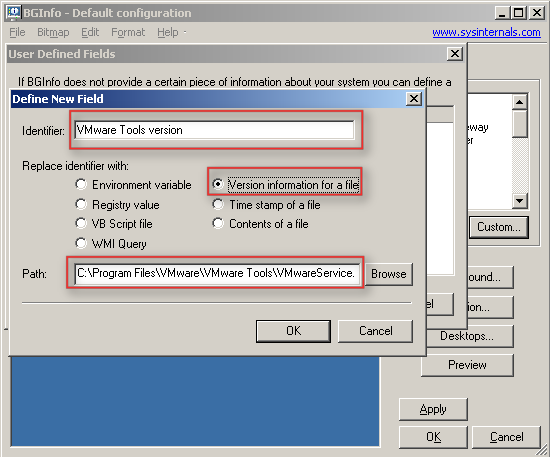
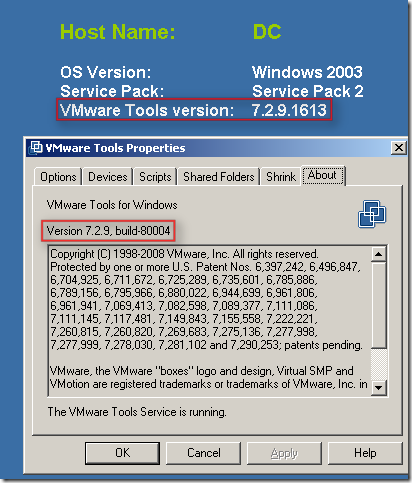
In short: BGInfo is a handy little SysInternals tool which sets a desktop wallpaper with pre-defined info like total memory, disk info, ip info etc. With BGInfo it’s also possible to define a specific field with for instance the version information of a file. Arne discovered that it’s possible to point towards the VMware tools executable and display the VMware tools version on your server desktop aka wallpaper.
I guess a picture says more than words:
MS Blogs part II
Scott’s post pointed me out to the follow up of the VMotion vs Quick Migration post a week ago. I’ve already blogged about the previous articles so here my thoughts on the new one.
I guess the most important part of Jeff’s post is this:
We’ve drilled into these scenarios further and asked customers, who have currently have Live Migration capabilities, if they have changed their servicing process. In particular, when do they perform their hardware servicing. Is it during business hours 9-5? The overwhelming answer is, “No, we still schedule server downtime and notify folks of the scheduled downtime.”
Even customers with Live Migration still wait until off hours to service the hardware.
I don’t know Jeff’s customers, but it seems like they’re not the most brilliant system engineers in the world. I don’t know a single system engineer who would wait with servicing their hardware if there’s a warning on his system and when he has the opportunity to live migrate. With an 8:1 consolidation rate the importance of fully functional hardware also increased 8 times. What are you going to tell your manager when a hardware device reached it’s threshhold and just stops working? “Sorry, I know we have VMotion but I wanted to service after business hours because I did not want to disturb anyone!”. Well I know what the reaction of your manager will be.
I’ve seen a lot of crooked comparisons, but this is by far the best I’ve seen in years. Especially the part about 5, 10, 20 seconds of downtime. What about your SQL Servers or Exchange. If you could avoid downtime wouldn’t you want to? All these are just excuses Microsoft tries to find for not releasing a full working product with a real live migration functionality. Come one guys, you announced it… did not get the thing working in time, and you are telling the world that nobody needs it. Who are you kidding?
And about patching, the Windows 2008 Core footprint is indeed small compared to the full edition… But it doesn’t even come close to the 32MB ESXi footprint. I’m not even gonna talk about Microsoft patch reputation.
Jeff’s post also pointed me towards another blog where the writer James talks about the same issues. In the comments “vaibhavbagaria” points out a nice pro VMware detail:
The other annoying thing is that MS solution needs two LUNs for each of the servers, one for Quorum and one for Storage. VMware shares a single LUN between upto 16 physical servers. So you could have 14 Active and 2 Standby servers for failover protection.
With Hyper-V, one would need 28 servers and 28 LUNs.
And with ESX 3.5 it’s 32 Servers in a cluster and or 32 Servers attached to a single LUN. So make that 32 Active ESX Servers, no standby because you will have failover possibilities with using your hardware. The MS score would be 32 active and 32 standby with 32 LUNs. Well that would give you a nice consolidation rate I guess and really reduce the energy costs. Talking green…
James O’Neill just replied to my post with the following:
You could also have 8 all active nodes and achieve the same thing. I think we only go to 8 so you would have to have each one running at 7/8th capacity. VMWare could run at 31/32, against our 28/32
VM’s automatically renamed
Yesterday evening I witnessed a weird phenomenon. We had to bring down a complete environment to move a 19″ rack to a different location. We switched the SAN on, waited a couple of minutes and switched the ESX hosts on. When the ESX hosts finished booting we booted the VirtualCenter. Everything looked normal in the VI Client. I had all connections to the SAN and all ESX Hosts were up and running. So I decided to power up the first VM, it was a VM named LNX01. Within a second the VM got renamed to LNX05(1). I though I was going nuts. I checked the settings of the renamed VM and indeed it was pointing out to the LNX05 diskfiles/vmx.
Maybe it was just me, or this one VM so I decided to give another one a try, I powered up LNX02. Same happening here, within a second the VM was renamed to PS01(1) and booted fine. The settings were pointing out to PS01. I checked a couple of VM’s but could not find anything weird. I restarted the VirtualCenter service just to be sure. I started the VM LNX03 and again it was renamed… Than I decided to restart the “mgmt-vmware” services on all of the ESX hosts and the problem never returned again. It seems like VirtualCenter had a different view than the ESX hosts had. But I can’t think of a logical reason what could cause this. I searched the knowledge base but could not find any related problems, well besides an old article based on VirtualCenter 1.2.