• Skip to primary navigation
  • Skip to main content
  • Skip to primary sidebar

Yellow Bricks

by Duncan Epping

  • Home
  • Unexplored Territory Podcast
  • HA Deepdive
  • ESXTOP
  • Stickers/Shirts
  • Privacy Policy
  • About
  • Show Search
Hide Search

vmotion

vMotion enhancement in vSphere 5.1

Duncan Epping · Sep 5, 2012 ·

There’s a nice new enhancement to vMotion in vSphere 5.1. (and no, it doesn’t have specific name :-)) With vSphere 5.1 you can migrate virtual machines live without needing “shared storage”. In other words you can vMotion virtual machines between ESXi hosts with only local storage. It is very simple:

  • Open the vSphere Web Client
  • Click “VMs and Templates”
  • Right click the VM you want to migrate
  • Select “Change both host and datastore”
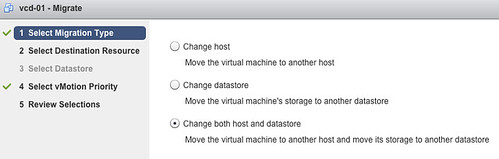
I am sure Frank Denneman is going to dive in to this soon so I won’t elaborate on how the process it self works. There’s already a blogpost out by Sreekant Setty which has some more details and which points to a nice white paper about vMotion / SvMotion performance.
Clearing up a misunderstanding around CPU throttling with vMotion

Duncan Epping · Jul 16, 2012 ·

I was reading a nice article by Michael Webster on multi-nic vMotion. In the comment section Josh Attwell refers to a tweet by Eric Siebert around how CPUs are throttled when many VMs are simultaneously vMotioned. This is the tweet:

Heard interesting vMotion tidbit today, more simultaneous vMotions are made possible by throttling the clock speed of VMs to slow them down

— Eric Siebert (@ericsiebert) June 6, 2012

I want to make sure that everyone understands that this is not exactly the case. There is a vMotion enhancement in 5.0 which is called SDPS aka “Slow Down During Page Send”. I wrote an article about this feature when vSphere 5.0 was released but I guess it doesn’t hurt to repeat this as the blogosphere was literally swamped with info around the 5.0 release.

SDPS kicks in when the rate at which pages are changed (dirtied) exceeds the rate at which the pages can be transferred to the other host. In other words, if your virtual machines are not extremely memory active then chances of SDSP ever kicking in is small, very very small. If it does kick in, it kicks in to prevent the vMotion process from failing for this particular VM. Now note that by default SDPS is not doing anything, normally your VMs will not be throttled by vMotion and it will only be throttled when there is a requirement to do so.

I quoted my original article on this subject below to provide you the details:

Simply said, vMotion will track the rate at which the guest pages are changed, or as the engineers prefer to call it, “dirtied”. The rate at which this occurs is compared to the vMotion transmission rate. If the rate at which the pages are dirtied exceeds the transmission rate, the source vCPUs will be placed in a sleep state to decrease the rate at which pages are dirtied and to allow the vMotion process to complete. It is good to know that the vCPUs will only be put to sleep for a few milliseconds at a time at most. SDPS injects frequent, tiny sleeps, disrupting the virtual machine’s workload just enough to guarantee vMotion can keep up with the memory page change rate to allow for a successful and non-disruptive completion of the process. You could say that, thanks to SDPS, you can vMotion any type of workload regardless of how aggressive it is.

It is important to realize that SDPS only slows down a virtual machine in the cases where the memory page change rate would have previously caused a vMotion to fail.

This technology is also what enables the increase in accepted latency for long distance vMotion. Pre-vSphere 5.0, the maximum supported latency for vMotion was 5ms. As you can imagine, this restricted many customers from enabling cross-site clusters. As of vSphere 5.0, the maximum supported latency has been doubled to 10ms for environments using Enterprise Plus. This should allow more customers to enable DRS between sites when all the required infrastructure components are available like, for instance, shared storage.

Multi NIC vMotion, how does it work?

Duncan Epping · Dec 14, 2011 ·

I had a question last week about multi NIC vMotion. The question was if multi NIC vMotion was a multi initiator / multi target solution. Meaning that, if available, on both the source and the destination multiple NICs are used for the vMotion / migration of a VM. Yes it is!

It is complex process as we need vMotion to able to handle mixes of 10GbE and 1GbE NICs.

When we start the process we will check, from the vCenter side, each host and determine the total combined pool of bandwidth available for vMotion. In other words, if you have 2x1GbE NICs and 1x10GbE NIC, then that host has a pool of 12GbE worth of bandwidth. We will do the same for the source and the destination host. Then, we will walk down each host’s list of vMotion vmknics, pairing off NICs until we’ve exhausted the bandwidth pool.

There are many combinations possible, but lets discuss a few just to provide a better idea of how this works:

  • If the source host has 1x1GbE NIC and the dest 1x1GbE NIC, we’ll open one connection between the these two hosts.
  • If the source has 3x1GbE NICs and the destination 1x10GbE NIC, then we’ll open one connection from each source-side 1GbE NIC to the destination’s 10GbE NIC – so a total of three socket connections all to the dest’s single 10GbE NIC.
  • If the source has 15x1GbE NICs and the destination 1x10GbE NIC and 5x1GbE NICs, then we’ll direct the first 10 source-side 1GbE NICs to connect to the dest’s 10GbE NIC, then the remaining pair of 5 1GbE vmknics will connect to each other – 15 connections in all.

Keep in mind that if the hosts are mismatched, we will create connections between vmknics until one of the sides is “depleted”. In other words if the source has 2 x 1GbE and the destination 1 x 1GbE only 1 connection would be opened.


Multiple-NIC vMotion in vSphere 5…

Duncan Epping · Sep 17, 2011 ·

How do you setup multiple-NIC vMotion? I had this question 3 times in the past couple of days during workshops so I figured it was worth explaining how to do this. It is fairly straight forward to be honest and it is more or less similar to how you would setup iSCSI with multiple vmknic’s. More or less as there is one distinct difference.

KB article has been published, including the video I recorded

You will need to bind each VMkernel Interface (vmknic) to a physical NIC. In other words:

  • Create a VMkernel Interface and give it the name “vMotion-01”
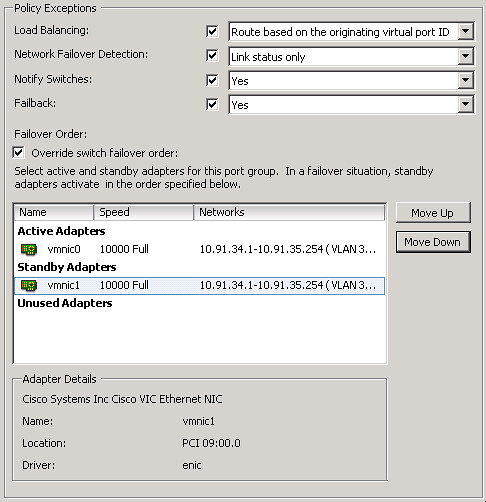
  • Go to the settings of this Portgroup and configure 1 physical NIC-port as active and all others as “standby” (see the screenshot below for an example)
  • Create a second VMkernel Interface and give it the name “vMotion-02”
  • Go to the settings of this Portgroup and configure a different NIC-port as active and all others as “standby”
  • and so on…

Now when you will initiate a vMotion multiple NIC ports can be used. Keep in mind that even when you vMotion just 1 virtual machine both links will be used. Also, if you don’t have dedicated links for vMotion you might want to consider using Network I/O Control. vMotion can saturate a link and at least when you’ve set up Network I/O Control and assigned the right amount of shares each type of traffic will get what it has been assigned.

Setting up multiple-nic vMotion

For a video on how to do this:

<update: dvSwitch details below>

For people using dvSwitches it is fairly straight forward: You will need to create two dvPortgroups. These portgroup will need to have the “active/standby” setup (Teaming and Failover section). After that you will need to create two Virtual Adapters and bind each of these to a specific dvPortgroup.

And again the video on how to set this up:

vSphere 5 – Metro vMotion

Duncan Epping · Aug 3, 2011 ·

I received a question last week about higher latency thresholds for vMotion… A rumor was floating around that vMotion would support RTT latency up to 10 miliseconds instead of 5. (RTT=Round Trip Time) Well this is partially true. With vSphere 5.0 Enterprise Plus this is true. With any of the versions below Enterprise Plus the supported limit is 5 miliseconds RTT. Is there a technical reason for this?

There’s a new component that is part of vMotion which is only enabled with Enterprise Plus and that components is what we call ‘Metro vMotion’.  This feature enables you to safely vMotion a virtual machine across a link of up to 10 miliseconds RTT. The technique used is common practice in networking and a bit more in-depth described here.

In the case of vMotion the standard socket buffer size is around 0.5MB.  Assuming a 1GbE network (or 125MBps) then bandwidth delay product dictates that we could support roughly 5ms RTT delay without a noticeable bandwidth impact.  With the “Metro vMotion” feature, we’ll dynamically resize the socket buffers based on the observed RTT over the vMotion network.  So, if you have 10ms delay, the socket buffers will be resized to 1.25MB, allowing full 125MBps throughput.  Without “Metro vMotion”, over the same 10ms link, you would get around 50MBps throughput.

Is that cool or what?

  • « Go to Previous Page
  • Page 1
  • Page 2
  • Page 3
  • Page 4
  • Page 5
  • Page 6
  • Interim pages omitted …
  • Page 8
  • Go to Next Page »

Primary Sidebar

About the Author

Duncan Epping is a Chief Technologist and Distinguished Engineering Architect at Broadcom. Besides writing on Yellow-Bricks, Duncan is the co-author of the vSAN Deep Dive and the vSphere Clustering Deep Dive book series. Duncan is also the host of the Unexplored Territory Podcast.

Follow Us

  • X
  • Spotify
  • RSS Feed
  • LinkedIn

Recommended Book(s)

Also visit!

For the Dutch-speaking audience, make sure to visit RunNerd.nl to follow my running adventure, read shoe/gear/race reviews, and more!

Do you like Hardcore-Punk music? Follow my Spotify Playlist!

Do you like 80s music? I got you covered!

Copyright Yellow-Bricks.com © 2026 · Log in