• Skip to primary navigation
  • Skip to main content
  • Skip to primary sidebar

Yellow Bricks

by Duncan Epping

  • Home
  • Unexplored Territory Podcast
  • HA Deepdive
  • ESXTOP
  • Stickers/Shirts
  • Privacy Policy
  • About
  • Show Search
Hide Search

esxi

CDP Information using the commandline…

Duncan Epping · Sep 18, 2011 ·

I was doing some troubleshooting this week and needed the CDP network info. I did not have access to a vSphere client, only HP iLO access. I remoted into the ESXi box and enable ESXi Shell. I knew that I could dig up the info using esxcfg-info but the amount of details provided are overwhelming and I would rather get only the info back I need without too much hassle. I figured there was another way:

vim-cmd hostsvc/net/query_networkhint

The one thing that I find it very useful for is to check the configured VLAN(s) on the port. Below is the result of the above command:

(vim.host.PhysicalNic.NetworkHint) [
(vim.host.PhysicalNic.NetworkHint) {
dynamicType = ,
device = "vmnic0",
subnet = (vim.host.PhysicalNic.NetworkHint.IpNetwork) [
(vim.host.PhysicalNic.NetworkHint.IpNetwork) {
dynamicType = ,
vlanId = 3001,
ipSubnet = "10.91.34.1-10.91.35.254",
},
(vim.host.PhysicalNic.NetworkHint.IpNetwork) {
dynamicType = ,
vlanId = 2912,
ipSubnet = "10.91.32.1-10.91.32.63",
}
],
connectedSwitchPort = (vim.host.PhysicalNic.CdpInfo) null,
lldpInfo = (vim.host.PhysicalNic.LldpInfo) null,
},
]
Windows 8 on ESXi 5.0?

Duncan Epping · Sep 18, 2011 ·

I saw a couple of questions on the VMTN Communities around running Windows 8 Dev Preview on ESXi 5.0 and support and the fact that it doesn’t work. Although the OS is listed in the dropdown list after you have created a VM it does not mean it is supported. Support for Operating Systems should always be validated through the following page: http://www.vmware.com/resources/compatibility/search.php?deviceCategory=software. Currently Windows 8 Dev Preview is not on the list and as such not supported, which means no guarantee that it will work. As some have already noticed it won’t work (HAL_INITIALIZATION_FAILED), for now… as I am sure the engineers at VMware are working on it as I am typing this article. (That’s no guarantee a solution / workaround will come in the near future though.)

There’s a KB article on this topic http://kb.vmware.com/kb/2006859, if you are interested I would suggest bookmarking it or subscribing to it.

I want to point out though that you can run Windows 8 in Workstation 8 or Fusion 4. Yes I know that these are paid products, but you can download the eval version which is valid for 30 days. Workstation 8 comes with VMware Player 4.0, which is completely free! (Not available as a separate download yet unfortunately.)

Installing Windows 8 is straight forward, just use the Windows 7 – 64 Bit profile that is part of both Fusion and Workstation.

Creating an Image Profile without manually downloading a bundle! (stateless ESXi)

Duncan Epping · Sep 15, 2011 ·

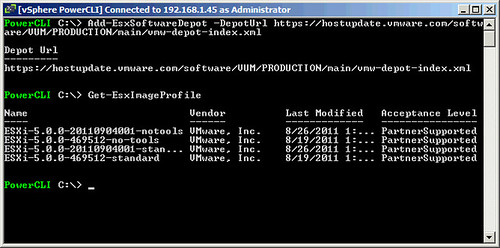
Just like the past couple of days I’ve been playing around with stateless ESXi. I’ve downloaded multiple ESXi bundles / depots and remembered that there was an easier way of creating an Image Profile.  The image profiles are also available as part of an online depot at vmware.com. So I figured I would start using that one instead of downloading the bundle manually every single time. It is fairly simple to add the online source as a depot:

Add-EsxSoftwareDepot -DepotUrl https://hostupdate.vmware.com/software/VUM/PRODUCTION/main/vmw-depot-index.xml

If you would do a “Get-EsxImageProfile” next you would see all image profiles (see screenshot below) which are part of the depot.

Now you could even compare the two image profiles which would tell you if the image profiles are equal and which VIB has changed. In this case it is one of the primary VIBs “esx-base”:

Compare-EsxImageProfile ESXi-5.0.0-469512-no-tools ESXi-5.0.0-20110904001-notools

Equal               : False
PackagesEqual       : False
RefAcceptanceLevel  : PartnerSupported
CompAcceptanceLevel : PartnerSupported
OnlyInRef           : {}
OnlyInComp          : {}
UpgradeFromRef      : {VMware_bootbank_esx-base_5.0.0-0.3.474610}
DowngradeFromRef    : {}

If you figure by now that all this PowerCLI stuff is not your cup of tea I would like to suggest to check out Alan Renouf’s brand new PowerPack. Alan has GUI’fied the most common tasks which will enable you to click and point instead.

Patching your Image Profile (stateless ESXi)

Duncan Epping · Sep 14, 2011 ·

The first patch for ESXi has been released so I figured this was a great time to create and article around how to patch your Image Profile with a new update. The process is fairly straight forward as in this case you will need to create a new image-profile (described here) and link it to a new rule (New-DeployRule and make that rule active (Add-DeployRule). That is what I like about Stateless. You can just prepare a new Image Profile, create a new rule and you are good to go. A reboot of your ESXi host will load up the latest Image Profile. I did this within a couple of minutes and I’m now running build 474610 of ESXi.

While I was playing around I decided to do things in an incorrect order to see if I could break it, and of course I did manage to break it… I managed to fix all of it though. The first thing I did was testing the rule set and repairing it as documented below.

Now if you run into any issues you can repair the ruleset by using the following command:

Get-VMHost <esxi host> | Test-DeployRuleSetCompliance | Repair-DeployRuleSetCompliance

Now if your host boots and mentions that there’s no rule associated you might want to try the following:

Get-DeployRule

If your newly created rule is returned you will want to make sure it is active:

Get-DeployRuleSet

If there’s nothing listed it means no rules are currently active (active ruleset is what the documentation will refer to). You you can set the rule as active as follows:

Set-DeployRuleSet -DeployRule <name of rule>

Everyone who is considering using Auto-Deploy I would most definitely recommend to explore these commands and to try to break things and fix it. Document your steps along the way, I am certain it will be valuable at some point!

Stripping your Stateless image

Duncan Epping · Sep 9, 2011 ·

I was just playing around with Stateless again, aka auto-deploy, and I was wondering how far I could strip the image down to the bare minimum and what the difference would be. I loaded the standard software depot and cloned an existing image profile to a new image profile, for more details on how to do this check the post I published a couple of days ago. I figured I would export this newly create image profiles first so I could see the size of the bundle when exported. I cloned and exported the “ESXi-5.0.0-469512-no-tools” image profile and checked the details:

ESXiStateless.zip 137,869 KB

Now the first thing to do was figuring out which VIBs were part of this image profile, you can do this fairly simple by using the command below. Note that I exported the results to a CSV file just to make it easier if I would need to add VIBs later:

Get-EsxImageProfile <image profile name>  | Select-Object -ExpandProperty VibList | Select name | export-csv c:\tmp\VIBs.csv

Now this returns the full list of all the VIBs in a CSV file with just the names of the VIBs. There are 2 core VIBs (esx-base and esx-tboot) which are required for booting. I also kept the e1000 VIB as I knew I needed it. The e1000 VIB requires the “misc-drivers” VIB so I was left with 4 VIBs:

esx-base
esx-tboot
e1000
misc-drivers

Stripping the rest of the VIBs is fairly simple. Note that you will need to replace <image profile name> with the actual name of your image profile and <package name> with the name of the package you would like to remove:

Remove-EsxSoftwarePackage -ImageProfile <image profile name> -SoftwarePackage <package name>

So I stripped it completely and exported the image profile again and this was the result:

Thinner.zip 131,457 KB

Note that you can actually check which VIBs are part of your image profile, which is what I used to validate I removed all unnecesarry VIBs:

Get-esximageprofile <image profile name> | Select-Object -ExpandProperty VibList

That is a whopping 6MB shaved off! (By the way this is without the HA-Agent. The size of the completely stripped image profile with the HA agent is 143,679KB) Was it a useful exercise? Yes it was as it helped me understanding the process a lot better… Is it useful to strip all the drivers from your image profile? No it is not, you will only save 6MB which is close to nothing compared to the overall size of 131 MB. I did manage to boot the image correctly, but once again there’s really no point from a memory perspective to go through this exercise.

The thing that does make a huge difference is using the no-tools image profile, but there is a serious implication. When you do not include VMware Tools you will need to have a different mechanism for distributing VMware Tools which will probably complicate things from an operational perspective. I guess you will need to decide if the reduction in MBs is worth the effort and is worth the risk of having a “1 of a kind” environment. I know I will keep it vanilla from now on,


  • « Go to Previous Page
  • Page 1
  • Interim pages omitted …
  • Page 6
  • Page 7
  • Page 8
  • Page 9
  • Page 10
  • Interim pages omitted …
  • Page 66
  • Go to Next Page »

Primary Sidebar

About the Author

Duncan Epping is a Chief Technologist and Distinguished Engineering Architect at Broadcom. Besides writing on Yellow-Bricks, Duncan is the co-author of the vSAN Deep Dive and the vSphere Clustering Deep Dive book series. Duncan is also the host of the Unexplored Territory Podcast.

Follow Us

  • X
  • Spotify
  • RSS Feed
  • LinkedIn

Recommended Book(s)

Also visit!

For the Dutch-speaking audience, make sure to visit RunNerd.nl to follow my running adventure, read shoe/gear/race reviews, and more!

Do you like Hardcore-Punk music? Follow my Spotify Playlist!

Do you like 80s music? I got you covered!

Copyright Yellow-Bricks.com © 2026 · Log in