• Skip to primary navigation
  • Skip to main content
  • Skip to primary sidebar

Yellow Bricks

by Duncan Epping

  • Home
  • Unexplored Territory Podcast
  • HA Deepdive
  • ESXTOP
  • Stickers/Shirts
  • Privacy Policy
  • About
  • Show Search
Hide Search

esxi

ESXi Management Network Resiliency

Duncan Epping · Mar 22, 2011 ·

When we wrote the HA/DRS book both Frank and I were still very much in an “ESX Classic” mindset. Over the last weeks I had questions around resilient network configurations for ESXi. I referred people back to the book but the comments that I got were that the examples were very much ESX Classic instead of ESXi. Now in my opinion the configuration looks very much the same except that “Service Console” will need to be replace with “Management Network” but I figured I might as well just document my preference for a resilient ESXi Management Network as I needed to do it anyway as part of an update of the book to a future version of vSphere.

In our book we give two examples, one of which is the simple version with a single “Service Console Network” and one with a dual “Service Console Network” configuration. Now I figured I could update both but I’d rather do just one and explain why I prefer to use this one. The one that I have picked is the single “Management Network” setup. The main reason for it being is the reduced complexity that it brings and on top of that multiple Management Networks will make sense in an environment where you have many NICs and Switches but with all these converged architectures flying around it doesn’t really make sense anymore to have 4 virtual links when you only have 2 physical. Yes I understand that something can happen to a subnet as well, but if that is the case you have far bigger problems than your HA heartbeat network failing. Another thing to keep in mind is that you can also mitigate some of the risks of running into a false positive by selected a different “Isolation Response”, typically we see these set to “Leave Powered On”.

The below is an excerpt from the book.

Although there are many configurations possible and supported we recommend a simple but highly resilient configuration. We have included the vMotion (VMkernel) network in our example as combining the Management Network and the vMotion network on a single vSwitch is the most commonly used configuration and an industry accepted best practice.

Requirements:

  • 2 physical NICs
  • VLAN trunking

Recommended:

  • 2 physical switches

The vSwitch should be configured as follows:

  • vSwitch0: 2 Physical NICs (vmnic0 and vmnic1)
    • When multiple physical PCI devices are available make sure to use a port of each to increase resiliency
  • 2 Portgroups (Management Network and vMotion VMkernel)
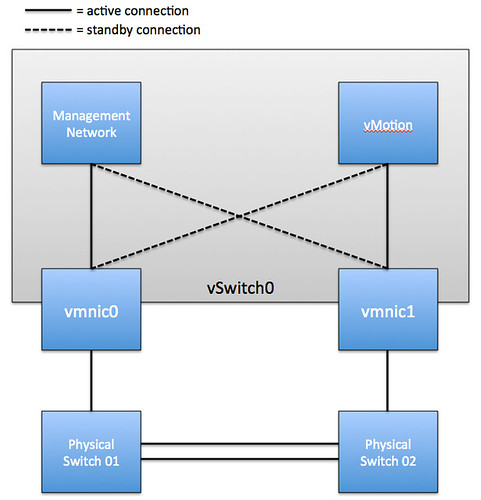
  • Management Network active on vmnic0 and standby on vmnic1
  • vMotion VMkernel active on vmnic1 and standby on vmnic0
  • Failback set to No

Each portgroup has a VLAN ID assigned and runs dedicated on its own physical NIC; only in the case of a failure it is switched over to the standby NIC. We highly recommend setting failback to “No” to avoid chances of a false positive which can occur when a physical switch routes no traffic during boot but the ports are reported as “up”. (NIC Teaming Tab)

Pros: Only 2 NICs in total are needed for the Management Network and vMotion VMkernel, especially useful in Blade environments. This setup is also less complex.

Cons: Just a single active path for heartbeats.

The following diagram depicts the active/standby scenario:
To increase resiliency we also recommend implementing the following Advanced Settings where the ip-address for “das.isolationaddress” should be a “pingable” device which is reachable by the ESXi hosts, preferably on the same subnet with as little hops as possible:

 das.isolationaddress = <ip-address>
 das.failuredetectiontime = 20000
Changing the PSP from Fixed to RR

Duncan Epping · Mar 21, 2011 ·

Today I was fooling around with my new Lab environment when I noticed my Path Selection Policy (PSP) was set to fixed while the array (Clariion CX4-120) most definitely supports Round Robin (RR). I wrote about it in the past(1, 2) but as with vSphere 4.1 the commands slightly changed I figured it wouldn’t hurt to write it down again:

First I validated what the currently used Storage Array Type Plugin (SATP) was and which Path Selected Policy was used:

esxcli nmp device list

(note that compared to 4.1 the “storage” bit was added… yes a minor but important change!)

Than I wanted to make sure that every single LUN that would be added would get the standard PSP for Round Robin:

esxcli nmp satp setdefaultpsp --satp VMW_SATP_ALUA_CX --psp VMW_PSP_RR

Now I also needed to set the PSP per LUN, for which I used these two lines of “script”:

for i in `ls /vmfs/devices/disks | grep naa.600`;
do esxcli nmp device setpolicy --device $i --psp VMW_PSP_RR;done

And I figured why not just set the number of IOps down to 1 as well just to see if it changes anything:

for i in `ls /vmfs/devices/disks/ | grep naa.600`;
do esxcli nmp roundrobin setconfig --device $i --type "iops" --iops=1;done

Setting “iops=1” Didn’t make much difference for me, but it appears to be a general recommendation these days so I figured it would be best to include it.

Before I forget, I wanted to document this as well. For my testing I used the following command which lets you clone a VMDK and time it:

time vmkfstools -i source.vmdk destination.vmdk

And the result would look as follows:

Destination disk format: VMFS zeroedthick
Cloning disk 'destination.vmdk'...
Clone: 100% done.
real    2m 9.67s
user    0m 0.33s
sys     0m 0.00s

Something that might be useful as well, timing the creation of a zeroedthick VMDK:

time vmkfstools -c 30G -d eagerzeroedthick newdisk.vmdk

I am using this to measure the difference between using and not using VAAI on a storage platform. It is a lot easier than constantly kicking off tasks in through vCenter. (Yes Alan and Luc I know it is way easier with PowerCLI.)

MinFreePct 6% or should it be less?

Duncan Epping · Mar 17, 2011 ·

Back in the days when Servers still had 8GB or 16GB memory at most a setting was introduced that guaranteed the hypervisor had a certain amount of free memory to its disposal. The main purpose of this being of course stability of the system. As with any Operating System free memory is desirable to ensure it is available whenever a process requests it.. or should we say World in the case of ESXi.

These days however we hardly see environments with 8 or 16GB hosts…. No, most servers today have a minimum of 48GB and I guess the standard is 72 or 96GB. With 72GB and 96GB being the standard today one can imagine that 6% might be slightly going overboard. Especially in high density environments like VDI every single MB worth of of extra memory can and will be worth it. As such it might be beneficial to change that 6% back to 2%. This KB article has been around for a couple of weeks, and describes just that: http://kb.vmware.com/kb/1033687

Now you might wonder what happens if you change that 6% down to 2% as the memory states are closely related this is what many have published in the past:

  • 6% – High
  • 4% – Soft
  • 2% – Hard
  • 1% – Low

But is that really the case? What if I would change MinFreePct? Well I actually mentioned that in one of my previous articles. MinFreePct is defined as 6% however the other memory states are not fixed but rather a percentage of MinFreePct:

Free memory state thresholds {
soft:64 pct
hard:32 pct
low:16 pct
}

So that means that if you change the “High” watermark (6%) down to 2% the percentage that will trigger ballooning / compression / swap will also automatically change. Would I recommend changing MinFreePct? Well it depends, if you are running a high density VDI workload this might just give you that little extra you need but in most other cases I would leave it to the default. (For more on memory tuning for VDI read Andre’s article that he coincidentally published today.)

Thin provisioned disks and VMFS fragmentation, do I really need to worry?

Duncan Epping · Mar 8, 2011 ·

I’ve seen this myth floating around from time to time and as I never publicly wrote about it I figured it was time to write an article to debunk this myth. The question that is often posed is if thin disks will hurt performance due to fragmentation of the blocks allocated on the VMFS volume. I guess we need to rehash (do a search on VMFS for more info)  some basics first around Think Disks and VMFS volumes…

When you format a VMFS volume you can select the blocksize (1MB, 2MB, 4MB or 8MB). This blocksize is used when the hypervisor allocates storage for the  VMDKs. So when you create a VMDK on an 8MB formatted VMFS volume it will create that VMDK out of 8MB blocks and yes indeed in the case of a 1MB formatted VMFS volume it will use 1MB. Now this blocksize also happens to be the size of the extend that is used for Think Disks. In other words, every time your thin disks needs to expand it will grow in extends of 1MB. (Related to that, with a lazy-thick disk the zero-out also uses the blocksize. So when something needs to be written to an untouched part of the VMDK it will zero out using the blocksize of the VMFS volume.)

So using a thin disk in combination with a small blocksize cause more fragmentation? Yes, more than possibly it would. However the real question is if it will hurt your performance. The answer to that is: No it won’t. The reason for it being that the VMFS blocksize is totally irrelevant when it comes to Guest OS I/O. So lets assume you have an regular Windows VM and this VM is issuing 8KB writes and reads to a 1MB blocksize formatted volume, the hypervisor won’t fetch 1MB as that could cause a substantial overhead… no it would request from the array what was requested by the OS and the array will serve up whatever it is configured to do so. I guess what people are worried about the most is sequential I/O, but think about that for a second or two. How sequential is your I/O when you are looking at it from the Array’s perspective? You have multiple hosts running dozens of VMs accessing who knows how many volumes and subsequently who knows how many spindles. That sequential I/O isn’t as sequential anymore all of a sudden it is?!

<edit> As pointed out many arrays recognize sequential i/o and prefetch which is correct, this doesn’t mean that when contiguous blocks are used it is faster as fragmented blocks also means more spindles etc </edit>

I guess the main take away here is, stop worrying about VMFS it is rock solid and it will get the job done.

Managing availability through vCenter Alarms

Duncan Epping · Mar 3, 2011 ·

Last week a customer asked me a question about how to respond to for instance a partial failure in their SAN environment. A while back I had a similar question from one of my other customers so I more or less knew where to look, and I actually already blogged about this over a year ago when I was showing some of the new vSphere features. Although this is fairly obvious I hardly ever see people using this and hence the reason I wanted to document one of the obvious things that you can implement…. Alarms

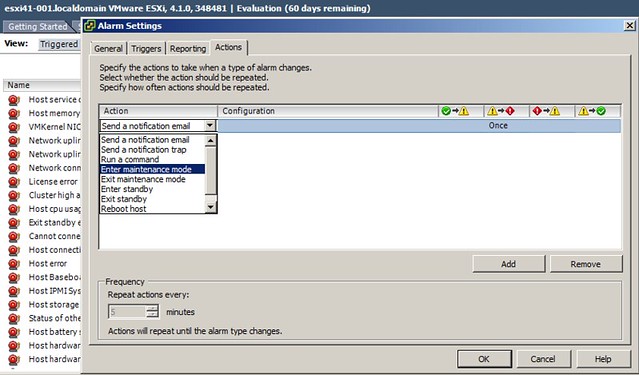
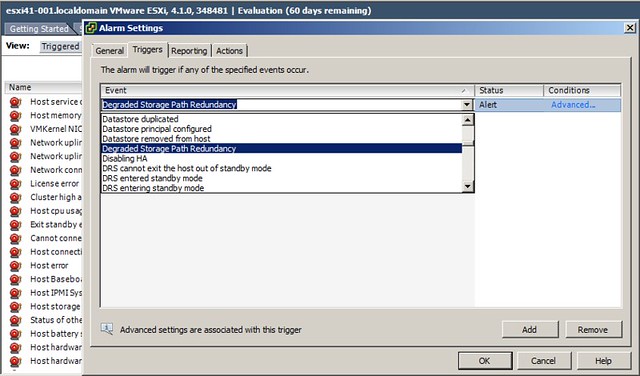
Alarms can be used to trigger an alert, and that is of course the default behavior of predefined alarms. However you can also create your own alarms and associate an action with it. I am showing the possibilities here and am not saying that this is a best practice, but the following two screenshots show that it is possible to place a host in maintenance mode based on degraded storage redundancy.

First you define the alarm:

And then you define the action:

Again, this is action could have a severe impact when a switch fails and I wouldn’t recommend it, but I wanted to ensure everyone understands the type of combinations that are possible. I would generally recommend to send an SNMP trap or even a notification email… and I would recommend to at least define the following alarms:

  • Degraded Storage Path Redundancy
  • Duplicate IP Detected
  • HA Agent Error
  • Host connection lost
  • Host error
  • Host warning
  • Host WWN changed
  • Host WWN conflict
  • Lost Network Connectivity
  • Lost Network Redundancy
  • Lost Storage Connectivity
  • Lost Storage Path Redundancy

Many of these deal with hardware issues and you might already be monitoring for them, if not make sure you monitor them through vCenter and take appropriate action when needed.

  • « Go to Previous Page
  • Page 1
  • Interim pages omitted …
  • Page 11
  • Page 12
  • Page 13
  • Page 14
  • Page 15
  • Interim pages omitted …
  • Page 66
  • Go to Next Page »

Primary Sidebar

About the Author

Duncan Epping is a Chief Technologist and Distinguished Engineering Architect at Broadcom. Besides writing on Yellow-Bricks, Duncan is the co-author of the vSAN Deep Dive and the vSphere Clustering Deep Dive book series. Duncan is also the host of the Unexplored Territory Podcast.

Follow Us

  • X
  • Spotify
  • RSS Feed
  • LinkedIn

Recommended Book(s)

Also visit!

For the Dutch-speaking audience, make sure to visit RunNerd.nl to follow my running adventure, read shoe/gear/race reviews, and more!

Do you like Hardcore-Punk music? Follow my Spotify Playlist!

Do you like 80s music? I got you covered!

Copyright Yellow-Bricks.com © 2026 · Log in