• Skip to primary navigation
  • Skip to main content
  • Skip to primary sidebar

Yellow Bricks

by Duncan Epping

  • Home
  • Unexplored Territory Podcast
  • HA Deepdive
  • ESXTOP
  • Stickers/Shirts
  • Privacy Policy
  • About
  • Show Search
Hide Search

vSAN 6.6: Manual vs Automatic Disk Claim Mode

Duncan Epping · May 3, 2017 ·

I received this question on Manual vs Automatic disk claim mode in vSAN 6.6. Someone upgraded a cluster from 6.2 to 6.6 and  wanted to add a second cluster. They noticed that during the creation of the new cluster there was no option to select “automatic vs manual”.
I think a blog post will be published that explains the reasoning behind this, I figured I would share some of it before hand so you don’t end up looking for something that does not exist. In vSAN 6.6 the “Automatic” option which automatically creates disk groups for you has disappeared. The reason for this is because we see the world moving to all-flash rather fast. With All-Flash it is difficult to differentiate between the capacity and cache device. For that reason, in previous versions of vSphere/vSAN you already had to grab the devices yourself when it was an all-flash configuration. With 6.6 we removed the “automatic” option as we also recognized that when there are multiple disk groups and you need to take disk controllers, and location of disks etc in to account it even becomes more complex to automatically form disk groups. In our experience most customers preferred to maintain control and had this configured to “manual” by default. As such this option was removed.

I hope that clarifies things. I will add a link to the article explaining it.

Can I front vSAN with a VAIO Caching Solution?

Duncan Epping · May 1, 2017 ·

I had this question a couple of times already, so I figured I would write a quick post. In short: yes you can put a VAIO Filter in front of vSAN. The question really is, which one would you like to use and why?

First of all, the VAIO Filter needs to be certified to be placed in front of vSAN storage. Just like it needs to be certified for VMFS and NFS. You can go to the VAIO HCL and check this yourself:

  • Go to: http://www.vmware.com/resources/compatibility/search.php?deviceCategory=vaio
  • Select the Vendor, for instance Infinio
  • Then click the product that comes up and open up the version of vSphere you want to use it for, for instance 6.5
  • Now it should state something like this : VMFS5, vSAN, VVOL

In this example Infinio supports VVols, vSAN and VMFS. Great! Now the next question is: why? Well that is the bigger question, personally I don’t see a real compelling reason. For traditional storage it makes a lot of sense, as you want to keep IOs local and add cache in a “cheap way” instead of expanding, a potentially close to end of life, storage system. For vSAN that is different. vSAN has a distributed architecture and every node has a flash device that is being used for write caching, and also read caching in a hybrid scenario. If this is a new deployment invest your money in NVMe instead. If you want to repurpose existing hardware and it is not on the vSAN HCL, ask yourself if you should complicate your deployment or not?

I would personally recommend to keep it simple, but than again I can also understand you do not want to let flash resources go to waste if vSAN does not support the devices. If you want to go VAIO, make sure to check the HCL and take the potential risks and operational complexity in to account and weigh that against the cost.

Where’s the HA enforce VM-Host and Affinity rules option in vSphere 6.5?

Duncan Epping · Apr 25, 2017 ·

Last week on (VMware internal) Socialcast someone asked where the UI option is in vSphere 6.5 that allows you to enable the ability for vSphere HA to respect VM-Host Affinity and VM-VM Anti Affinity rules. In vSphere 6.0 there is an option in the Rules part of the UI as shown in the screenshot below.

In vSphere 6.5 that option has disappeared completely. The reason for this is because vSphere HA now respects these rules by default, as it appeared this is the behavior customers wanted anyway. Note, that if for whatever reason vSphere HA cannot respect the rule it will restart the VMs (violating the rule) as these are non-mandatory rules it chooses availability over compliance in this situation.

If you would like to disable this behavior and don’t care about these rules during a fail-over you can set either or both advanced settings:

  • das.respectvmvmantiaffinityrules – set to “true” by default, set to “false” if you want to disable it
  • das.respectvmhostsoftaffinityrules – set to “true” by default, set to “false” if you want to disable it

I hope that helps those looking to make changes to this behavior.

vSAN Health Check fails on vMotion check

Duncan Epping · Apr 21, 2017 ·

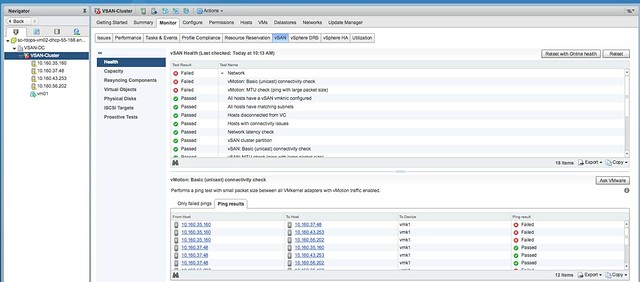
On Slack someone asked why the vMotion check for vSAN 6.6 Health Check was failing constantly. It was easy to reproduce when using the vMotion IP Stack on your vMotion VMkernel interface. I went ahead and tested it in my lab, and indeed this was the case. I looked around and then noticed the following in the vSAN 6.6 release notes:

vMotion network connectivity test incorrectly reports ping failures
The vMotion network connectivity test (Cluster > Monitor > vSAN > Health > Network) reports ping failures if the vMotion stack is used for vMotion. The vMotion network connectivity (ping) check only supports vmknics that use the default network stack. The check fails for vmknics using the vMotion network stack. These reports do not indicate a connectivity problem.

Workaround: Configure the vmknic to use the default network stack. You can disable the vMotion ping check using RVC commands. For example: vsan.health.silent_health_check_configure -a vmotionpingsmall

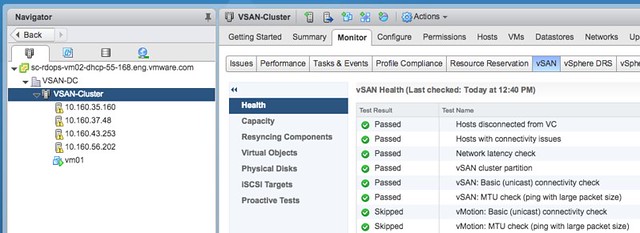
I guess that clarifies things, so I figured I would test it. Here’s what it looked like before I disabled the checks:

I used RVC to disable the checks, let me show two methods:

vsan.health.silent_health_check_configure -a vmotionpingsmall /localhost/VSAN-DC/computers/VSAN-Cluster

Note that you will need to replace the “VSAN-DC/..” with your cluster and datacenter name. This disables the vMotion ping test. The other is running this command in interactive mode, that will allow you to simply enter the number of the specific test that needs to be disabled. It will list all tests for you first though.

vsan.health.silent_health_check_configure -i /localhost/VSAN-DC/computers/VSAN-Cluster

The vMotion tests are somewhere half down:

44: vMotion: Basic (unicast) connectivity check
45: vMotion: MTU check (ping with large packet size)

And of course this doesn’t only apply to the vMotion tests, with vSAN 6.6 (vCenter 6.5.0d) you can also disable any of the other tests. Just use the “interactive” mode and disable what you want / need to disable.

<UPDATE>

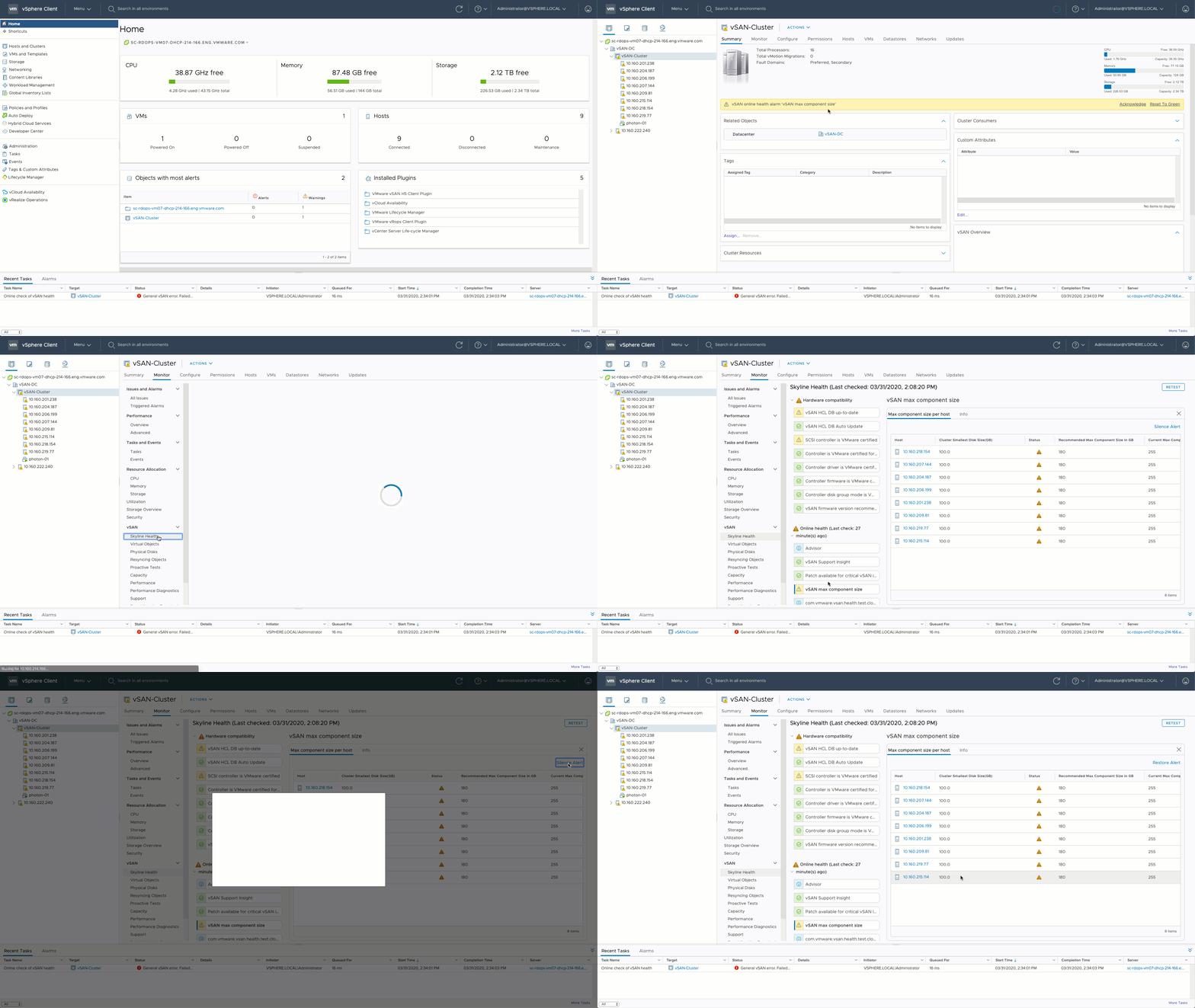
Note that you can now also disable health checks in the UI as shown in the GIF below. Click it to watch it!

Disk format change going from 6.x to vSAN 6.6?

Duncan Epping · Apr 20, 2017 ·

Internally I received a comment around the upgrade to 6.6 and the disk format version change. When you upgrade to 6.6 also the version of  disk changes, it goes to version 5. In the past with these on-disk format changes a data move was needed and the whole disk group would be reformat. When going from vSAN 6.2 (vSphere 6.0 U2 that is!) to vSAN 6.6 there is no data move needed. The update is simply a metadata update, and on the average cluster will take less than 20 minutes.

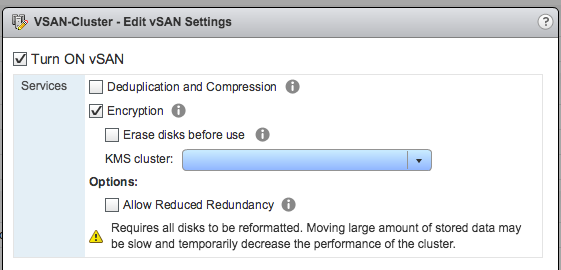
When introducing encryption in to the environment you will need to evac data though as this will be a reformat of the disk. Reason for it being is that the disk will need to be encrypted and so will the data. This doesn’t mean however that if you want to “rekey” your environment a full format and data move is needed, vSAN Encryption has the ability to do a so called “shallow rekey” which means that the Key Encryption Key (KEK) will be replaced (see animated gif below), but not the Data Encryption Key (DEK). It is possible to do a deep rekey, but this will mean a full reformat and data evac of all disk groups. I hope that clears things up.

  • « Go to Previous Page
  • Page 1
  • Interim pages omitted …
  • Page 88
  • Page 89
  • Page 90
  • Page 91
  • Page 92
  • Interim pages omitted …
  • Page 497
  • Go to Next Page »

Primary Sidebar

About the Author

Duncan Epping is a Chief Technologist and Distinguished Engineering Architect at Broadcom. Besides writing on Yellow-Bricks, Duncan is the co-author of the vSAN Deep Dive and the vSphere Clustering Deep Dive book series. Duncan is also the host of the Unexplored Territory Podcast.

Follow Us

  • X
  • Spotify
  • RSS Feed
  • LinkedIn

Recommended Book(s)

Also visit!

For the Dutch-speaking audience, make sure to visit RunNerd.nl to follow my running adventure, read shoe/gear/race reviews, and more!

Do you like Hardcore-Punk music? Follow my Spotify Playlist!

Do you like 80s music? I got you covered!

Copyright Yellow-Bricks.com © 2026 · Log in